Unlock the power of XLOOKUP, the revolutionary new lookup function in Excel that surpasses the limitations of its predecessor, VLOOKUP. This comprehensive guide provides a step-by-step exploration of XLOOKUP, from its fundamental principles to advanced techniques, error handling, and practical applications. Learn how to leverage XLOOKUP’s versatility to streamline your data processing tasks, enhancing accuracy and efficiency in a wide range of scenarios, from financial analysis to inventory management.
This guide delves into the intricacies of XLOOKUP, equipping you with the knowledge to confidently use this powerful function. It covers everything from basic syntax and usage to advanced techniques, such as using multiple criteria, approximate matches, and wildcard characters. We will also examine error handling, practical applications, compatibility across various Excel versions, and visualizing the data retrieved using XLOOKUP.
Introduction to XLOOKUP
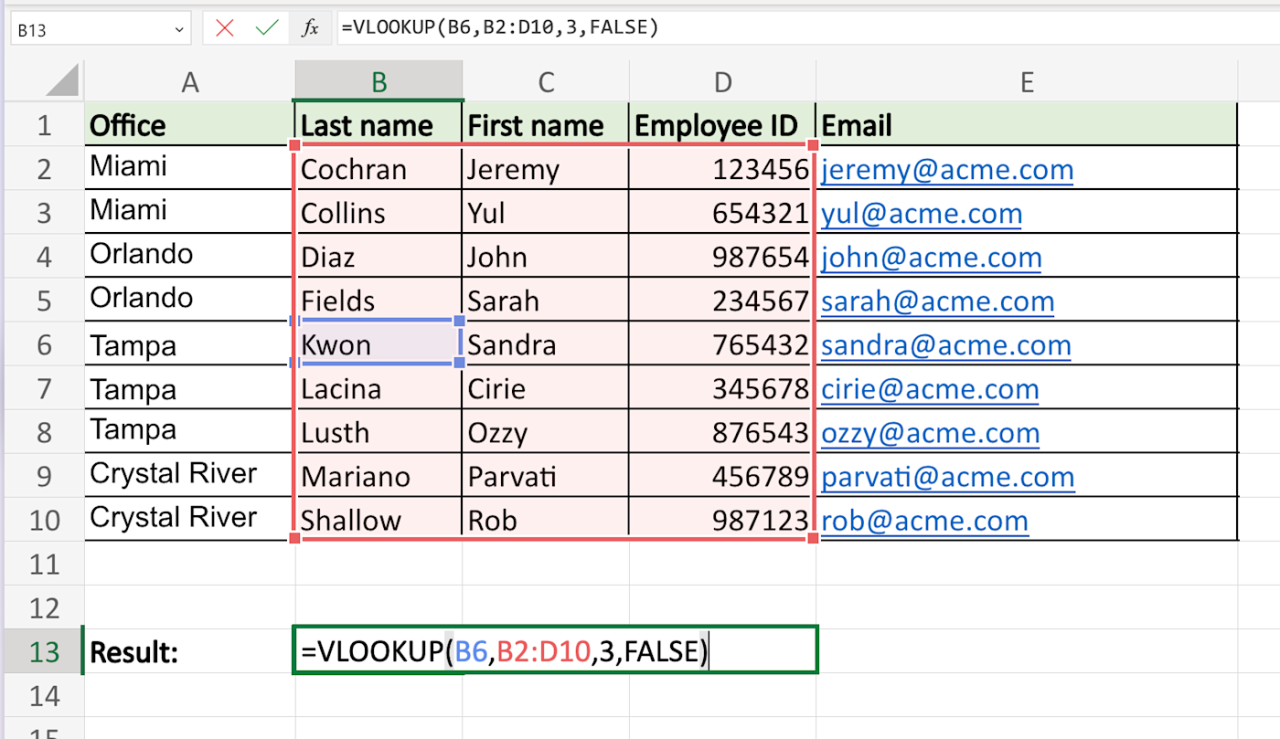
XLOOKUP is a powerful new function in Microsoft Excel and Google Sheets designed to streamline data retrieval. It offers a more versatile and efficient approach to lookups compared to the older VLOOKUP function. XLOOKUP excels at finding specific values in a table, handling various scenarios with greater flexibility and ease.XLOOKUP significantly simplifies the process of searching for data by allowing you to specify the lookup value, the lookup array, and the return array.
It also handles approximate matches, and returns the correct value, even when the exact match is not found, making it a more robust solution.
Basic Syntax
Understanding the structure of XLOOKUP formulas is key to effective usage. The core syntax consists of required and optional arguments.
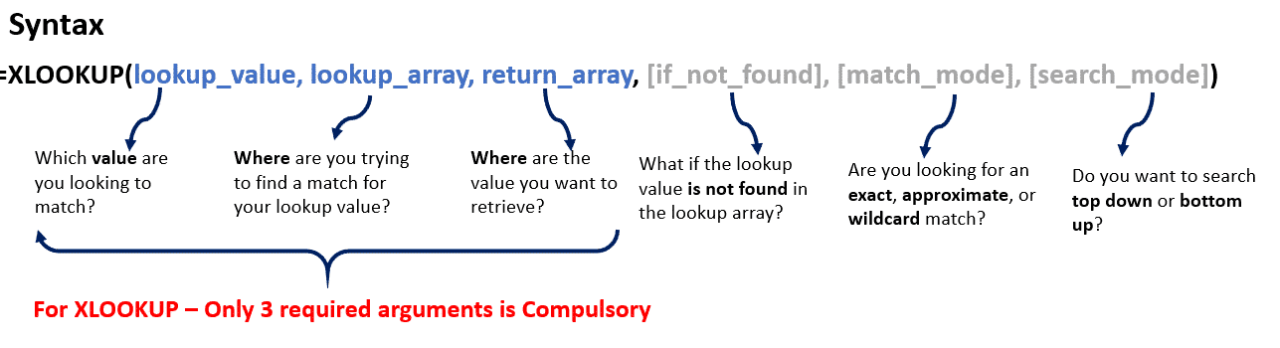
XLOOKUP(lookup_value, lookup_array, return_array, [match_mode], [search_mode])
The required arguments are:
- lookup_value: The value you want to find in the lookup array.
- lookup_array: The range of cells containing the values to search.
- return_array: The range of cells containing the values to return if the lookup value is found.
The optional arguments are:
- match_mode: (Optional) Specifies whether to perform an exact or approximate match. The default is 0 for an exact match.
- search_mode: (Optional) Specifies whether to search from the beginning or the end of the lookup array. The default is 1, searching from the beginning.
Simple Examples
Let’s illustrate XLOOKUP with some simple examples. These examples focus on finding specific values within a table.
- Example 1: Exact Match
- Finding the price of a product given its name. In this example, the name is the lookup value and the price is the value returned.
| Product | Price |
|---|---|
| Laptop | 1200 |
| Tablet | 300 |
| Mouse | 25 |
=XLOOKUP(“Laptop”,A1:A3,B1:B3)
This formula will return the price of the “Laptop”, which is 1200.
- Example 2: Approximate Match
- Finding the price range of a product within a price range table. This is a more advanced example demonstrating the approximate match functionality. The lookup value is the price, and the return value is the price range.
| Price | Price Range |
|---|---|
| 0 | 0-100 |
| 100 | 100-200 |
| 200 | 200-300 |
=XLOOKUP(150,A1:A3,B1:B3,0)
This formula will return the price range associated with the price of 150, which is 100-200. Note that 0 is used for an exact match, and 1 for approximate match.
Advanced XLOOKUP Techniques
XLOOKUP, a powerful function in Excel, offers a wide array of advanced capabilities beyond its basic use cases. This section delves into more intricate applications, demonstrating how to leverage multiple criteria, approximate matches, wildcards, and returning data from different columns. Mastering these techniques will significantly enhance your data analysis capabilities.
Using XLOOKUP with Multiple Criteria
XLOOKUP excels at handling data with multiple conditions. This capability significantly expands its application beyond single-condition lookups. Using multiple criteria involves specifying conditions that must be met simultaneously to retrieve the desired result. This is accomplished by incorporating the criteria in the lookup_array and the match_mode arguments.
- To retrieve data based on multiple criteria, you can combine the criteria using logical operators like AND within the lookup_array. For example, if you need to find the sales figure for a specific product and region, you would create a lookup_array that combines these conditions.
- A practical example would be to search for a product’s sales in a specific region. The lookup_array would incorporate both product and region identifiers. The return value would be the corresponding sales figure.
Using XLOOKUP with Approximate Matches
XLOOKUP provides the option for approximate matches, making it adaptable to datasets with numerical or sorted textual data. This feature is particularly useful when dealing with values that may not be precisely present in the lookup_array. The function will return the closest matching value.
- Using approximate matches is advantageous when the lookup_array isn’t an exhaustive list or when dealing with numerical data where exact matches are not possible.
- In the context of a sales dataset, this technique can be employed to determine the sales figure for a product that falls within a specific price range, thereby finding the closest price value.
Using XLOOKUP with Wildcard Characters
Wildcard characters, such as the asterisk (*) and the question mark (?), are valuable for flexible matching in XLOOKUP. These characters allow you to perform partial matching, thereby adapting to datasets with varying formats or incomplete information.
- Wildcard characters can be integrated into the lookup_value to accommodate variations in data entries, such as partial product names or variations in date formats.
- For example, if you need to retrieve all sales figures for products starting with the letters “A,” you could use the wildcard “*” in the lookup_value to match any characters after “A.”
XLOOKUP with Multiple Criteria and Approximate Matches
The following table demonstrates how XLOOKUP can be used with multiple criteria and approximate matches.
| Product | Region | Price | Sales |
|---|---|---|---|
| Laptop | North | 1200 | 10000 |
| Laptop | South | 1100 | 9000 |
| Tablet | North | 500 | 8000 |
| Tablet | South | 450 | 7000 |
XLOOKUP(“Laptop”,A1:A4,B1:B4,C1:C4,D1:D4)
This example finds the sales figure for a product matching “Laptop” in the “North” region. The approximate match would be useful if a price range was specified.
Returning Values from Different Columns
XLOOKUP enables you to extract data from different columns in the lookup_array. This versatility empowers you to retrieve information beyond the primary lookup target. This is crucial for pulling various attributes associated with a particular item.
- For example, if you want to retrieve the product’s price and sales figures for a given product name, you can specify the corresponding columns in the lookup_array.
- This functionality simplifies the process of extracting related data from a single lookup.
Comparing XLOOKUP with Other Excel Lookup Functions
XLOOKUP’s capabilities provide an alternative to other lookup functions like INDEX/MATCH. While INDEX/MATCH is powerful, XLOOKUP offers a more concise and straightforward approach, especially for simple lookups.
- XLOOKUP is generally preferred for its user-friendly syntax and ease of use in scenarios involving multiple criteria, approximate matches, or wildcards.
- INDEX/MATCH can be more complex to implement in situations with advanced matching criteria.
Error Handling in XLOOKUP
XLOOKUP, while a powerful tool, can encounter errors if the data it’s processing isn’t formatted correctly or if the lookup criteria aren’t precise. Understanding these potential issues and how to address them is crucial for successful data analysis. Robust error handling ensures your XLOOKUP formulas deliver accurate results consistently, even in less-than-ideal situations.
Common XLOOKUP Errors
XLOOKUP can encounter various errors, such as #N/A, #VALUE!, or #REF!, which can disrupt the flow of your spreadsheet calculations. These errors often stem from inconsistencies in the data or incorrect formula usage. Understanding these errors allows for more precise data handling and proactive error prevention.
Using the Optional Error Handling Argument
XLOOKUP offers a powerful optional argument for error handling. This argument allows you to specify a value to return if an error occurs during the lookup process. This proactive approach ensures your spreadsheet continues to function smoothly, even when unexpected data is encountered.
=XLOOKUP(lookup_value, lookup_array, return_array, [if_not_found], [if_error])
The `[if_error]` argument allows you to provide a custom value that will be returned if XLOOKUP encounters an error. This is a crucial feature for creating more resilient formulas.
Illustrative Error Scenarios and Solutions
The following table demonstrates various error scenarios and corresponding solutions using the `if_error` argument in XLOOKUP:
| Error Scenario | XLOOKUP Formula | Result (if error) |
|---|---|---|
| Lookup value not found | =XLOOKUP(“Apple”,A1:A10,B1:B10,”Not Found”) | “Not Found” (if Apple is not in A1:A10) |
| Lookup value is text, but lookup array is numeric | =XLOOKUP(“10″,A1:A10,B1:B10,”Not Found”,, “Invalid Lookup”) | “Invalid Lookup” (if a text value is looked up in a numeric array) |
| Mismatch in data types (e.g., trying to look up text in a date column) | =XLOOKUP(“10″,A1:A10,B1:B10,”Not Found”,, “Data Type Mismatch”) | “Data Type Mismatch” (if an incorrect data type is used in lookup) |
| Lookup array contains errors (e.g., #N/A) | =XLOOKUP(1,A1:A10,B1:B10,”Not Found”,, “Data Error”) | “Data Error” (if there is an error in the lookup array) |
Avoiding Common Pitfalls in XLOOKUP Usage
Careful data preparation is essential for preventing errors. Ensure data types in the lookup array and return array are consistent. Check for missing values, and ensure the lookup value accurately matches values in the lookup array. Using the `if_error` argument allows you to anticipate and handle various error scenarios, thereby preventing your spreadsheet from crashing.
Handling Missing Data in XLOOKUP
Missing data in lookup arrays can lead to errors in XLOOKUP. The `if_not_found` argument in XLOOKUP is designed for precisely this situation. It allows you to specify a value to return if the lookup value isn’t found in the lookup array. This strategy ensures that your spreadsheet functions without disruption even with incomplete data.
Practical Applications of XLOOKUP

XLOOKUP, a powerful function in spreadsheet software like Microsoft Excel and Google Sheets, transcends the limitations of its predecessor, VLOOKUP. Its versatility and enhanced capabilities make it a valuable tool in diverse professional settings, from financial analysis to inventory management. This section delves into the real-world applications of XLOOKUP, highlighting its efficiency and accuracy improvements.XLOOKUP’s ability to search for values in a range or array, and return corresponding values from another range, streamlines data processing.
This function simplifies tasks that were previously cumbersome and time-consuming, particularly in larger datasets. By eliminating the need for complex formulas or manual data entry, XLOOKUP saves time and effort, while ensuring greater accuracy and consistency.
Real-World Use Cases
XLOOKUP shines in numerous practical applications. Its ability to efficiently find and retrieve data makes it indispensable in various sectors. The table below illustrates some key use cases.
| Use Case | Description | Example |
|---|---|---|
| Financial Analysis | Finding stock prices, calculating returns, or analyzing financial data based on company names, dates, or other criteria. | Looking up the closing price of a specific stock on a given date in a historical stock price dataset. |
| Inventory Management | Locating product information, calculating quantities, or tracking stock levels based on product codes or descriptions. | Retrieving the quantity of a particular product in stock based on its SKU number. |
| Data Analysis | Extracting specific data points from various sources, performing calculations, or generating reports based on predefined criteria. | Extracting customer demographics (e.g., age, location) for a particular sales campaign based on customer ID. |
| Customer Relationship Management (CRM) | Retrieving customer details, sales history, or support tickets based on customer IDs, names, or other identifying information. | Finding customer contact information, order history, or support ticket details for a specific customer. |
Streamlining Data Processing
XLOOKUP’s ability to handle large datasets efficiently is a significant advantage. Instead of nested formulas or complicated VBA code, a single XLOOKUP function can often achieve the same result, simplifying formulas and reducing the potential for errors. Its adaptability to different data formats further enhances its utility in diverse scenarios.
Tips and Tricks for Efficient Use
Using XLOOKUP effectively can be further enhanced with several strategies. Here are some helpful tips and tricks:
- Precise Matching: Use the exact match option for situations where you need to retrieve a specific corresponding value. For instance, retrieving a customer’s address based on their unique customer ID. This approach ensures the correct and consistent information is retrieved.
- Approximate Matching: Utilize approximate matching when you need to retrieve values that are close to the specified value, but not necessarily exact. For example, finding the closest sales figure to a specific target. This is valuable when dealing with numerical data or dates that may not be perfectly precise.
- Handling Errors: Employ the optional error handling arguments to prevent the formula from returning an error if the searched value is not found. This approach is essential to maintain data integrity and prevent disruptions in downstream calculations or reports. A typical scenario involves avoiding errors when retrieving information about a non-existent product from an inventory list.
- Dynamic Ranges: Use dynamic ranges to make your XLOOKUP formulas adaptable to changing data sets. This method is crucial when the data source changes or expands. A sales report example demonstrates this flexibility, as the data may be updated frequently.
Improving Data Accuracy and Consistency
XLOOKUP significantly improves data accuracy and consistency by reducing the potential for human errors associated with manual data entry or complex formulas. Its precise matching and error handling options help prevent inconsistencies and ensure that the correct data is retrieved every time. This feature enhances the reliability of data-driven decisions and reports. By automating data retrieval, XLOOKUP mitigates the risk of errors and inconsistencies, which are common in manual processes.
XLOOKUP in Different Versions of Excel
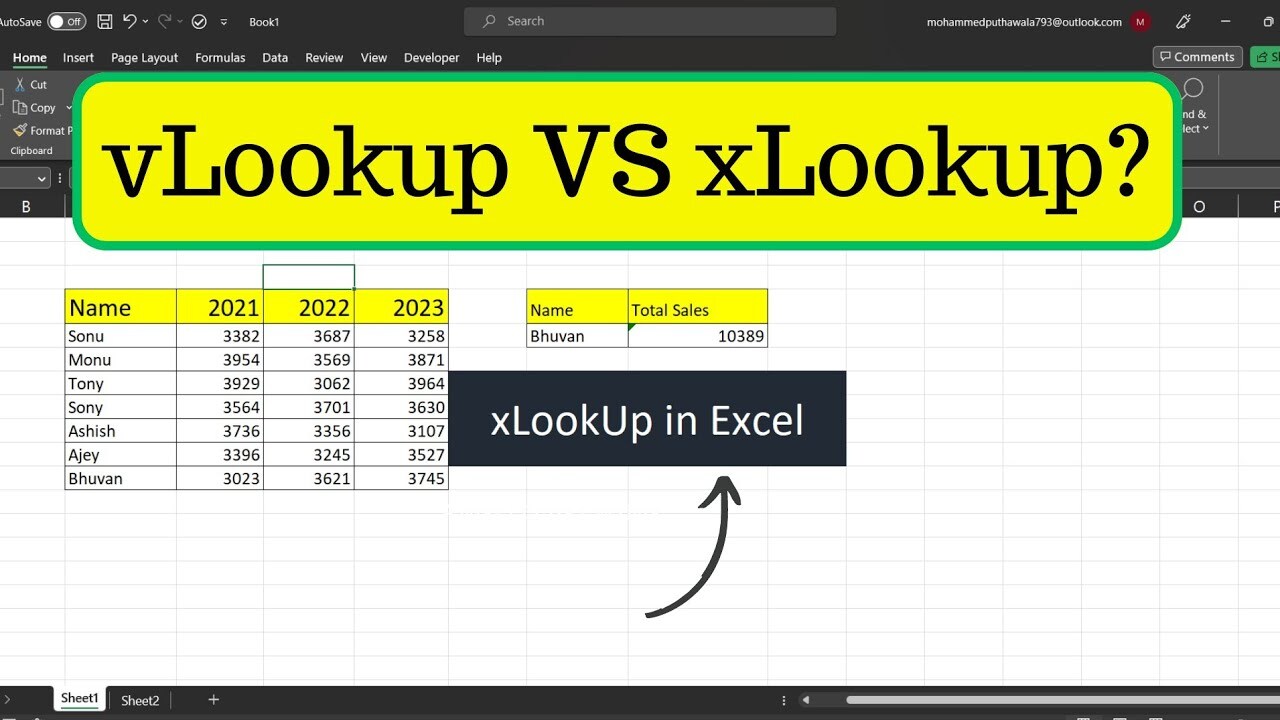
The XLOOKUP function, a powerful tool for data retrieval, has significantly improved spreadsheet functionality. Its introduction in Excel marked a substantial advancement over its predecessor, VLOOKUP, enhancing flexibility and efficiency. Understanding its compatibility across different Excel versions is crucial for users working with diverse software environments.XLOOKUP’s implementation varies subtly across Excel versions, primarily concerning the availability of specific features.
While the core functionality remains consistent, variations may arise in terms of supporting additional arguments or the handling of specific error scenarios. These variations are often minor and typically do not significantly impede the overall use of the function. Compatibility is generally excellent, but it’s important to be aware of potential nuances.
XLOOKUP Compatibility Across Excel Versions
XLOOKUP is a relatively recent addition to Excel, introduced in Excel 2019 and later versions. Prior versions of Excel, such as Excel 2016 and earlier, do not support XLOOKUP directly. Users in these environments will need to use a compatible alternative or upgrade their Excel installation. This consideration is important for businesses or individuals working with older spreadsheet applications.
Variations in Functionality
While the fundamental principles of XLOOKUP remain consistent, there are subtle variations in the specific implementations of the function. These differences are typically focused on optional arguments that may not be supported in all Excel versions. For example, the use of the `if_not_found` argument for handling missing lookups might vary slightly in older Excel versions.
Comparison with Other Spreadsheet Programs
XLOOKUP’s equivalent functions in other spreadsheet programs vary considerably. For example, Google Sheets has a similar function called `XLOOKUP` but with some key differences in syntax and functionalities. Other programs may offer comparable tools, but the specifics might differ in terms of the arguments accepted or the error handling mechanisms. Therefore, it is important to consult the specific documentation for the spreadsheet program in use.
Features Unique to Specific Excel Versions
New Excel versions might incorporate improvements in XLOOKUP’s efficiency or introduce optional arguments that are not available in older versions. These features are often related to performance enhancements or added flexibility. For instance, new Excel versions might have improved handling of large datasets or added support for more complex search criteria. Staying updated on the latest Excel versions can provide access to these enhancements.
Visualizing XLOOKUP Data
Visualizing data retrieved using XLOOKUP enhances understanding and facilitates better decision-making. Presenting XLOOKUP results in a clear and concise manner through charts and graphs allows for quick identification of trends, patterns, and outliers. This section details effective visualization techniques, including the use of pivot tables to further analyze and summarize XLOOKUP output.Data visualization is crucial for interpreting XLOOKUP results effectively.
Charts and graphs offer a visual representation of the data, making it easier to spot trends, patterns, and potential issues. This is particularly useful when dealing with large datasets.
Charting XLOOKUP Results
Visualizing XLOOKUP data often involves creating charts. Choosing the appropriate chart type depends on the nature of the data and the insights you wish to extract.
- Bar charts are ideal for comparing values across different categories. For instance, if XLOOKUP retrieves sales figures for various products, a bar chart can effectively illustrate sales performance for each product. The x-axis would represent the product categories, and the y-axis would represent the corresponding sales values.
- Line charts are useful for tracking trends over time. If XLOOKUP returns sales data over a period of months, a line chart can clearly depict the sales growth or decline. The x-axis would represent time (e.g., months), and the y-axis would represent sales values.
- Pie charts are suitable for showcasing proportions within a whole. If XLOOKUP is used to determine the market share of different products, a pie chart can visually represent the percentage contribution of each product to the overall market.
- Scatter plots can illustrate relationships between two variables. If XLOOKUP provides data on customer age and spending habits, a scatter plot can reveal correlations between these factors. The x-axis could represent age, and the y-axis could represent spending amounts.
Using Pivot Tables with XLOOKUP
Pivot tables offer a powerful way to summarize and analyze data retrieved by XLOOKUP. They enable aggregation, filtering, and sorting of data, providing deeper insights beyond basic charts.
- Pivot tables allow you to group data by specific criteria. For example, you can group sales figures by region or product type to understand regional performance or product-specific trends.
- They facilitate calculations such as sums, averages, and counts. This can be helpful in obtaining aggregate metrics like total sales, average order value, or the count of customers in specific regions, derived from the XLOOKUP results.
- Pivot tables provide a flexible way to filter and sort data. For instance, you can filter sales data by specific time periods or customer segments, offering targeted analysis using XLOOKUP.
Example of XLOOKUP Results Visualization
Imagine you’re analyzing sales data for different product categories. XLOOKUP is used to retrieve the total sales for each category. The following table showcases the results, which could then be visualized with a bar chart.
| Product Category | Total Sales |
|---|---|
| Electronics | $15,000 |
| Clothing | $12,000 |
| Books | $8,000 |
| Furniture | $10,000 |
A bar chart visualizing this data would have “Product Category” on the x-axis and “Total Sales” on the y-axis, with bars representing the sales figures for each category. This visual representation quickly highlights the highest-performing and lowest-performing categories, enabling better business decisions.
Wrap-Up

In conclusion, this guide has provided a thorough examination of XLOOKUP, a superior alternative to VLOOKUP. From mastering the fundamentals to exploring advanced techniques, error handling, and practical applications, you now possess the tools to confidently navigate data analysis tasks with XLOOKUP. This powerful function is poised to significantly enhance your data processing efficiency, accuracy, and consistency across diverse scenarios.
By understanding the intricacies of XLOOKUP, you are well-equipped to unlock the full potential of your data.