Unlock the power of VLOOKUP, a fundamental spreadsheet function for efficient data retrieval. This comprehensive guide provides a step-by-step approach to mastering VLOOKUP, from basic usage to advanced techniques and real-world applications. We will delve into the core concepts, detailed examples, and troubleshooting strategies to ensure a deep understanding of this essential tool.
This guide meticulously explains the syntax, arguments, and various scenarios where VLOOKUP excels. Whether you’re a novice or an experienced user, you’ll find valuable insights and practical examples to enhance your data analysis skills. We will explore how to use VLOOKUP effectively to find specific data points within a table, retrieve information from different columns, and handle potential errors.
Introduction to VLOOKUP
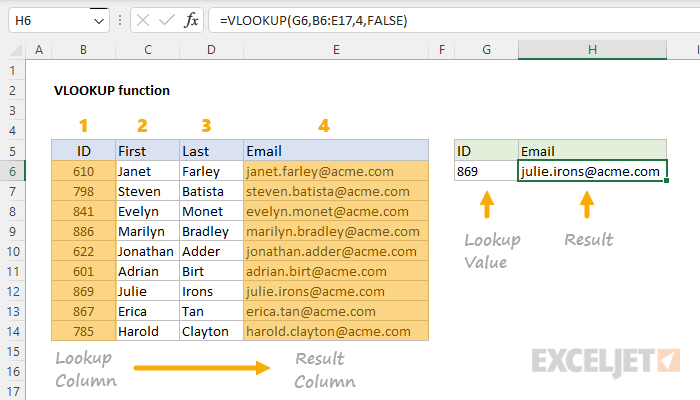
VLOOKUP is a powerful function in spreadsheet software, primarily used to retrieve data from a table based on a specific value in another cell. It efficiently searches for matching values in a designated column of a table and returns a corresponding value from another column within the same table. This process is crucial for quickly extracting information related to a given input, streamlining data analysis and report generation.VLOOKUP works by matching a lookup value (the input) to a specific column in a table array (a range of cells containing the data).
It then returns a value from a designated column within that same table array. This streamlined approach makes it a valuable tool for looking up data based on related information, significantly improving the efficiency of data management in spreadsheet applications.
VLOOKUP Function: Core Concepts
The core concepts behind VLOOKUP are straightforward. A lookup value is the specific data point you want to use to find related information. The table array is the range of cells containing the data you want to search through. Crucially, the return column is the column in the table array from which you want the matching data retrieved.
Illustrative Example
Consider a spreadsheet containing customer data:
| Customer ID | Name | City | State |
|---|---|---|---|
| 101 | Alice Johnson | New York | NY |
| 102 | Bob Williams | Los Angeles | CA |
| 103 | Charlie Brown | Chicago | IL |
In this example, “Customer ID” is the lookup value. The entire table is the table array. If we want to find the city of a customer given their ID, the “City” column would be the return column.
VLOOKUP Syntax
The basic syntax of the VLOOKUP function is as follows:
=VLOOKUP(lookup_value, table_array, col_index_num, [range_lookup])
This formula searches for a lookup value within the first column of a table array and returns a value from a specified column (col_index_num) in the same row. The optional
range_lookup* argument controls whether an exact match or an approximate match is required.
Arguments in VLOOKUP
The VLOOKUP function takes four arguments:
| Argument | Description |
|---|---|
| lookup_value | The value you want to search for in the first column of the table array. |
| table_array | The range of cells containing the data to search through. |
| col_index_num | The column number in the table array from which to return a value. The first column is number 1. |
| [range_lookup] | An optional argument that specifies whether an exact or approximate match is required. TRUE (or omitted) finds an approximate match, while FALSE finds an exact match. |
Basic VLOOKUP Usage
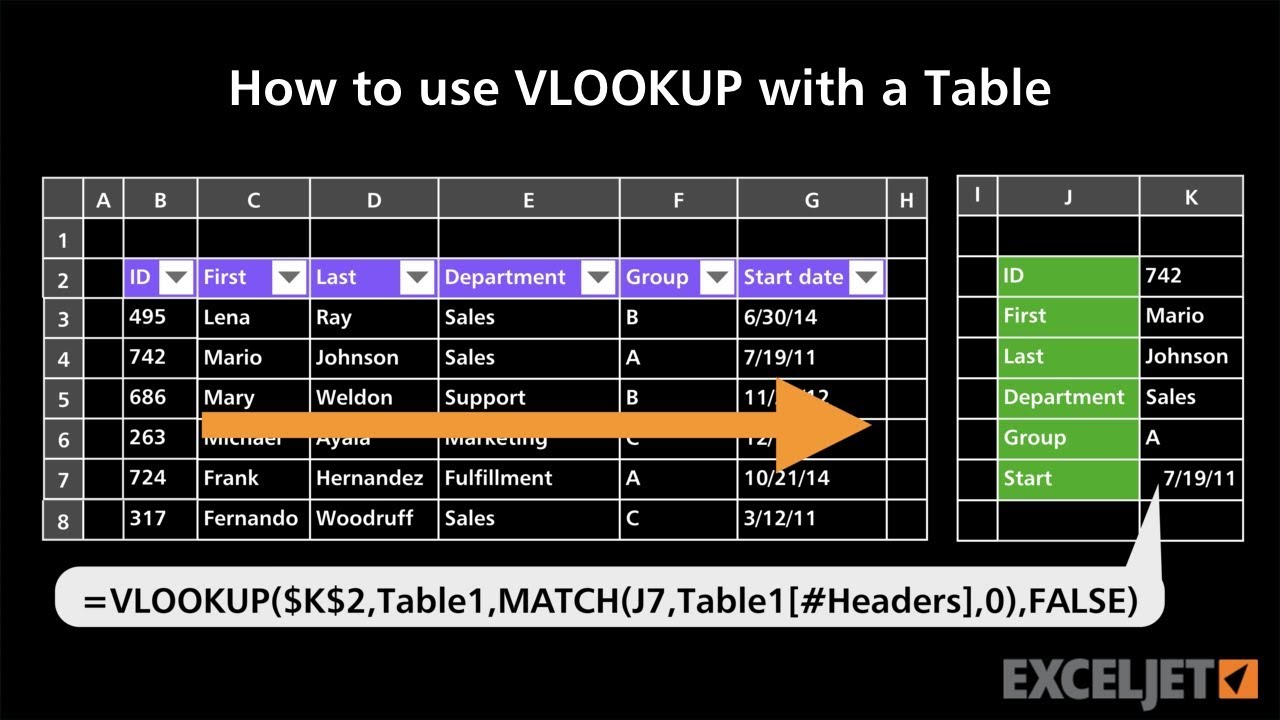
VLOOKUP is a powerful function in spreadsheets, particularly useful for retrieving specific data from a table based on a matching value. This section details the practical application of VLOOKUP, providing a step-by-step guide, examples, and insights into its diverse functionalities.
Identifying the Lookup Value
The lookup value is the specific piece of information you are using to find a corresponding entry within the table. For example, if you want to find the price of a product based on its name, the product name would be the lookup value. Carefully selecting the lookup value ensures accurate results.
Identifying the Table Array
The table array is the range of cells containing the data you wish to search. It must include the column containing the lookup value and the column(s) from which you want to retrieve data. Precise selection of the table array is crucial for correct data retrieval.
Specifying the Column Index Number
The column index number designates the column within the table array from which the desired result will be extracted. This number corresponds to the column’s position within the table, starting with 1 for the first column. Correctly specifying this number ensures that you retrieve the right data point.
Example: Product Price Lookup
The following example demonstrates how to use VLOOKUP to find the price of a product based on its name.
| Product Name | Product Category | Price | Quantity |
|---|---|---|---|
| Laptop | Electronics | 1200 | 10 |
| Mouse | Electronics | 25 | 50 |
| Keyboard | Electronics | 75 | 30 |
| Monitor | Electronics | 300 | 20 |
To find the price of a “Laptop”, the lookup value is “Laptop”. The table array encompasses the entire data set. The column index number for the price is 3 (since Price is the 3rd column in the table).
=VLOOKUP(“Laptop”,A1:D4,3,FALSE)
This formula searches for “Laptop” in column A (A1:A4), within the table array A1:D4, and retrieves the value from the 3rd column (Price). The `FALSE` ensures an exact match is required. The result would be 1200.
Retrieving Data from Other Columns
VLOOKUP can retrieve data from any column within the table array, not just the first. Simply adjust the column index number to reflect the desired column’s position. For instance, to get the product category of a “Mouse”, you would use a similar formula but change the column index number to 2.
Advanced VLOOKUP Techniques
VLOOKUP, while a powerful tool for retrieving data, offers several advanced features that enhance its versatility and accuracy. Mastering these techniques will enable more efficient and reliable data extraction from your spreadsheets. Understanding approximate matches, handling errors, and comparing VLOOKUP with other functions are crucial for optimal spreadsheet management.VLOOKUP, in its basic form, finds exact matches. However, situations arise where an exact match is not available or desired.
This section explores these advanced techniques to unlock the full potential of VLOOKUP, enabling you to adapt it to various data scenarios.
Approximate Matches
VLOOKUP can also be used to find approximate matches. This is especially useful when dealing with ranges of values, or when you need a close match rather than an exact one. To achieve this, you use the `TRUE` argument instead of `FALSE` in the function. This approach is suitable for situations where the lookup value isn’t precisely present in the lookup table, but a closely matching value exists.
The function will return the value corresponding to the closest match, or the value in the first row above the lookup value if an exact match isn’t found.
Exact Matches with the “FALSE” Argument
The `FALSE` argument in VLOOKUP ensures an exact match is required for the lookup. This is essential when precision is critical, such as when identifying specific records with unique identifiers. If no exact match is found, the function returns an error (#N/A).
Handling Potential Errors
VLOOKUP can return the #N/A error if the lookup value isn’t found in the lookup table. Various strategies can mitigate these errors. Using the `IFERROR` function in conjunction with VLOOKUP allows you to handle these errors gracefully, providing an alternative result or message. This approach ensures the spreadsheet’s functionality isn’t disrupted by unexpected errors. For example, `=IFERROR(VLOOKUP(A2,B:C,2,FALSE),”Not Found”)` will return “Not Found” if the value in cell A2 is not found in column B.
Avoiding Common Pitfalls
One common pitfall is mismatching data types. Ensuring that the lookup value and the lookup table column match in terms of data type (e.g., both numbers or both text) is crucial. Another pitfall is using incorrect ranges for the lookup table. Double-checking the column indices for the desired data within the lookup table prevents unintended results. Additionally, ensure the lookup table is sorted in ascending order for the first column if using approximate matches.
Comparing VLOOKUP with Other Lookup Functions
While VLOOKUP is versatile, other lookup functions like `INDEX` and `MATCH` offer alternative approaches. `INDEX` and `MATCH` provide more flexibility in terms of how you specify the range and the lookup value. `MATCH` returns the position of the match, enabling you to retrieve data from multiple columns. The choice of function depends on the specific needs of your data retrieval task.
`INDEX` retrieves a value from a specific cell based on row and column indices, offering granular control.
Summary Table
| Argument | Function | Example |
|---|---|---|
| Lookup_value | Value to search for in the first column of the table array. | `A2` (cell containing the value to search for) |
| Table_array | The range of cells containing the data to search within. | `B:C` (range of cells where the search will take place) |
| Col_index_num | The column number in the table array from which to return a value. | `2` (the second column of the table array) |
| Range_lookup | TRUE for approximate match, FALSE for exact match. | `TRUE` or `FALSE` |
Real-World Applications
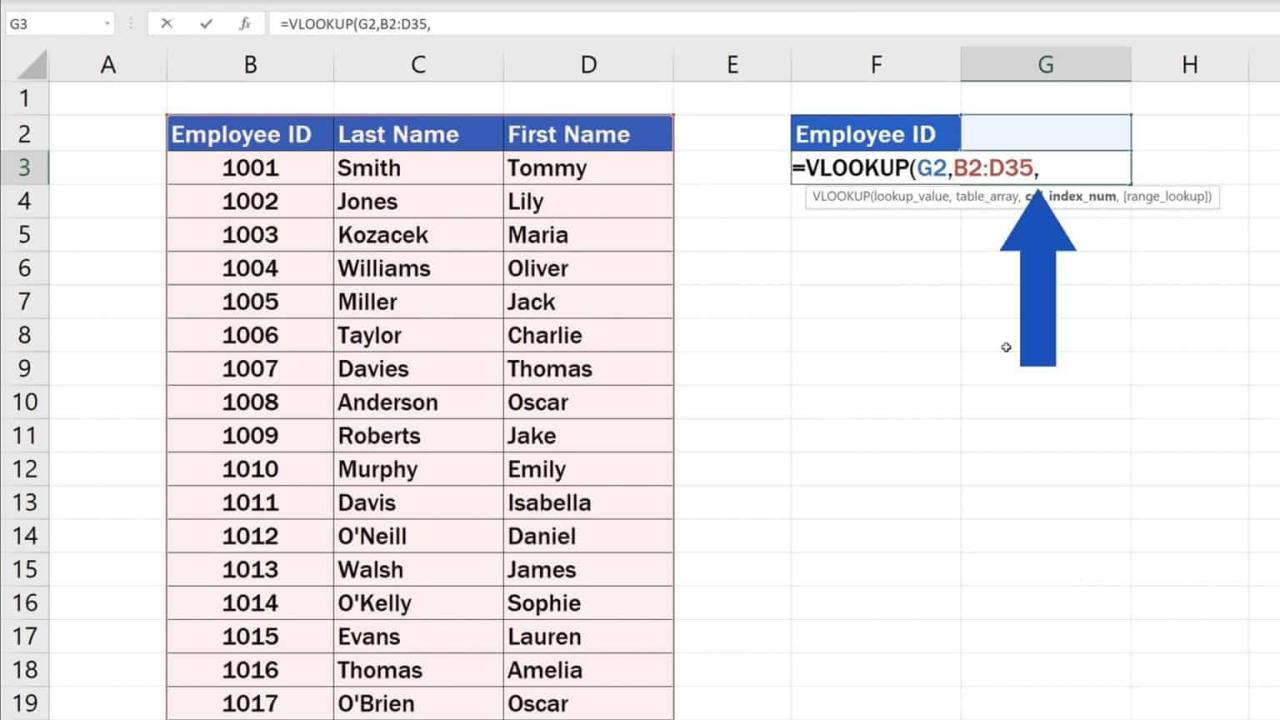
VLOOKUP is a powerful tool with diverse applications beyond basic data retrieval. Its ability to efficiently link data across spreadsheets makes it indispensable in numerous business settings. From streamlining inventory management to enhancing customer insights, VLOOKUP offers a practical solution for various data analysis tasks. This section will explore real-world scenarios where VLOOKUP shines, highlighting its usage in inventory management, customer data analysis, and data validation.Understanding how VLOOKUP can be applied in these contexts provides a deeper appreciation for its versatility and efficiency in practical business operations.
VLOOKUP in Inventory Management
Effective inventory management relies on readily accessible and accurate data. VLOOKUP can streamline this process by linking product information, such as cost, quantity, and supplier details, to a central inventory database. This allows for quick lookups and ensures consistent data across various departments. For instance, if a sales representative needs to quickly determine the cost of a specific product, VLOOKUP can instantly provide the necessary information, facilitating accurate pricing and order fulfillment.
VLOOKUP in Customer Data Analysis
VLOOKUP facilitates the extraction of specific customer information from a broader dataset. By linking customer IDs to detailed profiles, businesses can gain insights into purchasing patterns, preferences, and demographics. This information is invaluable for targeted marketing campaigns, personalized customer service, and improved business strategies. Effective customer relationship management (CRM) systems often rely on VLOOKUP to connect customer interactions with their profiles.
Customer Data Example
This example demonstrates how VLOOKUP can retrieve specific customer information.
| Customer ID | Customer Name | City | Order Value |
|---|---|---|---|
| 101 | Alice Johnson | New York | $150 |
| 102 | Bob Smith | Los Angeles | $200 |
| 103 | Charlie Brown | Chicago | $100 |
| 104 | David Lee | Houston | $250 |
To find the order value for customer with ID 102, VLOOKUP would be used referencing the “Customer ID” column as the lookup value, returning the value in the “Order Value” column.
VLOOKUP in Data Analysis Tasks
VLOOKUP’s application extends beyond simple lookups. It can be used in various data analysis tasks, including calculating sales figures, identifying trends, and generating reports. A well-structured spreadsheet with VLOOKUP formulas can provide valuable insights and support informed decision-making.
| Data Analysis Task | VLOOKUP Application |
|---|---|
| Calculating Total Sales | Linking sales records with product categories to sum sales for each category. |
| Identifying Customer Segments | Categorizing customers based on purchase history and demographics. |
| Generating Sales Reports | Extracting specific sales data for specific periods or product lines. |
VLOOKUP for Data Validation
VLOOKUP can be used to perform data validation by checking if a value exists in a lookup table. For example, if a user enters a product code, VLOOKUP can verify that the code is valid by searching for it in the product catalog. This helps maintain data integrity and ensures that only valid data is entered into the system.
This ensures that data entry is accurate and consistent, reducing errors and improving the overall efficiency of data management. Data validation with VLOOKUP safeguards against inconsistent or inaccurate data.
Troubleshooting VLOOKUP Issues
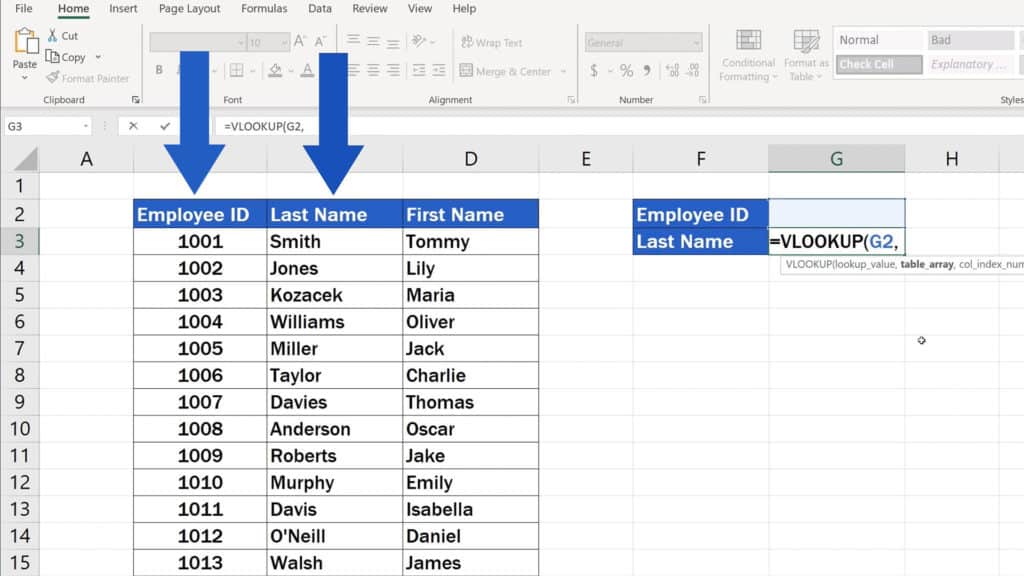
VLOOKUP, while a powerful tool, can sometimes produce unexpected results. Understanding potential errors and their solutions is crucial for accurate data analysis. This section will detail common VLOOKUP problems, providing solutions and techniques for error handling and debugging.Troubleshooting VLOOKUP issues involves identifying the root cause of discrepancies between expected and actual outputs. By understanding the function’s parameters and potential pitfalls, users can effectively address and resolve problems, ensuring reliable data retrieval.
Common VLOOKUP Errors and Causes
VLOOKUP’s behavior depends on the precise input values and data structure. Incorrect syntax, missing data, or unexpected data types can all lead to erroneous results. Careful attention to these details is essential for reliable use.
Incorrect Syntax
Misspelling or incorrect use of VLOOKUP parameters can lead to errors. The function requires specific arguments in a particular order.
- Ensure the lookup_value is correctly specified. The lookup_value should match the lookup column in the table_array.
- Verify the correct column index number is provided. This number represents the column in the table_array from which the desired data will be retrieved. Remember, the first column is numbered 1.
- Confirm the range_lookup parameter is correctly set. The use of TRUE or FALSE for this parameter determines whether an exact or approximate match is sought. Using FALSE for an approximate match will always return an error.
Missing Data or Inconsistent Data Types
Missing data in the lookup_value or table_array can cause errors.
- Missing values in the lookup column can result in a #N/A error.
- Empty cells or inconsistent data types in the table_array can lead to unexpected results or errors.
- Check for blanks or erroneous data types (e.g., text where a number is expected) in both the lookup_value and the table_array.
Inaccurate Results
VLOOKUP’s accuracy depends on the data’s structure.
- If the lookup_value is not found in the table_array, the function returns #N/A. If the value exists, but the lookup column is not sorted, it may not correctly retrieve the corresponding data.
- The lookup_column in the table_array should be sorted for accurate results. If the column is not sorted, the result might not correspond to the intended row. Using an exact match (FALSE) in this case is important to ensure the correct retrieval.
- Ensure the lookup_column in the table_array is properly formatted for the function’s interpretation.
Error Handling in VLOOKUP
Using error handling allows you to manage potential issues and display appropriate messages instead of errors.
- The `IFERROR` function is often used in conjunction with VLOOKUP to handle potential errors. This function returns a specified value if an error occurs.
- This example returns “Not Found” if the VLOOKUP function encounters an error.
=IFERROR(VLOOKUP(lookup_value, table_array, col_index_num, range_lookup), "Not Found")
Debugging VLOOKUP Formulas
Debugging VLOOKUP formulas helps pinpoint the source of errors.
- Carefully inspect the formula to identify any errors in syntax or parameter values.
- Use the formula evaluation feature in spreadsheet software to trace the steps of the formula, and observe the values of each parameter at each step.
- Validate data types in the lookup_value and the table_array. Ensure that data is formatted correctly.
Table of Common VLOOKUP Errors and Solutions
| Error | Cause | Solution |
|---|---|---|
| #N/A | Lookup value not found in the table_array | Use IFERROR to return a custom value or recheck the lookup value. Ensure the lookup_column is sorted if an approximate match is required. |
| #VALUE! | Incorrect data type in lookup_value or col_index_num | Verify that lookup_value and col_index_num are correctly formatted. Ensure that numbers are formatted as numbers, text as text, etc. |
| #REF! | Incorrect cell reference or range | Double-check cell references in the formula and verify the table_array range is valid. |
Alternatives to VLOOKUP
VLOOKUP, while a powerful tool for retrieving data from tables, isn’t always the optimal solution. Understanding alternative lookup functions can significantly improve spreadsheet efficiency and data handling. This section explores several alternatives, highlighting their strengths and weaknesses in comparison to VLOOKUP.Spreadsheet software offers a variety of lookup functions, each tailored for specific data retrieval tasks. By understanding these alternatives, users can select the most appropriate function for a given situation, ensuring accuracy and efficiency.
Other Lookup Functions
Several lookup functions in spreadsheet software offer alternatives to VLOOKUP, each with its own set of advantages and disadvantages. These functions provide diverse ways to locate and extract information, adapting to different data structures and requirements.
- HLOOKUP: This function searches for a value in the first row of a table and returns a value from a specified column. HLOOKUP is effective when the lookup value is located in the table’s first row. Its simplicity makes it suitable for straightforward horizontal lookups. However, its limited functionality restricts its application compared to VLOOKUP. It’s less flexible than VLOOKUP, which can search within any row or column.
- INDEX and MATCH: This combination is often considered a more versatile alternative to VLOOKUP. INDEX returns a value from a specific location in a range, while MATCH locates the position of a lookup value within a range. The combination allows for more complex searches and avoids the single-column constraint of VLOOKUP. This method is often preferred for its flexibility and potential for customization.
The syntax is generally considered more complex than VLOOKUP, demanding a greater understanding of the functions.
- XLOOKUP: Introduced in more recent spreadsheet versions, XLOOKUP offers a powerful and intuitive way to find values. It can search both horizontally and vertically, surpassing VLOOKUP’s limitations in this regard. It also supports wildcards and the ability to return an error message if a match isn’t found, which adds to its functionality. XLOOKUP is considered easier to use and more flexible than VLOOKUP in many situations.
- LOOKUP: This function searches for a value in a one-dimensional range or array. It is simplest to use when the lookup values are in a single row or column. Its limitation lies in its inability to handle multiple criteria and is less versatile than VLOOKUP or INDEX/MATCH. It may be appropriate for straightforward lookups.
Comparison Table
The following table summarizes the features and functionalities of VLOOKUP and other lookup functions:
| Function | Strengths | Weaknesses | Use Cases |
|---|---|---|---|
| VLOOKUP | Simple syntax, widely understood. Efficient for single-column lookups. | Limited to searching in the first column, only retrieves values from one column. | Basic data retrieval from a table where the lookup value is in the leftmost column, and the retrieved value is in a specific column. |
| HLOOKUP | Simple syntax for horizontal lookups. | Limited to searching in the first row, retrieving values from a single row. | Retrieving values from a table where the lookup value is in the first row. |
| INDEX & MATCH | Highly flexible, can handle complex criteria, supports multiple columns. | Requires understanding of both INDEX and MATCH functions. | Retrieving data from a table based on multiple criteria, or from any position in the table. |
| XLOOKUP | Versatile, searches horizontally and vertically, supports wildcards. | May not be available in all spreadsheet versions. | Finding values in any position within a table, handling complex criteria, or retrieving data from multiple columns. |
| LOOKUP | Simplest syntax for one-dimensional lookups. | Limited to one-dimensional ranges, no support for multiple criteria. | Basic lookups where the lookup value and retrieved value are in a single row or column. |
Choosing the Right Function
The optimal lookup function depends on the specific data requirements and structure. Consider these factors when selecting a function:
- Data structure: Is the lookup value in the first column or first row? Are multiple columns involved?
- Complexity of criteria: Does the lookup require multiple criteria or complex logic?
- Desired output: Which column or position in the table needs to be retrieved?
Epilogue
In conclusion, this guide has explored the multifaceted capabilities of VLOOKUP, from its basic functionality to advanced applications and error handling strategies. We have examined real-world scenarios, such as inventory management and customer data analysis, to demonstrate the practical value of this spreadsheet function. Mastering VLOOKUP will empower you to efficiently extract and analyze critical data, leading to more informed decisions and enhanced productivity.