Mastering the SUM function is crucial for anyone working with spreadsheets. This guide delves into the intricacies of using SUM, from basic applications to advanced techniques and error handling. Whether you’re a seasoned spreadsheet user or just starting out, this comprehensive resource will equip you with the knowledge to efficiently calculate totals and analyze data effectively.
From simple additions to complex calculations involving criteria and multiple ranges, this guide explores various scenarios. It will also help you understand the function’s performance characteristics and how to optimize your formulas for large datasets.
Introduction to the SUM Function
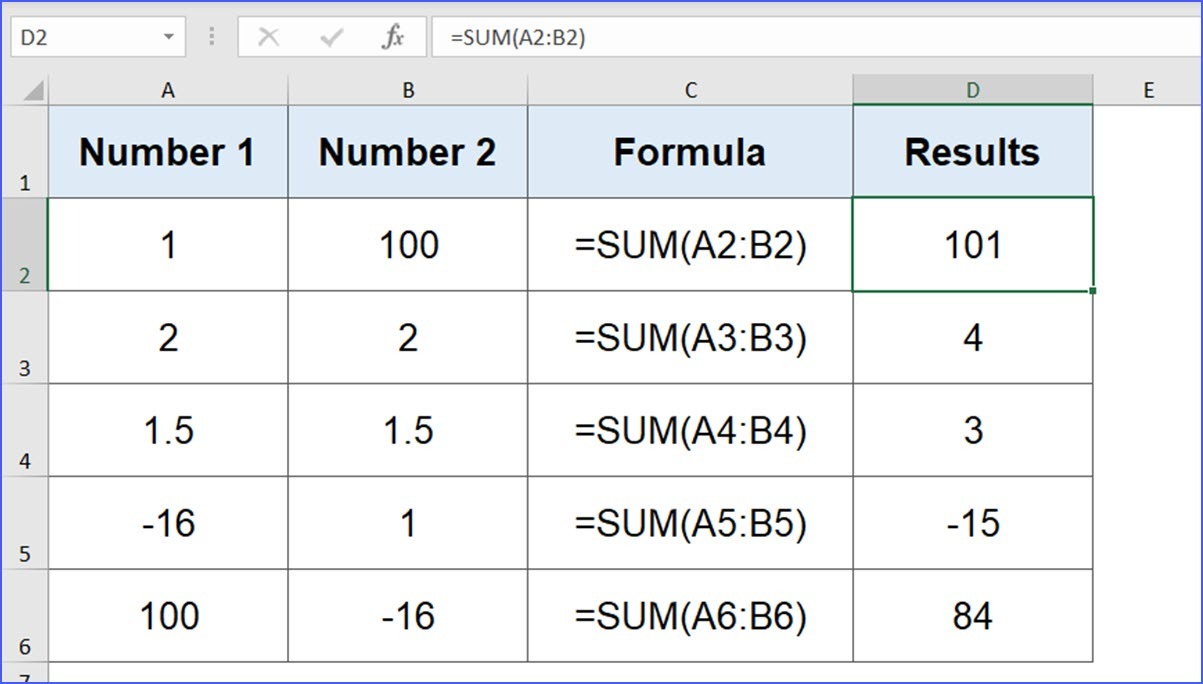
The SUM function in spreadsheets is a fundamental tool for performing calculations. It allows users to quickly and easily add a series of numbers together, providing a total. This is a crucial aspect of data analysis and reporting, enabling efficient summarization of numerical data.The SUM function is designed to simplify the process of calculating sums, eliminating the need for manual addition, thereby reducing errors and increasing the speed of calculation.
This automated approach is essential for handling large datasets, where manual calculations are impractical and prone to human error.
Basic Syntax
The SUM function’s syntax is straightforward. It takes one or more numerical arguments, which can be numbers, cell references, or ranges of cells. The function then returns the sum of these arguments.
SUM(number1, [number2], …)
This means the function starts with the “SUM”, followed by one or more arguments (separated by commas) representing the numbers or cell references to be added. The square brackets around “number2” indicate that it is optional, meaning you can sum multiple numbers or cells with a single function.
Example Usage
To illustrate, let’s add two numbers using the SUM function. If cell A1 contains the number 5 and cell A2 contains the number 10, the formula `=SUM(A1, A2)` will calculate the sum and display the result in the cell where the formula is entered.
| Input | Output |
|---|---|
| =SUM(5, 10) | 15 |
| =SUM(A1, A2) (where A1=5, A2=10) | 15 |
Data Types Accepted
The SUM function can accept various types of data, but it primarily operates on numerical values. It will ignore non-numeric values, such as text or dates, in the input range.
| Data Type | Handling |
|---|---|
| Numbers (integers, decimals) | Added directly |
| Cell References | Values in the referenced cells are added |
| Ranges of Cells | Values in the specified range are added |
| Text | Ignored |
| Dates | Dates are not added directly, but if formatted correctly, they might be included in calculations (e.g., date differences) |
Basic Usage and Examples
The SUM function in spreadsheets is a fundamental tool for calculating totals quickly and efficiently. Understanding its basic applications and diverse uses is crucial for effective data analysis and reporting. This section details the practical implementation of SUM, covering various scenarios and highlighting key considerations.This section will demonstrate how to use SUM to add ranges of cells, providing examples for summing numbers across different columns and rows.
We will also cover cases where cells contain text or errors, and how to add multiple ranges of cells using the SUM function. Lastly, we will explore the integration of named ranges with the SUM function.
Summing a Range of Cells
Summing a range of cells is a straightforward application of the SUM function. You specify the cells you want to add, and the function returns the total. For instance, to calculate the sum of cells A1 through A5, you would use the formula `=SUM(A1:A5)`. This tells the spreadsheet to add the values in cells A1, A2, A3, A4, and A5.
Summing Numbers in Different Columns and Rows
The SUM function is not limited to summing numbers in a single column or row. You can easily sum numbers across multiple columns and rows. For example, to calculate the total of values in cells B1, C1, and D1, use `=SUM(B1, C1, D1)`. Similarly, to sum values in a rectangular block of cells, specify the range as `=SUM(B1:D5)`.
This would sum the values in cells B1, B2, B3, B4, B5, C1, C2, C3, C4, C5, D1, D2, D3, D4, and D5.
Summing Cells with Text or Errors
The SUM function, by default, ignores cells containing text or errors. If a cell contains text, the function treats it as 0. If a cell contains an error, the function also treats it as 0. This behavior is important to understand, as it prevents errors in calculations when dealing with mixed data types in a spreadsheet.
Adding Multiple Ranges of Cells Using SUM
You can sum multiple ranges of cells by separating them with commas within the SUM function. For instance, `=SUM(A1:A5, B1:B5)` sums the values in cells A1 through A5 and B1 through B5. This approach is particularly useful for calculating totals across different data sets within a single spreadsheet.
Using SUM with Named Ranges
Named ranges provide a more descriptive and maintainable way to refer to specific cell ranges within a spreadsheet. You can define a name for a range, such as “SalesQ1,” and then use that name directly within the SUM function. For example, if you have a named range “SalesQ1” corresponding to cells B1:B10, the formula `=SUM(SalesQ1)` will calculate the sum of the values in that range.
This approach enhances readability and simplifies formulas, especially in complex spreadsheets.
Advanced Applications
The SUM function, while fundamental, gains significant power when combined with criteria and other functions. This section explores advanced techniques to extract precise totals from datasets, enabling users to analyze and interpret data with greater accuracy. These advanced applications will prove invaluable in diverse data analysis scenarios.
Using SUM with Criteria
To sum only specific values within a dataset, the SUM function can be combined with criteria. This approach allows users to focus on particular subsets of data, producing more targeted and meaningful results. For example, you might want to calculate the total sales for products priced above a certain threshold.
- Summing Values Above a Threshold: The following formula calculates the sum of values in column B that are greater than
10. The `(B1:B10 > 10)` part creates a logical array (TRUE/FALSE) indicating whether each value meets the criterion. The SUM function then considers only the values where the condition is TRUE. - Formula:
=SUM(IF(B1:B10>10,B1:B10,0))
Using SUMIF and SUMIFS
The SUMIF and SUMIFS functions offer more streamlined approaches to conditional summing. They are particularly beneficial when dealing with multiple criteria or more complex filtering requirements.
- SUMIF: The SUMIF function sums values in a range that meet a single criterion. This is suitable for situations requiring a single condition for filtering.
- SUMIFS: The SUMIFS function extends this by allowing multiple criteria, enabling users to apply multiple filters for more granular control over the data.
| Function | Description | Example |
|---|---|---|
| SUMIF | Sums values in a range that meet a single condition. | =SUMIF(A1:A10,">10",B1:B10) (Sums values in column B where corresponding values in column A are greater than 10) |
| SUMIFS | Sums values in a range based on multiple conditions. | =SUMIFS(C1:C10,A1:A10,">10",B1:B10,"Apple") (Sums values in column C where corresponding values in column A are greater than 10 and values in column B are “Apple”) |
Nested SUM Functions
Nested SUM functions enable complex calculations involving multiple conditional sums. This approach allows for intricate analysis of data subsets based on various criteria.
- Example of Nested SUM: Imagine a scenario where you need to sum sales for different product categories and then further categorize them by regions. A nested SUM formula would accomplish this, combining SUMIF functions for the individual criteria.
Using SUM with Array Formulas
Array formulas can be used with SUM to perform calculations across entire ranges, simplifying complex operations. They are powerful when dealing with multiple criteria simultaneously or when you need to perform calculations based on results of other functions.
- Calculating Totals Across Multiple Conditions: An array formula enables a more streamlined approach to complex sums across multiple conditions. For example, if you need to calculate the total sales for different product categories, an array formula can handle this directly.
- Formula:
=SUM((A1:A10>10)*(B1:B10))(Sums values in column B where corresponding values in column A are greater than 10)
Using SUMPRODUCT
The SUMPRODUCT function is highly useful for summing products of corresponding values in arrays. This is a powerful tool for calculating weighted averages, analyzing sales data, and handling complex calculations involving multiple arrays.
- Calculating Weighted Averages: The SUMPRODUCT function allows calculating weighted averages easily by multiplying corresponding values in arrays and summing the products.
- Example: Calculating the weighted average of product sales, where each product has a different weight or importance.
Handling Errors and Special Cases
The SUM function, while straightforward, can encounter unexpected results when dealing with non-numeric data or blank cells within the range. Understanding how SUM handles these situations is crucial for producing accurate totals. This section will detail how SUM manages these scenarios and provide methods for preventing errors.The SUM function is designed to calculate the sum of numeric values in a range.
However, if the range includes non-numeric data, SUM may return an error or an unexpected result. By understanding these nuances, users can confidently apply SUM in various spreadsheet scenarios.
Handling Blank Cells
SUM automatically ignores blank cells in a range. This is a helpful feature, as it prevents blank cells from affecting the total. The function calculates the sum of only the numeric values present in the range.
Handling Text Values and Errors
SUM treats text values and errors within the range as zero. This means if a cell contains text or an error, the cell’s value is treated as zero for the purposes of the SUM calculation.
Methods for Avoiding Errors
Several methods can help prevent errors when using SUM:
- Data Validation: Validating input data to ensure cells contain only numeric values is the most effective way to prevent errors. Spreadsheet software provides tools to enforce data types within cells, ensuring data integrity before the SUM function is applied.
- Using IF Statements: An IF statement can be used within the SUM function to filter out non-numeric values. This allows for conditional summation, preventing unexpected results caused by text or error values.
- Filtering the Data: Before applying SUM, filtering the data to exclude rows containing text or errors can streamline the process. This ensures the function only calculates the sum of the desired numeric values.
Error Scenarios and Results
The following table demonstrates various error scenarios and their corresponding results when used with the SUM function.
| Scenario | Formula | Result | Explanation |
|---|---|---|---|
| Blank Cells | =SUM(A1:A5) | 25 | If A1, A3, and A5 are blank, the function ignores these cells and sums only the numeric values in A2, A4. |
| Text Values | =SUM(A1:A5) | 10 | If A2 and A4 are “Text”, the function treats these as 0 and sums the remaining numeric values. |
| Error Values | =SUM(A1:A5) | #VALUE! | If A3 contains an error like #DIV/0!, the function returns an error. |
| Mixed Data Types | =SUM(A1:A5) | 15 | If A1=5, A2=”Text”, A3=10, A4=2, A5=error, function ignores text and error, and sums only numeric values. |
Preventing Errors in Complex SUM Formulas
In complex formulas involving multiple SUM functions or nested calculations, careful attention to data validation and error handling is crucial. Using intermediate calculations and error-checking steps can isolate the source of errors and improve formula reliability.
Example: If a SUM function is part of a larger formula, ensure that the range within the SUM function contains only valid numeric data. Use intermediate calculations to isolate the source of any error, enabling easier debugging and correction.
Real-World Applications

The SUM function, while seemingly simple, plays a crucial role in diverse applications across various fields. Its ability to quickly calculate totals is invaluable for tasks ranging from personal budgeting to complex business analyses. This section explores the practical applications of the SUM function, highlighting its use in financial calculations, data analysis, chart creation, and business reporting.
Financial Calculations
The SUM function is fundamental for financial tasks. It allows for easy calculation of total income, expenses, and profits. For instance, a business owner can use SUM to calculate the total revenue generated from different product lines, allowing for a quick overview of performance. Accurate financial reporting depends heavily on the precise calculation of sums.
- Calculating Total Revenue: A retail store can use SUM to calculate the total revenue generated from sales of various products over a specific period. This data is critical for assessing the store’s overall performance and identifying trends.
- Calculating Total Expenses: Businesses can employ SUM to sum up expenses across different departments or categories, providing insights into cost structures and areas for potential savings.
- Calculating Net Profit: By subtracting total expenses from total revenue, businesses can determine their net profit using SUM, providing a critical measure of profitability.
Data Analysis
SUM is a powerful tool for data analysis. It allows for quick aggregation of data, enabling users to identify patterns and trends. By summing values across specific categories, analysts can draw conclusions about the overall performance or characteristics of the data.
- Analyzing Sales Data: Summing sales figures for different regions or product categories helps identify high-performing areas and potential growth opportunities. For example, a company could use SUM to calculate total sales in the North East region and compare it to other regions to identify trends.
- Analyzing Customer Spending: Retailers can use SUM to determine the total amount spent by each customer segment, providing insights into customer behavior and preferences. This data can inform targeted marketing campaigns.
- Identifying Trends: Summing data over time can reveal trends and patterns, enabling better decision-making. For example, by summing monthly sales figures, a company can observe seasonal patterns and adjust their strategies accordingly.
Creating Charts and Graphs
SUM results often form the basis for charts and graphs. These visual representations facilitate a clearer understanding of the data. The totals calculated using SUM provide the essential data for creating meaningful charts and graphs.
- Creating Bar Charts: SUM values can be used to create bar charts comparing totals across different categories. For example, a bar chart illustrating total sales for each product line provides a visual representation of performance.
- Creating Line Charts: Line charts can depict trends in totals over time. By plotting the SUM of sales data monthly, a company can visualize sales growth or decline over a period.
- Creating Pie Charts: Pie charts can represent the proportion of each category to the total. Using SUM, the total can be determined, and the proportions for each category can be accurately calculated and displayed visually.
Business Reporting
SUM is a cornerstone of business reporting. It enables the concise and accurate presentation of summarized data. Detailed reports often rely on calculated totals to offer insights and support decision-making.
- Creating Financial Statements: Financial statements like income statements and balance sheets rely heavily on the SUM function to calculate totals for revenue, expenses, assets, and liabilities.
- Creating Sales Reports: Sales reports often include totals for various product categories or sales regions, helping managers track performance and identify areas for improvement. For instance, a sales manager can quickly sum the sales figures for the entire sales team to track their performance.
- Creating Inventory Reports: SUM is crucial for inventory reports, calculating the total quantity of items in stock and providing insight into inventory levels.
Visual Representation
Visual representations are crucial for understanding and applying the SUM function effectively. They provide a clear picture of the data, the calculations, and the results, making the process more intuitive and less prone to errors. This section will demonstrate various visual aids, highlighting how to effectively use spreadsheets, charts, and tables to represent SUM function outputs.
Spreadsheet Representation of SUM
A spreadsheet is the primary tool for implementing the SUM function. A well-organized spreadsheet facilitates understanding and validation of the calculation. Consider a spreadsheet tracking sales figures for different product categories. The relevant cells for the SUM function would be those containing the individual sales figures for each product category. A dedicated cell, possibly at the bottom of the sales column, would house the SUM formula, referencing the relevant cells for each category.
For example, if the sales figures are in cells B2 to B10, the SUM formula in cell B11 would be `=SUM(B2:B10)`.
Chart Representation of SUM Results
Charts visually summarize the data, offering insights into the overall trends. Using the sales example, a bar chart could display the total sales for each product category. The chart’s horizontal axis would represent the product categories, and the vertical axis would represent the total sales for each category. The bars would represent the calculated sums for each category, allowing a clear comparison of sales performance across different product lines.
This visual representation aids in identifying top-performing categories and potential areas for improvement.
Formatting for Clarity in SUM Tables
A well-formatted table enhances the clarity and readability of the SUM calculations. Headers clearly identifying the product categories, individual sales figures, and the calculated total should be present. Using consistent formatting, such as bolding headers or applying different colors to the calculated SUM values, makes the data more accessible. Proper formatting distinguishes the SUM result from the individual data points.
Creating a Chart from SUM Calculation
A step-by-step procedure for creating a chart displaying the results of a SUM calculation, using the sales example:
- Select the cells containing the product categories and their corresponding SUM values.
- Navigate to the “Insert” tab in the spreadsheet software.
- Choose the chart type (e.g., bar chart) that best suits the data visualization needs.
- Customize the chart by adding appropriate titles, axis labels, and data labels.
- Ensure the chart accurately reflects the data and calculation.
This systematic approach ensures the chart effectively conveys the results of the SUM calculation.
Visual Example of SUMIF Function Output
The SUMIF function calculates the sum of values in a range that meet a specific criteria. For example, if you want to sum the sales for a particular product category (e.g., “Electronics”), the SUMIF function can be used. A table showing the product name, category, and sales figures would be used. The SUMIF formula would sum only the sales figures for the “Electronics” category, isolating those figures from the rest of the sales data.
Example: `=SUMIF(B2:B10,”Electronics”,C2:C10)`
This formula sums the values in the range C2:C10, where the corresponding values in the range B2:B10 are equal to “Electronics.” The resulting output would be a single cell value representing the total sales for the “Electronics” category.
Conclusion

In conclusion, this guide has provided a thorough exploration of the SUM function, covering everything from basic syntax to advanced applications. By understanding the different use cases, error handling strategies, and performance optimization techniques, you can leverage the SUM function to streamline your spreadsheet work and make data analysis more efficient. From financial calculations to data analysis, the SUM function is a powerful tool for achieving quick totals in a variety of scenarios.