Data is the lifeblood of modern businesses, but raw data often requires meticulous cleaning and transformation before it can be effectively analyzed. This comprehensive guide will equip you with the essential skills to harness the power of Power Query, a robust tool for efficiently cleaning and transforming your data. From importing diverse data sources to performing complex transformations, we’ll explore every step of the process, ensuring you understand the nuances of this powerful tool.
This guide will walk you through the process, from initial data import to final export, providing clear explanations and practical examples. You’ll learn how to handle common data challenges like missing values and inconsistent formats, and discover advanced techniques like using M language for custom transformations. This will empower you to confidently leverage Power Query for a wide array of data manipulation tasks.
Introduction to Power Query
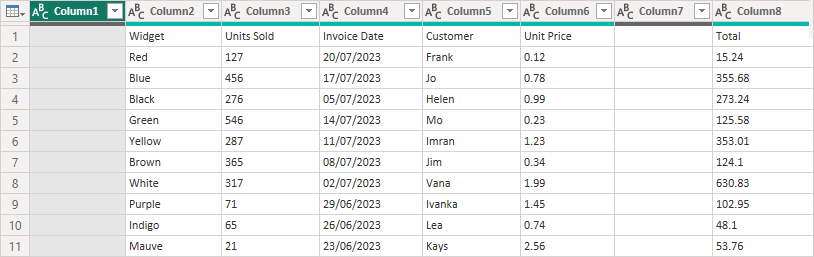
Power Query, a powerful feature within Microsoft products like Excel and Power BI, is a crucial tool for data manipulation and transformation. It streamlines the process of cleaning, shaping, and preparing data for analysis, enabling users to efficiently work with diverse data sources. Its user-friendly interface and robust functionalities make it a popular choice for data professionals and novices alike.Power Query excels at handling various data formats and sources, ranging from spreadsheets to databases.
This capability is especially valuable in today’s data-driven world, where organizations often collect data from diverse platforms. Its ability to automate repetitive tasks further enhances its value by saving time and resources.
Overview of Power Query’s Functionalities
Power Query’s core functionalities revolve around data cleansing and transformation. These functions encompass a broad range of tasks, from basic data cleaning (e.g., removing duplicates, handling missing values) to complex data transformations (e.g., pivoting, merging, and joining data). Its ability to connect to diverse data sources, including Excel files, CSV files, databases, and cloud services, provides unparalleled flexibility in data acquisition.
Power Query’s Use Cases
Power Query’s versatility is demonstrated in numerous use cases. It is invaluable for preparing data for analysis in various fields, including business intelligence, data science, and reporting. Data analysts often use Power Query to wrangle data from disparate sources into a usable format for insights. Moreover, it’s vital in data migration projects, ensuring that data is transformed and cleaned consistently before being moved to a new system.
History and Evolution of Power Query
Power Query’s evolution has been closely tied to the increasing need for efficient data preparation and transformation tools. Initially integrated as a separate add-in for Excel, Power Query’s development reflects a continuous improvement in usability and functionalities. Its evolution has been a response to the growing need for efficient data management solutions. Its integration into the core Excel suite reflects a significant step forward in simplifying data manipulation tasks.
Comparison with Other Data Manipulation Tools
Power Query distinguishes itself from other data manipulation tools through its user-friendly interface and automated functionalities. While other tools might offer specific features, Power Query’s comprehensive approach to data transformation, combined with its intuitive interface, makes it a compelling choice for many users. Its integration with other Microsoft tools also enhances its overall value proposition.
Comparison to Excel’s Built-in Data Tools
| Feature | Power Query | Excel Built-in Data Tools |
|---|---|---|
| Data Source Compatibility | Wide range of sources (Excel, CSV, databases, cloud services) | Limited to Excel files and some external data sources |
| Data Transformation | Robust set of transformations (e.g., cleaning, shaping, merging) | Limited transformation capabilities (e.g., basic filtering, sorting) |
| Data Cleansing | Handles missing values, duplicates, and inconsistent data types | Requires manual intervention for data cleansing |
| Automation | Automated data transformation steps | Requires manual steps for most transformations |
| Ease of Use | User-friendly interface | Can be complex for advanced transformations |
This table highlights the key differences between Power Query and Excel’s built-in data tools. The differences are significant, with Power Query offering a more comprehensive and automated approach to data transformation.
Importing Data Sources
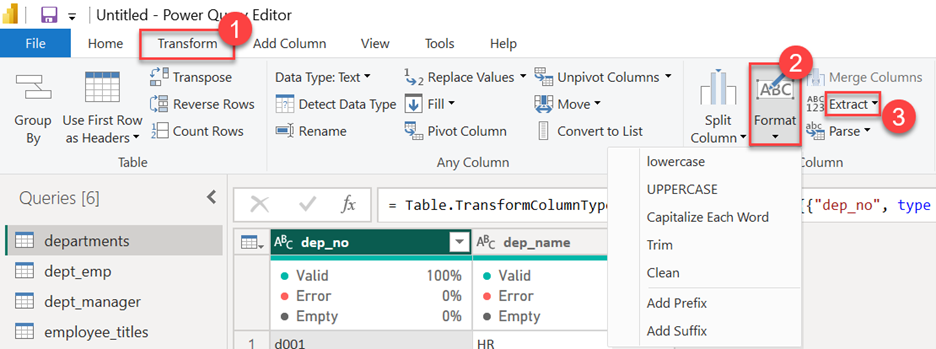
Power Query’s strength lies in its ability to connect to and import data from a wide array of sources. This capability empowers users to seamlessly integrate diverse datasets into a single environment for analysis and manipulation. This process, from initial connection to data transformation, is crucial for effectively leveraging Power Query’s functionalities.The variety of data formats Power Query supports is a significant advantage.
This versatility allows users to combine data from disparate sources, fostering a comprehensive and unified view of information. Understanding the intricacies of importing data from various sources and the significance of connection settings are vital for successful data integration.
Supported Data Formats
Power Query supports a broad range of data formats, enabling seamless integration of diverse datasets. This versatility is crucial for users working with various data sources. The following are some of the common formats:
- CSV (Comma Separated Values): A plain text format widely used for exchanging tabular data. It’s easily imported and manipulated.
- Excel Files (.xlsx, .xlsm): Power Query excels at extracting data from Microsoft Excel spreadsheets. It supports various worksheet types and complex formatting.
- SQL Databases: Connecting to relational databases allows access to structured data, enabling users to query and import specific tables or views.
- Text Files: Power Query can import data from various delimited text files, including tab-separated values (TSV) and other formats.
- JSON (JavaScript Object Notation): A popular format for exchanging structured data. Power Query offers capabilities for importing and parsing JSON data.
- Web Data: Power Query can import data from websites, facilitating the extraction of information from web tables or APIs.
Importing Data from Different Sources
The process of importing data from diverse sources involves establishing connections to those sources and configuring import settings. Properly configured connections are fundamental to the integrity and reliability of the data imported into Power Query. This ensures data integrity and allows for accurate analysis.
- Connection Management: Power Query provides a robust connection management system to access data from various sources. Each data source requires a specific connection string or credentials for successful access.
- Data Source Settings: Different data sources may have specific settings that need configuration. These settings might include delimiters, data types, and other options to accurately interpret the data.
- Authentication: Accessing protected data sources (like databases) may necessitate user authentication, and Power Query provides mechanisms to handle these security requirements.
Importing Data from a CSV File (Step-by-Step Guide)
This guide demonstrates the process of importing a CSV file into Power Query.
- Open Power Query Editor: Within your Excel workbook, navigate to the “Data” tab and select “From Text/CSV”.
- Select the CSV File: Browse to and select the CSV file you wish to import.
- Preview the Data: Power Query will display a preview of the data. Observe the delimiters (e.g., commas, tabs).
- Configure Import Options: If necessary, adjust import settings, including delimiters, data types, and headers. This is essential for accurate data interpretation.
- Close and Load: Click “Close & Load” or “Close & Load To” to import the data into your worksheet.
Common Import Issues and Solutions
The table below Artikels common issues encountered during data import and provides solutions.
| Issue | Solution |
|---|---|
| Incorrect Delimiter | Verify the delimiter used in the CSV file (e.g., comma, semicolon, tab). Adjust the delimiter setting in Power Query. |
| Missing or Incorrect Headers | Ensure the CSV file has correct headers. If missing, add them manually in Power Query. |
| Inconsistent Data Types | Review and adjust data types in Power Query to ensure accuracy. |
| File Path Issues | Verify the file path and ensure the file exists. |
| Connection Errors | Verify database credentials or network connectivity. |
Cleaning Data with Power Query
Power Query, a powerful tool within Microsoft Excel and other data platforms, provides robust capabilities for cleaning and preparing data for analysis. This crucial step often precedes any meaningful insights and ensures data quality. Effective data cleaning in Power Query can significantly improve the accuracy and reliability of subsequent analyses.Data often arrives in messy formats, containing inconsistencies, errors, and missing values.
Power Query offers a suite of tools to address these issues systematically, allowing users to transform raw data into a structured and usable format. This process, though sometimes tedious, is essential for accurate results and reliable conclusions.
Identifying Common Data Cleaning Tasks
Data cleaning in Power Query frequently involves handling missing values, duplicates, and inconsistencies in data formats. These issues can arise from various sources, such as data entry errors, inconsistent data collection methods, or incomplete records. Identifying and addressing these issues ensures data integrity and accuracy.
- Handling Missing Values: Missing data, or blanks, can skew results or lead to incorrect interpretations. Power Query provides tools to identify and address these blanks, allowing for imputation or removal based on the nature of the missing data and the specific needs of the analysis.
- Dealing with Duplicates: Duplicate records can inflate results or distort insights. Power Query enables users to detect and remove duplicate entries, maintaining data integrity and ensuring accurate analysis.
- Addressing Inconsistent Formats: Inconsistent formats, such as varying capitalization or inconsistent date formats, can hinder analysis. Power Query facilitates the standardization of data formats, making it suitable for consistent analysis and interpretation.
Using Power Query Tools for Data Cleaning
Power Query offers a range of tools to address these common data cleaning tasks. These tools streamline the process, enabling efficient data transformation.
- Replace Values: This tool allows users to change specific values within a column. For example, replacing “N/A” with a blank cell or converting a specific string to another. This is crucial for ensuring data consistency.
- Remove Duplicates: Power Query facilitates the identification and removal of duplicate rows, ensuring each record is unique and that the data reflects actual instances. The process of removing duplicates is an essential step in maintaining data integrity.
- Split Columns: This function divides a single column into multiple columns based on a delimiter or other criteria. This is helpful when data is combined in a single column and needs to be separated for analysis, for example, splitting a column containing both first and last names into separate columns.
Importance of Data Validation
Data validation, an integral part of the cleaning process, helps ensure data quality. Validating data checks for inconsistencies, errors, and ensures the data meets specific criteria. This step significantly improves the reliability of analyses derived from the data.
- Data Validation in Power Query: Power Query supports various data validation techniques, such as checking data types, validating ranges, and enforcing specific patterns. These checks prevent incorrect or inconsistent data from entering the analysis process, ensuring accuracy and reliability.
Handling Different Data Types
Data cleaning often involves handling various data types, such as text, dates, and numbers. Power Query’s flexibility enables consistent handling of these different types.
- Handling Text Data: Power Query allows users to transform text data, for example, standardizing capitalization, removing special characters, or converting text to numerical values.
- Working with Dates and Times: Power Query provides tools to format, convert, and adjust date and time values. This ensures that dates are in a consistent format for accurate analysis and reporting.
- Dealing with Numerical Data: Power Query can handle numerical data, including correcting errors, standardizing formats, and converting data types for seamless analysis.
Summary Table of Cleaning Steps
The following table summarizes data cleaning steps with example scenarios.
| Cleaning Step | Description | Example Scenario |
|---|---|---|
| Handling Missing Values | Replace or remove missing values. | Replacing “N/A” with zero in a sales column. |
| Removing Duplicates | Identify and eliminate duplicate entries. | Removing duplicate customer records. |
| Splitting Columns | Dividing a single column into multiple columns. | Splitting a column containing ‘First Name Last Name’ into ‘First Name’ and ‘Last Name’ columns. |
| Data Type Conversion | Converting data from one type to another. | Converting a text column of dates into a date data type. |
Transforming Data in Power Query
Power Query’s data transformation capabilities are crucial for effectively analyzing data. Raw data often comes in various formats and contains inconsistencies, requiring significant manipulation before meaningful insights can be extracted. This section will delve into the essential transformations available within Power Query, ranging from basic operations to advanced techniques, enabling you to shape your data for optimal analysis.
Data Transformation Fundamentals
Data transformation in Power Query involves modifying the structure and content of your data to align with your analysis goals. This process can include restructuring tables, cleaning inconsistencies, and enriching data with calculated values. Effective transformations are essential for ensuring data accuracy, consistency, and suitability for analysis.
Basic Transformation Operations
Several fundamental transformations are commonly used to prepare data for analysis. These operations often involve modifying existing columns, creating new ones, or combining different data sources.
- Merging: This operation combines data from two or more tables based on a shared column. It’s vital for integrating data from different sources to create a comprehensive dataset. For instance, merging a customer table with an order table based on a shared customer ID allows for analysis of customer orders.
- Appending: This operation combines rows from two or more tables into a single table. This is helpful when data is spread across multiple files or databases. For example, appending sales data from different regions into a single table facilitates a consolidated regional sales analysis.
- Pivoting: This operation restructures data by transforming rows into columns. It’s beneficial for summarizing data in a different format suitable for specific analysis needs. Suppose you have a table of sales by product and region. Pivoting the data could display sales for each product in different regions as separate columns.
Advanced Transformation Techniques
Power Query offers advanced techniques for creating more complex transformations. These techniques empower users to tailor data to specific analysis requirements.
- Custom Columns: Users can create new columns based on existing ones using formulas. This flexibility allows for calculating derived values, such as total revenue, average prices, or custom metrics. For example, creating a “Total Price” column by multiplying “Quantity” and “Price” columns.
- Conditional Logic: Power Query allows you to apply different transformations based on conditions. This feature is critical for handling diverse data scenarios and creating customized outputs. For example, assigning a “High-Value Customer” flag based on the customer’s total spending.
Complex Transformations and Practical Applications
Transforming data effectively often involves combining multiple operations. For instance, a complex transformation might involve merging data from multiple files, pivoting the resulting table, and creating new calculated columns based on conditional logic. This type of approach is common in business intelligence, where data from various sources needs to be consolidated and analyzed to gain a complete understanding of business performance.
Comparison of Transformation Techniques
| Transformation Technique | Description | Use Cases |
|---|---|---|
| Merging | Combines data from multiple tables based on a common key. | Integrating customer and order data, combining sales and product data. |
| Appending | Combines rows from multiple tables into a single table. | Consolidating data from multiple files, combining sales data from different time periods. |
| Pivoting | Restructures data by transforming rows into columns. | Summarizing data for reporting, creating comparative analyses. |
| Custom Columns | Creates new columns based on existing columns using formulas. | Calculating derived values, creating aggregated metrics. |
| Conditional Logic | Applies different transformations based on conditions. | Filtering data based on specific criteria, segmenting customers. |
Advanced Power Query Techniques
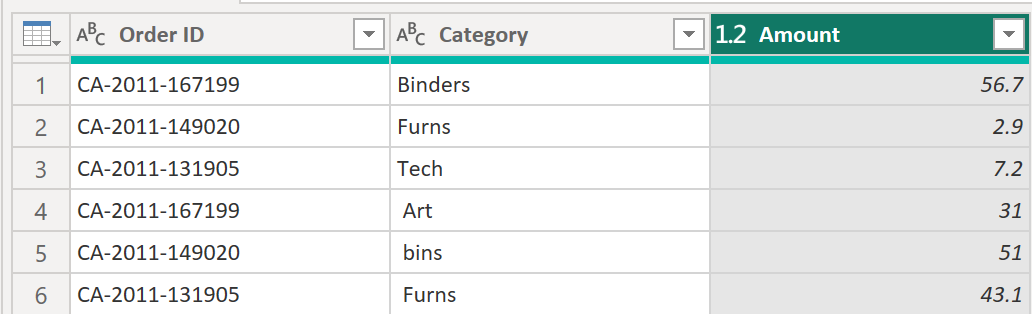
Power Query’s capabilities extend beyond basic data cleaning and transformation. Advanced techniques unlock the full potential of the tool, enabling sophisticated data preparation for complex analyses. This section delves into custom transformations, advanced features, error handling, automation, and practical applications.M language provides a powerful mechanism for creating custom data transformations. It allows for intricate manipulations beyond the pre-built functions, enabling tailored solutions for specific data structures and requirements.
Power Query’s advanced features, including parameters and reusable steps, promote code reusability and maintainability. Furthermore, comprehensive error handling and robust troubleshooting strategies ensure smooth data processing even in complex scenarios. Automating data preparation using Power Query simplifies recurring tasks, saves time, and reduces the potential for human error.
Custom Data Transformations with M Language
M language, Power Query’s scripting language, is a powerful tool for creating custom transformations. This allows users to tailor data manipulation to specific requirements. M code can be incorporated into Power Query steps, enabling complex operations not available through the graphical interface.
Example: Transforming a Date FormatLet’s say a column in your dataset contains dates in the format “Month/Day/Year”. You could use M language to convert this to a standard date format (e.g., YYYY-MM-DD).
“`Mlet Source = Table.FromRows(Json.Document( ” [ [Date = “”01/15/2024″”] ] “), #”Changed Type” = Table.TransformColumnTypes(Source,”Date”, type date)in #”Changed Type”“`This code snippet converts a date string to a proper date type.
Power Query’s Advanced Features
Power Query offers advanced features for efficient and maintainable data preparation. Parameters and reusable steps streamline the process. Parameters enable dynamic input values, allowing the same transformations to be applied to different datasets without modifying the underlying query. Reusable steps simplify complex queries by encapsulating frequently used operations.
Error Handling and Troubleshooting
Power Query’s error handling mechanisms help identify and address issues during data transformation. Understanding how to troubleshoot errors is crucial for successful data preparation. By utilizing error handling techniques, users can prevent data loss or incorrect analysis due to unforeseen issues.
Automating Data Preparation
Automating data preparation with Power Query significantly improves efficiency and reduces the risk of errors. This involves scheduling queries to run automatically on a regular basis or creating scripts to execute data transformations on demand. Using Power Query’s automated features can significantly streamline data pipelines.
Practical Examples of Advanced Power Query Applications
Power Query’s advanced features are applicable in various data scenarios. One example is cleaning and transforming data from multiple, inconsistent sources. Another practical application involves creating a data pipeline to continuously update a dashboard with real-time data.
- Data Cleaning from Multiple Sources: Imagine you need to merge data from various CSV files. Each file may have different headers or inconsistent formatting. Power Query’s custom functions and error handling allow you to standardize the data before merging, guaranteeing consistent analysis.
- Data Pipeline for Dashboards: You can use Power Query to build a pipeline that continuously retrieves and transforms data from a database or API. This pipeline can then populate a dashboard with updated information, enabling real-time insights.
Exporting Cleaned and Transformed Data
Once your data is meticulously cleaned and transformed using Power Query, the next crucial step is exporting the results to a suitable format for downstream analysis. This section details various export options and best practices for preparing your data for use in other applications. Proper export ensures the integrity of your transformed data and enables seamless integration with other analytical tools.
Export Options for Power Query Results
Power Query offers a range of export options, each with unique implications for downstream analysis. Choosing the right format is critical to ensuring compatibility and data integrity.
- Excel (.xlsx): A common choice for sharing and further editing within Microsoft Excel. This format is generally suitable for smaller datasets and provides easy access to the cleaned and transformed data within the familiar Excel environment. Further manipulation and visualization can be performed directly within Excel, and the data can be readily shared with colleagues.
- CSV (.csv): A widely compatible text-based format. CSV is excellent for exchanging data between various applications and for storing data in databases. Its simplicity makes it ideal for larger datasets, as it avoids the complexities of Excel’s proprietary format. Data is structured using commas or other delimiters, ensuring compatibility with spreadsheet software and databases.
- SQL Databases (e.g., SQL Server, MySQL): This option allows for seamless integration of your cleaned data directly into a database. This method is highly recommended for large datasets or when data needs to be constantly updated or synchronized with other systems. It ensures data consistency and efficient querying for further analysis. Databases offer structured storage, efficient retrieval, and advanced querying capabilities.
- Other formats (e.g., JSON, XML): Power Query can also export data in JSON or XML formats. These formats are frequently used in web applications and data exchange scenarios. They are ideal for complex data structures or when exchanging data with applications that require specific data formats.
Exporting Data in Different Formats
The process of exporting data varies slightly depending on the chosen format. Each format has its own characteristics that influence the export process and subsequent use of the data.
- Excel (.xlsx): Power Query allows you to export directly to an Excel file. The resulting Excel file will contain the transformed data, complete with any changes or modifications made during the Power Query transformation process. The user interface for exporting to Excel is straightforward and intuitive.
- CSV (.csv): Exporting to CSV involves selecting the delimiter (e.g., comma, semicolon) and specifying the file location. The exported data will be in a plain text format, with each row representing a record and each column separated by the specified delimiter. This format is well-suited for data exchange between different systems and tools.
- SQL Databases: Exporting to SQL databases involves specifying the database connection details, the target table, and the data to be imported. This typically involves using the “SQL Source” in Power Query to define the target table structure and to import the transformed data. The process often requires careful consideration of the data types and constraints of the database.
Best Practices for Exporting Data
Adhering to best practices during the export process ensures data quality and facilitates seamless downstream analysis.
- Data Validation: Validate the exported data to ensure that the data integrity and format are correct. Review the exported data to verify the accuracy of the transformation process and identify any potential errors. Ensure that data types, values, and relationships align with expectations.
- File Naming Conventions: Use clear and descriptive file names to facilitate easy identification and retrieval. Document the date and time of the export and any relevant information regarding the source or transformation. This helps in tracking and managing exported data effectively.
- Data Documentation: Maintain detailed documentation of the export process, including the chosen format, the transformations applied, and any potential issues encountered. This facilitates reproducibility and provides context for users working with the exported data.
Preparing Data for Analytical Tools
Preparing your data for use in analytical tools such as Tableau or Excel involves specific considerations.
- Tableau: Exporting data in a CSV format is often preferred when working with Tableau. Ensure the data structure aligns with the desired visualizations and analysis in Tableau. Tableau’s data import functionality is well-suited for working with various data formats, including CSV.
- Excel: Exporting to Excel provides the flexibility of further manipulation and visualization within the familiar Excel environment. Data structure and formatting considerations are important to optimize the use of Excel features.
Step-by-Step Guide to Exporting to CSV
This guide demonstrates exporting data to a CSV file.
- Open the Power Query Editor.
- Select “File” > “Export” > “CSV”.
- Choose the file location and name for your exported data.
- Specify the delimiter (e.g., comma, semicolon). Review the selected delimiter to ensure data integrity.
- Click “OK” to initiate the export process.
Final Thoughts
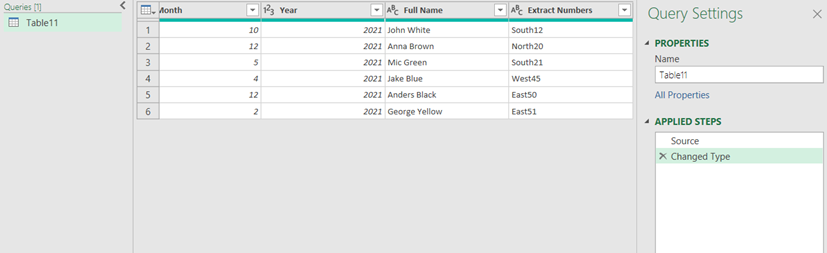
In conclusion, this guide has provided a thorough exploration of Power Query’s capabilities, demonstrating its versatility in handling diverse data sources, cleaning messy data, and transforming it for effective analysis. We’ve covered the fundamental principles, practical applications, and advanced techniques. Now you’re well-equipped to tackle your data manipulation tasks with confidence and efficiency. Remember to practice the techniques covered to solidify your understanding and unlock the full potential of Power Query.