Mastering the COUNTIF function is crucial for efficient data analysis in spreadsheet software. This guide provides a thorough exploration of how to utilize COUNTIF to count cells based on various criteria, from simple values to complex date ranges and multiple conditions. Whether you’re a novice or an experienced user, this comprehensive resource will equip you with the knowledge to effectively leverage COUNTIF for precise and insightful data analysis.
From basic counting of specific values to advanced applications involving multiple worksheets and complex criteria, this guide will demonstrate the versatility of COUNTIF. Learn how to tailor your counting to specific needs and uncover valuable insights hidden within your data.
Introduction to COUNTIF Function
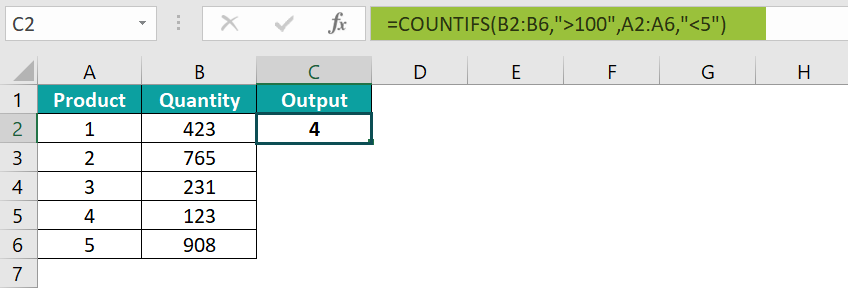
The COUNTIF function in spreadsheet software, such as Microsoft Excel and Google Sheets, is a valuable tool for counting cells that meet a specific condition. It allows users to efficiently determine the frequency of data points satisfying a predefined criteria, greatly enhancing data analysis and reporting capabilities. This function is particularly useful for summarizing data, identifying trends, and generating reports based on specific criteria.The COUNTIF function provides a straightforward approach to counting cells that match certain criteria.
Its flexible nature enables users to quickly assess the distribution of data and pinpoint specific characteristics within datasets. By understanding the syntax and practical applications of COUNTIF, users can gain significant insights from their data.
Syntax and Structure of COUNTIF
The COUNTIF function follows a straightforward syntax. It takes two arguments: the range of cells to evaluate and the criteria for determining which cells to count.
=COUNTIF(range, criteria)
The range argument specifies the cells you want to evaluate. The criteria argument defines the condition that cells must meet to be counted. This condition can be a number, text, a logical expression, or a reference to another cell.
COUNTIF Examples with Varying Criteria
This table demonstrates various ways to utilize the COUNTIF function with different criteria. It showcases the flexibility and diverse applications of this essential spreadsheet function.
| Example | Range | Criteria | Result | Description |
|---|---|---|---|---|
| Counting Numbers Greater Than 10 | A1:A10 | “>10” | 3 | Counts the number of cells in the range A1:A10 that contain a value greater than 10. |
| Counting Numbers Equal to 5 | B1:B10 | “5” | 2 | Counts the number of cells in the range B1:B10 that contain the value 5. |
| Counting Text Entries | C1:C10 | “Apple” | 4 | Counts the number of cells in the range C1:C10 that contain the text “Apple”. |
| Counting Cells Containing Numbers | D1:D10 | “>=0” | 8 | Counts the number of cells in the range D1:D10 that contain a number greater than or equal to zero. |
| Counting Numbers Using a Cell Reference | E1:E10 | E12 | 5 | Counts the number of cells in the range E1:E10 that match the value in cell E12. (Assume E12 contains the number 15). |
Simple Criteria
![How to use COUNTIF function in Excel [step by step guide]](https://triknya.web.id/wp-content/uploads/2025/09/maxresdefault-4.jpg "How to use COUNTIF function in Excel [step by step guide]")
The COUNTIF function in spreadsheets offers a straightforward way to count cells that meet specific criteria. Understanding simple criteria is fundamental to effectively using COUNTIF for various data analysis tasks. This section delves into counting cells based on exact matches and criteria involving specific characters within the cell’s contents.
Counting Cells with Exact Matches
To count cells containing a precise value, the criterion in COUNTIF is directly specified. This approach is valuable for tasks like determining the frequency of a particular item in a dataset.
For instance, if a column lists different fruits, and you want to know how many times “apple” appears, the COUNTIF formula would explicitly reference “apple” as the criterion. This method is efficient for identifying the precise occurrence of a value.
COUNTIF(range,”apple”)
Example: If cells A1 to A10 contain fruit names, and you want to count the number of times “apple” appears, the formula would be: =COUNTIF(A1:A10,”apple”).
Counting Cells Containing Specific Characters
COUNTIF can also count cells that contain text including particular characters. This is useful when you need to find instances of partial matches or patterns within your data.
Using wildcard characters, specifically the asterisk (*), allows for more flexible matching. An asterisk represents any sequence of characters, making it a powerful tool for partial matching.
COUNTIF(range,”app*”)
Example: If cells A1 to A10 contain words related to applications, and you want to count how many start with “app,” the formula would be: =COUNTIF(A1:A10,”app*”).
Example 2: If you want to count the number of cells containing “apple” regardless of the characters that follow, the formula would be: =COUNTIF(A1:A10,”apple*”).
Comparison of Criteria Types
| Criteria Type | Description | Formula Example | Example Data | Count Result |
|---|---|---|---|---|
| Exact Match | Counts cells containing the exact specified value. | =COUNTIF(A1:A10,”apple”) | apple, orange, apple, banana, apple | 3 |
| Partial Match (using – ) | Counts cells containing the specified text followed by any characters. | =COUNTIF(A1:A10,”app*”) | apple, application, apricot, app | 3 |
| Partial Match (using ? | Counts cells containing the specified text where ? represents any single character. | =COUNTIF(A1:A10,”appl?e”) | apple, apply, applee, appp | 1 |
The table illustrates the flexibility offered by COUNTIF in counting cells based on various criteria, allowing for efficient data analysis and reporting.
Using Operators in Criteria
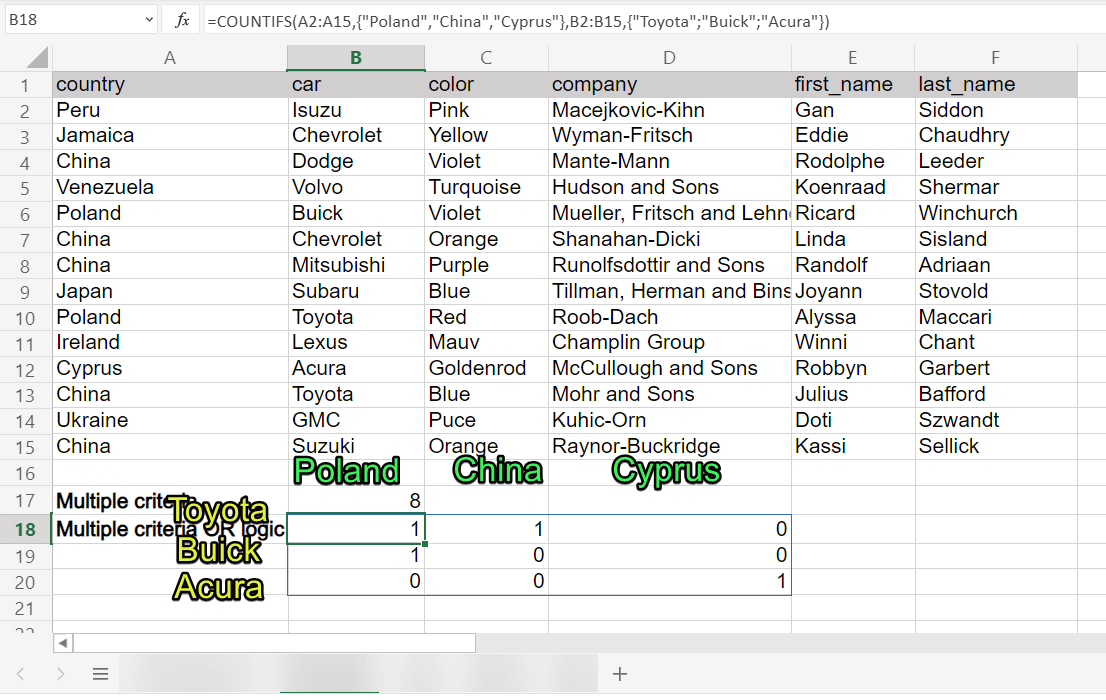
The COUNTIF function in spreadsheets allows for more sophisticated counting by incorporating various operators. This enables you to count cells based on specific conditions beyond simple equality. This section details how to leverage these operators for numeric comparisons.
Numeric Comparisons
The COUNTIF function can be utilized to count cells based on numeric comparisons, such as greater than, less than, or equal to a certain value. This flexibility allows for precise counting of data meeting specific criteria.
Counting Cells Greater Than a Value
To count cells with values greater than a specific number, the greater than operator (>) is used in the criteria. For example, if you want to count the number of sales figures exceeding $1000, the formula would incorporate this operator.
-
Example: To count sales figures greater than $1000 in a range of cells (B2:B10), the formula would be
=COUNTIF(B2:B10,">1000"). This formula will return the number of cells in the specified range that contain values greater than 1000.
Counting Cells Less Than a Value
Conversely, to count cells with values less than a specific number, the less than operator ( <) is employed in the criteria. This is useful for identifying data points below a certain threshold.
-
Example: To count the number of employees with ages less than 30 in a range of cells (C2:C15), the formula would be
=COUNTIF(C2:C15,"<30"). This formula returns the number of cells containing ages less than 30.
Counting Cells Equal To a Value
The equal to operator (=) is used to count cells containing a specific numerical value. This is a fundamental application of COUNTIF for precise matching.
-
Example: To count the number of products with a price equal to $25 in a range of cells (D2:D20), the formula would be
=COUNTIF(D2:D20,"=25"). This formula returns the number of cells containing the price of $25.
Counting Cells Within a Range
To count cells containing values between a specified range, you combine the greater than or equal to (>=) and less than or equal to ( <=) operators. This allows for counting data points within a particular interval.
-
Example: To count the number of scores between 80 and 90 (inclusive) in a range of cells (E2:E25), the formula would be
=COUNTIF(E2:E25,">=80")+COUNTIF(E2:E25,"<=90"). This is not the most efficient method. A more robust method is discussed in a subsequent section.
Table of COUNTIF Usage with Numeric Operators
This table provides a comprehensive overview of COUNTIF usage with various operators for numeric comparisons.
| Operator | Criteria | Description | Example |
|---|---|---|---|
| > | ">1000" | Counts cells greater than 1000. | =COUNTIF(A1:A10,">1000") |
| < | "<30" | Counts cells less than 30. | =COUNTIF(B1:B20,"<30") |
| = | "=25" | Counts cells equal to 25. | =COUNTIF(C1:C30,"=25") |
| >= | ">=80" | Counts cells greater than or equal to 80. | =COUNTIF(D1:D40,">=80") |
| <= | "<=90" | Counts cells less than or equal to 90. | =COUNTIF(E1:E50,"<=90") |
Combining Criteria with AND and OR
The COUNTIF function, while powerful for single criteria, becomes even more versatile when combining multiple conditions. This section explores how to use the AND and OR operators within COUNTIF to count cells that meet specific, compound criteria.Combining criteria allows for more nuanced analyses, enabling you to pinpoint data that satisfies multiple conditions simultaneously or individually. This enhances the function's ability to extract targeted information from spreadsheets, crucial for tasks ranging from financial reporting to statistical analysis.
Using AND Conditions
To count cells that satisfy multiple criteria simultaneously, use the AND operator. This approach ensures that the cells must fulfill
all* conditions to be included in the count.
The AND operator in COUNTIF formulas typically involves multiple criteria within the criteria argument. Each condition is enclosed in a set of quotation marks. For example, if you want to count cells in column A that are greater than 50
-and* contain the letter "A", the formula would incorporate both criteria within the same COUNTIF statement. Proper use of the AND operator in COUNTIF formulas ensures that cells satisfying all specified conditions are correctly identified.
Example:
Suppose you have a list of sales data with columns for product type (column A) and sales amount (column B). To count the number of sales exceeding $100 for "Electronics" products, you would use the following formula in a separate cell:
COUNTIF(A2:A10,"Electronics")*COUNTIF(B2:B10,">100")
This formula counts cells in column A that match "Electronics" and column B that match ">100". The result is the number of cells that meet both criteria.
Using OR Conditions
Conversely, the OR operator allows you to count cells that meeteither* of the specified criteria. This flexibility enables counting cells that fulfill one condition or the other or both.
Similar to AND conditions, the OR operator also requires multiple criteria. The difference lies in how the conditions are combined within the COUNTIF statement. The COUNTIFS function can handle more complex conditions. Using the OR operator in COUNTIF formulas allows for a more inclusive counting process.
Example:
To count the number of sales for "Electronics"
-or* "Clothing" products, you would use the following formula:
COUNTIFS(A2:A10,"Electronics",B2:B10,">100") + COUNTIFS(A2:A10,"Clothing",B2:B10,">100")
This formula sums the counts of cells in column A that match "Electronics"
-and* cells in column B that match ">100" and the counts of cells in column A that match "Clothing"
-and* cells in column B that match ">100". The sum is the total number of cells meeting either criterion.
Comparison Table: AND vs. OR
| Criteria | Description | Example |
|---|---|---|
| AND | Counts cells matching
|
Count cells containing "Electronics"
|
| OR | Counts cells matching
|
Count cells containing "Electronics"
|
Counting Cells Based on Dates
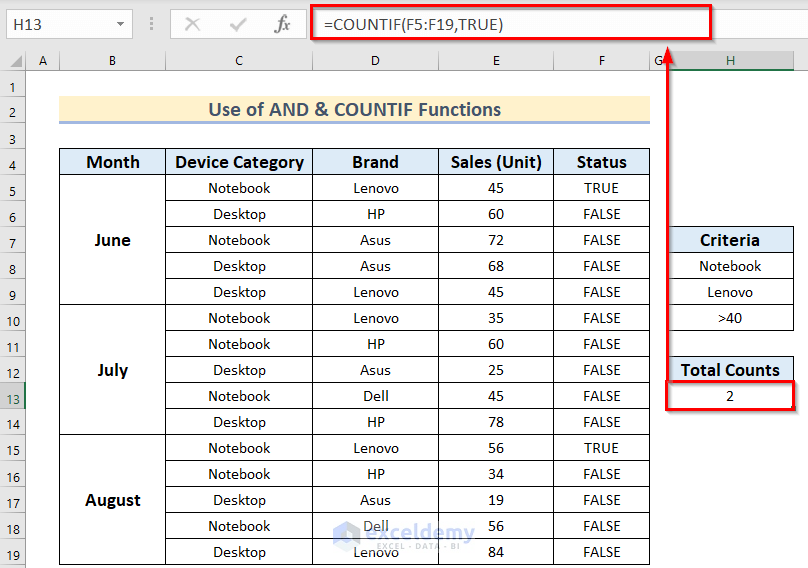
The COUNTIF function, a powerful tool in spreadsheet applications, allows you to count cells that meet specific criteria. This section focuses on applying COUNTIF to date criteria, demonstrating how to count cells containing particular dates, date ranges, and specific days of the week. Understanding these applications enhances data analysis and reporting capabilities.Applying COUNTIF to date criteria is essential for extracting relevant information from datasets containing dates.
By specifying conditions related to dates, users can quickly identify and count data points matching specific criteria, leading to better insights and decision-making.
Counting Cells Matching a Particular Date
To count cells containing a specific date, use the date in the COUNTIF function's criteria. The date should be formatted according to the spreadsheet's settings. The date should be entered in the format your spreadsheet application recognizes. For example, if your spreadsheet displays dates as "mm/dd/yyyy", you would use that format in the criteria.
Counting Cells with Dates Within a Specific Range
Counting cells with dates falling within a specific range is accomplished by using the less than or equal to ( <=) and greater than or equal to (>=) operators in the COUNTIF criteria. This approach effectively isolates data within a defined timeframe. For example, to count entries between January 1, 2023, and December 31, 2023, the criteria would reflect the date range.
Counting Cells Matching Specific Days of the Week
Counting cells with dates falling on particular days of the week requires using the WEEKDAY function within the COUNTIF criteria. This function returns a number representing the day of the week (1 for Sunday, 2 for Monday, and so on). By combining this with the criteria in COUNTIF, you can accurately count instances of data corresponding to specific weekdays.
Examples of COUNTIF with Date Criteria
| Criteria | Explanation | Example Formula (assuming dates in column A) | Result |
|---|---|---|---|
| Count cells containing 10/26/2024 | Counts cells containing the date October 26, 2024. | =COUNTIF(A1:A10,"10/26/2024") | 2 (if two cells contain 10/26/2024) |
| Count cells with dates between 1/1/2023 and 12/31/2023 | Counts cells containing dates within the specified year range. | =COUNTIF(A1:A10,">=1/1/2023")+COUNTIF(A1:A10,"<=12/31/2023") | 10 (if 10 cells contain dates within the range) |
| Count cells with dates on Mondays | Counts cells containing dates falling on Mondays. This leverages the WEEKDAY function. | =COUNTIF(A1:A10,"WEEKDAY(A1:A10)=2") | 3 (if 3 cells contain dates that fall on a Monday) |
COUNTIF with Ranges and Multiple Worksheets
The COUNTIF function in spreadsheet software like Microsoft Excel or Google Sheets is powerful for counting cells that meet specific criteria. Beyond single cells, it can operate on entire ranges of cells and even across multiple worksheets, expanding its applicability for more complex data analysis tasks. This section details how to leverage COUNTIF's capabilities in these scenarios.Using COUNTIF across a range of cells provides a more flexible approach compared to counting individual cells.
This allows for a more comprehensive analysis of data sets. Employing COUNTIF across multiple worksheets offers a powerful mechanism to analyze data stored across different spreadsheets or workbooks.
Using COUNTIF Across Multiple Cells in a Range
COUNTIF can efficiently count cells within a specified range that satisfy a given criterion. This is particularly useful for analyzing data sets containing numerous entries. For example, counting all sales exceeding a certain target amount or identifying the number of employees in a specific department.
=COUNTIF(range, criteria)
The range argument specifies the cells you want to evaluate. The criteria argument defines the condition that cells must meet to be included in the count.For instance, to count the number of cells in the range A1:A10 that contain the value "Apple", use the formula:
=COUNTIF(A1:A10,"Apple")
Examples of Counting Cells Within a Defined Range
Various examples demonstrate the versatility of COUNTIF with ranges.
- To count the number of cells in B2:B15 that are greater than 100, use:
-
=COUNTIF(B2:B15,">100")
- To count the number of cells in C1:C20 that contain the text "London", use:
-
=COUNTIF(C1:C20,"London")
Using COUNTIF Across Multiple Worksheets
Analyzing data spread across multiple worksheets is possible with COUNTIF. This approach is valuable when dealing with large datasets or different aspects of a business. For instance, counting all instances of a specific product sold across multiple weeks in different spreadsheets.
- To count cells in a range across multiple worksheets, the function needs to specify the worksheet names. For instance, consider three worksheets: "Sheet1", "Sheet2", and "Sheet3", each containing sales data in the range A1:A
10. To count the number of cells containing the value "ProductX" across all three worksheets, use: -
=SUM(COUNTIF(Sheet1!A1:A10,"ProductX"),COUNTIF(Sheet2!A1:A10,"ProductX"),COUNTIF(Sheet3!A1:A10,"ProductX"))
Specifying Ranges and Worksheets in the Function
The worksheet name is preceded by an exclamation mark (!) in the formula. This method is fundamental for isolating data from different worksheets in the COUNTIF function. The use of exclamation marks is crucial to properly identify the sheet and range.
Combining COUNTIF with Other Functions for Complex Calculations
COUNTIF can be combined with other functions for more intricate calculations. For instance, it can be used with SUM to sum values in a range based on a condition or with AVERAGE to calculate the average of values meeting a particular criterion.
Table of Examples
| Scenario | Formula | Explanation |
|---|---|---|
| Count cells with "ProductA" in range A1:A10 | =COUNTIF(A1:A10,"ProductA") | Counts cells containing "ProductA" in the specified range. |
| Count cells greater than 50 in range B2:B15 | =COUNTIF(B2:B15,">50") | Counts cells with values greater than 50 in the range. |
| Count "ProductX" across Sheet1 and Sheet2 in range A1:A10 | =SUM(COUNTIF(Sheet1!A1:A10,"ProductX"),COUNTIF(Sheet2!A1:A10,"ProductX")) | Counts instances of "ProductX" across multiple worksheets. |
Advanced Applications of COUNTIF
The COUNTIF function, while straightforward for basic counting, reveals its true potential in more complex scenarios. This section delves into advanced techniques, showcasing how COUNTIF can be integrated with other functions and used with wildcard characters for dynamic and nuanced analysis. These methods unlock the function's ability to handle intricate data sets and derive meaningful insights.COUNTIF's strength lies in its adaptability.
Beyond simple criteria, it can be configured to analyze data based on partial matches, formulas, and in conjunction with other spreadsheet functions, allowing for a more sophisticated approach to data handling. This flexibility enables users to tackle a wider range of analytical challenges.
COUNTIF with Wildcard Characters
COUNTIF allows for partial matching using wildcard characters, "*," and "?", enhancing its analytical power. The asterisk (*) represents any sequence of characters, while the question mark (?) represents any single character. This flexibility is invaluable for tasks involving partially known data.
- The asterisk (*) can be used to find all entries that contain a specific substring. For instance, to count all names containing "John," the formula would be `=COUNTIF(A1:A10,"*John*")`. Similarly, `=COUNTIF(A1:A10,"*Smith")` counts all entries containing "Smith."
- The question mark (?) matches a single character. For example, `=COUNTIF(A1:A10,"?ohn")` counts entries beginning with a single character followed by "ohn." This is particularly helpful when searching for partially remembered data, such as an order containing "P-123?".
COUNTIF with Formulas for Dynamic Criteria
COUNTIF can incorporate formulas within its criteria, making the counting process dynamic and responsive to changes in other cells. This functionality allows for adapting the counting criteria based on values in other parts of the spreadsheet.
- For example, if cell B1 contains the value "2023," and you want to count the number of sales exceeding the value in B1, the formula `=COUNTIF(C1:C10,">"&B1)` would dynamically adjust to the value in B1. The ampersand (&) concatenates the greater than symbol with the value in B1, ensuring the criteria changes accordingly.
Advanced Use Cases
COUNTIF's adaptability extends to numerous situations. Consider a sales team tracking sales by region. You could use COUNTIF to count the number of sales exceeding a target for each region, adjusting the target amount using a cell reference. This allows for more flexible analysis and real-time adjustments to targets.
- Another advanced application involves analyzing customer data. You can use COUNTIF to count the number of customers residing in specific regions. If the region criteria are stored in another sheet, the formula can reference these criteria for dynamic analysis.
COUNTIF with Other Functions
Combining COUNTIF with other spreadsheet functions significantly enhances analysis capabilities. For instance, using COUNTIF in conjunction with SUMIF or AVERAGEIF provides a more comprehensive approach to analyzing data that meets specific criteria.
- Consider using COUNTIF to identify the number of orders that meet certain criteria and then use SUMIF to calculate the total value of those orders.
Diverse Advanced Applications Table
This table demonstrates diverse advanced COUNTIF applications:
| Application | Formula | Description |
|---|---|---|
| Count products with "Laptop" in name | `=COUNTIF(A1:A10,"*Laptop*")` | Counts cells in range A1:A10 containing "Laptop". |
| Count sales exceeding target (in B1) | `=COUNTIF(C1:C10,">"&B1)` | Counts sales in C1:C10 greater than the target in B1. |
| Count orders from specific region (in D1) | `=COUNTIF(B1:B10,D1)` | Counts orders in B1:B10 matching the region in D1. |
Error Handling and Troubleshooting
The COUNTIF function, while powerful, can sometimes produce unexpected results due to errors in the formula or the data it's working with. Understanding these potential issues and how to address them is crucial for reliable spreadsheet analysis. This section will detail common COUNTIF errors, their causes, and effective troubleshooting strategies.Correctly identifying and resolving COUNTIF errors ensures accurate results, leading to more reliable and insightful data analysis.
Common COUNTIF Errors and Prevention
Incorrect syntax and data inconsistencies are frequent sources of COUNTIF errors. Carefully checking the formula's structure and the data it's referencing is essential for accurate results. Understanding the specific types of errors and their causes is critical for efficient troubleshooting.
- Incorrect Criteria Syntax: A fundamental error is using the wrong syntax in the criteria argument. For instance, failing to enclose text criteria in double quotes or using the wrong comparison operator. A misplaced comma or an incorrect function argument order can also lead to errors. Always double-check the syntax against the documentation for proper formatting.
- Data Type Mismatches: COUNTIF operates on specific data types. If the range being evaluated contains incompatible data types, errors may occur. For example, attempting to count cells containing text using a numerical criteria or vice-versa. Ensure the data types in the range and the criteria align for accurate results.
- Empty or Missing Cells: COUNTIF formulas can encounter problems if the range includes empty cells or cells that are missing the data needed for the comparison. This may lead to unexpected results or errors. Use conditional formatting or data validation to identify and address such issues beforehand to prevent errors.
- Case Sensitivity: COUNTIF, by default, is not case-sensitive. However, if you're working with text criteria, be mindful of the case when comparing values. For instance, "apple" and "Apple" are considered different.
Identifying and Fixing Errors Related to Syntax or Data
Precise error diagnosis involves examining the formula and the data it interacts with. Identifying the source of the problem is crucial for efficient resolution. A systematic approach helps in locating and correcting the issue.
- Inspect the Formula: Carefully review the COUNTIF formula for any typos, missing quotation marks, or incorrect operators. Verify the syntax adheres to the COUNTIF function's specifications.
- Examine the Data: Inspect the cells in the range to ensure the data type aligns with the criteria. Look for empty or missing cells and data inconsistencies.
- Use Error Checking Tools: Spreadsheet applications usually provide tools to highlight or indicate errors within formulas. These features help in quickly pinpointing potential problems.
Debugging COUNTIF Formulas
Effective debugging strategies involve systematic steps to isolate and resolve errors. Following a structured approach ensures that the formula produces accurate results.
- Simplify the Formula: Break down a complex formula into smaller, simpler parts to identify the problematic section. This can isolate the source of the error.
- Use Intermediate Variables: Assign values from the formula's components to intermediate variables. This enables the evaluation of each part individually, facilitating error isolation.
- Test with Sample Data: Create a smaller subset of data to test the COUNTIF formula in isolation. This helps in isolating specific issues within the formula itself.
Example of Potential Errors and Solutions
Illustrative examples showcase how to diagnose and correct common COUNTIF errors.
- Error: COUNTIF(A1:A10,"apple") returns 0 when it should be
3. Solution: Review the contents of cells A1 to A10 to ensure "apple" exists as the correct capitalization and spelling. Check the data type in the range and ensure it's text. Verify the formula's syntax. - Error: COUNTIF(A1:A10,10) returns #VALUE!.
Solution: Ensure the cells in A1 to A10 are numerical. Verify that the data type of the criterion is the same as the data in the range being counted. Verify the formula's syntax.
Error Summary Table
This table summarizes potential error scenarios and their solutions.
| Error Scenario | Solution |
|---|---|
| Incorrect criteria syntax | Double-check the syntax, ensuring correct operators, quotation marks, and data types. |
| Data type mismatch | Ensure the data type in the range and the criteria are compatible. |
| Empty or missing cells | Identify and address the missing or empty cells; ensure the range contains complete data. |
| Case sensitivity issue | Use case-insensitive criteria if the data does not require case-sensitive matching. |
Conclusion
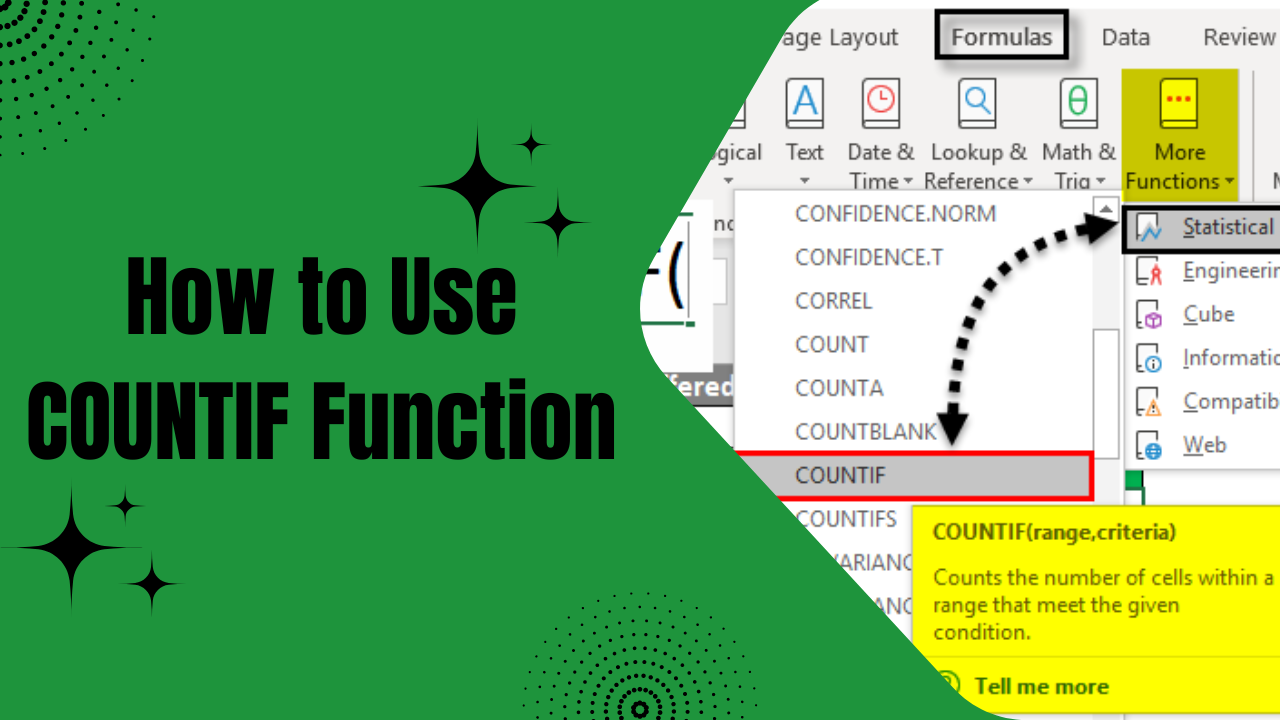
In conclusion, this guide has illuminated the powerful capabilities of the COUNTIF function. By understanding its various applications, from simple criteria to advanced techniques involving dates, ranges, and multiple worksheets, you're empowered to extract valuable insights from your data. The practical examples and detailed explanations provided will assist you in seamlessly integrating COUNTIF into your spreadsheet workflow for efficient data analysis.