Protecting sensitive data within spreadsheets is paramount. This guide provides a comprehensive approach to securing your worksheets with passwords, covering everything from basic protection to advanced techniques. Understanding the various methods and security considerations is key to safeguarding your valuable information.
From simple password protection to more complex access controls, this guide will walk you through the process of securing your worksheets, ensuring only authorized users can access and modify the data. We’ll explore different methods, security considerations, and troubleshooting steps, ultimately empowering you to create robust and reliable protection.
Introduction to Worksheet Protection
Protecting worksheets is a crucial aspect of maintaining data integrity and security within spreadsheets. This protection safeguards sensitive information from unauthorized access, modification, or deletion, ensuring the accuracy and reliability of the data contained within. Various methods exist for achieving this protection, each offering distinct levels of control and security.Worksheet protection serves a vital role in maintaining the confidentiality and accuracy of data within spreadsheets.
It mitigates the risk of accidental or malicious changes, preserving the integrity of the information and its subsequent use. Different protection types address diverse needs, from basic security to advanced data management.
Different Types of Worksheet Protection
Worksheet protection encompasses various methods, each tailored to specific needs. Password protection is a common and effective approach for restricting access, while cell protection allows for selective control over specific areas within the worksheet. Understanding the nuances of these methods ensures appropriate security measures are implemented.
Password Protection
Password protection is a fundamental method for securing a worksheet. It encrypts the worksheet, requiring a password to unlock and modify its contents. This approach is particularly useful for sensitive data, preventing unauthorized access to crucial information. For instance, financial statements, confidential project plans, or customer data often benefit from this level of protection. Password protection ensures only authorized personnel can access and modify the spreadsheet.
Cell Protection
Cell protection offers a more granular approach to security. It allows for controlling specific cells or ranges within a worksheet. Individual cells or entire blocks of data can be protected from editing, while other parts remain accessible. This approach is beneficial for worksheets containing a combination of static and dynamic data. For example, in a budget spreadsheet, protected cells can contain formulas that automatically calculate totals, while editable cells can track monthly expenses.
Comparing Worksheet Protection Methods
| Method | Description | Pros | Cons |
|---|---|---|---|
| Password Protection | Full worksheet protection using a password. | Strongest protection against unauthorized access, restricts all changes to the entire worksheet. | Can be cumbersome if frequent modifications are required. Requires remembering the password. |
| Cell Protection | Protects specific cells or ranges within the worksheet. | Allows for selective control over data, easier for collaboration when some parts need to be protected while others remain editable. | Limited protection compared to full worksheet password protection. Requires careful selection of cells to protect. |
Password Protection Methods
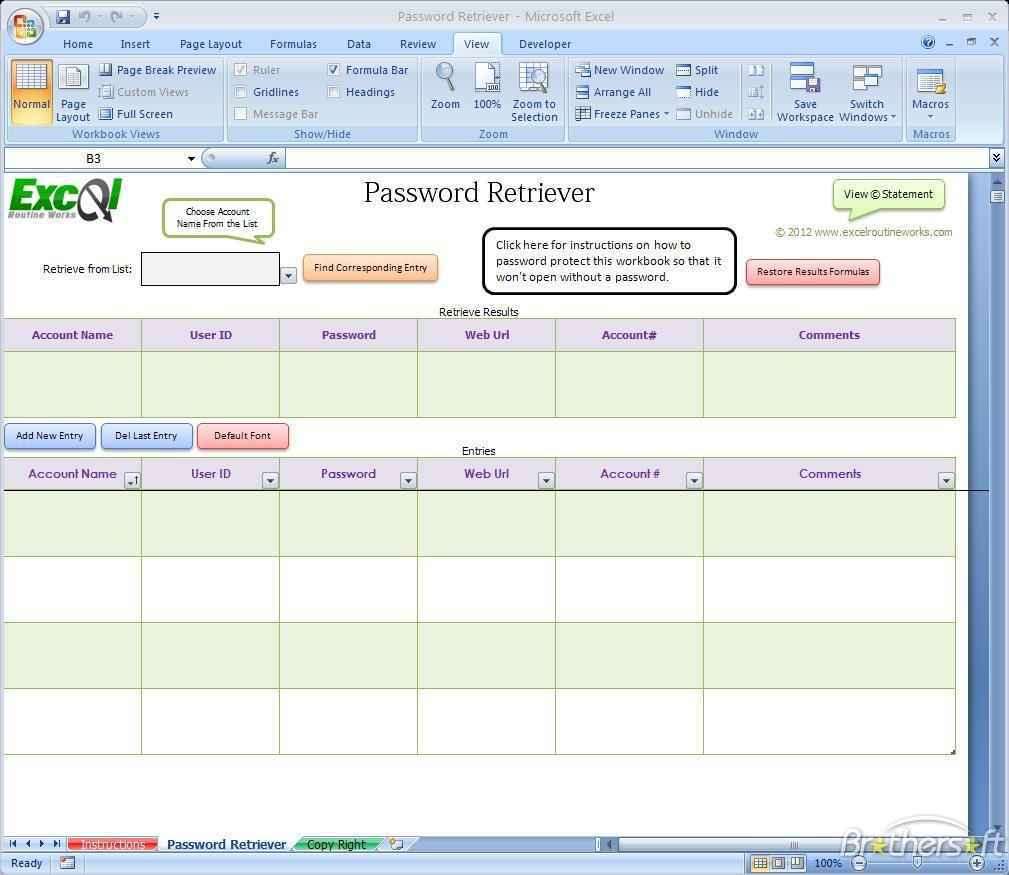
Protecting your worksheets with passwords is a crucial step in maintaining data confidentiality and preventing unauthorized access. This section details various methods of setting worksheet passwords, covering workbook creation, individual worksheet protection, and password complexity best practices. Proper password implementation ensures your data remains secure and inaccessible to those without the correct credentials.Setting a password during workbook creation ensures that the entire workbook is protected from unwanted changes.
This also means that individual worksheet protection becomes a layer of security on top of the initial workbook protection. Using strong passwords for individual worksheets adds another layer of security and limits access to specific portions of the workbook. Careful consideration of password complexity and adhering to best practices is vital for optimal protection.
Methods of Setting Worksheet Passwords
Different methods exist for setting worksheet passwords, each with its own advantages and disadvantages. Password protection can be applied during workbook creation, to individual worksheets, or to specific ranges of cells within a worksheet. Understanding these methods allows users to implement the appropriate level of security.
Setting a Password During Workbook Creation
When creating a new workbook, password protection can be enabled from the outset. This protects the entire workbook from unauthorized modifications. Excel provides a straightforward process for enabling this feature.
Password Protection for Individual Worksheets
Protecting individual worksheets within a workbook allows for granular control over access. This is useful when certain worksheets contain sensitive information that should not be altered or viewed by everyone. The procedure involves selecting the worksheet, accessing the “Protect Sheet” option, and specifying a password.
Password Complexity Requirements and Best Practices
Strong passwords are essential for effective protection. A complex password is more difficult for unauthorized users to guess or crack. Password complexity requirements should be clearly understood and adhered to.
Step-by-Step Procedure for Password-Protecting a Worksheet
This procedure details the steps involved in password-protecting a worksheet.
- Select the worksheet you want to protect.
- Navigate to the “Review” tab in the Excel ribbon.
- Click on “Protect Sheet”.
- Enter a password in the “Password” field and re-enter it for confirmation.
- Specify any options for allowing or disallowing specific actions (e.g., editing, formatting, selecting cells).
- Click “OK” to apply the password protection.
Applying Password Protection to a Specific Range of Cells
Protecting a specific range of cells provides an additional layer of security by limiting modifications to a precise area within the worksheet. This can be useful for protecting formulas or specific data points.
- Select the range of cells you want to protect.
- Right-click on the selected range.
- Choose “Format Cells”.
- Navigate to the “Protection” tab.
- Check the box next to “Locked”.
- Click “OK”.
- Navigate to the “Review” tab.
- Click on “Protect Sheet”.
- Enter a password and confirm.
- Check the box next to “Locked cells” to apply the protection to the selected range.
- Click “OK”.
Password Complexity Levels
The security of a password depends heavily on its complexity. The following table illustrates various password complexity levels and associated security ratings.
| Level | Criteria | Example | Security Rating |
|---|---|---|---|
| Low | Short, common words, or easily guessed combinations. | password123 | Very Low |
| Medium | Mix of uppercase and lowercase letters, numbers, and symbols. Password length is moderate (8-12 characters). | PaSsWoRd123! | Moderate |
| High | Long, unique combinations of uppercase and lowercase letters, numbers, and symbols. (12+ characters). | !@#$%^&*PaSsWoRd12345678 | High |
| Very High | Extremely long, highly unique, using a combination of special characters, numbers, and mixed case letters. | !@#$%^&*PaSsWoRd1234567890!@#$%^&* | Very High |
Implementing Protection
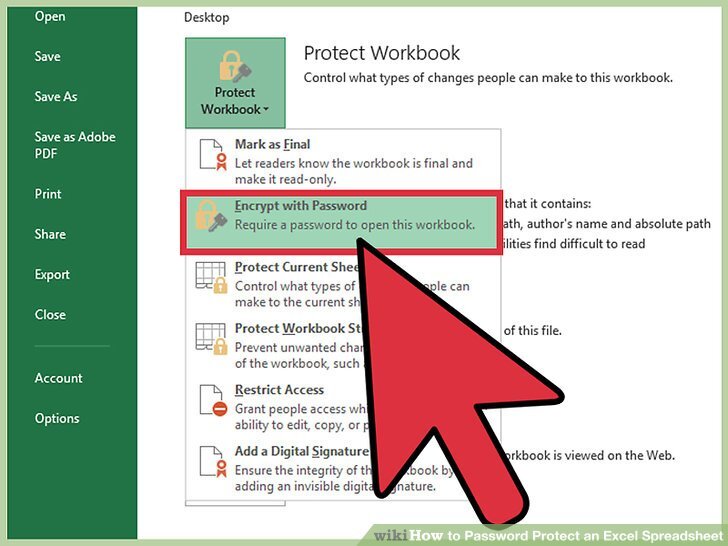
Implementing worksheet protection is a crucial step in safeguarding your data from unauthorized modifications. This process ensures that only authorized users can access and alter sensitive information, maintaining data integrity and preventing accidental errors. Properly implemented protection mechanisms also reduce the risk of malicious edits and enhance overall data security.Protecting a worksheet with a password involves restricting access to the worksheet, or specific parts of it, by requiring a unique password for unlocking certain features.
This process is vital to prevent unauthorized users from editing, deleting, or altering the worksheet’s contents. Different levels of protection can be implemented to safeguard specific sections or the entire worksheet.
Protecting Individual Cells, Rows, or Columns
Restricting modifications to specific cells, rows, or columns provides granular control over data access. This approach allows for tailored protection, ensuring that sensitive information remains secure while permitting authorized users to modify other portions of the worksheet.
Detailed Procedure for Enabling Protection Features
The process for enabling worksheet protection involves several steps. First, select the worksheet you wish to protect. Then, in the “Review” tab, locate the “Protect Sheet” or “Protect Workbook” command. Clicking this will open a dialogue box. Within this dialogue box, you can specify which actions you wish to restrict (e.g., editing, formatting, inserting rows/columns).
Enter a password and re-enter it for verification. This step is crucial for ensuring that only authorized users can unlock the protected worksheet. After entering the password, click “OK” to implement the protection.
Setting Restrictions on Editing and Printing
When implementing protection, you can set specific restrictions on editing and printing. For instance, you can restrict users from editing specific cells or ranges while allowing them to view the data. Likewise, you can prevent unauthorized printing of sensitive information. This granular control is essential for maintaining data confidentiality and integrity. This ensures only authorized users can make changes or print the protected worksheet.
Impact of Protection on Different User Actions
The implementation of worksheet protection directly impacts user actions. Unauthorized users will be prevented from editing, deleting, or formatting cells or entire rows/columns. Protected cells may be read-only. Furthermore, printing might be disabled for certain areas of the worksheet. Restrictions on user actions are directly related to the level of protection set.
Importance of Strong Password Policies
A strong password policy is paramount for effective worksheet protection. Weak passwords are easily guessed or cracked, potentially compromising the security of the protected data. Use a combination of uppercase and lowercase letters, numbers, and symbols for a robust password. Do not use easily guessed words or personal information.
Steps to Protect Different Parts of a Worksheet
| Element | Action | Description | Example |
|---|---|---|---|
| Entire Worksheet | Protect Sheet | Prevents all editing, formatting, and other actions unless unlocked by the password. | Protecting the entire financial report. |
| Specific Cells | Protect Sheet; Select cells | Allows viewing but prevents editing of specific cells. | Protecting sensitive financial data in a table. |
| Rows and Columns | Protect Sheet; Select rows/columns | Restricts the addition, deletion, or formatting of rows or columns. | Protecting data in a specific department’s row. |
| Specific Ranges | Protect Sheet; Select range | Restrict access to a specific range of cells. | Protecting the budget data section. |
Security Considerations
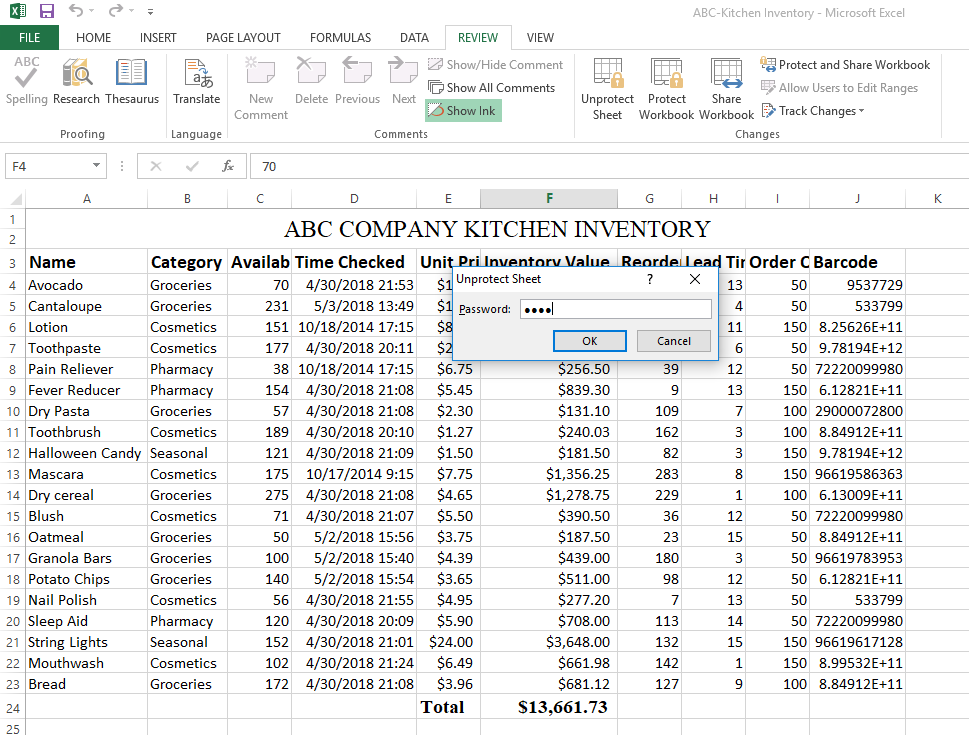
Protecting a worksheet with a password is a crucial step in safeguarding sensitive data. However, this protection is only as strong as the security measures implemented. A poorly considered approach can leave the data vulnerable to various threats. This section will delve into potential security risks, mitigation strategies, and best practices for robust worksheet protection.
Potential Security Risks
Worksheet protection, while valuable, can be compromised if not implemented carefully. Potential risks include password guessing, social engineering tactics, and vulnerabilities in the software itself. Compromised accounts or systems with weak access controls can also expose the protected data. Furthermore, reliance on a single method of protection can leave the data exposed if that method is compromised.
Effective security demands a multi-layered approach.
Mitigation Strategies
Several strategies can significantly reduce the risk of unauthorized access to protected worksheets. Strong password policies, robust access control measures, and regular updates to the software are crucial. Implementing a multi-factor authentication system can further bolster security. Regular security audits and penetration testing can help identify and address potential vulnerabilities before they are exploited.
Password Security Best Practices
Creating strong passwords is paramount to protecting sensitive data. These passwords should be unique, complex, and memorable. Avoid using easily guessable information like dates of birth, names, or common phrases. Employ a combination of uppercase and lowercase letters, numbers, and symbols. Length is also a critical factor; longer passwords are more resistant to brute-force attacks.
Password Management Systems
Utilizing password management systems is an essential practice for creating and storing strong, unique passwords. These systems generate and securely store passwords, eliminating the need to remember multiple complex credentials. They also provide a centralized repository for passwords, making access easier and more secure.
Protecting the Password Itself
Protecting the password itself is critical. Never share passwords with others, and do not write them down in easily accessible locations. Use strong password managers, and change passwords regularly. Be cautious of phishing attempts that aim to trick you into revealing your password.
Comparison of Security Methods
Different methods offer varying degrees of security. Using a strong password alone may not be sufficient against sophisticated attacks. Combining password protection with multi-factor authentication adds another layer of security, making it harder for attackers to gain access. Regular software updates are equally important, as they often patch security vulnerabilities.
Security Risks and Mitigation Strategies
| Risk | Description | Mitigation Strategy | Example |
|---|---|---|---|
| Password Guessing | Attackers attempt to guess passwords by trying common combinations or using automated tools. | Use strong, unique, and complex passwords. Enable password complexity requirements in the software. | Using “password123” instead of a complex password like “P@$$wOrd123!”. |
| Social Engineering | Attackers manipulate users into revealing sensitive information, including passwords. | Implement security awareness training for staff to recognize and avoid social engineering attempts. | Responding to a phishing email requesting your password. |
| Software Vulnerabilities | Exploitable weaknesses in the software itself can allow unauthorized access. | Regularly update software and use the latest security patches. | Failing to update spreadsheet software that contains security flaws. |
| Weak Access Control | Insufficient access controls allow unauthorized users to access protected worksheets. | Implement strict access control policies based on the principle of least privilege. | Granting unnecessary access to multiple users. |
Troubleshooting and Recovery
Protecting worksheets with passwords is crucial for data security, but issues can arise. This section details troubleshooting steps to resolve common problems and recover from errors. It also highlights the importance of robust security measures to mitigate risks associated with unauthorized access and data breaches.Effective recovery strategies are essential for maintaining data integrity and avoiding significant disruptions to workflow.
Understanding the potential causes of issues, along with the proper procedures for resolving them, empowers users to effectively safeguard their sensitive information.
Common Password Protection Issues
Incorrect password entries, corrupted files, and forgotten credentials are frequent issues. Careless password selection, or using easily guessed passwords, contributes to these problems.
Strategies for Recovering a Forgotten Password
If a password is forgotten, recovery procedures vary depending on the software or application used. Often, a recovery option or reset procedure is available, typically through an email address or security question. Consult the software’s documentation for specific instructions. Remembering to use strong and unique passwords can greatly reduce the risk of forgetting them.
Procedures for Dealing with Corrupted Worksheets
Corrupted worksheets can result from various factors, such as unexpected shutdowns or file system errors. Backing up data regularly and employing robust file management practices are vital for preventing data loss. If a worksheet becomes corrupted, the first step is to check for a recent backup copy. Software recovery tools can also sometimes repair corrupted files. The method for recovering a corrupted file depends on the specific software used and the nature of the corruption.
Steps to Take if a Password is Forgotten or Lost
Forgetting a password is a common problem. If a password is forgotten, the first step is to review any saved passwords or recovery options provided by the software. If the recovery options are unavailable, creating a new account with a strong and unique password is essential.
Risks Associated with Unauthorized Access
Unauthorized access to worksheets can lead to data breaches, intellectual property theft, or financial loss. Implementing robust security measures and strict access controls is essential for preventing unauthorized access.
Implications of Improper Worksheet Protection
Insufficient or improper protection can lead to significant risks, including data loss, compromise of confidential information, and reputational damage.
Table of Common Password Protection Errors and Solutions
| Error | Description | Cause | Solution |
|---|---|---|---|
| Incorrect Password Entry | The entered password is not recognized by the system. | Typographical errors, capitalization issues, or using the wrong password. | Double-check the password for accuracy, paying attention to capitalization and special characters. If unsure, reset the password through recovery options. |
| Corrupted Worksheet | The worksheet file is damaged or unusable. | Unexpected system shutdowns, file system errors, or virus attacks. | Check for recent backups, use software recovery tools, or contact technical support. |
| Forgotten Password | The user has forgotten the password for the protected worksheet. | Lack of strong passwords, poor password management practices. | Utilize password recovery options if available. If not, create a new account with a unique and complex password. |
| Weak Password | The password is easily guessed or cracked. | Using simple, common passwords, or repeating passwords across different accounts. | Choose strong passwords that are difficult to guess. Use a password manager to generate and store complex passwords. |
Advanced Techniques
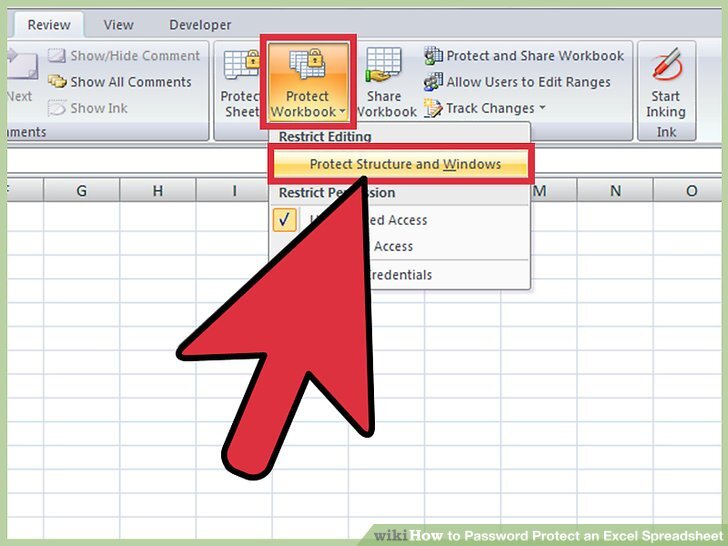
Protecting worksheets extends beyond basic password protection. Advanced techniques allow for granular control over access, restricting specific actions and enhancing overall data security. These methods can significantly reduce the risk of unauthorized modifications or data breaches, ensuring the integrity of your critical data.Advanced worksheet protection goes beyond simple password restrictions. It empowers users to tailor security measures to meet specific needs, allowing for intricate control over access and modification options.
This meticulous approach ensures data integrity and confidentiality, protecting valuable information from unintended changes or malicious actions.
Restricting Specific Actions
Implementing granular control over worksheet actions enhances security. This allows for selective permissions, such as enabling viewing but prohibiting editing or printing. This meticulous approach is crucial in environments where sensitive data needs to be shared while maintaining data integrity. By restricting specific actions, you can prevent accidental or intentional data alterations.
- Preventing Editing: Protecting cells or ranges from being edited maintains the integrity of critical data. This prevents unauthorized changes, ensuring data accuracy and reliability.
- Restricting Formatting: Protecting cells or ranges from being formatted protects the visual consistency of the worksheet and the integrity of its data. This prevents unintended alterations that might obscure or misrepresent the information.
- Limiting Printing Options: Restricting the ability to print prevents unauthorized distribution of sensitive data. This ensures that sensitive data is not disseminated without proper authorization.
Creating Complex Access Controls
Complex access controls involve creating multiple user groups with varying permissions. This layered approach is vital in collaborative environments where different users need access to different aspects of the worksheet. By segmenting access, you can refine the control over data access and maintain the confidentiality of specific sections.
- User Roles: Defining roles with corresponding permissions allows for fine-grained control. For example, a “viewer” role can access data but not edit it, while an “editor” role can modify certain cells or ranges.
- Conditional Access: Granting access based on specific criteria, such as time of day or user location, enhances security. This further safeguards against unauthorized access and misuse.
- Multi-factor Authentication: Adding a layer of authentication, such as requiring a username and password, along with a code from a mobile device, significantly increases security. This is particularly crucial for highly sensitive data.
Protecting Formulas and Charts
Protecting formulas and charts is critical for maintaining data accuracy and consistency. This involves locking the formulas themselves or the cells that contain them. This prevents unauthorized manipulation of calculations and ensures the integrity of data analysis.
- Locking Formula Cells: Protecting formula cells prevents accidental or intentional alterations, safeguarding the integrity of the calculations and maintaining the accuracy of the results.
- Protecting Chart Data: Protecting chart data prevents unauthorized changes to the chart’s source data, ensuring the visualization accurately reflects the current data.
Enhancing Data Security
Advanced worksheet protection features strengthen data security by adding layers of protection against unauthorized access or modification. By combining different security measures, a more robust security framework is developed.
- Combining Protection Methods: Implementing a combination of password protection, access controls, and restrictions on specific actions creates a layered security approach. This ensures that multiple safeguards are in place to protect the data.
- Auditing Changes: Enabling change tracking allows for monitoring any alterations to the worksheet, enabling the identification of any unauthorized changes.
Using Encryption
Employing encryption in conjunction with password protection provides an extra layer of security. Encryption transforms data into an unreadable format, rendering it unusable to unauthorized individuals. This is particularly important for protecting sensitive data from malicious actors or unintended access.
- Combining Encryption and Password Protection: Combining encryption with password protection makes data unreadable without the appropriate encryption key and password. This creates an impenetrable barrier against unauthorized access.
Summary of Advanced Techniques
Advanced worksheet protection involves implementing granular controls, creating complex access hierarchies, and utilizing encryption. This approach secures data by limiting specific actions, safeguarding formulas and charts, and enhancing overall security through layered protection. This layered approach ensures that critical data is protected against unauthorized access, modification, and misuse.
Final Review
In conclusion, this guide has presented a detailed strategy for protecting worksheets with passwords, covering various methods, security considerations, and troubleshooting steps. By understanding the importance of robust password protection, and employing the techniques discussed, you can effectively safeguard your valuable data and maintain the integrity of your spreadsheets.