Unlocking the power of data analysis often hinges on efficient lookup techniques. This guide delves into the practical application of two-way lookups, focusing on the highly effective INDEX MATCH function. We’ll explore its versatility in retrieving data from multiple ranges, showcasing various scenarios and providing step-by-step instructions for implementation.
From fundamental concepts to advanced techniques, this comprehensive resource covers everything you need to master two-way lookups. It also details optimization strategies for large datasets, highlighting how to avoid common pitfalls and maximize efficiency.
Introduction to Two-Way Lookup

Two-way lookups are powerful tools in data analysis, enabling the retrieval of specific data points from complex datasets. They extend the capabilities of single-criteria lookups by allowing the user to specify multiple criteria, enabling more nuanced data extraction. This is particularly useful when dealing with tabular data structured in rows and columns, where each cell contains a piece of information related to both a row and column identifier.The core concept behind two-way lookups relies on the INDEX MATCH function, which combines the power of indexing and matching.
INDEX MATCH efficiently locates data within a range based on criteria defined in separate ranges, thereby enabling the retrieval of specific values from a matrix-like dataset.
Two-Way Lookup Scenario
Two-way lookups excel when dealing with datasets containing multiple categories or dimensions. Imagine a sales database where you need to determine the sales figures for a specific product in a particular region. This information isn’t readily available in a single cell; instead, it’s distributed across rows and columns.
Example Table Structure
This table demonstrates a typical two-way lookup structure. It’s crucial to understand the organization of data within the table, as this structure dictates how INDEX MATCH will be implemented.
| Product | Region | Q1 Sales | Q2 Sales | Q3 Sales | Q4 Sales |
|---|---|---|---|---|---|
| Laptop | North | 10000 | 12000 | 15000 | 18000 |
| Laptop | South | 8000 | 9500 | 11000 | 13000 |
| Tablet | North | 5000 | 6000 | 7000 | 8000 |
| Tablet | South | 4000 | 4500 | 5500 | 6000 |
Implementing INDEX MATCH for Two-Way Lookups
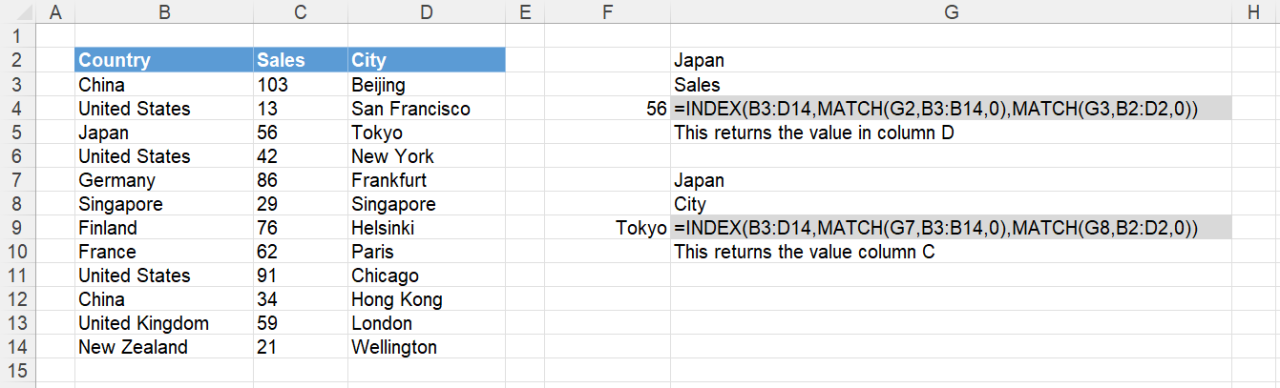
Implementing a two-way lookup using the INDEX MATCH functions in spreadsheets is a powerful technique for retrieving data from complex datasets. This method allows you to find specific values based on two criteria, significantly enhancing the flexibility and efficiency of data analysis. It’s particularly useful when dealing with large datasets or when the data needs to be accessed based on multiple variables.The INDEX MATCH function combination provides a robust solution for two-way lookups, offering precise results and simplifying the process of extracting information from multi-dimensional data.
Understanding the syntax, appropriate table structuring, and the handling of multiple criteria are crucial for achieving optimal performance and accurate results.
Syntax of the INDEX MATCH Function
The INDEX MATCH function combines two powerful functions: INDEX and MATCH. The INDEX function returns a value from a specified range based on its position, while the MATCH function locates the position of a specific value within a range. Understanding the components of each function is essential for effective two-way lookup implementation.
INDEX(array, row_num, [column_num])
The INDEX function takes an array, a row number, and an optional column number. The array represents the range of cells containing the data. The row_num specifies the row within the array from which to return a value. The column_num (optional) specifies the column from which to return a value.
MATCH(lookup_value, lookup_array, [match_type])
The MATCH function searches for a specific lookup_value within a lookup_array. The match_type parameter controls the type of match (exact or approximate). A match_type of 0 indicates an exact match.
Structuring Lookup Tables for Optimal Performance
Properly structuring the lookup table is crucial for efficient two-way lookups. The table should be arranged logically, with the criteria for each lookup in separate columns. A well-organized structure reduces calculation time and improves overall performance.
- Data organization: Ensure the lookup table is well-organized with clear separation of criteria. This facilitates quicker retrieval of information.
- Size and shape: The table should be of a reasonable size. Very large tables can significantly impact lookup performance. If possible, use structured references for improved performance.
- Data types: Ensure data types are consistent within the lookup table. Inconsistent data types can lead to errors.
Multiple Criteria in Two-Way Lookups
Using multiple criteria in a two-way lookup involves combining the MATCH function with the AND or OR functions. This approach allows you to search for values based on more than one condition, making two-way lookups even more versatile.
- AND function: The AND function returns TRUE if all criteria are met, and FALSE otherwise. This ensures that the lookup returns a result only when both conditions are satisfied.
- OR function: The OR function returns TRUE if at least one criterion is met, and FALSE otherwise. This allows you to find a result if either of the conditions is met.
Examples and Scenarios
Let’s consider a scenario where you want to find the sales amount for a specific product in a particular region.
| Product | Region | Sales Amount |
|---|---|---|
| Laptop | North | 10000 |
| Tablet | North | 5000 |
| Laptop | South | 8000 |
To find the sales amount for “Laptop” in the “North” region, you would use the INDEX MATCH function with multiple criteria.
Handling Lookup Value Not Found
The `IFERROR` function is an important tool for handling cases where the lookup value isn’t found in the lookup table. It returns a specified value or performs an alternative calculation if the lookup fails.
- Using IFERROR: Wrap the entire INDEX MATCH formula within the IFERROR function. If the MATCH function doesn’t find a match, the IFERROR function returns the specified value, preventing errors from disrupting the spreadsheet.
Steps for Implementing a Two-Way Lookup
- Prepare the lookup table, ensuring proper organization and data types.
- Define the lookup values for each criteria.
- Use the MATCH function to locate the row and column matching the criteria.
- Combine the MATCH results with the INDEX function to retrieve the desired value.
- Utilize the IFERROR function to handle cases where the lookup values are not found.
Advanced Techniques and Considerations
The INDEX MATCH function, while powerful for two-way lookups, becomes even more effective when combined with other tools and optimized for large datasets. This section will explore techniques for maximizing efficiency, integrating with other functions, and enhancing readability and maintainability. Furthermore, we will discuss error handling, wildcard usage, and potential pitfalls to help you leverage INDEX MATCH effectively.
Optimizing Performance for Large Datasets
For datasets exceeding a certain size, the performance of INDEX MATCH can be noticeably affected. Several strategies can be employed to enhance speed. Pre-processing the data, such as sorting or creating helper columns, can significantly improve lookup times. Consider using the `AGGREGATE` function with `LARGE` or `SMALL` to identify the appropriate row numbers. Also, utilizing `FILTER` in conjunction with `INDEX` provides another way to achieve a similar result with a potential performance improvement in some scenarios.
Implementing these techniques can yield a substantial improvement in lookup speed, especially when dealing with extremely large datasets.
Combining INDEX MATCH with Other Functions
Combining INDEX MATCH with other functions, such as VLOOKUP, can be beneficial for more intricate queries. For instance, a scenario might require fetching data from multiple tables based on a complex set of criteria. In such a case, you can use INDEX MATCH to retrieve the necessary data from one table and then use VLOOKUP to extract additional information from another table, consolidating the data into a single result.
This flexibility allows for sophisticated data retrieval tailored to specific needs.
Utilizing Named Ranges
Named ranges offer substantial benefits for enhancing readability and maintainability. Instead of referring to cell ranges using complex cell references, you can assign meaningful names to specific data blocks. This practice improves code clarity and reduces the potential for errors. For example, a named range like “SalesData” can be used instead of a cumbersome cell range reference, making the formula easier to understand and maintain.
This approach, especially in complex spreadsheets, significantly increases clarity.
Error Handling with IFERROR
Errors are inevitable in data analysis, especially when dealing with potentially missing data or incorrect input. The `IFERROR` function provides a crucial tool for handling such scenarios gracefully. By wrapping the INDEX MATCH formula within `IFERROR`, you can specify an alternative value or action to be taken if the lookup fails. This is particularly useful for presenting user-friendly results or triggering an alert.
This proactive approach helps in preventing disruptions in your analysis process.
Using Wildcards for Partial Matches
Wildcards can facilitate partial matches in your lookups. Using the asterisk (*) as a wildcard character in the lookup_value argument allows for matching rows containing a specific pattern. For example, if you want to find all products containing “Laptop,” you can use the asterisk to match rows where the product name includes “Laptop,” regardless of the surrounding text.
This flexibility enhances the range of data you can retrieve.
Examples of Wildcard Usage
| Product Name | Category |
|---|---|
| Gaming Laptop | Electronics |
| Laptop Backpack | Accessories |
| Ultrabook Laptop | Electronics |
To find all products containing “Laptop,” you can use the following formula:
`=INDEX(B:B,MATCH(“*Laptop*”,A:A,0))`
This formula will return the category associated with any product name containing “Laptop.”
Handling Missing Data
Missing data in the lookup table can lead to errors in INDEX MATCH. Employing `IFERROR` to manage these scenarios is crucial. If a lookup fails due to missing data, `IFERROR` allows you to return a predefined value, such as “Not Found” or an empty string, instead of an error. This prevents the analysis from being interrupted and ensures robustness in your spreadsheet.
Practical Applications and Examples

Two-way lookups, facilitated by the INDEX MATCH function, offer powerful tools for data analysis and manipulation across diverse fields. Their versatility extends beyond simple data retrieval, enabling complex calculations and insightful comparisons. Understanding their practical applications in various sectors, such as finance, sales, and marketing, is crucial for maximizing their potential.These lookups are particularly valuable when dealing with datasets containing multiple criteria.
For instance, in sales, a two-way lookup can combine regional sales figures with product types to generate detailed performance reports. Such a dynamic approach allows for a granular view of sales trends, crucial for informed decision-making.
Real-World Applications in Different Fields
Two-way lookups find applications across various industries. In finance, they can be used to retrieve specific investment details based on both stock ticker and date. In sales, they enable the analysis of regional sales figures broken down by product type. Marketing teams can leverage them to determine campaign performance across different demographics and channels. The key benefit is the ability to combine multiple criteria for a more detailed and insightful analysis.
Spreadsheet Examples
Consider a product catalog. A two-way lookup can effectively retrieve detailed information about a specific product, including its description, price, and quantity available. This allows for quick and accurate access to product information. For example, if you want to know the price and quantity of a particular product, you can input the product ID and a product category in separate cells.
| Product ID | Product Category | Description | Price | Quantity |
|---|---|---|---|---|
| 101 | Electronics | Laptop | $1200 | 50 |
| 102 | Electronics | Tablet | $300 | 100 |
| 201 | Clothing | Shirt | $25 | 200 |
This table showcases a simple product catalog. Using INDEX MATCH, you can readily retrieve the price and quantity for a specific product based on its ID and category.
Sales Report Example
A sales report can utilize a two-way lookup to analyze sales data by region and product type. This allows for a more nuanced understanding of sales performance across different markets.
| Region | Product Type | Sales Amount |
|---|---|---|
| North | Electronics | $50,000 |
| North | Clothing | $20,000 |
| South | Electronics | $30,000 |
| South | Clothing | $15,000 |
This table presents a simplified sales report. A two-way lookup can easily combine data from these regions to create a comprehensive summary.
Performing Lookups Across Multiple Worksheets
Two-way lookups can extend beyond a single worksheet. By using appropriate cell references, you can combine data from multiple worksheets into a single lookup table. This feature is valuable when dealing with extensive datasets spread across multiple sheets.For example, if you have sales data on separate worksheets for different regions, you can create a consolidated lookup table to analyze sales across all regions.
Comparing Data from Different Tables
Using INDEX MATCH across different tables allows for comparisons between datasets. For instance, you can compare sales figures for the same product across different years. This feature allows for trend analysis and identification of patterns.
Example: If Table A contains sales data for 2022 and Table B contains data for 2023, a two-way lookup can be used to identify products that experienced significant growth or decline in sales between the two years.
Performance and Efficiency
Optimizing INDEX MATCH for large datasets is crucial for maintaining application responsiveness. Poorly implemented lookups can lead to significant performance bottlenecks, especially in applications with high data volumes. Understanding techniques for enhancing performance allows for the development of efficient and user-friendly applications.
Improving Performance with Array Formulas
Array formulas can dramatically speed up INDEX MATCH operations, particularly when dealing with multiple lookups or complex criteria. These formulas leverage the power of Excel’s array processing capabilities, significantly reducing the number of calculations needed. They are particularly beneficial for large datasets.
=INDEX(lookup_array,MATCH(lookup_value,lookup_range,0))
This is the standard INDEX MATCH formula. Using it repeatedly for multiple lookups can be computationally intensive. In contrast, array formulas allow you to perform multiple MATCH operations simultaneously.For instance, to find multiple values corresponding to multiple lookup values, an array formula would be significantly faster than a series of individual INDEX MATCH formulas.
Utilizing Appropriate Data Structures
The structure of your data significantly impacts the speed of lookups. Structured data, organized in a way that minimizes unnecessary computations, enables faster access to required information. A well-organized dataset can drastically improve lookup performance.A lookup table designed with optimal performance in mind typically involves:
- Sorted Data: Sorting the lookup table based on the lookup column (the column containing the values you’re looking up) greatly enhances the efficiency of MATCH. This allows for binary search algorithms to be applied, dramatically reducing the search time compared to linear search.
- Data Type Consistency: Ensuring that the data types in your lookup table are consistent, especially the lookup column, prevents unexpected errors and ensures accurate calculations. For example, a column intended for numbers should not contain text.
- Optimized Data Types: Choosing the appropriate data types for your lookup values (e.g., using whole numbers instead of decimals when possible) can further enhance performance.
Example of an Optimized Lookup Table
Consider a lookup table for employee salaries, structured for efficient performance:
| Employee ID | Employee Name | Department | Salary |
|---|---|---|---|
| 101 | Alice Smith | Sales | 60000 |
| 102 | Bob Johnson | Marketing | 75000 |
| 103 | Charlie Brown | Sales | 65000 |
This table is sorted by Employee ID, ensuring quick lookups. It also uses appropriate data types (numbers for IDs and salaries).
Performance Comparison with Alternative Methods
Different lookup methods have varying performance characteristics. Comparing their speeds provides insights into the best approach for a given dataset. The performance of a lookup method depends on factors such as dataset size, complexity of lookup criteria, and the data structure used.
| Method | Description | Performance (Estimated) |
|---|---|---|
| INDEX MATCH | Standard Excel lookup | Moderate |
| VLOOKUP | One-directional lookup | Can be slow for large datasets |
| HLOOKUP | Horizontal lookup | Can be slow for large datasets |
| Power Query | Advanced data manipulation and transformation | Excellent for complex lookups and large datasets |
Note: Performance estimates are relative and depend on the specific dataset and the complexity of the lookup criteria. The use of array formulas, sorting, and data structures can significantly improve the performance of INDEX MATCH in large datasets.
Final Conclusion
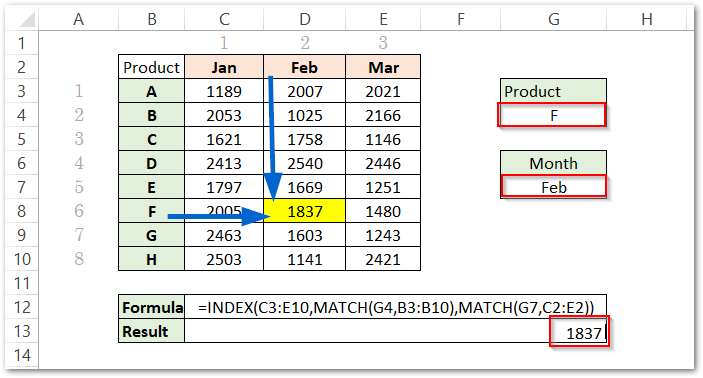
In conclusion, this guide provides a complete roadmap for performing two-way lookups using INDEX MATCH. We’ve covered essential concepts, practical examples, and troubleshooting strategies to empower you to tackle data analysis tasks with confidence. The examples and techniques explored here are applicable across various fields, making this a valuable resource for anyone working with spreadsheets and data.