Line charts are powerful visual tools for conveying data trends. This guide provides a detailed roadmap for creating professional-looking line charts, from data preparation to interactive design. Understanding the nuances of formatting, choosing the right tools, and ensuring accessibility are crucial for effective communication.
This comprehensive guide will walk you through every step, enabling you to present data in a clear, engaging, and visually appealing manner. We’ll cover essential aspects such as selecting the appropriate chart type, preparing your data effectively, and choosing the right software tools.
Understanding Line Charts
Line charts are a valuable tool in professional settings for visualizing trends and patterns in data over time. They effectively communicate changes in values across different periods, making it easy to identify growth, decline, or fluctuations in key metrics. Their visual nature allows for quick comprehension of data trends, facilitating informed decision-making.Line charts are particularly well-suited for demonstrating changes in data points over a continuous interval, such as daily sales figures, monthly website traffic, or quarterly stock prices.
Their ability to show these trends clearly makes them indispensable for reporting and analysis in fields like finance, marketing, and operations.
Purpose and Use Cases
Line charts are primarily used to display trends over time. They are excellent for identifying patterns, growth rates, and fluctuations in data. This makes them valuable for showing performance comparisons, forecasting future trends, and highlighting critical changes in metrics. For example, a line chart could illustrate how sales have changed over the past year, revealing seasonal trends or significant spikes in revenue.
Key Elements of a Professional Line Chart
A professional line chart typically includes several key elements for clarity and understanding. These include labeled axes, a descriptive title, clearly marked data points, and, optionally, a trend line to further emphasize the overall pattern. The x-axis often represents time (e.g., dates, months, quarters), while the y-axis displays the measured values (e.g., sales figures, stock prices). Appropriate labels are crucial for context.
For instance, labeling the axes with “Time Period” and “Sales Revenue” clarifies the data’s meaning.
Choosing the Right Type of Line Chart
The selection of a line chart type depends on the nature of the data. For instance, a simple line chart is ideal for displaying a single variable over time. If multiple variables need comparison, a multiple line chart would be more appropriate. The chart should be tailored to the specific message you want to convey. If you are highlighting the relationship between two variables, a scatter plot might be more suitable.
Line Chart Applications
| Application | Data Set | Purpose |
|---|---|---|
| Sales Trends | Monthly sales figures | Identify sales patterns, predict future sales, and compare sales performance across different periods. |
| Stock Prices | Daily stock prices | Analyze stock market trends, spot potential fluctuations, and track investment performance. |
| Website Traffic | Daily website visits | Monitor website traffic patterns, assess marketing campaigns’ effectiveness, and identify periods of high or low activity. |
| Customer Acquisition Cost (CAC) | CAC per month | Evaluate marketing effectiveness by tracking how CAC changes over time. |
| Project Progress | Daily/weekly/monthly task completion | Monitor project progress, identify delays, and make necessary adjustments. |
Data Preparation for Line Charts
Effective data preparation is crucial for creating insightful and accurate line charts. A well-prepared dataset ensures the chart accurately reflects the underlying trends and patterns in the data. This involves cleaning and transforming the data to ensure it’s suitable for visualization. Proper organization of the data in a spreadsheet format is also essential for efficient chart creation and interpretation.
Data Cleaning Techniques
Data cleaning is a critical step in preparing data for line charts. It involves identifying and correcting errors, inconsistencies, and inaccuracies within the dataset. This process ensures that the line chart accurately reflects the trends in the data. Common data cleaning techniques include handling missing values, removing duplicates, and standardizing data formats. The goal is to produce a clean, consistent, and reliable dataset suitable for creating an accurate line chart.
Data Transformation Techniques
Data transformation techniques are employed to convert data into a suitable format for analysis and visualization. These techniques can involve converting data types, creating new variables, and aggregating data. Appropriate transformations are essential for producing accurate and informative line charts. For example, transforming raw sales figures into monthly averages can highlight long-term trends more effectively than showing daily fluctuations.
Data Organization in Spreadsheets
Organizing data in a spreadsheet is crucial for efficient chart creation. A well-structured spreadsheet facilitates easy data manipulation and chart creation. It is essential to clearly label columns with descriptive names, and to organize data in a logical manner. This enhances the clarity and understandability of the chart. For instance, separate columns for date, time, and corresponding values (e.g., sales figures, temperature readings) are best practices.
Data should be arranged chronologically for line charts to accurately reflect the progression of trends.
Handling Missing or Inconsistent Data
Missing or inconsistent data can significantly impact the accuracy and reliability of a line chart. Strategies for handling these issues include identifying missing values, using appropriate imputation methods, and addressing inconsistencies. Techniques like replacing missing values with the mean, median, or mode of the existing data can be employed, although it’s essential to acknowledge the impact of such substitutions on the chart’s interpretation.
Inconsistent data, such as different formats for dates, can be resolved through standardization.
Data Formatting Options for Line Charts
The table below demonstrates various data formatting options suitable for line charts. Different formats are tailored to different needs, enabling visualization of various aspects of data trends.
| Data Type | Description | Example |
|---|---|---|
| Time Series Data | Data collected over a period of time, typically chronologically ordered. | Daily sales figures over a year. |
| Categorical Data | Data grouped into categories. | Sales figures by product type. |
| Numerical Data | Data measured on a numerical scale. | Temperature readings over a period. |
| Combined Data | A combination of time series, categorical, and numerical data. | Sales figures by product type over time. |
Choosing the Right Tools
Selecting the appropriate software for creating professional-looking line charts is crucial. The choice depends on factors like the complexity of your data, the level of customization required, and your familiarity with the software. Different tools offer varying capabilities, impacting the efficiency and visual appeal of your charts.Various software options are available, ranging from spreadsheet programs to dedicated charting tools.
Each has its strengths and weaknesses, which need to be considered when making a selection. Understanding these differences will help you choose the best tool for your specific needs and ensure your charts meet your professional standards.
Software Options for Line Charts
Several software options facilitate the creation of professional-looking line charts. These range from widely accessible spreadsheet applications to specialized charting software. Choosing the right tool depends on the user’s existing skill set and the intended use of the chart.
- Spreadsheet Software (e.g., Microsoft Excel, Google Sheets):
- These programs are commonly used for basic data analysis and visualization. They provide a user-friendly interface and are widely available. Spreadsheet programs often offer sufficient tools for creating simple line charts, but their capabilities are limited for complex visualizations or highly customized designs. For instance, Microsoft Excel and Google Sheets excel in presenting data trends, making them ideal for business reports or personal projects with straightforward data sets.
However, more intricate chart types might require additional software or significant effort within the spreadsheet application.
- Dedicated Charting Tools (e.g., Tableau, Power BI):
- These specialized tools offer a wider array of features and functionalities for creating interactive and visually appealing charts. Dedicated charting tools are typically preferred for large datasets, intricate visualizations, and interactive dashboards. For example, Tableau and Power BI are commonly used for business intelligence and data analysis. They enable sophisticated data exploration, enabling users to create interactive line charts with multiple data series, advanced filtering, and drill-down capabilities.
However, the steeper learning curve and licensing costs can be a deterrent for individuals or small teams.
- Other Charting Libraries (e.g., Python libraries like Matplotlib, Seaborn):
- For users comfortable with programming languages like Python, these libraries provide powerful tools for creating customized line charts. They offer immense flexibility in terms of design and functionality. Users can integrate them with other data analysis workflows and potentially leverage their analytical capabilities. For example, Matplotlib and Seaborn enable highly customizable line charts, suitable for academic research or complex data visualization tasks.
The code-based approach demands proficiency in programming languages, a factor to consider before adopting these tools.
Comparing Software Options
A comparative analysis of the strengths and weaknesses of various software options provides insights into their suitability for different tasks. This comparison underscores the diverse capabilities of each tool and their practical applications.
| Software | Pros | Cons |
|---|---|---|
| Spreadsheet Software | Ease of use, readily available, relatively inexpensive | Limited customization options, less suited for complex visualizations, potential for manual errors |
| Dedicated Charting Tools | Sophisticated features, interactive dashboards, complex visualizations | Steeper learning curve, often higher cost, less intuitive for basic tasks |
| Charting Libraries | High level of customization, integration with other tools, potential for automation | Requires programming knowledge, potentially slower development time, may not be readily accessible to non-programmers |
Designing the Chart for Visual Impact
Creating a compelling line chart involves more than just plotting data points. Effective design elevates the chart from a simple representation to a powerful tool for communication. Visual elements, thoughtfully chosen, guide the viewer’s eye to key insights and trends, enhancing understanding and retention of the presented information. This section provides a structured approach to crafting a visually impactful line chart.
Formatting Chart Elements for Clarity
Clear and concise labeling is crucial for effective chart interpretation. Chart titles should succinctly describe the data displayed, while axis labels provide context for the values. Legends, if applicable, should clearly identify different data series and their associated meanings. This detailed approach ensures that the chart’s purpose and the meaning of the data are immediately apparent to the audience.
Effective Use of Visual Elements
Color selection significantly impacts chart readability and engagement. Choose colors that are distinct and easily distinguishable. Avoid using overly saturated or contrasting colors that might strain the viewer’s eyes. Fonts should be legible and consistent throughout the chart, with appropriate font sizes for titles, labels, and data points. Consider using a combination of different font styles to emphasize critical information.
Employ visual cues like markers or line styles to highlight distinct data series and trends.
Highlighting Trends and Patterns
Visual cues effectively highlight key trends and patterns within the data. Using different line styles, markers, or colors to distinguish various data series can enhance clarity. Employing shading or highlighting on specific segments of the line can focus attention on critical turning points or periods of significant change. Annotations, such as callouts or text boxes, can explain important details or patterns within the data.
For instance, if a particular segment of the line experiences a sharp increase or decrease, highlighting that section with a different color or a thicker line will immediately draw attention to the trend.
Best Practices for Professional Line Charts
A professional line chart adheres to established best practices that maximize clarity and impact.
- Maintain consistency: Use a consistent color scheme, font style, and line thickness throughout the chart to ensure a unified look and feel. This consistency creates a professional and organized impression.
- Prioritize clarity: Avoid overcrowding the chart with excessive information. Keep the design simple and focused on conveying the key message of the data. Less is often more, and clarity is paramount in data visualization.
- Use appropriate scales: Ensure the scales on both axes are appropriate for the data range. Distorted scales can misrepresent the data, and using a scale that accurately reflects the data is essential for reliable interpretation.
- Include a source: If the data is sourced from a particular report or study, credit the source to maintain data integrity and accountability. This element adds credibility and traceability to the chart.
- Proofread carefully: Thoroughly proofread all text elements, including titles, labels, and annotations, to eliminate any errors or inconsistencies. Accurate and error-free information is vital for a professional presentation.
Adding Context and Clarity
Adding annotations, notes, and callouts to a line chart enhances comprehension and provides critical context. Clear annotations make complex data easily digestible, allowing viewers to quickly grasp the trends and insights presented. Effective annotations also help to avoid ambiguity and improve the overall impact of the chart.Effective annotation strategies and techniques, coupled with a clear understanding of visual hierarchy, can transform a basic line chart into a powerful communication tool.
By carefully considering the placement and style of annotations, you can guide the viewer’s eye and ensure that the key takeaways are immediately apparent. This is crucial for conveying the intended message accurately and efficiently.
Annotation Techniques for Clarity
Adding annotations, including labels, notes, and callouts, is essential to providing context to a line chart. Annotations clarify data points, trends, and significant events visually represented on the chart. They ensure that viewers understand the chart’s message without extensive explanation.
- Labeling Key Data Points: Highlighting significant data points with labels directly on the chart helps viewers easily grasp specific values. For instance, labeling a peak or trough on a line graph with the corresponding date and value can quickly communicate a specific event or observation.
- Adding Notes: Short, concise notes can clarify trends, explain deviations from expected patterns, or highlight the significance of specific periods. For example, a note explaining a sudden drop in sales due to a marketing campaign would add important context.
- Using Callouts: Callouts, visually distinct annotations pointing to specific data points or areas of the chart, can draw attention to key insights. These callouts can include more detailed explanations or specific data values, offering a more in-depth look at particular segments of the chart.
Maintaining Visual Hierarchy
Visual hierarchy in a line chart prioritizes the most important elements to ensure clear communication. This technique directs the viewer’s attention to the key information, avoiding visual clutter that might obscure the chart’s message.
- Prioritize Key Information: Ensure that the most important data points and trends are emphasized through larger font sizes, bolder colors, or more prominent markers. This focus draws the viewer’s attention to the most significant insights.
- Use Appropriate Font Sizes and Styles: Varying font sizes and styles within annotations can enhance readability and create a clear hierarchy. Larger fonts for titles, labels, and important data points create a visual hierarchy that improves comprehension.
- Avoid Clutter: Keep annotations concise and to the point. Avoid overwhelming the chart with excessive text or markers that distract from the core message. Overuse of annotations can lead to a chaotic and confusing visual experience.
Examples of Effective Annotation Techniques
Effective annotation techniques can significantly improve chart comprehension. Different approaches highlight specific aspects of the data and enhance overall understanding.
- Highlighting Trends: Annotating a sustained upward trend with a descriptive label like “Steady Growth in Revenue” makes the trend easily understandable and provides context to the overall data pattern.
- Indicating Disruptions: An arrow pointing to a significant drop in the line graph with a concise note, such as “Impact of Product Recall,” immediately conveys the reason behind the unexpected change in the data.
- Showing Correlations: Connecting a line chart representing sales figures with a separate bar graph representing marketing budget with clear callouts showing the correlation between the two sets of data, enhances the clarity and impact of the visualization.
Ensuring Accessibility and Readability

Creating accessible and readable line charts is crucial for ensuring that all viewers, including those with visual impairments, can understand the presented data. Clear design choices, combined with thoughtful use of color and typography, contribute significantly to overall comprehension and usability. This section details the steps to make line charts inclusive and understandable for everyone.
Accessibility for Visual Impairments
Ensuring accessibility for individuals with visual impairments requires careful consideration of the chart’s design elements. Providing alternative text descriptions for the chart is paramount. These descriptions should concisely summarize the key takeaways from the data presented. Screen readers should be able to interpret the chart’s content. This involves providing meaningful labels for axes, data points, and any relevant annotations.
- Use clear and concise labels for the x and y axes, explicitly stating the units of measurement.
- Include a descriptive title that accurately reflects the chart’s content.
- Provide alternative text that summarizes the key findings, including trends and patterns.
- Use high contrast color combinations for optimal readability, particularly for individuals with low vision.
- Ensure sufficient font size for clear text readability.
Creating Clear and Readable Charts
Effective communication of data hinges on creating charts that are easily understandable for all viewers, regardless of their background. A clear and concise chart design facilitates comprehension, enabling viewers to grasp the presented information without confusion.
- Choose appropriate color palettes. Avoid using colors that are difficult to distinguish or that might cause confusion, especially for colorblind viewers.
- Select clear and legible fonts. Ensure font sizes are large enough to be easily read, particularly for those with visual impairments.
- Use sufficient spacing between data points and labels to prevent overcrowding.
- Employ appropriate visual elements, such as markers and gridlines, to enhance clarity and visual appeal without compromising accessibility.
- Use a consistent style and formatting throughout the chart to maintain readability.
Importance of Color Palettes and Font Sizes
Appropriate color choices and font sizes are essential for readability and accessibility. A well-chosen color palette can enhance visual clarity and distinguish data points, while font sizes ensure that all elements are easily readable.
- Employ a color palette that is distinguishable and high contrast.
- Utilize a colorblind-friendly palette if possible, to avoid ambiguity.
- Maintain a consistent font size throughout the chart for readability.
- Use a legible font type, such as sans-serif fonts, for optimal clarity.
Accessibility Considerations for Line Charts
The following table summarizes important considerations for ensuring accessibility in line charts.
| Accessibility Feature | Description | Example |
|---|---|---|
| Alternative Text | Provides a concise description of the chart’s content for screen readers. | “Line chart showing the monthly sales figures for Q3 2023. Sales increased steadily throughout the quarter.” |
| High Contrast Colors | Emphasizes visual distinctions between data points and elements. | Use dark blue for the line and light yellow for the data points on a black background. |
| Font Size and Type | Ensures readability for all viewers, including those with visual impairments. | Use a sans-serif font like Arial or Calibri at a size of 12 or larger. |
| Clear Labels | Provides a clear understanding of the data presented. | “Monthly Revenue” for the y-axis label, “Month” for the x-axis label. |
Examples and Case Studies
Effective line charts are crucial for conveying insights and trends in various professional settings. Well-designed charts can illuminate complex data, facilitate understanding, and support informed decision-making. Conversely, poorly designed charts can obscure information, mislead audiences, and ultimately diminish the impact of the presented data. This section examines examples of successful and unsuccessful line charts, highlighting key design elements and practical application.Examining both effective and ineffective line charts provides valuable learning opportunities.
By understanding the common errors and observing successful implementations, professionals can enhance their ability to communicate data effectively. The analysis of real-world case studies further solidifies the principles discussed in the previous sections, illustrating the practical application of these techniques.
Examples of Well-Designed Line Charts
Effective line charts present data clearly and concisely, allowing viewers to quickly grasp key trends and insights. A well-designed chart should include a clear title, informative axis labels, and appropriate data points. Color choices should be visually appealing and accessible. These characteristics facilitate a clear understanding of the presented information.
- Business Reports: A line chart illustrating quarterly sales figures over the past three years can effectively showcase revenue growth or decline. The chart could highlight seasonal trends or identify periods of significant fluctuation. Clear labels on the x-axis (representing quarters) and y-axis (representing sales figures in a consistent currency) are crucial for understanding the presented data. The use of a color scheme that differentiates each year’s sales data enhances readability.
- Scientific Publications: A line chart displaying the relationship between temperature and plant growth over a period of time can effectively illustrate the correlation between these variables. The x-axis could represent time (days or weeks), and the y-axis could represent the growth rate of the plant. The use of a trend line can help visualize the overall pattern. Clear, informative labels and a concise title are essential for conveying the specific scientific relationship.
- Presentations: A line chart comparing the market share of different product lines over time can effectively illustrate competitive dynamics and strategic decisions. Using contrasting colors for different product lines and a clear legend to indicate the product associated with each line enhances comprehension. A concise title highlighting the key takeaway of the data presented is critical.
Examples of Poorly Designed Line Charts and Improvements
Poorly designed charts can hinder understanding and misrepresent the data. Common errors include unclear axis labels, inappropriate scales, confusing color schemes, and the lack of context. Improving these charts involves rectifying these errors and incorporating the best practices discussed earlier.
- Poorly Designed Chart: A line chart showing stock prices with an inconsistent y-axis scale, where the scale changes dramatically, could distort the perception of stock fluctuations. The use of a single color for all data points, without differentiation, would also decrease readability. A title that does not accurately reflect the data presented would further hinder understanding.
- Improvements: A corrected chart should use a consistent scale for the y-axis, reflecting accurate stock price values. Different colors or line styles should be used to distinguish different periods or companies. A more descriptive title should clearly reflect the purpose of the chart, and the context of the data. For example, a more descriptive title might read: “Stock Performance Comparison for Q3 2023: XYZ Corporation vs.
ABC Corporation,” highlighting the specifics of the presented data. An appropriate legend can also enhance readability. Adding a trend line to highlight the overall direction of the trend can further improve understanding.
Case Studies of Effective Line Chart Usage
Real-world case studies showcase the practical application of line charts in conveying critical information. These examples demonstrate how effective use can lead to valuable insights and informed decision-making.
- Company X: A line chart visualizing the company’s website traffic over the last year, highlighting seasonal peaks and dips, was instrumental in identifying marketing strategies for higher engagement. This chart helped to understand traffic patterns and allocate resources accordingly. The use of a clear title and informative labels made it easy to understand the data.
Interactive Line Charts
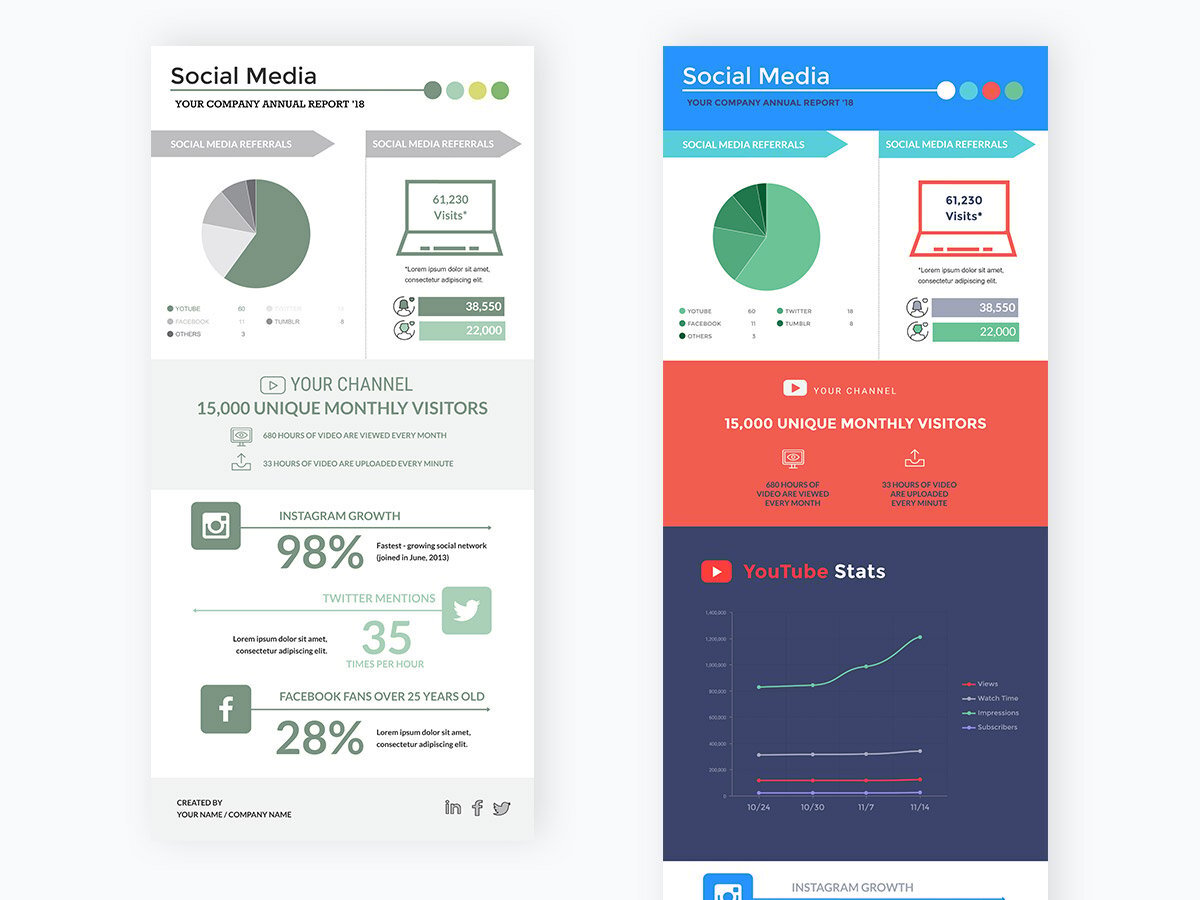
Interactive line charts elevate static visualizations by enabling users to actively explore and interact with the data. This dynamic engagement provides a richer understanding of trends and patterns, allowing for deeper insights and more informed decision-making. Users can dynamically filter, zoom, and investigate specific data points, fostering a more intuitive and engaging experience.Interactive features transform line charts from passive displays to dynamic tools, facilitating data discovery and analysis.
This enhances the user experience and unlocks the full potential of the data represented.
Examples of Interactive Line Charts
Interactive line charts offer a wide range of possibilities for exploration. For example, a chart tracking sales performance over time could allow users to click on specific months to see detailed sales figures and regional breakdowns. Another example could be a chart illustrating stock market trends; users could zoom in on specific time periods to analyze short-term fluctuations.
Interactive Features for Enhancing User Experience
Interactive elements significantly enhance user experience. These features include:
- Tooltips: Tooltips display detailed information when users hover over data points or segments. This adds context and clarity, revealing underlying values, dates, or other relevant details. For instance, a tooltip on a point showing sales figures in a specific region might display the exact sales value, date, and associated revenue streams.
- Zooming: Zooming functionality allows users to focus on specific portions of the data. This feature is invaluable when exploring long-term trends or identifying short-term fluctuations. For instance, when analyzing stock prices, users can zoom in on a specific quarter to identify price spikes or dips.
- Filtering: Filtering allows users to isolate specific data subsets, like focusing on data from a particular region, product category, or time period. This ability is crucial for detailed analysis and comparison. For example, a chart illustrating website traffic might allow users to filter data by specific days of the week to pinpoint peak usage times.
Comparison of Interactive Features
The following table compares various interactive features available in line charts:
| Feature | Description | Benefits | Example |
|---|---|---|---|
| Tooltips | Displays detailed information on hover. | Provides context, clarity, and detailed values. | Hovering over a data point reveals the exact sales amount and corresponding date. |
| Zooming | Allows users to focus on specific portions of the data. | Highlights short-term fluctuations or long-term trends. | Zooming in on a specific month to observe daily sales variations. |
| Filtering | Allows isolation of specific data subsets. | Enables focused analysis and comparisons. | Filtering website traffic data by device type to compare mobile and desktop usage. |
Ultimate Conclusion
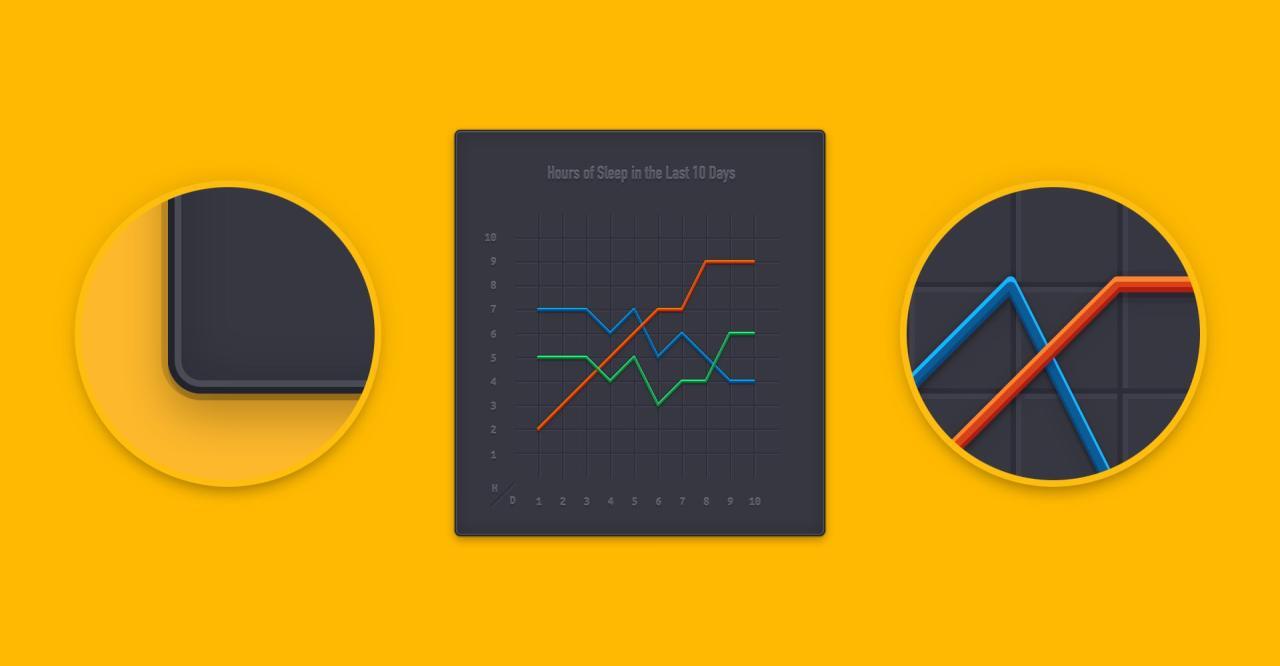
In conclusion, crafting compelling line charts involves meticulous attention to detail. From data preparation and tool selection to visual design and accessibility considerations, this guide provides a comprehensive framework for producing professional-quality line charts. By mastering these techniques, you can effectively communicate insights and trends, enhancing your presentations and reports. The examples and case studies provided will further solidify your understanding and inspire you to create impactful visuals.