Effective data presentation is crucial in any field, and well-formatted tables can significantly enhance comprehension. This guide delves into the art of formatting cells for improved readability, covering a range of techniques from basic adjustments to advanced strategies.
From choosing the right fonts and colors to leveraging conditional formatting and visual elements, we’ll explore practical methods to transform raw data into easily digestible insights. This guide provides clear examples and actionable steps, empowering you to create professional-looking and user-friendly tables.
Formatting for Clarity and Visual Appeal
Formatting cells for better readability involves more than just displaying data; it’s about enhancing comprehension and making information visually appealing. Clear formatting practices make data easier to analyze and interpret, reducing the cognitive load on the viewer. Effective formatting can transform complex datasets into easily digestible and insightful presentations.Visual appeal and clarity go hand-in-hand. Well-structured formatting, using appropriate fonts, sizes, and colors, significantly improves the user experience, making the data more accessible and engaging.
This approach promotes efficient data analysis and comprehension.
Font Selection and Size for Readability
Font selection and size are critical for ensuring that the text within cells is easily legible. Choosing the right font type and size can greatly improve readability and overall aesthetics.Different fonts have different characteristics that make them more or less suitable for various types of data. Serif fonts, like Times New Roman, are often preferred for body text due to their readability, especially in smaller sizes.
Sans-serif fonts, like Arial or Calibri, are generally more suitable for headings and titles, as they are often perceived as cleaner and more modern. Monospace fonts, like Courier New, are ideal for code, data with fixed-width columns, or tabular data where consistency in character spacing is crucial.Font size plays a vital role in readability. A font size that is too small can strain the eyes, while a font size that is too large can make the data look cluttered and unprofessional.
The optimal font size depends on the context and the size of the cell. Larger font sizes are generally better for headings and titles, while smaller font sizes are appropriate for body text. A good rule of thumb is to choose a font size that allows for comfortable reading without excessive zooming or scrolling.
Table Layout for Data Categorization
Effective table layouts are essential for visually separating different data categories, making it easier for the reader to identify and understand the information. This organization enhances the clarity and visual appeal of the table.Visual separation of different data categories in a table can be achieved using various techniques. One common method involves using different colors for the table rows or columns representing different data categories.
Another approach is using borders or shading to delineate categories, making the data groupings more distinct and easier to follow. Proper spacing and alignment are also crucial for separating data categories and creating visual clarity.
Color Schemes for Highlighting Data
Color schemes can be effectively used to highlight specific data points, making them stand out and easily identifiable. This technique is especially useful for drawing attention to important information or trends. Choosing appropriate color schemes can significantly enhance the overall readability of the data.The following table illustrates a few color schemes that can be used to highlight specific data points.
Different color schemes can effectively highlight different data categories or emphasize important data points.
| Color Scheme | Highlighting Category | Example Data | Color |
|---|---|---|---|
| Emphasis | Critical values | High sales figures | Red |
| Contrast | Important Dates | Project deadlines | Yellow |
| Sequential | Ranking | Employee performance ratings | Green-Yellow-Orange-Red |
| Diverging | Positive/Negative Trends | Profit/loss | Green-White-Red |
Data Alignment and Formatting
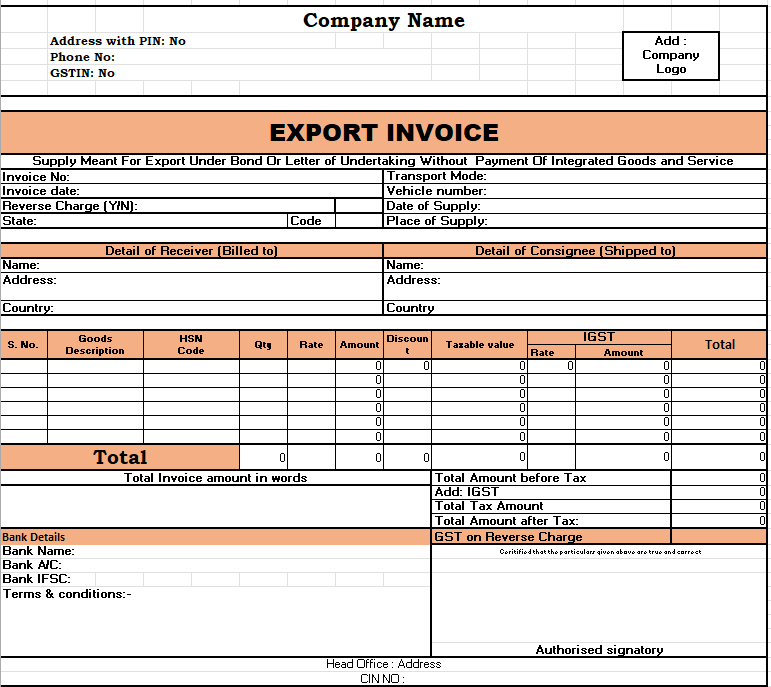
Effective data presentation within spreadsheets and tables relies heavily on proper alignment and formatting. Careful consideration of these elements significantly enhances the readability and comprehensibility of the information displayed. By strategically aligning data and applying appropriate formatting, users can quickly grasp key insights and trends.Proper alignment and formatting are critical for conveying information clearly and efficiently. Well-organized data is more easily interpreted, allowing for quicker analysis and decision-making.
This approach is vital in various applications, from business reports to academic papers, where clear communication is paramount.
Text Alignment Options
Text alignment within cells provides a means of visually structuring data. Different alignment options—left, center, right, and justified—affect how the text is presented within the cell, impacting the overall appearance and clarity of the table. Left alignment is suitable for text that starts at the left edge of the cell, making it the most common option for labels and headings.
Center alignment is useful for titles or data that should be positioned symmetrically within the cell. Right alignment is appropriate for numerical data or text that needs to be aligned with other numeric values in a column. Justified alignment, less common, spreads the text evenly across the cell’s width.
Borders and Shading for Visual Distinction
Borders and shading are powerful tools for enhancing the visual appeal and clarity of tables. Borders delineate cells, rows, and columns, separating data into logical sections. They provide visual structure, guiding the eye and improving readability. Shading, or background colors, can highlight specific data points, rows, or columns, drawing attention to important information or distinguishing different categories.Using borders effectively involves selecting appropriate border styles and weights.
Thin borders are suitable for separating rows and columns, while thicker borders can emphasize crucial data points or headings. Applying consistent border styles across a table creates a unified and professional look. Shading should be used selectively to avoid cluttering the table. Highlighting key data points or categories with appropriate colors can make the table easier to scan and understand.
Using subtle colors or gradients enhances readability without distracting from the data itself.
Numerical Formats
Numerical formats, such as currency, percentage, and date, significantly affect the readability and interpretation of numerical data. Formatting numbers as currency (e.g., “$1,234.56”) makes it immediately clear that the value represents a monetary amount. Percentage formatting (e.g., “10.5%”) is useful for presenting proportions or rates. Date formatting (e.g., “2024-10-27”) displays dates in a consistent and easily understandable format.
| Numerical Format | Cell Formatting | Example | Description |
|---|---|---|---|
| Currency | “$#,##0.00” | $1,234.56 | Displays currency values with commas and two decimal places. |
| Percentage | “0.00%” | 10.50% | Displays values as percentages with two decimal places. |
| Date | “YYYY-MM-DD” | 2024-10-27 | Displays dates in a standard YYYY-MM-DD format. |
Applying appropriate numerical formats enhances data interpretation and communication. Using consistent formats throughout a table improves the overall readability and reduces ambiguity. Consistent numerical formats contribute to data clarity and precision, facilitating analysis and comprehension.
Using Conditional Formatting
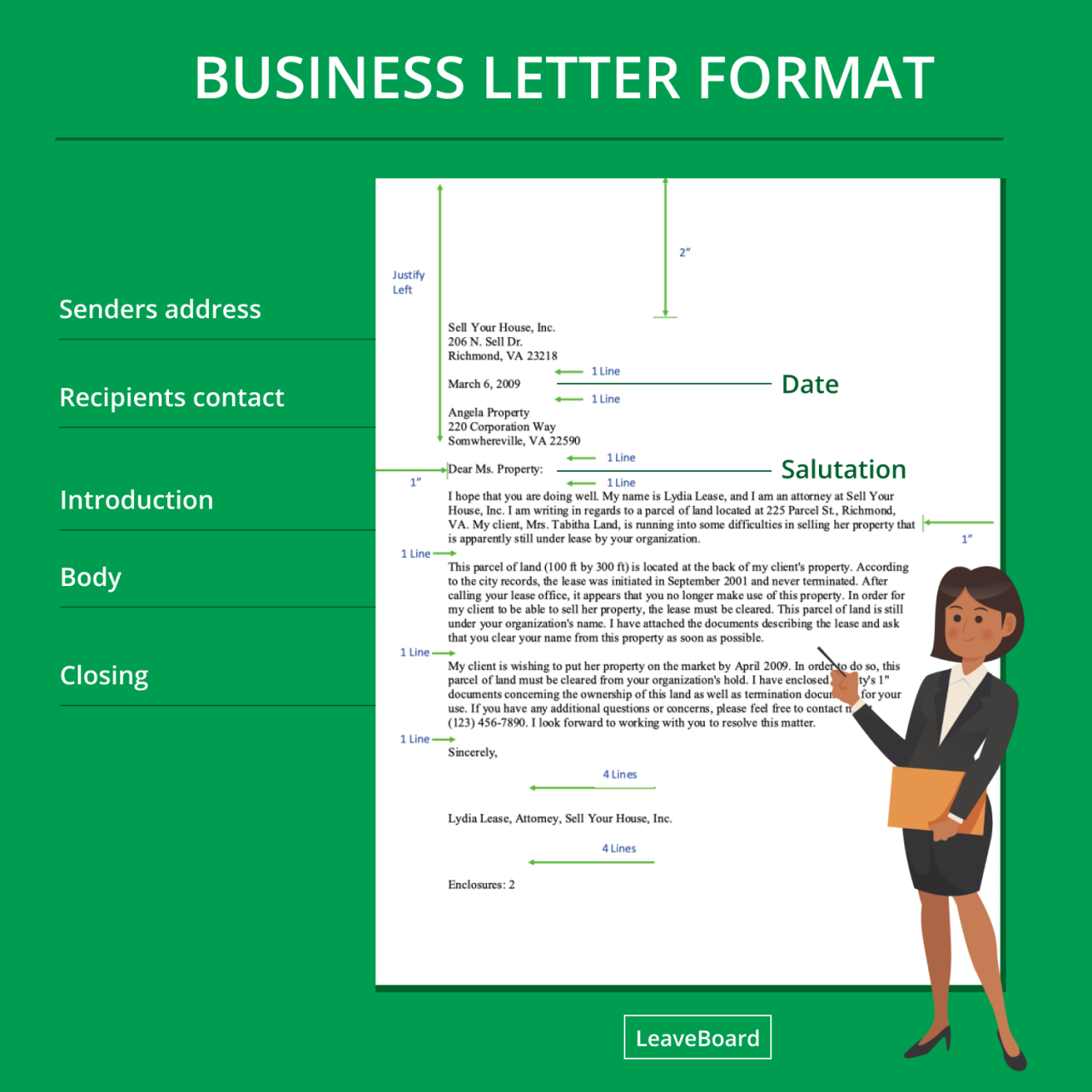
Conditional formatting is a powerful tool in spreadsheet software that allows you to automatically highlight cells based on specific criteria. This enhances readability and quickly identifies important trends or outliers in your data. By visually emphasizing key data points, conditional formatting significantly improves the overall understanding and analysis of your spreadsheet’s content.
Highlighting Specific Data Values
Conditional formatting enables the immediate identification of crucial data points within a spreadsheet. By applying rules based on specific values, you can highlight important information, like sales exceeding targets, or customer satisfaction ratings below a certain threshold. This allows for quick visual scanning and analysis, enabling informed decision-making.
Examples of Highlighting Data Trends
Conditional formatting facilitates the visualization of trends in data. For example, if you’re tracking sales figures over time, you can use conditional formatting to highlight periods of significant growth or decline. This visual representation helps in identifying patterns and trends more effectively. Similarly, in a customer survey dataset, you can use color coding to quickly identify areas needing improvement.
Conditional Formatting Rules and Application
This table demonstrates various conditional formatting rules and their application:
| Rule Type | Condition | Formatting | Application |
|---|---|---|---|
| Greater Than | Value > 100 | Red fill | Highlighting sales figures exceeding 100 units |
| Less Than | Value < 50 | Yellow fill | Identifying low customer satisfaction scores |
| Between | 50 <= Value <= 100 | Green fill | Highlighting sales figures within the target range |
| Equal To | Value = “Target Achieved” | Blue font | Marking cells with specific text |
Highlighting Data Outliers or Trends with Different Color Schemes
Different color schemes can effectively emphasize data outliers or trends. For example, you can use a gradient color scale to visually represent data ranges, where the most extreme values are highlighted with the strongest colors. This allows for quick visual scanning of the entire dataset and aids in identifying significant fluctuations or patterns. Red for negative deviations, and green for positive deviations, could be used for clarity and ease of interpretation.
| Data Range | Color Scheme | Description | Example |
|---|---|---|---|
| High Values | Dark Red to Light Red | Emphasize values exceeding a specific threshold. | Highlighting sales figures exceeding 200% of the average. |
| Low Values | Dark Blue to Light Blue | Emphasize values below a specific threshold. | Highlighting customer satisfaction scores below 70%. |
| Trend Analysis | Green to Yellow to Red | Visualize trends using a gradient color scale. | Highlighting sales growth or decline over time. |
Creating Custom Conditional Formatting Rules
Custom conditional formatting rules allow for highly tailored highlighting based on specific needs. This enables a user to create specific formatting based on unique criteria, and to ensure that specific data points are easily identified. This approach provides great flexibility in highlighting various aspects of the data.
Setting Up Rules for Cells Based on Thresholds
Setting up conditional formatting rules to highlight cells based on exceeding or falling below specific thresholds is straightforward. You can define upper and lower bounds, or target ranges, for the cells that should be highlighted, making it easy to quickly identify important data points that fall outside of these parameters. These rules allow for a focused analysis of data trends.
Adding Visual Elements

Enhancing data readability often goes beyond simple formatting. Adding visual elements, such as icons and images, can significantly improve comprehension and engagement with the data presented. These elements can help categorize information, highlight key data points, and transform tables from mere displays of numbers into compelling visualizations.Visual cues and representations can greatly improve the impact of data tables.
Icons and images add context, making complex data more accessible and memorable for users. This approach is especially beneficial when dealing with large datasets or when seeking to highlight trends or patterns.
Using Icons for Categorization
Visual representations, like icons, can effectively categorize and highlight data points within a table. Icons immediately convey meaning and can be easily understood by users without requiring extensive explanation. This method is especially beneficial for conveying qualitative information alongside quantitative data.
- Icons can represent various categories, such as success/failure, high/low values, or different departments.
- Icons significantly improve data comprehension by associating visual cues with specific data categories.
- Consistent use of icons across the table ensures that users quickly grasp the intended meaning behind each icon.
Using Images and Charts
Images and small charts can effectively visualize data points within a table, offering a more engaging and insightful presentation. Charts and images can be used to provide context or illustrate a specific data point in greater detail, helping users grasp the meaning of the numbers and their significance.
- Images or small charts, integrated into cells, can present data in a more interactive and engaging manner.
- Selecting appropriate images or charts is crucial for effective data visualization. The chosen visual representation should directly relate to the data being displayed.
- Small charts can be used to show trends, proportions, or comparisons, enabling users to grasp complex data relationships more readily.
Examples of Effective Incorporation
Effective incorporation of images and charts within tables requires careful consideration of both the data and the chosen visual representation. The image or chart should clearly illustrate the data point in question, and the overall table design should prioritize readability and visual appeal.
| Category | Sales | Profit | Visual Representation |
|---|---|---|---|
| Electronics | $10,000 | $2,000 |  |
| Clothing | $8,000 | $1,500 |  |
| Furniture | $12,000 | $3,000 |  |
This example illustrates how small charts or images can visually represent data trends within each category. Each image corresponds to a chart (not shown here for brevity) displaying the trend of sales and profit for each category.
| Task | Status | Progress | Action |
|---|---|---|---|
| Project A | Success | 95% |  |
| Project B | In Progress | 70% |  |
| Project C | Pending | 20% |  |
This table demonstrates the use of icons to categorize project statuses. The icons provide a clear visual representation of the project status (success, in progress, pending) without the need for lengthy descriptions.
Guidelines for Choosing Visual Elements
Selecting appropriate visual elements is critical for effective data communication. The chosen visuals should enhance, not detract from, the clarity and understanding of the data. Consider factors like the type of data being presented, the intended audience, and the overall design aesthetic of the document.
- Ensure the visual element directly relates to the data it represents.
- Prioritize simplicity and clarity in the visual representation.
- Maintain consistency in the use of icons and symbols throughout the table.
Accessibility Considerations
Ensuring data is accessible to everyone, regardless of their abilities, is paramount. This involves considering various factors, from visual impairments to cognitive differences. Proper formatting plays a crucial role in making data understandable and usable for a wider audience.Effective data presentation transcends aesthetics; it’s about usability and inclusivity. Accessibility considerations are not an afterthought but a fundamental component of creating information that benefits everyone.
Importance of Accessibility in Data Presentation
Data presentation should be designed with inclusivity in mind, recognizing the diverse needs and abilities of users. Accessible formats enhance usability for users with disabilities, such as visual impairments or learning differences. It also benefits everyone by fostering a more inclusive and equitable information environment. This ensures the information is easily understandable for everyone, regardless of their background or circumstance.
Formatting for Users with Visual Impairments
For users with visual impairments, high contrast is essential. Avoid using colors that are difficult to distinguish. Using sufficient font sizes is crucial, especially for those with low vision. Providing alternative text descriptions for images and charts is important to ensure that users can understand the information presented. Using sufficient font sizes and clear spacing between lines and words enhances legibility.
Using descriptive text alternatives for images and graphics enables screen readers to convey the information to users with visual impairments.
Accessible Color Choices
Selecting colors that are distinguishable for individuals with color blindness is crucial. The use of color palettes with high contrast, avoiding combinations that are difficult to differentiate for people with color vision deficiencies, enhances the usability of the data. Using a color-blindness-friendly palette guarantees better visibility and understanding for everyone. For example, using a combination of dark blue and light yellow instead of red and green can improve readability for those with color vision deficiencies.
Creating Understandable Formatting for Diverse Audiences
Creating formatting that is easy to understand for diverse audiences involves several key principles. Consistency in formatting, such as font styles and sizes, enhances readability. Using clear and concise labels for charts, graphs, and tables aids comprehension. This ensures that the information is easily understood by everyone, regardless of their background or familiarity with the subject. Utilizing simple and straightforward language enhances comprehension for everyone.
High Contrast Formatting
High contrast formatting improves readability for users with visual impairments. It involves using colors with significant differences in luminance, ensuring text and backgrounds are easily distinguished. This makes it easier for users with visual impairments to perceive the data presented. Clear and distinct contrast is critical for readability, enabling users with visual impairments to access and interpret the data accurately.
High-Contrast Formatting Examples
| Background Color | Text Color | Example | Accessibility Impact |
|---|---|---|---|
| #000000 (Black) | #FFFFFF (White) | Text in black on a white background | High contrast, widely accessible |
| #212529 (Dark Gray) | #F0F8FF (Light Blue) | Text in light blue on a dark gray background | Good contrast, suitable for many users |
| #E0FFFF (Light Cyan) | #00008B (Dark Blue) | Text in dark blue on a light cyan background | Good contrast, suitable for many users |
| #FFA500 (Orange) | #000000 (Black) | Text in black on an orange background | May not be optimal for all users with visual impairments; consider alternatives |
Best Practices for Formatting
Formatting cells in a table is crucial for enhancing readability and data comprehension. Effective formatting ensures that the data presented is not only visually appealing but also easily digestible, facilitating better understanding and analysis. This section Artikels best practices for formatting cells, focusing on optimal readability, clear communication, and avoiding excessive formatting.Clear and concise formatting guidelines contribute significantly to the effectiveness of any data presentation.
By following these principles, users can quickly grasp the key insights contained within the table and avoid unnecessary distractions. Applying these practices helps streamline the analytical process, making the data more approachable and accessible.
Guidelines for Formatting Cells in Tables
A well-structured table, with thoughtfully formatted cells, is a cornerstone of clear communication. Proper formatting ensures that the data is not only visually appealing but also easily understood.
- Use consistent formatting for similar data types. This promotes visual consistency and allows users to quickly identify and compare data points.
- Employ appropriate font sizes and styles. Larger fonts for headings and smaller fonts for detailed information contribute to a balanced visual hierarchy. Font styles like bold or italics can emphasize specific data points.
- Maintain a consistent color palette. Avoid jarring color changes between cells. A limited palette, with appropriate color contrasts for readability, is ideal.
- Prioritize data alignment. Align numerical data to the right, text to the left, and dates in a consistent format. This improves readability and allows for quick comparisons.
Best Practices for Clear Data Communication
These practices ensure that the data conveyed is easily understandable and accurately reflects the intended message.
- Use appropriate cell borders. Borders should clearly delineate cells without being excessive. A light border that provides clear visual separation between cells is optimal.
- Limit the use of shading. Use shading sparingly to highlight important data points without overwhelming the table. Colors should be selected to enhance readability.
- Avoid excessive special effects. Special effects like 3D text or flashing colors can distract from the data. Focus on clean, uncluttered designs.
- Choose fonts that are easily readable. Sans-serif fonts, such as Arial or Calibri, are often preferred for tables, especially for larger datasets.
Avoiding Excessive Formatting
Excessive formatting can distract from the data and make the table difficult to read. The focus should always be on clarity and data comprehension.
- Resist the urge to apply excessive formatting to every cell. Focus on formatting elements that genuinely enhance data understanding.
- Prioritize data clarity over visual appeal. While aesthetics are important, the primary function of the table is to communicate data effectively.
- Test the formatting with various screen sizes and resolutions. Ensure that the table is easily readable on different devices and displays.
- Use formatting to highlight, not obscure, the data. Select formatting elements that draw attention to important details without overwhelming the overall design.
Balancing Aesthetics with Data Clarity
The goal is to create a visually appealing table that also effectively communicates the data. Aesthetics should never come at the expense of data clarity.
- Employ a consistent color scheme that enhances readability. Avoid overly saturated colors that might be distracting.
- Use visual cues to draw attention to specific data points without overwhelming the table. For example, using a different font weight or a subtle highlight can be more effective than bolding every cell.
- Maintain a clean and uncluttered design. Avoid excessive use of colors, borders, or special effects.
- Prioritize the data itself. The data should always be the central focus, and formatting should support, not detract from, its presentation.
Comparison of Formatting Styles
Different formatting styles can impact data understanding.
- Simple tables with minimal formatting are often preferred for clarity. These tables focus on the data itself, allowing for easy analysis.
- Tables with appropriate highlighting can enhance the visibility of specific data points, improving the user’s understanding of trends and patterns.
- Tables with a mix of formatting elements can be effective, but it’s important to balance the various formatting choices to ensure that the data remains the primary focus.
Best Practices Summary
This table summarizes the best practices for formatting cells in tables.
| Formatting Element | Description | Best Practice | Example |
|---|---|---|---|
| Font Size/Style | Appropriate font sizes and styles for headings and data | Use larger fonts for headings, smaller for details; use bold for emphasis. | Heading: 16pt, bold; Data: 12pt, regular |
| Color Palette | Consistent color scheme for readability | Use a limited palette with sufficient contrast. | Blues and greens for data, dark gray for borders. |
| Alignment | Proper alignment for different data types | Align numbers right, text left, dates consistently. | Numbers in ‘Amount’ column right-aligned. |
| Borders/Shading | Use of borders and shading | Use light borders for cell separation; shade selectively for emphasis. | Light gray borders around each cell; shade rows with high values. |
Conclusive Thoughts
In conclusion, this guide has explored various strategies for enhancing cell formatting, from fundamental alignment and formatting to advanced conditional highlighting and visual elements. By implementing the techniques presented, you can elevate your data presentations, improving clarity and accessibility. The focus on best practices and accessibility ensures that your tables are not only visually appealing but also inclusive and user-friendly.