Welcome to the fascinating world of Excel spreadsheets! This comprehensive guide will walk you through the essential steps to create your first spreadsheet, from the foundational concepts to practical applications. Whether you’re a complete novice or have some familiarity with spreadsheets, this resource will empower you to confidently navigate the world of data management and analysis.
Understanding the basic components of an Excel spreadsheet, such as cells, rows, and columns, is crucial. This guide will introduce you to different data types, formatting options, and the power of formulas and functions to manipulate and analyze data efficiently. You’ll learn how to organize data into multiple worksheets and visualize it using charts and graphs.
Introduction to Excel Spreadsheets
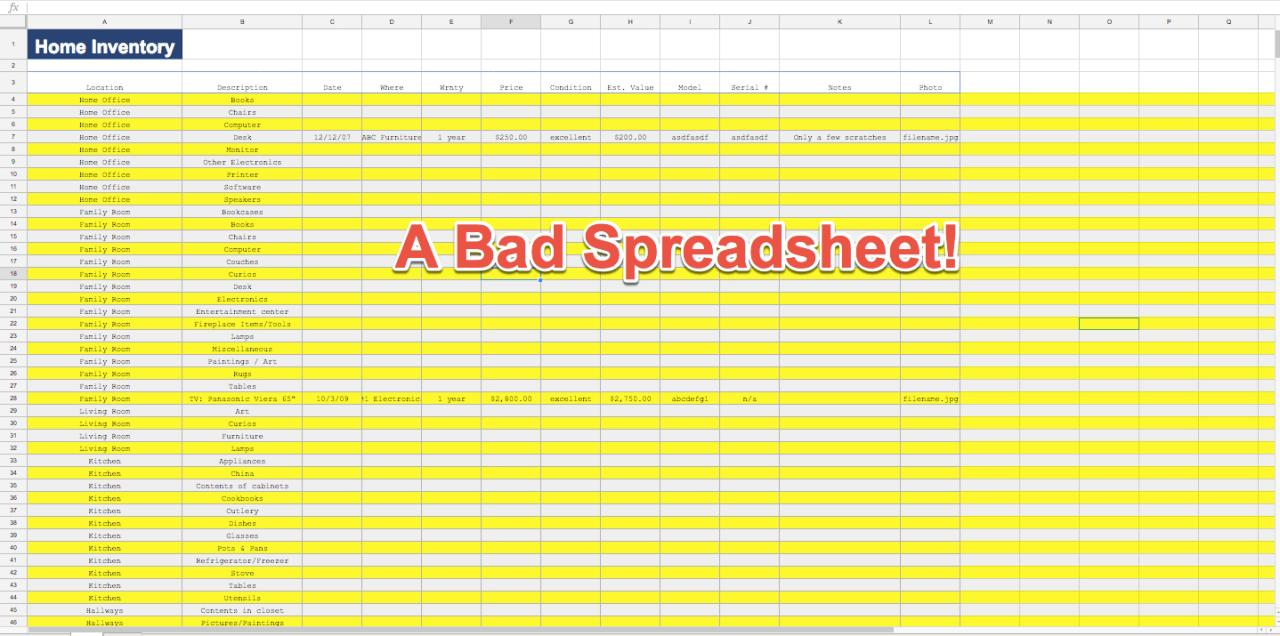
An Excel spreadsheet is a powerful tool for organizing, analyzing, and manipulating data. It’s a fundamental part of many business and personal tasks, enabling users to track information, perform calculations, and generate reports with ease. Its intuitive design and extensive features make it a popular choice for professionals across various industries.Excel spreadsheets are essentially grids of cells arranged in rows and columns.
These cells can hold text, numbers, dates, or formulas. Formulas allow users to perform calculations on data within the spreadsheet, automating tasks and providing valuable insights. The ability to easily sort, filter, and visualize data makes Excel a valuable asset for data management and analysis.
History of Excel
Excel, developed by Microsoft, revolutionized the way businesses and individuals manage data. Its initial release marked a significant departure from traditional paper-based methods. Early versions focused on basic spreadsheet functionalities, but subsequent iterations introduced advanced features like macros, pivot tables, and data visualization tools, enhancing its capabilities considerably. This evolution has kept Excel relevant and indispensable in the modern business world, allowing for increasingly complex data analysis and reporting.
Excel in Various Professions
Excel’s versatility makes it applicable across a wide range of professions. In finance, it’s used for budgeting, forecasting, and financial modeling. In marketing, it’s employed for tracking campaigns, analyzing customer data, and managing sales figures. Project managers use it to schedule tasks, monitor progress, and track resources. Data analysts leverage Excel to clean, transform, and analyze data sets, gaining valuable insights.
Educational institutions and research organizations use Excel for data collection, analysis, and report generation. Even personal users find Excel beneficial for budgeting, expense tracking, and managing household data.
Basic Excel Terminology
Understanding fundamental terms associated with Excel spreadsheets is crucial for effective use. These terms describe the different components and functionalities within the software.
- Cell: The intersection of a row and a column, where data is stored. A cell can contain text, numbers, dates, or formulas. For example, B3 is a cell in the second column and third row.
- Row: A horizontal arrangement of cells. Rows are identified by numbers (e.g., row 1, row 2).
- Column: A vertical arrangement of cells. Columns are identified by letters (e.g., column A, column B).
- Formula: An expression that performs a calculation on data within the spreadsheet. Formulas often involve mathematical operators like +, -,
-, and /. For example, `=A1+B1` calculates the sum of the values in cells A1 and B1. - Worksheet: A single page within an Excel workbook, containing rows and columns of data. Workbooks can have multiple worksheets.
Spreadsheet Components
This table illustrates the basic components of an Excel spreadsheet:
| Component | Description |
|---|---|
| Cell | The intersection of a row and column where data is entered. |
| Row | A horizontal series of cells. |
| Column | A vertical series of cells. |
| Formula Bar | Displays the formula or value of the active cell. |
| Worksheet Tab | Allows navigation between worksheets in a workbook. |
Setting Up Your First Spreadsheet
Getting started with Excel involves a few straightforward steps. This section details the process of creating a new spreadsheet, exploring various methods of opening Excel, and understanding how to save your work in a suitable format. Proper file management is crucial for organizing and maintaining your data.Creating and managing spreadsheets effectively is essential for efficient data organization, analysis, and presentation.
Knowing how to set up and save your work ensures that your data is accessible and usable for future reference.
Creating a New Excel Spreadsheet
To initiate a new Excel spreadsheet, launch the application. This can be accomplished through several methods.
Opening Microsoft Excel
There are several ways to open Microsoft Excel, depending on your computer’s setup. One common method is using the desktop shortcut. Another is to utilize the operating system’s search function. Locating the Excel application icon on your desktop or searching for “Excel” in your operating system’s search bar will initiate the program. Both methods will open a new Excel window.
Saving Your Spreadsheet
After completing your work, saving your spreadsheet is vital. Saving your spreadsheet ensures that you do not lose your data and allows you to retrieve it later.
Choosing Appropriate File Formats
Selecting the correct file format is crucial for ensuring compatibility with various software and devices. Excel offers a range of file formats, each with unique characteristics.
Common Spreadsheet File Extensions and Purposes
Understanding the different file extensions used by spreadsheets is important for knowing how to open and use them. A file extension is a set of characters that follow the filename and indicates the file type.
- .xlsx: This is the default file format for Excel 2007 and later versions. It’s a newer, more advanced format that supports more features than older formats. It is widely compatible with other spreadsheet programs, making it an excellent choice for sharing data.
- .xls: This is the older file format used by Excel 2003 and earlier. While it is still recognized by many programs, its use is diminishing as newer versions are favored for their advanced capabilities.
- .csv: This format stores data in plain text, using commas to separate values. It is often used for importing and exporting data between different applications. Its simplicity makes it suitable for transferring data.
- .ods: This format is used by OpenOffice Calc, a free spreadsheet software. While less widely used than .xlsx, it’s compatible with many other applications, making it a good option for data sharing.
File Format Compatibility Table
The table below demonstrates the compatibility of common spreadsheet file formats with various software applications. This table provides a quick reference for choosing the most suitable format for sharing your data.
| File Format | Microsoft Excel | OpenOffice Calc | Google Sheets | LibreOffice Calc |
|---|---|---|---|---|
| .xlsx | Yes | Yes | Yes | Yes |
| .xls | Yes (older versions) | Yes (older versions) | Limited Compatibility | Limited Compatibility |
| .csv | Yes | Yes | Yes | Yes |
| .ods | Limited Compatibility | Yes | Limited Compatibility | Yes |
Entering Data and Basic Formatting
Entering data and applying basic formatting are crucial steps in creating effective and informative Excel spreadsheets. Proper formatting enhances readability and allows for easier interpretation of the data. This section will cover various data input methods and formatting techniques to make your spreadsheets both visually appealing and user-friendly.Data entry and formatting are fundamental to creating functional and visually appealing Excel spreadsheets.
Understanding these techniques ensures data is easily understood and manipulated, ultimately supporting informed decision-making.
Inputting Data Types
Data input in Excel involves entering various data types, including text, numbers, and dates. Each data type requires specific handling to maintain accuracy and ensure proper formatting.
- Text: Text data, such as names, descriptions, or labels, is entered directly into cells. Excel automatically formats text data as left-aligned text. Ensure that you enter the data accurately to avoid errors in subsequent calculations or analysis. For example, entering a product name like “Laptop” will be displayed as left-aligned text.
- Numbers: Numerical data, such as quantities, prices, or measurements, is entered into cells. Excel allows for different number formats to be applied. For example, entering a quantity of “100” will be displayed as a number.
- Dates: Dates are entered into cells and can be formatted to suit your needs. Excel recognizes various date formats and allows for conversion between different date formats. For example, entering “10/26/2024” will be displayed as a date.
Formatting Data
Formatting options in Excel allow you to enhance the visual appeal and readability of your data.
- Font Styles: Excel allows for changing the font style, size, color, and other attributes of the text within a cell. For example, you can bold important data points, use italics for emphasis, or change the font color for highlighting. This formatting improves readability and helps draw attention to specific values.
- Number Formats: Excel offers various number formats to display numerical data in a user-friendly manner. For example, you can format currency values to include currency symbols, percentages to display percentages, and dates to display dates in different formats. Appropriate number formatting ensures data clarity and understanding.
Data Validation
Data validation is a crucial feature in Excel that helps maintain data integrity and accuracy. It ensures that the data entered into a cell adheres to specific rules.
- Use Cases: Data validation is employed to prevent erroneous or inappropriate data entry. For example, it can be used to enforce specific formats for input data, ensure data consistency, and prevent user errors.
- Implementation: Data validation can be applied to cells, requiring input to meet predefined criteria, such as specific ranges, data types, or lists. By applying validation rules, you can minimize the chance of errors in the data, leading to more accurate analyses.
Inserting and Deleting Rows and Columns
Inserting and deleting rows and columns is a fundamental operation in working with Excel spreadsheets. It enables flexibility in managing and reorganizing data.
- Methods: Inserting and deleting rows and columns can be achieved using the right-click menu, the Insert and Delete options in the Home tab, or using keyboard shortcuts. The choice of method depends on your specific needs and preference.
- Importance: These operations are vital for adapting to changes in data requirements or restructuring the spreadsheet layout to improve organization and readability. They facilitate adjustments in the spreadsheet’s structure.
Basic Formatting Techniques
Basic formatting techniques enhance the readability and visual appeal of your spreadsheet.
- Examples: Basic formatting techniques include bolding, italicizing, and underlining text. These techniques help emphasize specific data points or highlight key information. For instance, bolding a cell containing a total amount makes it stand out easily.
- Impact: These techniques improve the presentation and interpretation of the data within the spreadsheet. This enhanced visual clarity allows users to quickly identify important information and understand the spreadsheet’s content more efficiently.
Data Type Comparison
The table below demonstrates the different data types (text, number, date) and their appropriate formatting options.
| Data Type | Example | Default Formatting | Possible Formatting Options |
|---|---|---|---|
| Text | “Apple” | Left-aligned text | Font styles (bold, italic, underline), font size, font color |
| Number | 100 | General number format | Currency, percentage, accounting, date, time, scientific |
| Date | 10/26/2024 | Date format | Different date formats, short date, long date |
Formulas and Functions

Formulas are the backbone of any useful spreadsheet. They allow you to perform calculations, analyze data, and generate insights from your information. Mastering formulas empowers you to transform raw data into meaningful reports and presentations. Excel’s vast library of functions streamlines complex tasks, from simple arithmetic to sophisticated data analysis.Excel formulas and functions are used to automate calculations and manipulate data within a spreadsheet.
They are crucial for generating reports, analyzing trends, and drawing conclusions from the information contained in your spreadsheet. They are the key to turning a static collection of data into a dynamic and insightful tool.
Basic Arithmetic Formulas
Arithmetic formulas in Excel enable straightforward calculations. These formulas manipulate numbers using operators like addition (+), subtraction (-), multiplication (*), and division (/). They form the foundation for more complex calculations and are essential for basic data manipulation.
- Addition: To add values in cells A1 and B1, use the formula =A1+B1. The result will appear in the cell containing the formula.
- Subtraction: To subtract the value in cell B1 from the value in cell A1, use the formula =A1-B1.
- Multiplication: To multiply the values in cells A1 and B1, use the formula =A1*B1.
- Division: To divide the value in cell A1 by the value in cell B1, use the formula =A1/B1.
Mathematical Functions
Excel provides a range of mathematical functions for more sophisticated calculations. These functions can automate complex tasks, saving time and improving accuracy.
- SUM: The SUM function adds up a range of values. For example, =SUM(A1:A10) adds the values in cells A1 through A10. This is extremely useful for totaling columns or rows of data.
- AVERAGE: The AVERAGE function calculates the mean of a set of values. For example, =AVERAGE(A1:A10) finds the average of the values in cells A1 through A10.
- MAX: The MAX function identifies the largest value in a range. For example, =MAX(A1:A10) returns the largest value in the specified range.
- MIN: The MIN function determines the smallest value in a range. For instance, =MIN(A1:A10) will find the smallest value within the range.
Logical Functions
Logical functions enable decision-making based on specified criteria. They are essential for creating conditional formatting and filtering data.
- IF: The IF function evaluates a logical condition. If the condition is TRUE, it returns one value; otherwise, it returns another. For example, =IF(A1>10,”High”,”Low”) returns “High” if the value in cell A1 is greater than 10, and “Low” otherwise.
- AND: The AND function returns TRUE if all the specified conditions are TRUE. It returns FALSE if any of the conditions are FALSE. For example, =AND(A1>5, B1 <10) returns TRUE only if A1 is greater than 5 -and* B1 is less than 10.
- OR: The OR function returns TRUE if any of the specified conditions are TRUE. It returns FALSE only if all conditions are FALSE. For instance, =OR(A1=10, B1=”apple”) returns TRUE if A1 equals 10
-or* B1 contains “apple”.
Lookup Functions
Lookup functions facilitate retrieving data from a table based on specific criteria. They are invaluable for finding information across different parts of a spreadsheet.
- VLOOKUP: The VLOOKUP function searches for a value in the first column of a table and returns a value in a specified column from the same row. This is often used to retrieve data based on a unique identifier.
- HLOOKUP: The HLOOKUP function searches for a value in the first row of a table and returns a value from a specified row in the same column.
Function Comparison Table
| Function | Use | Syntax |
|---|---|---|
| SUM | Adds a range of values | =SUM(range) |
| AVERAGE | Calculates the average of a range | =AVERAGE(range) |
| MAX | Returns the largest value in a range | =MAX(range) |
| MIN | Returns the smallest value in a range | =MIN(range) |
| IF | Returns one value if a condition is TRUE, another if FALSE | =IF(condition, value_if_true, value_if_false) |
| AND | Returns TRUE if all conditions are TRUE, FALSE otherwise | =AND(condition1, condition2, …) |
| OR | Returns TRUE if any condition is TRUE, FALSE otherwise | =OR(condition1, condition2, …) |
| VLOOKUP | Retrieves a value from a column in a table based on a value in another column | =VLOOKUP(lookup_value, table_array, col_index_num, [range_lookup]) |
| HLOOKUP | Retrieves a value from a row in a table based on a value in another row | =HLOOKUP(lookup_value, table_array, row_index_num, [range_lookup]) |
Working with Multiple Worksheets
Excel spreadsheets often contain more than one worksheet. This allows you to organize data effectively, separating different types of information or analyses into distinct areas within the same workbook. This modular approach simplifies data management, enhances readability, and streamlines workflows.
Creating New Worksheets
Creating new worksheets is a straightforward process. Excel provides a convenient method for adding additional sheets to your workbook. Right-clicking on the sheet tab at the bottom of the spreadsheet window, or clicking on the “+” icon at the bottom of the sheet tabs, allows you to create a new worksheet. This new worksheet will be automatically populated with the same formatting and layout as the other worksheets.
Renaming Worksheets
To personalize your worksheets and improve organization, renaming them is a valuable practice. Double-clicking on the sheet tab displays a text box where you can enter a new name for the sheet. This enables you to easily identify the contents of each sheet. Using descriptive names for your worksheets, like “Sales Data Q1 2024” or “Customer Demographics,” improves clarity.
Moving Data Between Worksheets
Moving data between worksheets can be accomplished using several methods. You can select the data you wish to move, right-click, and choose “Move or Copy.” Alternatively, you can drag and drop the data. This method is suitable for small data sets. For larger datasets, using the “Copy” option, followed by pasting into the target worksheet, can be more efficient.
Ensuring consistency in data formatting and structure across worksheets is crucial when moving data.
Linking Cells Between Worksheets
Linking cells in different worksheets allows data updates in one worksheet to automatically reflect in the linked cells of another worksheet. This feature is particularly useful for creating formulas that refer to data in other worksheets. A common application is consolidating data from multiple sources. This is done by entering the cell reference of the other worksheet in the formula.
For instance, if you want to sum the values in cell A1 of sheet “Sales” in sheet “Summary”, you would use the formula `=Sheet1!A1`.
Benefits of Organizing Data into Multiple Worksheets
Organizing data into multiple worksheets offers several key advantages. Firstly, it enhances data organization, making the spreadsheet more manageable and easier to navigate. Different aspects of a project or different types of data can be placed in separate worksheets, improving the overall structure and usability of the workbook. Secondly, it promotes data consistency and reduces errors by isolating different types of information.
This is especially valuable when working with large datasets. Finally, it enables a more structured approach to analysis by allowing users to focus on specific subsets of data within their spreadsheet.
Workbook Structure with Multiple Worksheets
| Sheet Name | Content Description |
|---|---|
| Sheet1 (Data Entry) | Raw data for various products, including product ID, name, price, quantity. |
| Sheet2 (Sales Analysis) | Calculations and analysis of sales figures for different products. |
| Sheet3 (Customer Demographics) | Information on customers, such as customer ID, location, and purchase history. |
Tips and Tricks for Beginners
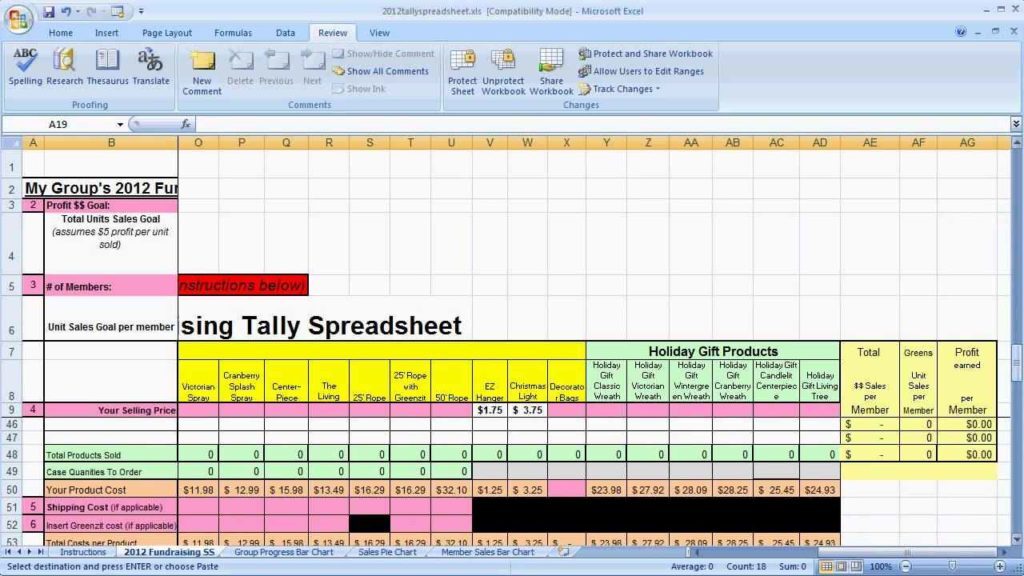
Mastering Excel’s features empowers you to work more efficiently and effectively. These tips and tricks will streamline your workflow and help you become a more proficient user. Leveraging shortcuts and understanding Excel’s built-in functionalities will significantly improve your data analysis and spreadsheet management.Efficient use of Excel’s tools and features is crucial for effective data management. This section details practical tips, shortcuts, and examples to enhance your spreadsheet skills.
The best practices and troubleshooting techniques provided will ensure your spreadsheets are well-organized and error-free.
Improving Efficiency with Keyboard Shortcuts
Knowing and utilizing keyboard shortcuts is a significant time-saver in Excel. They allow you to perform common tasks with speed and precision. This section details essential shortcuts to boost your efficiency.
- Saving a file: Ctrl + S (Windows) or Command + S (Mac) quickly saves your work.
- Copying a cell: Ctrl + C (Windows) or Command + C (Mac) copies the contents of a cell. This action is critical for duplicating data.
- Pasting a cell: Ctrl + V (Windows) or Command + V (Mac) pastes the copied data into the desired location. This enables efficient data transfer.
- Undoing an action: Ctrl + Z (Windows) or Command + Z (Mac) quickly undoes your last action. This feature is essential for recovering from errors.
- Redoing an action: Ctrl + Y (Windows) or Command + Y (Mac) redoes the previously undone action. This is useful for reversing the effect of the undo operation.
Leveraging Excel’s Built-in Features for Data Analysis
Excel’s built-in functions provide powerful tools for data analysis. Understanding these functions allows you to derive insights and trends from your data.
- SUM function: This function calculates the total of a range of cells. For example, =SUM(A1:A10) calculates the sum of values in cells A1 through A10.
- AVERAGE function: This function calculates the average of a range of cells. For example, =AVERAGE(B2:B10) determines the average of the values in cells B2 through B10.
- COUNT function: This function counts the number of cells within a range that contain numbers. For example, =COUNT(C1:C10) counts the cells in the specified range that contain numerical values.
Best Practices for Organizing and Maintaining Spreadsheets
Well-organized spreadsheets are essential for efficient data management and easy access. This section highlights best practices for creating and maintaining effective spreadsheets.
- Use clear and concise labels for columns and rows. Consistent labeling improves data interpretation and understanding.
- Employ descriptive names for worksheets. Clearly named worksheets help you quickly locate the information you need.
- Format data consistently. Consistent formatting makes your spreadsheets easier to read and understand. This includes using consistent formatting for dates, numbers, and text.
- Regularly save your work. This practice helps you avoid data loss and ensures your progress is safe.
Troubleshooting Common Errors
Identifying and resolving errors is a critical aspect of using Excel effectively. This section details common errors and their solutions.
- #VALUE! error: This error occurs when a formula tries to perform an operation on a non-numeric value. Ensure that all cells involved in the formula contain the correct data type.
- #REF! error: This error arises when a formula refers to a cell that no longer exists. Review the formula to ensure that the referenced cells are still valid.
- Circular reference error: This error occurs when a cell references itself or another cell that indirectly references it. Ensure there are no circular dependencies in your formulas.
Essential Keyboard Shortcuts for Excel
Efficient navigation and execution of tasks are greatly facilitated by using keyboard shortcuts. This table provides a summary of key shortcuts.
| Task | Keyboard Shortcut |
|---|---|
| Save | Ctrl + S (Windows) or Command + S (Mac) |
| Copy | Ctrl + C (Windows) or Command + C (Mac) |
| Paste | Ctrl + V (Windows) or Command + V (Mac) |
| Undo | Ctrl + Z (Windows) or Command + Z (Mac) |
| Redo | Ctrl + Y (Windows) or Command + Y (Mac) |
Concluding Remarks
Congratulations on completing this introductory guide to Excel spreadsheets! You’ve now gained a solid foundation for creating and manipulating data. From entering simple data to building complex formulas, you’re equipped to confidently handle a wide array of tasks. Remember to practice these techniques and explore Excel’s vast capabilities to further enhance your skills. Excel is a powerful tool that will undoubtedly prove invaluable in your professional and personal endeavors.