Data organization is crucial for effective analysis and decision-making. Excel tables offer a powerful tool for structuring data, enabling efficient management and insightful exploration. This guide provides a comprehensive overview of creating, formatting, and utilizing Excel tables for optimal data handling, from basic setup to advanced functionalities.
This detailed guide will walk you through the process of building well-organized Excel tables, demonstrating the benefits of this approach. We will cover everything from the fundamental steps of table creation to advanced techniques like using formulas and conditional formatting, ensuring you can effectively handle and analyze data within your spreadsheets.
Introduction to Excel Tables
Excel tables are structured ranges of cells that provide a powerful way to organize and manage data. They offer significant advantages over standard ranges, streamlining data analysis and enhancing worksheet readability. Tables automatically adjust to accommodate new rows and columns, making them ideal for dynamic datasets.
Definition of an Excel Table
An Excel table is a structured range of cells in a worksheet that adheres to specific formatting conventions. It’s essentially a predefined layout for your data, enabling Excel to recognize and treat it as a single unit. This structured format allows for enhanced functionality and easier management of data within the spreadsheet.
Benefits of Using Excel Tables
Tables provide several advantages over traditional ranges for data organization. They enable automatic formatting, filtering, sorting, and summarization. Furthermore, tables allow for convenient data manipulation, such as adding or deleting rows and columns without disrupting the formatting. This adaptability makes them suitable for diverse data management needs.
Key Features Distinguishing Excel Tables from Ranges
Excel tables possess several key features that differentiate them from simple ranges. They automatically format cells with borders, providing visual structure. Importantly, tables allow for the use of formulas referencing table columns and rows, enabling more efficient data calculations. Tables also support powerful filtering and sorting tools, enhancing data analysis capabilities. Another key feature is the automatic update of formulas when new rows or columns are added.
This automatic adjustment significantly simplifies data manipulation in dynamic environments.
Example of a Well-Structured Excel Table
The following table exemplifies a well-structured table with sample data for customer information:
| Customer ID | Customer Name | City | Country | Sales |
|---|---|---|---|---|
| 101 | John Smith | New York | USA | 1200 |
| 102 | Jane Doe | London | UK | 1500 |
| 103 | Peter Jones | Paris | France | 1800 |
Comparison: Tables vs. Ranges
Organizing data in a table significantly improves data management compared to a simple range. A table allows for automatic formatting, while a range requires manual formatting adjustments. Formulas in tables can dynamically reference table columns and rows, unlike a range, where manual adjustments are necessary. Filtering and sorting are much easier in tables, providing enhanced data analysis capabilities.
Tables also automatically adjust to new rows and columns, whereas ranges do not. This dynamic adaptability makes tables a superior choice for dynamic datasets.
Creating a Table from an Existing Range
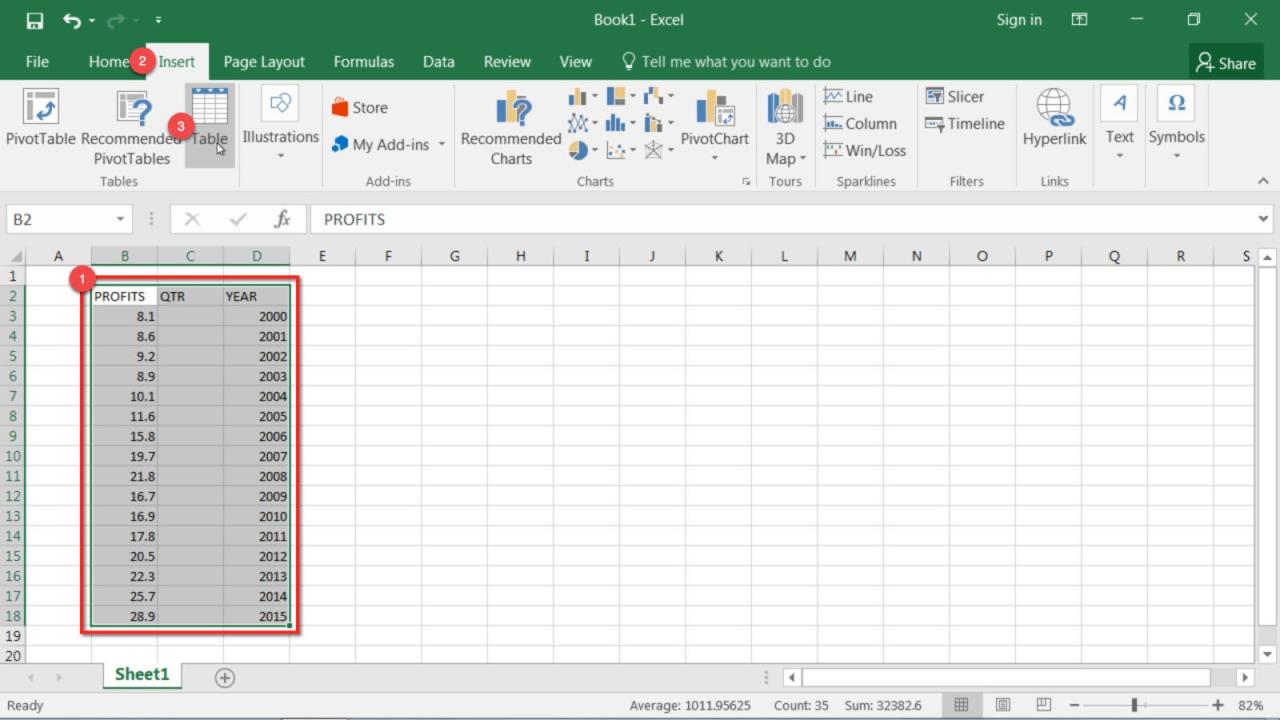
Converting an existing range into a table is straightforward. Select the data range, and then, on the “Insert” tab, choose “Table”. Excel will automatically detect the range and prompt you to confirm if the first row contains headers. Confirming this step is crucial for proper data interpretation and functionality. This simple process transforms a regular range into a fully functional table, with all the associated advantages.
Importance of Proper Formatting for Readability
Proper formatting significantly enhances the readability and usability of data in an Excel table. Clear headers, appropriate column widths, and consistent formatting make the data easy to understand and analyze. Using conditional formatting to highlight important data points can further enhance readability and facilitate data interpretation. This attention to detail is critical for effectively presenting and managing data within the table.
Creating an Excel Table
Creating an Excel table is a powerful way to organize and analyze data. Tables provide a structured format, enhancing data readability and facilitating calculations. This structured approach simplifies data manipulation, enabling you to easily sort, filter, and summarize information.Excel tables automatically adapt to changes in your data, making them incredibly versatile for dynamic reporting. This adaptability allows you to track evolving data without the need for manual adjustments.
Tables also incorporate advanced features like automatic calculations and sorting, saving you valuable time and effort.
Steps to Create an Excel Table
Excel’s ‘Insert’ tab provides a streamlined approach to creating tables. To initiate the process, select the data range encompassing the table’s content, including headers. Then, navigate to the ‘Insert’ tab on the ribbon. From there, locate and click the ‘Table’ button, often situated within the Tables group.
Specifying the Data Range
The data range for the table encompasses all the cells containing the data you want to organize. This includes both the header row and the rows of data. Carefully select the cells; errors in the selection can lead to inaccurate table creation. Ensure your selection covers all the necessary columns and rows.
Adding Header Rows
Headers are crucial for understanding the content of each column. Excel automatically detects header rows if they are present at the top of the data. If not, you can add them manually. Select the data range and choose the ‘Insert Table’ option in the ‘Tables’ group of the ‘Insert’ tab. Excel will typically detect the header row, if present, and use it.
If no header row is detected, you can add it manually in a subsequent step.
Using Column Headers
Column headers are vital for data comprehension. Descriptive and concise header names make it easier to understand the information contained in each column. For example, using “Product Name” instead of “Column1” is far more informative. Well-defined headers allow for intuitive interpretation and analysis of the data within the table.
Table Design with Sample Data
Here’s an example of a properly formatted Excel table:
| Product Name | Price | Quantity | Category |
|---|---|---|---|
| Laptop | 1200 | 5 | Electronics |
| Keyboard | 75 | 10 | Electronics |
| Mouse | 30 | 15 | Electronics |
| Monitor | 250 | 8 | Electronics |
| Desk | 150 | 3 | Furniture |
Notice how the column headers (Product Name, Price, Quantity, Category) clearly define the data in each column. Formatting, such as aligning numbers to the right and using consistent font styles, improves readability.
Types of Data Organizable in Excel Tables
Excel tables can accommodate various data types, including numbers, text, dates, and times. The table’s structure will remain consistent regardless of the data type. These diverse data types make Excel tables highly adaptable for various data analysis tasks.
Naming the Table
Giving a meaningful name to the table is important for easier identification and reference. This name can be easily modified later if needed. Excel provides an option to rename the table after it has been created. This improves organizational structure in complex spreadsheets.
Formatting and Customizing an Excel Table

Excel tables offer a flexible platform for organizing and presenting data. Beyond the basic structure, significant enhancements can be achieved through formatting and customization, significantly improving readability and visual appeal. These adjustments enhance the table’s effectiveness as a tool for analysis and reporting.Customizing the appearance of your Excel table can greatly improve its usability. This involves adjusting font styles, colors, and alignment for headers and data cells, as well as adding visual cues like borders and shading.
Effective formatting practices are crucial for making data easily digestible and interpretable.
Formatting Table Headers
Formatting table headers is an essential step for making your data clear and professional. The headers act as a key to understanding the data in the rows. Applying appropriate formatting enhances the visual hierarchy of the table, allowing users to quickly identify and interpret the columns’ meaning. By making the headers stand out, you can ensure that the data is presented in a way that is easily understood.
- Font styles, such as bold or italic, can highlight headers. Using a larger font size can also draw attention to the header row.
- Font colors can be used to set headers apart from the data. Consider using a contrasting color to make the headers visually distinct.
- Header text alignment can be set to center or left-align to improve the overall visual appeal of the table. For instance, aligning the header “Product Name” to the left of the cell would be a practical approach.
Formatting Data Cells
Formatting data cells is crucial for ensuring that data is presented in a way that is easy to understand and interpret. Clear and concise formatting allows for better data analysis. Different data types might require different formatting styles.
- Font styles, colors, and sizes can be applied to individual data cells or groups of cells to enhance readability and visual appeal. Consider the context and the importance of the data to determine the most appropriate formatting.
- Alignment of data within cells can be adjusted to ensure that numbers are aligned to the right, text to the left, or centered for optimal presentation. Correct alignment of numbers in financial columns is vital.
Adding Borders and Shading
Adding borders and shading to your Excel table can greatly improve its readability. These formatting elements enhance visual appeal and facilitate better data interpretation.
- Borders can delineate cells, rows, and columns, enhancing the table’s structure and making it easier to distinguish between data points.
- Shading, or background colors, can be applied to rows or columns to highlight specific data categories or patterns. This can improve data analysis by allowing users to visually distinguish between different categories.
Creating Custom Table Styles
Creating custom table styles provides an effective way to maintain a consistent and visually appealing format across multiple tables in a spreadsheet. These styles can be applied quickly, saving significant time and ensuring that the presentation is uniform.
- Excel allows users to define their own custom table styles by specifying various formatting options, including fonts, colors, borders, and shading. This ensures a uniform look and feel across the spreadsheet.
- Applying a custom table style to multiple tables saves time and effort, maintaining consistent formatting throughout the document.
Customizing Columns for Data Types
Customizing columns to accommodate specific data types is crucial for data integrity and effective analysis. Appropriate formatting enhances data presentation and analysis.
- Different data types, such as dates, numbers, and text, require different formatting options to ensure accurate display and interpretation.
- Applying the correct number format to columns containing numerical data ensures accurate calculations and presentation. Using currency format for financial data is an example.
Conditional Formatting
Conditional formatting within a table enables you to highlight specific data based on predefined criteria. This approach makes it easy to identify trends and outliers within the data.
- Excel allows you to set rules that automatically highlight cells based on values. This is helpful for highlighting important values or identifying patterns in the data.
- Using conditional formatting within tables allows you to emphasize certain data points that meet specific conditions. For instance, you can highlight cells containing values above a certain threshold.
Applying Custom Number Formats
Applying custom number formats to specific columns allows for tailored data presentation. This approach ensures accurate display and enhances data analysis.
- Custom number formats provide flexibility in displaying numbers. These formats can be tailored to specific needs, such as displaying numbers with a certain number of decimal places or using a specific currency symbol.
- Applying custom number formats to specific columns allows for a more accurate and comprehensive presentation of data, ensuring that the data is presented in a way that aligns with specific requirements.
Adding and Removing Data in an Excel Table
Excel tables provide a structured way to manage data. Adding and removing rows and columns, while maintaining data integrity, is crucial for effective data management. This section details the process of modifying Excel tables efficiently and accurately.Adding and removing data in an Excel table involves specific techniques to ensure data consistency and prevent errors. Careful consideration of these procedures helps to maintain the integrity of the table’s structure and the data it contains.
Adding New Rows and Columns
Adding rows or columns to an Excel table is straightforward. The process maintains the table’s structure and ensures data consistency.
- Adding Rows: To add a new row, position the cursor below the row where you want to insert the new row. Then, click the “Insert” option in the “Home” tab. Excel will automatically insert a blank row beneath the selected row. This is a simple method for inserting rows in an Excel table.
- Adding Columns: To add a new column, position the cursor to the right of the column where you want to insert the new column. Click the “Insert” option from the “Home” tab, choosing “Insert Sheet Columns” from the context menu. Excel will automatically insert a blank column to the right of the selected column.
Efficient Data Insertion Techniques
Data entry should be planned for efficient processing. Methods like using formulas or pre-defined values minimize errors.
- Using Formulas: Formulas can be used to automatically populate data in rows or columns. For instance, if you need a sequential numbering system for rows, you can use an auto-incrementing formula. This ensures consistency and reduces manual errors.
- Pre-Defined Values: Using data validation rules, you can restrict the values entered into specific cells. This ensures that data conforms to specific formats or criteria, reducing errors.
Removing Rows and Columns
Removing rows or columns from an Excel table should be done carefully to avoid unintended data loss. The process involves selecting the rows or columns and using the “Delete” function.
- Deleting Rows: Select the row(s) you want to delete. Click the “Delete” option in the “Home” tab. Excel will remove the selected rows, and any data within them, from the table.
- Deleting Columns: Select the column(s) you want to delete. Click the “Delete” option in the “Home” tab, choosing “Delete Sheet Columns” from the context menu. Excel will remove the selected columns and their data from the table.
Managing Data Integrity
Maintaining data integrity is crucial during table modifications. Consider using data validation and checking for consistency to prevent errors.
- Data Validation Rules: Implementing data validation rules in your table helps to ensure the accuracy and consistency of the data. For example, a rule could specify that a column must contain only numerical values or a specific date format. This prevents incorrect entries and saves time during data cleanup.
- Consistency Checks: Regularly check for data consistency across different parts of your table. This can prevent errors that may arise from inconsistencies in the data.
Using Table Tools for Modification
Excel tables offer tools to modify data directly within the table, providing ease of use and efficiency.
- Editing Data Directly: Double-clicking a cell within a table allows for direct editing of the data in that cell. This method provides quick and straightforward modification of table entries.
Applying Data Entry Validation Rules
Implementing data validation rules is essential for maintaining data accuracy in an Excel table. These rules prevent incorrect data from being entered.
- Setting Rules: Data validation rules can be set for each column to ensure that only specific types of data are entered. This is useful for ensuring consistency and avoiding errors in data entry.
- Example: If a column is for ages, a validation rule can ensure that only numbers between 0 and 120 are accepted. This prevents illogical entries and ensures data accuracy.
Using Formulas and Functions with Excel Tables
Excel tables offer a powerful way to organize and analyze data. Combining tables with formulas and functions unlocks sophisticated data manipulation and analysis capabilities. This section details how to leverage these tools for efficient and insightful results.Formulas and functions, when used with Excel tables, allow for dynamic calculations that automatically update as the table’s data changes. This eliminates the need for manual recalculations, enhancing efficiency and reducing errors.
Structured references further streamline this process, creating formulas that are easily understood and maintained.
Using Structured References
Structured references are a key advantage of using Excel tables. They allow you to refer to table columns and rows using the table name and column headers, rather than cell addresses. This simplifies formulas, making them more readable and maintainable.
Formulas using structured references are less prone to errors when data is added or removed from the table.
For example, if your table is named “SalesData” and has columns for “Product” and “Sales”, a structured reference to the “Sales” column would be `[SalesData].[Sales]`.
Creating Dynamic Formulas
Formulas in Excel tables can be designed to automatically update as the underlying data changes. This eliminates the need to manually adjust formulas when new data is entered.
The structured reference feature is crucial for creating dynamic formulas, as it allows the formula to automatically adapt to the changing data.
For instance, to calculate the total sales for all products, a formula using structured references would look like `=SUM([SalesData].[Sales])`. Adding or removing rows of data in the “SalesData” table will automatically update the total sales calculation.
Performing Calculations with Functions
Excel offers a wide array of functions that can be used within Excel tables to perform complex calculations. These functions simplify data analysis by automating common tasks.
- SUM: This function calculates the sum of a range of values. In an Excel table, you can use it to calculate the total sales across all products. For example, `=SUM([SalesData].[Sales])` will calculate the sum of the values in the “Sales” column of the “SalesData” table.
- AVERAGE: This function calculates the average of a range of values. To calculate the average sales, you can use `=AVERAGE([SalesData].[Sales])`. This will give the average sales figure for all products.
- COUNT: This function counts the number of cells in a range that contain numbers. In a table, it can be used to count the number of products in the table. For instance, `=COUNT([SalesData].[Product])` will count the number of entries in the “Product” column.
Examples of Formulas
Let’s consider a table named “ProductSales” with columns “Product,” “Sales,” and “Cost.”
| Product | Sales | Cost |
|---|---|---|
| A | 100 | 50 |
| B | 150 | 75 |
| C | 200 | 100 |
- Total Sales: `=SUM([ProductSales].[Sales])` will calculate the sum of sales, yielding 450.
- Average Sales: `=AVERAGE([ProductSales].[Sales])` calculates the average sales (150).
- Profit for Product A: `=[ProductSales].[Sales]-[ProductSales].[Cost]` calculates the profit for each product. For Product A, it’s 50.
Advanced Excel Table Features
Excel tables offer powerful tools beyond basic data organization. Mastering advanced features allows for deeper analysis, customized formatting, and efficient data manipulation. This section explores these features, demonstrating how to leverage them for more sophisticated data management.
Filters and Sorting for Data Analysis
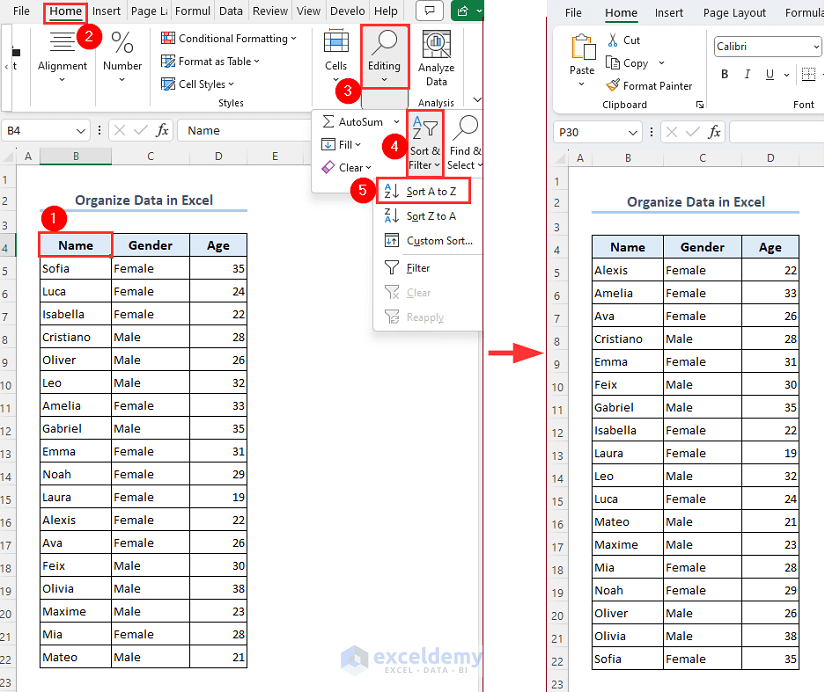
Excel tables excel at organizing and filtering data. Filtering allows users to quickly isolate specific subsets of data based on criteria. Sorting allows for arranging data in ascending or descending order based on one or more columns. These features facilitate rapid data analysis and identification of trends. Combining filters and sorting provides a powerful mechanism for finding specific information within large datasets.
Calculated Columns
Calculated columns enhance data analysis by deriving new information from existing data. This enables the creation of additional columns that contain calculations or formulas based on the data already present in the table. These calculations can be simple or complex, including arithmetic operations, text manipulation, or logical tests.
- Example: To calculate the total sales amount for each customer, a calculated column can be created. The formula might reference the ‘Quantity’ and ‘Price’ columns and perform the multiplication operation. This automatically updates the calculated column as the data in the referenced columns changes.
Total Row
The Total Row feature in Excel tables provides a concise summary of the data within each column. It automatically calculates aggregate functions like sum, average, count, and others for each column. This simplifies the process of obtaining key statistics directly within the table structure. It can help users quickly grasp the overall performance or characteristics of the dataset.
Table Styles
Table styles allow users to consistently format multiple tables using a single set of formatting characteristics. This helps to maintain a uniform look and feel across different parts of a spreadsheet, making the data more presentable and organized. Applying predefined or custom styles ensures a consistent visual representation of data across different tables in the same or different spreadsheets.
Multiple Tables for Different Datasets
Organizing data into multiple tables enhances the efficiency of working with large or complex datasets. This approach allows for breaking down large datasets into smaller, manageable tables that focus on specific aspects of the data. Each table can be tailored to meet the needs of a particular analysis, enhancing overall data organization and clarity.
Subtotals
Subtotals summarize data within groups of rows. This allows for quick calculation of aggregate values for specific subsets of the data. Subtotals can be calculated for various fields, like sum, average, count, and more, providing a hierarchical view of the data. This allows for more detailed and segmented analysis of data and identifying trends within specific groups.
Subtotals can significantly improve the speed and efficiency of data analysis.
Scenario Illustration
Imagine a sales dataset with columns for ‘Customer Name’, ‘Product Name’, ‘Quantity’, and ‘Price’.
| Customer Name | Product Name | Quantity | Price | Total Sales |
|---|---|---|---|---|
| Alice | Laptop | 1 | 1200 | 1200 |
| Bob | Mouse | 2 | 25 | 50 |
| Alice | Keyboard | 1 | 75 | 75 |
| Charlie | Monitor | 1 | 300 | 300 |
Using the calculated column feature, a “Total Sales” column can be added by multiplying “Quantity” and “Price.” A filter can be used to show only sales for a specific customer. Subtotals can be used to sum the total sales for each customer, providing a summary. Applying a table style will maintain a consistent format for all tables related to the sales data.
This organized and structured approach allows for easy data analysis, quick identification of trends, and creation of insightful reports.
HTML Table Representation
Representing data in a structured format is crucial for web applications. HTML tables offer a robust and semantically correct way to display tabular data, mirroring the structure of Excel spreadsheets. This section details how to create, style, and enhance HTML tables for optimal presentation and usability.
Basic HTML Table Structure
HTML tables are defined using the `
| `). Table headers (` | `) are used to define column headings.
This code snippet creates a table with headers “Name”, “Age”, and “City”, and two rows of data. The `thead` element defines the table header, while `tbody` holds the data rows. Responsive Table Design with CSSFor tables to adapt to different screen sizes, CSS is crucial. The following CSS code ensures the table is responsive, adapting to various screen widths.
This CSS applies a border to cells, sets padding, and aligns text to the left. The table header background is also light gray. Responsive Table with HTMLTo make the table fully responsive, use `width: 100%` for the table element, and ensure `th` and `td` elements have a reasonable `max-width` value for better control on smaller screens.
Comprehensive Data Display ExampleA more comprehensive table example displays sales data for different products.
Styling Columns and RowsUse CSS to apply specific styles to columns and rows.
This CSS styles even rows and marks high sales figures. Table SortingJavaScript libraries (like DataTables) are commonly used for sorting HTML tables. These libraries handle the complex logic of sorting dynamically. Illustrative Examples Data organization is crucial for effective analysis and decision-making. Excel tables provide a structured and efficient way to manage and manipulate data. This section presents a practical example showcasing how to create and utilize Excel tables to organize data effectively, highlighting various formatting options and data manipulation techniques. Scenario: Tracking Sales PerformanceThis example demonstrates organizing sales data for a hypothetical electronics retailer. The data includes sales representatives, product categories, units sold, and revenue generated. Efficiently organizing this information allows for analysis of sales trends, top performers, and product popularity. Excel Table DesignThe following table structure is designed to organize sales data:
Table FunctionalityThe table effectively organizes sales data by sales representative, product category, units sold, and revenue. This structure enables quick identification of top performers, product sales trends, and revenue generation by each representative. Formatting OptionsFormatting enhances readability and clarity. The table can be formatted with:
Adding and Modifying DataAdding new data involves entering new rows in the table, for example, a new sale record. Modifying existing data is as simple as updating the relevant cell values. These actions can be done manually or via automated processes if data is sourced from other applications. Visual RepresentationThe table above visually represents the data. A well-formatted table with appropriate colors and fonts makes the data easy to understand at a glance. Different fonts, colors, and conditional formatting options (e.g., highlighting cells above a certain sales target) can further enhance the table’s visual appeal. Formulas and FunctionsThe table can use formulas and functions to perform calculations on the data:
Outcome SummaryIn conclusion, mastering Excel tables empowers you to transform raw data into actionable insights. This guide has provided a step-by-step approach to creating, customizing, and leveraging these powerful tools. From basic table creation to advanced functionalities involving formulas and data manipulation, you are now equipped to organize and analyze data efficiently within your Excel spreadsheets. |
|---|