Data validation is crucial for ensuring accurate and reliable data entry in forms and databases. This guide provides a comprehensive overview of creating data validation drop-down lists, a powerful technique for enforcing specific data types and formats. Learning this method will streamline your data entry processes and significantly improve the quality of your data.
We’ll explore the fundamental principles of data validation, delving into the advantages of drop-down lists over other methods. From basic implementations to advanced techniques and best practices, this guide equips you with the knowledge and skills to create effective and user-friendly data validation drop-down lists in various programming languages, including JavaScript, Python, and PHP. Furthermore, we’ll cover essential considerations for accessibility and error handling.
Introduction to Data Validation Drop-Down Lists
Data validation is a crucial aspect of form design and data entry. It ensures that the data collected is accurate, consistent, and conforms to predefined rules. This is essential for preventing errors, maintaining data integrity, and ultimately improving the reliability of the information gathered. Proper validation safeguards against inconsistencies and inaccuracies that could lead to downstream problems in analyses, reporting, or decision-making.Drop-down lists, a common form element, provide a powerful tool for data validation.
They restrict user input to a predefined set of options, significantly reducing the potential for invalid or inappropriate entries. This method is particularly useful when dealing with categorical data, such as states, countries, or product types, where a limited set of valid choices is available.
Benefits of Using Drop-Down Lists for Data Validation
Drop-down lists offer several advantages in data validation. They streamline the data entry process by presenting a clear and concise selection of options. This leads to quicker input and reduces the likelihood of human error. Furthermore, the limited choices eliminate the possibility of users entering irrelevant or incorrect data, which ensures the data collected aligns with the expected format.
How Drop-Down Lists Enforce Data Types and Formats
Drop-down lists inherently enforce specific data types and formats. By presenting only pre-defined options, they restrict users to selecting from a set of valid entries. This contrasts with text boxes, which can accept any input. The pre-selected options in the drop-down list effectively prevent the user from entering invalid data types. For example, if the options are only numbers, the user cannot enter text.
Comparison to Other Validation Methods
Compared to other validation methods, such as text boxes with validation rules, drop-down lists offer a significant advantage in terms of user-friendliness and error prevention. While text boxes allow for greater flexibility in input, they also require additional validation logic on the server-side to ensure data integrity. Drop-down lists eliminate this need, making the data entry process simpler and more efficient.
HTML Form Example
This example demonstrates a basic drop-down list for data validation in an HTML form. The drop-down list restricts the user to selecting a valid state from the provided list.“`html
“`This form utilizes a `
Creating a Drop-Down List for Specific Data Types
Data validation drop-down lists are invaluable for ensuring data integrity and consistency within spreadsheets or forms. By restricting user input to a predefined set of values, you can prevent errors and improve the overall quality of your data. This section focuses on creating drop-down lists tailored to specific data types, enabling a more controlled and predictable input process.Configuring drop-down lists for specific data types offers a significant advantage in data entry.
This targeted approach streamlines data input, minimizing errors and improving data accuracy. By predefining options based on the data type, you can maintain consistency and ensure the validity of the data entered.
Common Data Types for Drop-Down Lists
Common data types suitable for drop-down lists include dates, genders, countries, states/provinces, and categories. These pre-defined options streamline data entry and ensure accuracy. The specific options within a drop-down list must be carefully selected to align with the desired data type.
Configuring Options for Specific Data Types
To configure options within a drop-down list for a particular data type, consider the following steps:
- Dates: For date drop-down lists, use a predefined range of dates or a specific set of dates. For example, if you need dates for a project timeline, list the dates of the project. This approach ensures that the user selects a valid date from the provided list.
- Genders: Include options like “Male”, “Female”, and “Other” to accurately capture gender information. These predefined options allow for consistent data entry and reduce the likelihood of typos or invalid entries.
- Countries: Utilize a pre-defined list of countries for global data collection. This ensures that users select only valid country names, enhancing data accuracy and reducing inconsistencies.
- States/Provinces: If your data needs to reflect location, pre-populate a list of states or provinces for the relevant country. This ensures the data entry is consistent and accurate, especially if used for location-based data analysis.
- Categories: For categories like product types or customer segments, create a list of valid options. For example, if you are collecting data on product types, create a drop-down list with options such as “Electronics”, “Clothing”, “Furniture”, etc. This improves data organization and analysis.
Examples of Drop-Down Lists for Different Data Types
- Date: A drop-down list for project deadlines might include options like “2024-03-15”, “2024-04-01”, “2024-04-15”, ensuring the user selects a date from the provided list.
- Gender: A drop-down list for customer data could include options “Male”, “Female”, “Other”. These predefined options ensure accurate and consistent gender data.
- Country: A drop-down list for customer location might include a list of countries, like “United States”, “Canada”, “United Kingdom”, and so on. Predefined options maintain data accuracy.
- State/Province: A drop-down list for customers in the United States could contain a list of US states like “California”, “Texas”, “New York”, etc. This improves data accuracy for location-based analysis.
- Category: A drop-down list for product categories might include options like “Electronics”, “Clothing”, “Furniture”. This ensures data consistency and allows for easy categorization.
Using Predefined Values
Predefined values for states or countries can be directly loaded into the drop-down list. This approach streamlines data entry, ensuring that users select from a list of valid values, which enhances data integrity. This method eliminates the possibility of entering incorrect or misspelled values. Predefined values reduce the likelihood of data entry errors.
Comparison of Data Types and Configurations
The following table summarizes different data types and their corresponding drop-down list configurations.
| Data Type | Configuration | Example |
|---|---|---|
| Dates | Predefined range or specific dates | Project deadlines, order dates |
| Genders | Predefined options (Male, Female, Other) | Customer profiles, surveys |
| Countries | Predefined list of countries | Shipping addresses, international sales |
| States/Provinces | Predefined list for a specific country | Customer location, sales reports |
| Categories | Predefined list of options | Product types, customer segments |
Implementing Drop-Down Lists in Different Programming Languages
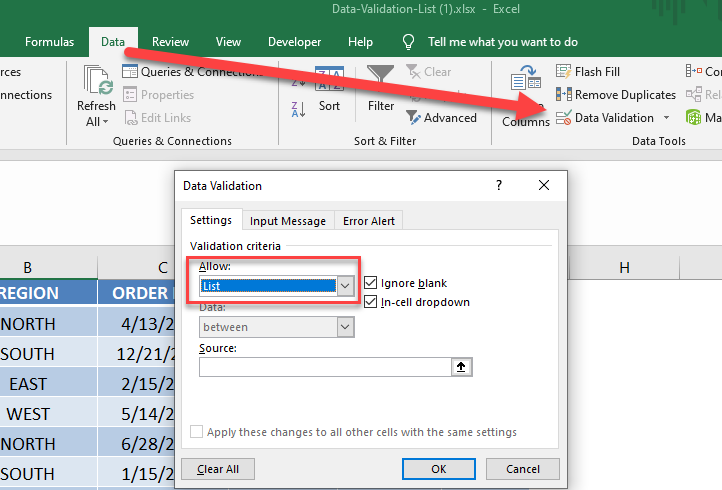
Creating dynamic and user-friendly drop-down lists is crucial for web applications. These lists allow users to select from a predefined set of options, enhancing data entry and reducing errors. This section details how to implement drop-down lists using JavaScript, Python, and PHP, highlighting their respective strengths and use cases.Implementing drop-down lists with programming languages like JavaScript, Python, and PHP offers significant advantages.
JavaScript enables dynamic updates within the browser, Python excels in server-side logic, and PHP facilitates seamless integration with database interactions for web applications. Understanding these techniques enhances the overall functionality and user experience of web applications.
JavaScript Drop-Down Lists
JavaScript enables dynamic population of drop-down lists within web pages without requiring a page refresh. This approach significantly improves user interaction and responsiveness. The following example showcases how to dynamically populate a drop-down list using JavaScript.“`javascriptfunction populateDropdown(data) const dropdown = document.getElementById(“myDropdown”); dropdown.innerHTML = “”; // Clear existing options data.forEach(item => const option = document.createElement(“option”); option.value = item.value; option.text = item.text; dropdown.appendChild(option); );const myData = [ value: “option1”, text: “Option 1” , value: “option2”, text: “Option 2” , value: “option3”, text: “Option 3” ];populateDropdown(myData);“`This code snippet dynamically populates a drop-down list named “myDropdown” with data from the `myData` array.
The `populateDropdown` function efficiently clears existing options and adds new options based on the provided data. This example effectively demonstrates how to use JavaScript to create a responsive and interactive drop-down list.
Python Drop-Down Lists (Web Development)
Python, particularly with frameworks like Flask or Django, is commonly used for creating dynamic web content. This includes handling drop-down lists that interact with data stored in databases.“`pythonfrom flask import Flask, render_templateapp = Flask(__name__)@app.route(“/”)def index(): # Example database query (replace with your actual query) data = [(‘Option 1’, 1), (‘Option 2’, 2), (‘Option 3’, 3)] return render_template(‘index.html’, options=data)if __name__ == “__main__”: app.run(debug=True)“`This Python code uses Flask to dynamically render a drop-down list.
The `render_template` function passes the `options` data to the HTML template. This data is fetched from a database query, allowing for flexible and efficient interaction with user-selected data. The `index.html` template would then display the options within the drop-down list.
PHP Server-Side Validation
PHP facilitates server-side validation of user input from drop-down lists. This is crucial for ensuring data integrity and preventing malicious input.“`php “`This PHP code snippet demonstrates server-side validation. It checks if the selected option from the drop-down list is valid. This is vital for preventing invalid data from reaching the application’s backend. Robust server-side validation enhances the security and reliability of the application.
Comparison Table
| Language | Code Snippet | Description |
|---|---|---|
| JavaScript | “`javascript … “` | Dynamically populates drop-down lists within the browser. |
| Python (Flask) | “`python … “` | Renders drop-down lists based on data from a database or other sources. |
| PHP | “`php … “` | Validates user selections on the server side. |
Handling User Input and Validation within Drop-Down Lists
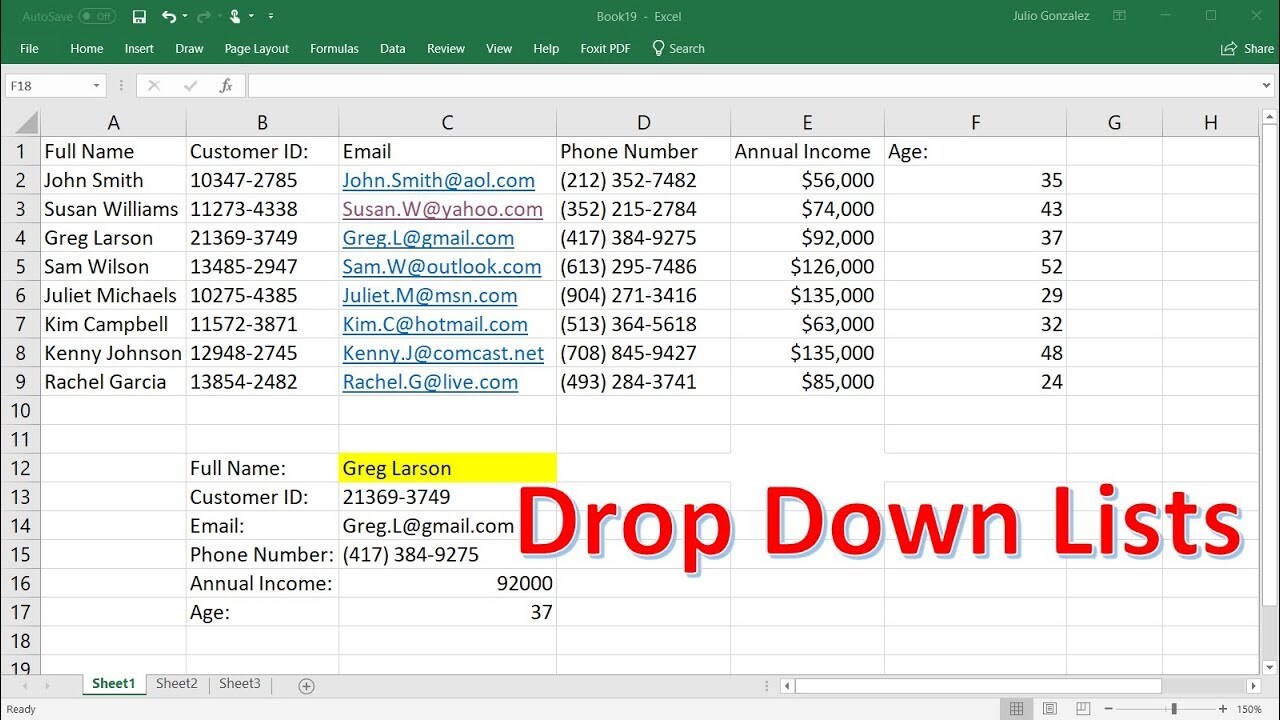
Data validation is crucial for maintaining data integrity and preventing errors in web applications. This section delves into the specifics of validating user input from drop-down lists using JavaScript. By implementing robust validation, applications can ensure that only acceptable values are submitted, leading to more reliable and user-friendly experiences.
JavaScript Handling of User Input
JavaScript provides powerful tools to interact with and validate user input from drop-down lists. The primary method involves capturing the selected value using the `value` property of the `select` element. This value can then be used for further processing and validation.
Preventing Invalid Selections
Preventing invalid selections is accomplished through conditional checks within JavaScript. These checks compare the selected value against predefined rules or a set of valid options. This ensures that only valid selections can proceed to the next stage of the application.
Validating User Input Against Predefined Rules
Validation rules can be tailored to the specific needs of the application. For instance, a drop-down list for “Country” might require a specific two-letter country code, while a list for “Product Category” might limit choices to pre-approved categories. These rules, often implemented as functions, determine the validity of the selected option.
Examples of Validating User Input
Consider a drop-down list for “Shipping Method.” A validation function could check if the selected method is within a list of supported options. Similarly, for a “Payment Type” drop-down, validation could ensure that the chosen option corresponds to a valid payment gateway. These functions typically return a boolean value, `true` if the input is valid, and `false` otherwise.
| Drop-Down List | Validation Rule | JavaScript Code Snippet |
|---|---|---|
| Shipping Method | Ensure selected method is supported (e.g., “Standard,” “Express”). | “`javascriptfunction validateShippingMethod() const shippingMethod = document.getElementById(“shippingMethod”).value; const supportedMethods = [“Standard”, “Express”]; return supportedMethods.includes(shippingMethod);“` |
| Payment Type | Verify selected payment type is supported by the system. | “`javascriptfunction validatePaymentType() const paymentType = document.getElementById(“paymentType”).value; const supportedTypes = [“Credit Card”, “Debit Card”, “PayPal”]; return supportedTypes.includes(paymentType);“` |
Workflow of Handling User Input and Validation
The workflow for handling user input and validation in a drop-down list involves these steps:
- User selects an option from the drop-down list.
- JavaScript code captures the selected value.
- Validation functions are called to check if the selected value meets predefined rules.
- If the selected value is valid, the application proceeds; otherwise, an appropriate error message is displayed to the user.
Advanced Techniques and Best Practices
Customizing drop-down lists and implementing them effectively in web forms can significantly enhance user experience and data integrity. This section delves into advanced techniques for styling, adding icons, and ensuring proper responsiveness, along with best practices for data validation and user experience. Understanding these techniques will allow developers to create more user-friendly and reliable forms.Implementing drop-down lists with careful attention to styling, user experience, and data integrity will result in forms that are not only functional but also visually appealing and trustworthy.
These advanced techniques will ensure a smooth and efficient user experience, while also maintaining data accuracy and consistency.
Customizing Drop-Down Lists
Styling drop-down lists effectively can significantly improve their visual appeal and user experience. Beyond basic CSS modifications, developers can enhance the visual presentation with custom icons and visual cues.Customizing a drop-down list’s appearance involves several key steps. First, select a suitable style that complements the overall design. Next, use CSS to adjust the appearance of the dropdown box, such as its background color, font, and border.
Finally, if appropriate, incorporate icons to provide context or visual interest to the options within the list.
Best Practices for Web Forms
Implementing drop-down lists in web forms requires adherence to best practices to ensure a positive user experience.
- Clear and Concise Labels: Labels associated with drop-down lists should be clear, concise, and accurately reflect the data the user is expected to select. Ambiguous labels can lead to user confusion and errors.
- Intuitive Ordering: Arrange options within the drop-down list in a logical and intuitive manner. Consider alphabetical order or grouping options by category for easier navigation.
- Accessibility Considerations: Ensure the drop-down list is accessible to users with disabilities. This includes providing alternative text for icons and adhering to accessibility guidelines for color contrast and keyboard navigation.
- Appropriate Feedback: Provide clear and concise feedback to the user when they interact with the drop-down list, such as visual cues or tooltips to guide them through the process.
Data Integrity in Different Contexts
Ensuring data integrity is crucial when using drop-down lists, particularly in applications where data accuracy is critical. The validation performed within the drop-down is vital to ensure the data conforms to specific requirements.
- Data Validation: Implement rigorous data validation rules to prevent incorrect or invalid data from being entered. This could involve checking for required fields, data types, or predefined values within the list.
- Error Handling: Provide clear error messages to the user if they input invalid data. This feedback is critical to guide the user and ensure they understand the requirements.
- Data Consistency: Ensure the data selected from the drop-down list is consistent with other data in the system. This is especially important for relational data, where consistency between fields is necessary.
Responsive Design
Responsive design is crucial for creating drop-down lists that function correctly and look good across various screen sizes. This involves implementing techniques that adjust the appearance and behavior of the list based on the viewport size.
- Viewport-Aware Styling: Use media queries to adjust the styling of the drop-down list based on screen width. This ensures the list remains readable and usable on different devices.
- Adaptive Layout: Ensure the drop-down list’s layout adapts to the available space on smaller screens. This might involve adjusting the number of visible options or changing the way options are displayed.
- Accessibility and Usability: The drop-down should remain usable and accessible on smaller screens. Consider using alternative input methods or resizing the elements if necessary to avoid frustrating users.
Best Practices Summary
- Clear Labeling: Use descriptive labels to guide users.
- Logical Ordering: Organize options in a way that is easy to navigate.
- Data Validation: Prevent invalid data entry.
- Accessibility: Design with users with disabilities in mind.
- Responsive Design: Implement adaptive layouts for different screen sizes.
- Feedback Mechanisms: Provide clear feedback to the user on their interactions.
- Error Handling: Clearly communicate errors and how to resolve them.
Error Handling and User Feedback
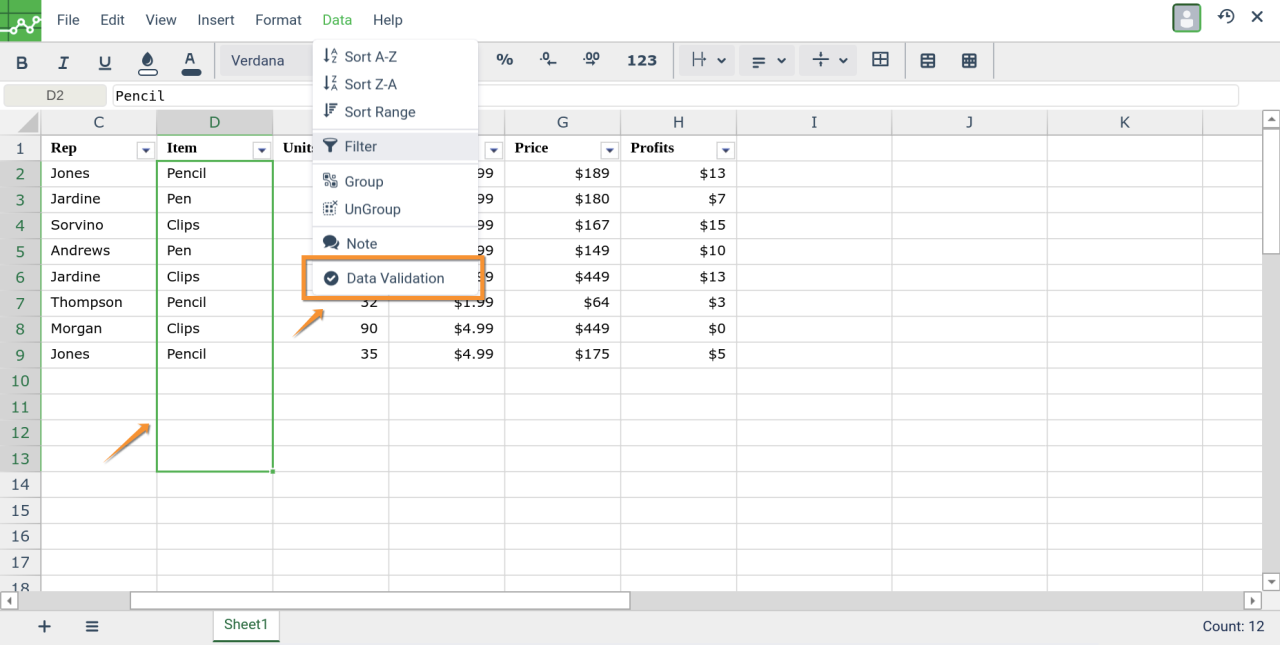
Providing clear and informative error messages is crucial for a positive user experience when dealing with data validation drop-down lists. Effective error handling prevents frustration and ensures users understand why their input is invalid, guiding them towards making correct selections. This section details various methods for displaying error messages, emphasizing informative feedback and clear examples.
Methods for Displaying Error Messages
Users need clear and concise feedback on the validity of their selections in drop-down lists. Multiple methods exist to convey error messages effectively. These methods include visual cues, tooltip pop-ups, and inline error messages displayed near the drop-down.
Visual Cues
Visual cues, such as highlighting the invalid selection or changing the drop-down’s border color, can quickly alert the user to the error. This approach is effective for immediate feedback, but it might not provide sufficient detail. For example, a red border around the drop-down can indicate an error, but it doesn’t explain the reason.
Tooltip Pop-ups
Tooltip pop-ups provide additional context when the user hovers over the invalid selection. This approach offers more information than visual cues, allowing users to understand the specific error. For example, if a user selects an invalid date format, a tooltip could appear, explaining the required format.
Inline Error Messages
Inline error messages, displayed near the drop-down, provide a clear explanation of the error directly. This approach is helpful for users who prefer concise, specific information. For instance, if a user enters an invalid email address, an error message below the drop-down could state, “Please enter a valid email address.”
Examples of Clear and Concise Error Messages
- Invalid Input: Please select a valid item from the list.
- Required Field: This field is required. Please select an option.
- Format Error: Please enter a date in YYYY-MM-DD format.
- Value Out of Range: The selected value is outside the acceptable range. Please choose a value within the range of 1 to 100.
Comparison of Error Handling Approaches
| Approach | Description | Pros | Cons |
|---|---|---|---|
| Visual Cues | Highlighting invalid selection or changing border color. | Quick feedback. | Limited information. |
| Tooltip Pop-ups | Displaying additional context on hover. | Provides more details. | Can be intrusive if not used judiciously. |
| Inline Error Messages | Displaying error messages directly below or near the drop-down. | Clear and concise explanation. | May clutter the interface if used excessively. |
Creating an Effective Error-Handling Mechanism
A robust error-handling mechanism for drop-down lists should consider the user’s needs. A user-friendly approach involves providing specific error messages tailored to the invalid selection. This requires carefully crafted validation rules that prevent invalid data from being entered in the first place.
- Validation Rules: Establish clear validation rules based on the expected data type and range. For example, a drop-down for “country” should only allow valid country names.
- Feedback Mechanisms: Implement appropriate feedback mechanisms (visual cues, tooltips, inline messages) to inform users of errors. Select the method that best fits the overall design and user experience.
- Error Message Clarity: Craft clear, concise, and user-friendly error messages. Avoid technical jargon and focus on providing solutions.
Accessibility Considerations
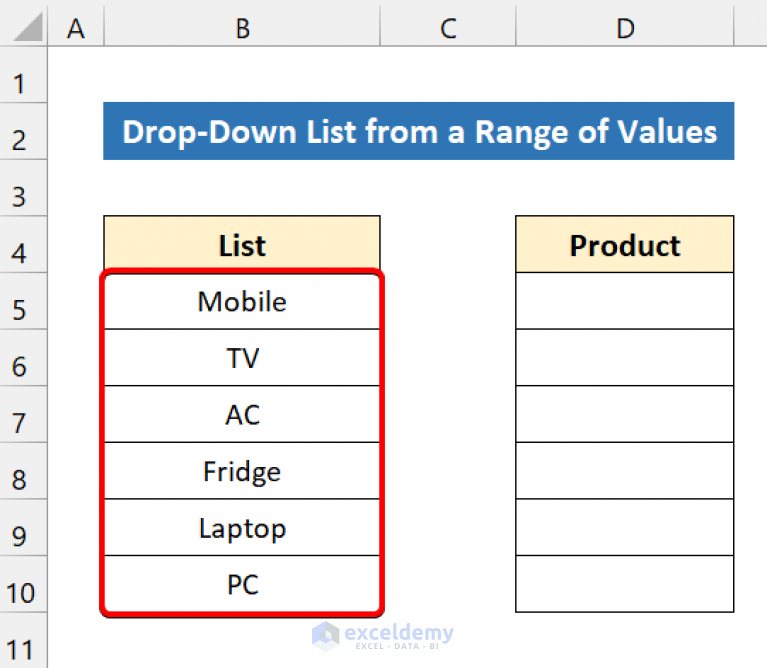
Ensuring data validation drop-down lists are accessible is crucial for users with disabilities. Accessibility guidelines are not just best practices; they are essential for inclusivity and user experience. Users with visual impairments, motor impairments, or cognitive differences rely on assistive technologies like screen readers to interact with web content. A well-designed drop-down list can be navigated easily and understood by these users.Thorough consideration of accessibility principles leads to a more robust and user-friendly interface for everyone.
It is a fundamental aspect of responsible web development, promoting equity and inclusivity in online experiences.
Importance of Accessibility
Accessibility in drop-down lists ensures usability for all users. Individuals with visual impairments rely on screen readers to interpret website content, and the correct implementation of ARIA attributes enables accurate and effective navigation. Users with motor impairments benefit from keyboard-only navigation, and proper keyboard interaction enhances the overall usability of the drop-down list. This consideration extends to cognitive differences, where clear labeling and structure are paramount for understanding the available options.
Examples of Accessible Drop-Down Lists
A well-designed drop-down list displays clear and concise labels for each option. The list should be ordered logically, reflecting the expected user flow. For instance, a drop-down list for “Country” might be organized alphabetically or by continent. Using descriptive labels like “United States of America” instead of abbreviations like “USA” provides additional context for users. Clear visual cues, such as highlighting the currently selected option, aid users in understanding the current state of the list.
Keyboard Navigation and Screen Reader Compatibility
Proper keyboard navigation is critical for users who cannot use a mouse. Each option in the drop-down list should be reachable using the Tab key, and selecting an option should be possible via Enter or Spacebar. This is essential for screen reader compatibility. Screen readers need precise information about each option, including its label and role.
Implementing ARIA Attributes
Using ARIA attributes, such as `aria-label`, `aria-labelledby`, and `aria-describedby`, is crucial for enhanced accessibility. `aria-label` provides an alternative text description for screen readers. `aria-labelledby` links the drop-down list to a descriptive label outside the list. `aria-describedby` allows associating descriptive text to enhance understanding. The correct use of these attributes improves the accessibility of the drop-down list.
For instance, an `aria-label` attribute might be applied to a drop-down list labeled “Select a Country.”
Accessibility Guidelines
- Use descriptive labels for each option, avoiding abbreviations or ambiguous terms.
- Ensure proper keyboard navigation by allowing users to move through options with the Tab key and select options using Enter or Spacebar.
- Provide clear visual cues, such as highlighting the currently selected option, to enhance understanding of the list’s state.
- Use ARIA attributes like `aria-label`, `aria-labelledby`, and `aria-describedby` to provide additional context for screen readers.
- Structure the list logically, reflecting the expected user flow (e.g., alphabetical order, hierarchical categories).
- Maintain consistency in styling and presentation throughout the application.
These guidelines, when consistently applied, ensure a high level of accessibility for all users. A well-structured drop-down list that adheres to these principles promotes a more inclusive and user-friendly experience for everyone.
Last Recap
In conclusion, this guide has demonstrated how to create data validation drop-down lists, emphasizing their importance in maintaining data integrity and enhancing user experience. We’ve covered various aspects, from fundamental concepts to advanced techniques, using examples in different programming languages. By applying the principles Artikeld here, you can effectively leverage drop-down lists to validate user input, streamline data entry, and create robust web forms.