This guide provides a comprehensive overview of assigning macros to buttons, enabling automation in various software applications. From simple tasks to complex workflows, understanding macro assignment empowers users to streamline their processes and enhance productivity. This exploration delves into the core concepts, practical methods, and advanced techniques behind this powerful tool.
The process, though seemingly complex, is broken down into digestible steps. We’ll cover everything from the fundamental principles of macros and their benefits to advanced techniques like debugging and troubleshooting. Examples across different software types will illustrate the diverse applications of macro assignment, making it clear how you can tailor this functionality to your specific needs.
Introduction to Macros and Buttons
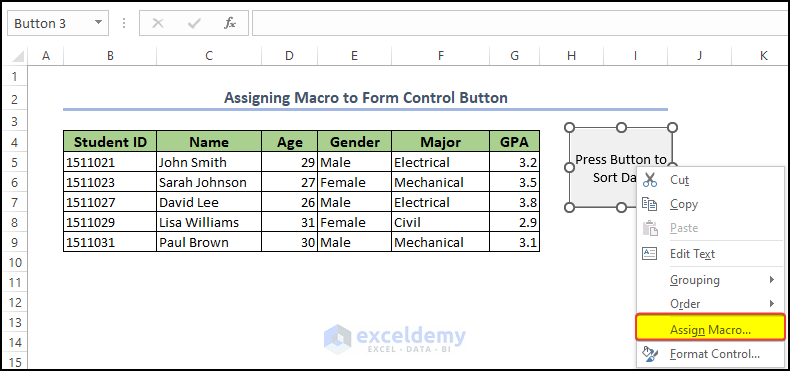
Macros are pre-programmed sequences of commands or actions in software applications. Their purpose is to automate repetitive tasks, saving time and effort for users. This automation can significantly improve efficiency, especially when dealing with lengthy or complex processes. Imagine needing to format a document with specific font styles and sizes repeatedly; a macro can handle this quickly and reliably.Assigning macros to buttons allows users to initiate these automated sequences with a single click.
This streamlined approach eliminates the need to manually execute each command individually, drastically reducing the time and effort involved in completing tasks. This method empowers users to tailor software to their specific needs and workflows.
Macros in Various Applications
Macros are widely used in a variety of software applications. Their ability to automate repetitive actions makes them indispensable tools for increasing productivity. From simple tasks like formatting text to complex processes in design and data analysis, macros streamline workflows.
- Word Processors: Macros are invaluable in word processors for automating tasks like formatting documents, inserting headers and footers, creating templates, and applying styles consistently. Users can define a macro to automatically format a paragraph with specific fonts, sizes, and colors, and then trigger it with a button click. This eliminates the need to manually perform these actions repeatedly.
- Spreadsheets: In spreadsheet software, macros can automate data entry, calculations, formatting, and charting. A common use case is automating data entry from an external source or performing complex calculations on large datasets. For instance, a macro can automatically sum values in specific columns, create charts based on data, and format the spreadsheet consistently.
- Design Software: Graphic design software, like Adobe Photoshop and Illustrator, utilizes macros to automate tasks like applying filters, creating shapes, and performing other repetitive design actions. This allows for greater precision and efficiency when creating complex designs, particularly in large projects.
- Database Management Systems: Macros in database management systems automate data entry, manipulation, and retrieval. They can be used for tasks such as importing data from other sources, updating records, or creating reports.
Comparison of Software Macro Capabilities
The following table illustrates the varying degrees of macro capabilities across different software types.
| Software Type | Macro Capabilities | Example Use Cases |
|---|---|---|
| Word Processors (e.g., Microsoft Word, Google Docs) | Strong macro capabilities for text formatting, document manipulation, and template creation. | Automating repetitive formatting, creating personalized templates, and inserting images. |
| Spreadsheet Software (e.g., Microsoft Excel, Google Sheets) | Excellent macro support for data analysis, calculations, charting, and automation of formulas. | Automating data entry, performing complex calculations, generating reports, and creating charts. |
| Graphic Design Software (e.g., Adobe Photoshop, Illustrator) | Significant macro capabilities for automating design tasks, including filters, adjustments, and repetitive operations. | Creating custom filters, automating the creation of shapes, and applying consistent design elements. |
| Database Management Systems (e.g., MySQL, PostgreSQL) | Support for scripting languages like SQL and procedural languages that can be used for automation of data manipulation tasks. | Automating data imports, updates, and exports; generating complex reports based on query results. |
Methods for Macro Assignment
Macro assignment, the process of linking a predefined sequence of actions to a button, significantly streamlines workflows in various software applications. This empowers users to automate repetitive tasks and boost productivity. Understanding the methods for assigning macros is crucial for efficient task management.Different software applications utilize varying approaches to macro assignment. This section details these methods, providing clear steps for common programs like Microsoft Office and Adobe Photoshop, as well as highlighting the use of scripting languages and graphical user interfaces (GUIs).
This comprehensive approach equips users with the knowledge to tailor their workflows to their specific needs.
Macro Assignment in Microsoft Office
Understanding the macro assignment process within the Microsoft Office suite is vital for streamlining tasks. These applications offer a robust macro system, enabling users to automate various operations.
- Open the Visual Basic Editor (VBE). This is typically accessed through the Developer tab (if enabled) or by pressing Alt + F11.
- Insert a new module. In the VBE, select Insert > Module.
- Write the macro code. Enter the desired macro code within the module. This code defines the actions to be performed when the button is clicked.
- Create a button. In the application (e.g., Excel, Word), go to the Developer tab and select Insert > Button.
- Assign the macro to the button. In the VBE, double-click the newly inserted button. This action associates the button with a specific macro subroutine.
- Test the macro. Click the button to verify that the macro runs as expected.
Macro Assignment in Adobe Photoshop
Adobe Photoshop, a powerful image editing application, also supports macros. This feature allows for automation of specific image editing tasks.
- Open the Actions panel. This panel is accessible through the Window menu.
- Create a new action set. Within the Actions panel, select Create New Set to store the macro.
- Record the actions. Begin recording the steps you want the macro to perform. This could involve adjustments to images or applying specific filters.
- Name the action. Give the recorded action a descriptive name for easy identification.
- Assign the action to a button. Within the Actions panel, select the recorded action and assign it to a button in the user interface.
- Test the macro. Click the assigned button to ensure the recorded actions are performed as intended.
Different Macro Creation Methods
Different methods exist for developing macros, including using scripting languages and recording actions.
- Scripting Languages: Languages like VBA (Visual Basic for Applications), JavaScript, or Python provide precise control over macro functionalities. They offer more flexibility than recording methods, allowing complex tasks to be programmed with greater accuracy.
- Recording Actions: This approach simplifies macro creation by capturing user interactions. The software records each step as the user performs them. This is useful for simpler tasks and is often the initial method of macro creation. However, it may require adjustments to suit more sophisticated needs.
Using a GUI for Macro Assignment
Graphical User Interfaces (GUIs) offer a visual approach to macro assignment. This approach simplifies the process by presenting options and settings in a user-friendly manner.
- In many applications, the GUI presents options for selecting macros or creating new ones.
- Users can directly associate macros with buttons or other controls within the interface.
- The specific steps for GUI-based macro assignment vary depending on the software.
Comparison Table of Macro Assignment
This table summarizes the steps for assigning macros in different programs, highlighting similarities and differences:
| Software | Steps for Macro Assignment |
|---|---|
| Microsoft Office | VBE, Insert Module, Write Code, Create Button, Assign Macro, Test |
| Adobe Photoshop | Actions Panel, Create Action Set, Record Actions, Name Action, Assign to Button, Test |
Macro Creation and Editing
Macro creation and editing are essential skills for automating tasks and streamlining workflows. Understanding the structure of macro scripts, various macro languages, and the editing process empowers users to tailor macros to their specific needs. This section delves into these crucial aspects, providing a comprehensive guide to creating and modifying macros.
Macro Script Structure
Macro scripts are sequences of instructions that automate tasks. Their structure varies depending on the specific macro language, but common elements include commands, variables, and conditional statements. Understanding this structure is key to effectively creating and modifying macros.
Macro Language Syntax
Different macro languages employ varying syntax rules. These rules dictate how commands are written, variables are declared, and logic is implemented. Familiarity with the specific syntax of the chosen macro language is essential for accurate macro creation and editing.
Creating a Simple Macro
To illustrate macro creation, consider a simple macro designed to automatically save a document. This macro could be implemented in a variety of macro languages. The precise syntax will vary depending on the macro application used, but the fundamental structure is generally consistent.
- The macro begins by specifying the file path for the document to be saved.
- Next, it issues a command to save the document with a specified name, for example, “SaveAs”.
- The macro then appends the current date and time to the filename.
Editing Existing Macros
Modifying existing macros involves careful inspection of the script’s code. This often involves understanding the specific commands, variables, and logic used within the macro. Errors in the macro script need to be identified and corrected. Furthermore, identifying the sections of the macro that need to be changed and updating the code accordingly is crucial.
- Identify the specific sections of the macro that need modification.
- Update the code to reflect the desired changes.
- Test the modified macro to ensure that it functions as expected.
Macro Examples and Effects
The following table illustrates various macros and their potential effects. Each example highlights a specific function or task.
| Macro Name | Description | Effect |
|---|---|---|
| Auto-Save Document | Saves a document automatically at specified intervals. | Ensures that the document is backed up regularly, preventing data loss. |
| Email Notification | Sends an email notification when a task is completed. | Provides real-time updates and alerts on project progress. |
| Spreadsheet Data Extraction | Extracts specific data from a spreadsheet and places it into a new file. | Simplifies data analysis and reporting by automating the extraction process. |
Advanced Macro Techniques
Creating complex macros often requires combining multiple actions, incorporating user input, and interacting with other applications. This section delves into advanced techniques for building powerful and adaptable macros. Understanding these methods empowers users to automate intricate tasks and streamline workflows.Mastering these techniques allows for a significant increase in macro functionality, moving beyond simple button presses to encompass more complex and user-friendly automation.
Variables, conditional statements, and user input enable macros to react dynamically to different situations, making them more versatile and efficient. The ability to interact with external applications further expands the scope of automation.
Multiple Actions in Macros
Combining several actions within a single macro enhances automation capabilities. This involves chaining commands or functions to execute sequentially. A common example is a macro that automatically fills out a form by sequentially inputting data into different fields, followed by submitting the form. Such macros can streamline repetitive, multi-step processes.
Variables and Conditional Statements
Variables allow macros to store and manipulate data dynamically. This empowers macros to adapt to changing circumstances. Conditional statements, such as `if` and `else` statements, enable macros to execute different actions based on specific conditions. For example, a macro could check the status of a file and perform different actions depending on whether it exists or is empty.
This adaptability greatly enhances the flexibility of macros.
User Input Integration
Incorporating user input into macros provides a user-friendly and interactive experience. This allows users to customize the macro’s behavior based on their specific needs. For example, a macro for creating documents could prompt the user for the desired file name, or allow selection of a file from a folder. This interactive approach empowers users to tailor the macro’s output.
Interacting with Other Applications
Macros can often interact with other software applications, expanding their potential. This interaction might involve opening a specific file within another application or extracting data from another program. For instance, a macro could open a spreadsheet, extract data from a specific cell, and insert that data into a word processing document. This capability enables macros to automate workflows that span multiple applications.
Debugging and Troubleshooting
Effective debugging is crucial for creating reliable macros. Macros often include complex steps and interactions, which can lead to unexpected errors. Identifying and resolving these errors is essential for macro functionality. A common method involves stepping through the macro’s code line by line, inspecting variable values, and identifying where errors occur. By using logging and error handling techniques, errors can be caught and handled effectively.
Tools within the macro creation environment often provide helpful debugging features.
Troubleshooting and Common Errors
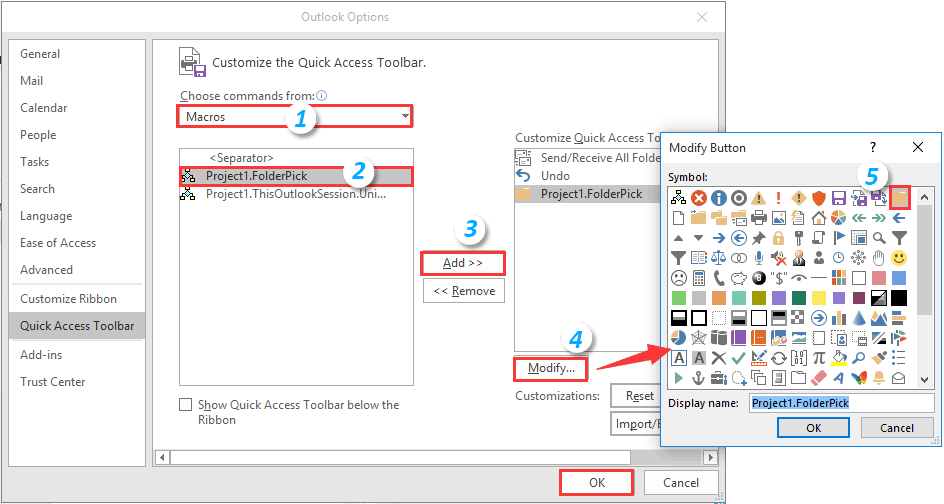
Troubleshooting macro assignments can often be challenging, but systematic diagnosis and understanding of common issues are crucial for successful macro implementation. Knowing how to identify and resolve these problems ensures smooth operation and avoids frustrating delays. This section will guide you through common pitfalls and provide practical solutions.Identifying the root cause of macro malfunctions is often the first step toward a resolution.
This involves careful examination of the macro script, the button’s assigned actions, and any potential conflicts with other software.
Common Macro Assignment Issues
Understanding the potential causes of macro assignment failures is essential. Inconsistent button assignments, incorrect macro scripts, and conflicts with operating system functions can all lead to problems.
- Inconsistent Button Assignments: Incorrectly configured button assignments can lead to unexpected results or the macro not triggering at all. Double-checking the button’s association with the desired macro is paramount. Ensure the button is properly assigned to the macro within the software’s configuration settings. A common error is selecting the wrong macro from the list or inadvertently assigning the same button to multiple macros.
- Incorrect Macro Scripts: Syntax errors or logical flaws in the macro script itself are frequent causes of malfunctions. These issues can range from typos in the script code to errors in the sequence of actions. Carefully review the script for any errors before running it. Debugging tools within the macro software can aid in locating these issues. For instance, incorrect variable names or missing punctuation marks can lead to errors.
- Operating System Conflicts: Occasionally, macro actions might conflict with other system functions. For example, if a macro attempts to access a file that’s being used by another application, an error will occur. Checking for concurrent use of files or resources is important to prevent these issues.
- Software Conflicts: Other applications running on the system might interfere with the macro’s operation. For example, a macro designed to automatically save a document might conflict with another application that also attempts to save files concurrently.
Diagnosing Macro Script Problems
Correctly diagnosing macro script issues is vital for effective troubleshooting. A systematic approach to locating errors in the script is key.
- Error Messages: Carefully review any error messages displayed by the macro software. These messages often provide clues about the nature of the problem, such as syntax errors, missing variables, or incorrect file paths. Understanding the error message’s context is crucial.
- Step-by-Step Debugging: Break down the macro into smaller, manageable steps to identify the precise point of failure. Testing each step individually helps isolate the problematic part of the script. This process of iterative testing and evaluation is crucial to the success of debugging.
- Logging and Monitoring: Enable logging features in the macro software to track the macro’s execution and observe the sequence of actions. This detailed log can reveal when and why the macro fails, providing valuable information for troubleshooting.
Solutions for Common Macro Errors
Applying appropriate solutions to macro errors is essential for a smooth workflow.
- Syntax Errors: Carefully review the macro script for typos, missing punctuation, and other syntax errors. Using a dedicated code editor for macro scripts can enhance syntax checking and highlight errors.
- Logical Errors: Verify the sequence of actions within the macro script. Ensure the actions are performed in the correct order and that the conditions are evaluated accurately. Adding intermediate logging steps can be useful to understand how the script flows.
- Resource Conflicts: Verify that the macro doesn’t attempt to access files or resources that are being used by another application or process. Checking the status of file locks or resource availability can resolve these issues. Consider timing and scheduling of tasks to avoid concurrency issues.
Resolving Conflicts Between Macros and Other Software
Understanding and resolving conflicts between macros and other software applications is crucial for maintaining a stable and efficient workflow.
- Application Interactions: Examine the actions performed by the macro and identify potential conflicts with other applications. If necessary, adjust the macro’s timing or sequence to avoid conflicts. Use a dedicated macro software that allows for advanced control of the timing of actions. This ensures that the macro’s operations don’t interfere with other software functions.
- Operating System Limitations: Be mindful of any operating system limitations that might impact the macro’s execution. For instance, certain actions might be restricted during specific system operations. Knowing these limitations can help avoid potential errors.
Summary Table of Common Errors and Solutions
| Error | Possible Cause | Solution |
|---|---|---|
| Macro not triggering | Incorrect button assignment, syntax error, operating system conflict | Verify button assignment, check macro script for errors, ensure no conflicting system operations |
| Macro runs but produces incorrect output | Logical error in script, resource conflict, software conflict | Review macro script logic, check for resource locks, ensure no other applications are interfering |
| Macro crashes | Syntax error, infinite loop, memory leak | Check script for errors, review script for potential infinite loops, optimize script for memory usage |
Illustrative Examples
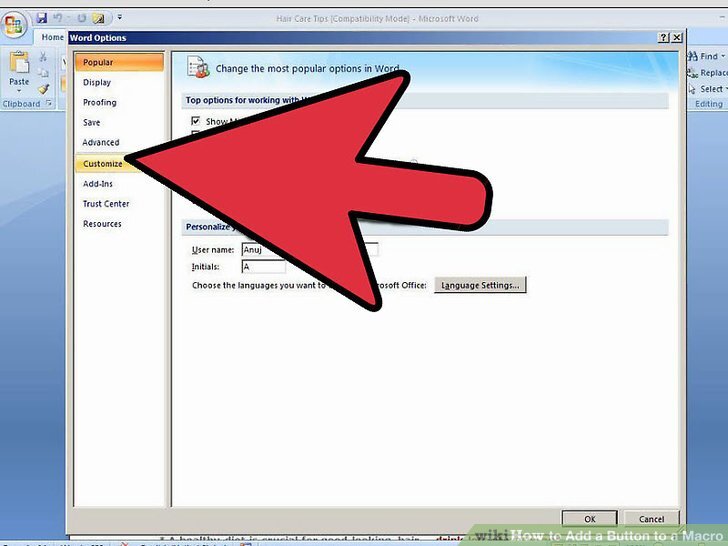
Macro assignment empowers automation in various applications, streamlining workflows and enhancing efficiency. This section provides practical examples to visualize how macros can be assigned to buttons for different software types. Understanding these examples will solidify your grasp of the macro assignment process.
Spreadsheet Application Macro Example
This example demonstrates a simple macro assignment in a spreadsheet application to automatically sum values in a specific range.
| Button | Macro Code (Example) | Action |
|---|---|---|
| Calculate Sum | Sub CalculateSum() Dim rng As Range Set rng = Range("A1:A10") 'Specify the range to sum Range("B1").Value = Application.WorksheetFunction.Sum(rng) End Sub |
Sums values in cells A1 through A10 and displays the result in cell B1. |
Word Processor Macro for Bolding Text
This example shows a macro in a word processor that can bold selected text.
| Button | Macro Code (Example – VBA) | Action |
|---|---|---|
| Bold Selection | Sub BoldSelection() Selection.Font.Bold = True End Sub |
Applies bold formatting to the currently selected text. |
Graphic Editor Macro for Color Change
This example illustrates a macro in a graphic editor that alters the color of a selected object.
| Button | Macro Code (Example) | Action |
|---|---|---|
| Change Object Color | // Code to access the selected object and its color properties. // The exact syntax will depend on the specific graphic editor. // This example is illustrative. // ... code to change the color of the selected object to red ... |
Changes the color of the selected graphic object to a predefined color (e.g., red). |
Presentation Application Macro for Multiple Operations
This example shows a macro in a presentation application to automate a series of actions.
| Button | Macro Code (Example) | Action |
|---|---|---|
| Create Slideset | // Code to create a new slide, add title, add content, and adjust formatting. // ... code to automate presentation setup ... |
Creates a new slide, inserts a title, adds content, and applies formatting in a pre-defined style. |
Macro for Automating Repetitive Tasks
This example demonstrates a macro in a general application to automate repetitive tasks.
| Button | Macro Code (Example) | Action |
|---|---|---|
| Automate Data Entry | // Code to read data from one source, process it, and input it into another. // Example: Pulling data from a spreadsheet and inputting it into a database. // ... code for data extraction and input ... |
Automates data extraction from one source, processes it, and inputs it into another, such as transferring data from a spreadsheet to a database. |
Safety Considerations and Security
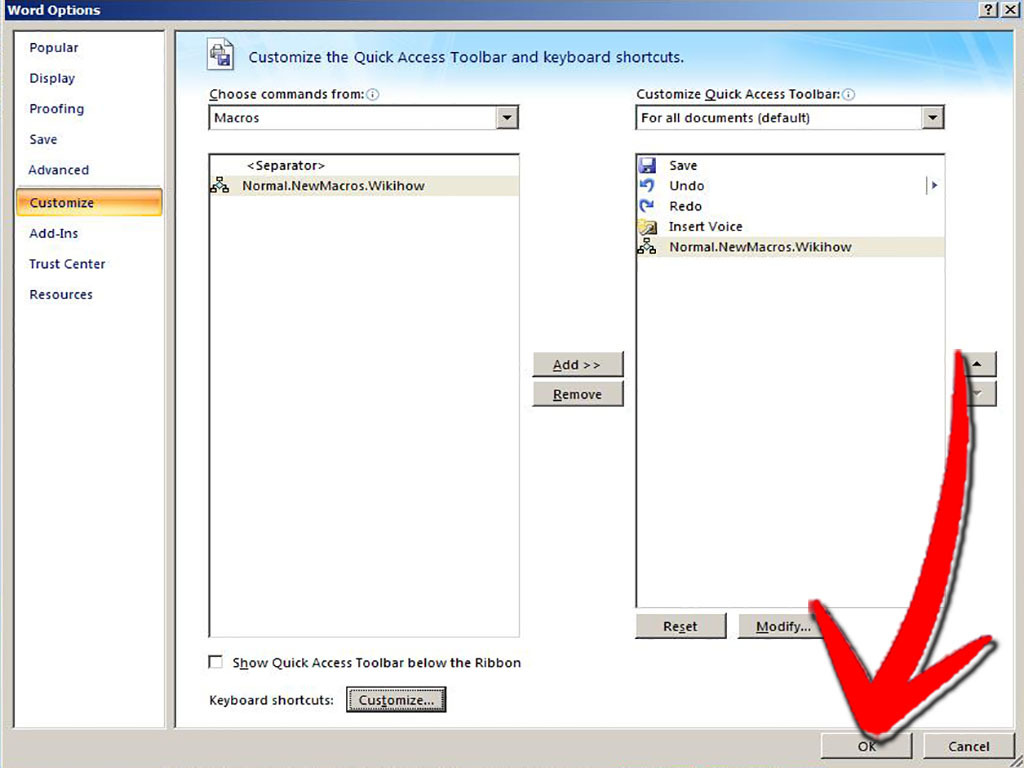
Macros, while powerful tools, can pose security risks if not handled carefully. Understanding these risks and implementing appropriate safety measures is crucial for preventing potential harm. This section will cover essential security precautions to maintain the integrity of your systems and data.
Security Risks Associated with Macros
Macros, by their nature of automating tasks, can execute commands that may inadvertently or maliciously compromise the system. A poorly written or malicious macro could potentially: access sensitive data, modify files, execute unauthorized commands, or even install malware. Macros are particularly dangerous when executed from untrusted sources or without proper security measures. Unintentional errors in a macro can also lead to data loss or system instability.
Mitigation of Risks from Unknown Sources
When dealing with macros from unknown sources, the highest priority is caution. Users should be wary of macros downloaded from untrusted websites, emails, or other potentially harmful sources. Always verify the source and purpose of a macro before execution. Do not blindly trust macros from unfamiliar individuals or organizations. Scrutinize the macro code for suspicious activity before running it.
Look for unexpected behavior or unusual commands.
Safe Management of Macro Scripts
Implementing strict guidelines for managing macro scripts can significantly reduce security risks. One approach is to restrict the access to macro creation and editing to authorized personnel only. This ensures that only trusted individuals can modify or create macro scripts. Regularly review and update existing macros to ensure their continued safety and efficacy. Properly document macros with detailed descriptions of their purpose and functionality, making it easier to audit and understand their intended use.
Employ version control for macro scripts, which helps track changes and revert to previous versions if necessary.
Importance of User Input Validation
User input validation is a critical aspect of macro security. Malicious users can attempt to manipulate macro input to cause unintended behavior. Therefore, macros should validate user input to prevent errors or malicious attacks. Input should be checked for valid formats and ranges to avoid issues such as data corruption, unexpected program behavior, or even unauthorized access.
Always anticipate potential errors in user input and provide appropriate error handling mechanisms within the macro. Example, a macro for transferring funds should verify the account number and amount to prevent invalid transactions.
Safe Macro Practices
Adhering to best practices in macro development can significantly reduce security risks. Macros should be designed with security in mind. Avoid using macros to access sensitive data without explicit authorization. Use strong passwords to protect macro files and any associated data. Limit the macro’s access to only the necessary resources.
Employ defensive programming techniques in macro development to prevent potential vulnerabilities. For example, sanitize user input to remove or validate characters that could be harmful. Consider using a sandboxed environment to limit the potential damage of a malicious macro. Finally, regularly update your software and operating system to patch security vulnerabilities. A strong security posture is vital for safeguarding systems from macro-related threats.
Example of Safe Macro Practices
A macro designed for data entry should validate user input, ensuring the correct format and type of data. For instance, a macro for updating customer records should check for valid email addresses, phone numbers, and other essential data fields before proceeding with the update. Another example is a macro for financial transactions. It should validate the transaction amount, destination account, and other crucial data to prevent fraudulent activities.
These practices ensure the integrity of the data and prevent potential security breaches.
Customization and Extensibility
Macros, while powerful in their base form, often require adjustments to meet specific user needs. This section explores methods for tailoring macros and integrating them with existing workflows or third-party tools. This adaptability is crucial for maximizing the effectiveness and efficiency of automation.Extending the capabilities of macros is vital. It’s not just about modifying existing functionalities, but about building upon them to create unique solutions.
Customizing macros allows users to adapt automated tasks to their specific requirements, creating a more personalized and effective workflow.
Customizing Macros for Specific User Needs
Tailoring macros to individual user requirements involves modifying existing macro code to incorporate specific inputs, outputs, or actions. This might include changing variable names, modifying conditional statements, or altering the sequence of commands. Carefully consider the potential impact of modifications on the macro’s overall functionality to ensure stability and avoid unintended consequences. For instance, adjusting input parameters in a macro that calculates area can ensure that the macro handles different units of measurement accurately.
Extending Existing Macros with New Functionalities
Extending existing macros often involves adding new functions or commands. This could be as simple as adding a new calculation step or as complex as integrating a completely separate module. For example, an existing macro for data analysis might be enhanced to include a graphical representation of the results, such as a histogram or scatter plot. This requires careful planning to avoid disrupting the existing functionality.
Using Custom Functions or Modules Within Macros
Custom functions and modules are valuable tools for extending macro capabilities. They allow for the encapsulation of complex logic, promoting modularity and maintainability. This approach makes code easier to understand and modify. A custom function to handle data validation, for instance, can be integrated into a larger macro for data processing, ensuring that data is consistently correct.
Integrating Third-Party Tools or Libraries with Macros
Integrating third-party tools or libraries provides access to a wider range of functionalities. This might involve calling external applications or using pre-built libraries for specific tasks. For example, integrating a library for image processing could allow a macro to analyze and manipulate images within a larger workflow. This requires understanding the API or interface of the third-party tool and ensuring compatibility.
Adding New Features to Existing Macros
Adding new features involves carefully considering the existing macro structure and adding new components or procedures. This might involve adding new input fields for parameters, implementing different logic branches based on user input, or incorporating user-defined variables to allow for flexibility in use cases. Adding error handling and logging can significantly improve the reliability and usability of the macro.
For example, an accounting macro might be extended to include tax calculations using a tax calculation API.
Closing Summary
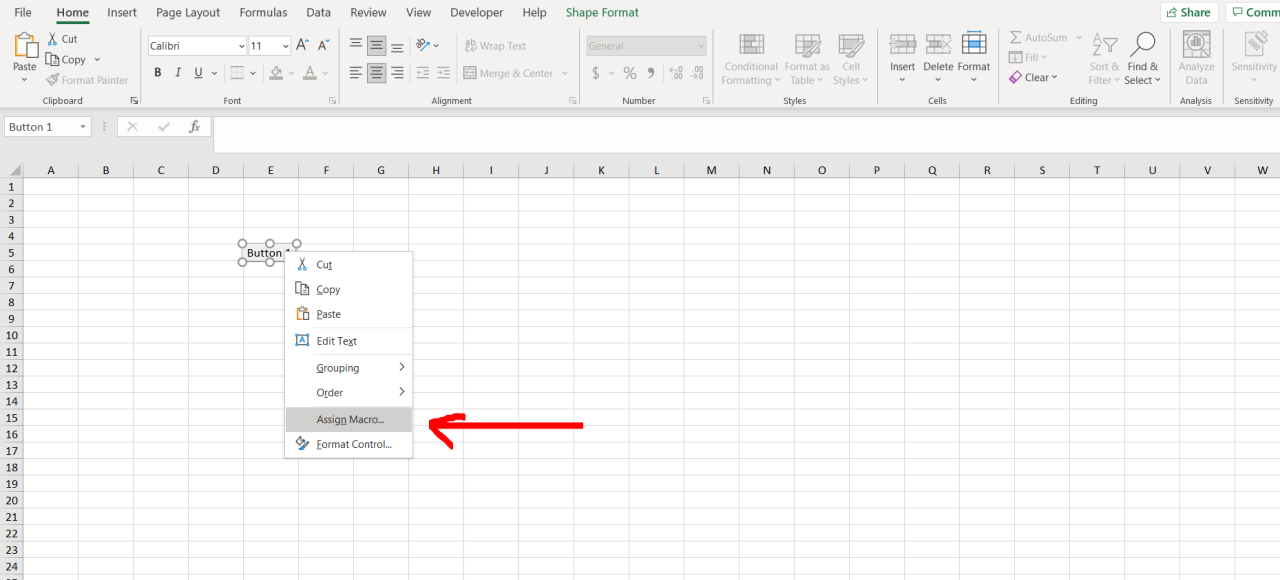
In conclusion, assigning macros to buttons offers a significant advantage for automating tasks and improving efficiency. This guide has walked you through the complete process, from the initial setup to advanced techniques and troubleshooting. By mastering these methods, you can significantly enhance your workflow and optimize your productivity across a wide range of software platforms. Remember to prioritize security considerations when working with macros.