Calculating averages is a fundamental skill in various fields, from finance and statistics to education and everyday life. This comprehensive guide delves into the intricacies of the AVERAGE function, providing a clear and concise explanation of its purpose and practical applications. Understanding how to accurately calculate averages is crucial for making informed decisions and drawing meaningful conclusions from data.
We’ll explore different types of averages, such as mean, median, and mode, and how they relate to the AVERAGE function in spreadsheet programs like Excel and Google Sheets. The guide also covers crucial aspects like data input, handling various data types, troubleshooting common errors, and advanced techniques for more complex calculations.
Introduction to Averages
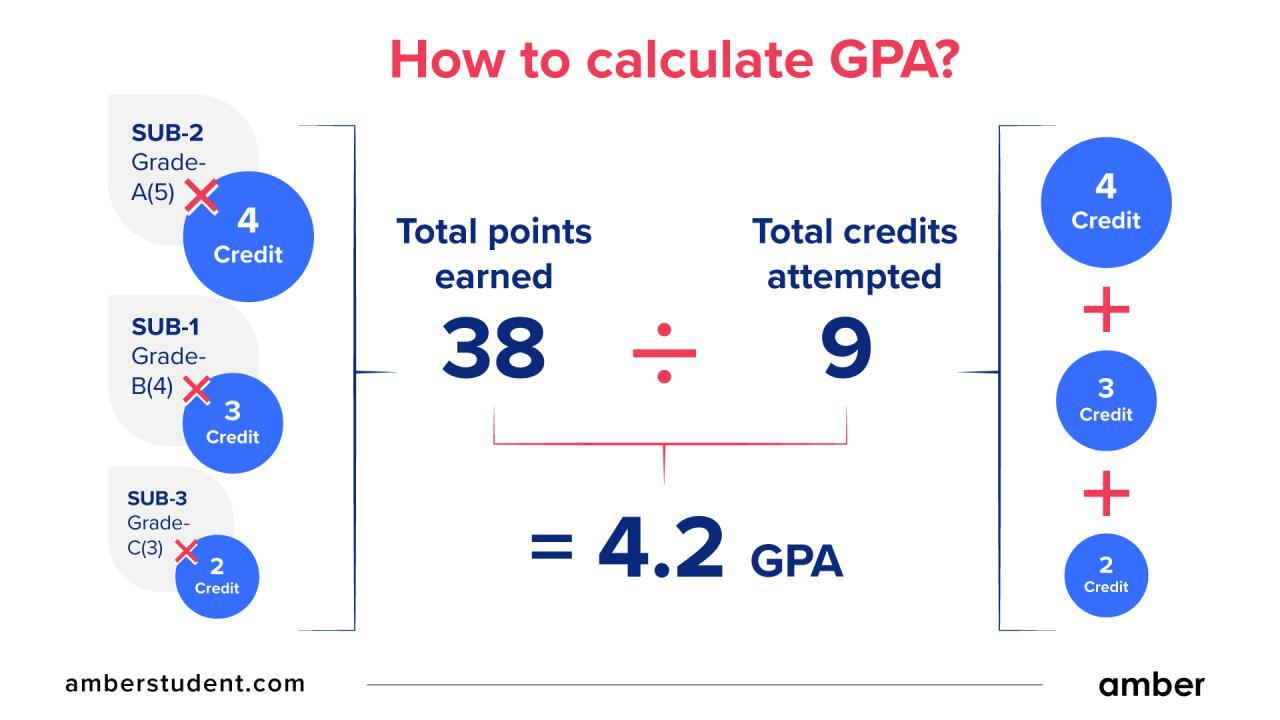
Averages represent a central tendency or typical value within a dataset. They provide a concise summary of a collection of numbers, offering insight into the overall magnitude or level of the data points. Understanding averages is crucial in various fields, from finance and business to science and statistics, enabling us to make informed judgments and draw meaningful conclusions.
Different Types of Averages
Several types of averages exist, each with its own method of calculation and application. The most common types are the mean, median, and mode.
- Mean: The mean, often referred to as the arithmetic average, is calculated by summing all the values in a dataset and dividing the sum by the total number of values. It’s sensitive to extreme values, meaning a single very high or very low number can significantly influence the result. This makes it a useful indicator of central tendency but not always the best measure if the data has outliers.
- Median: The median is the middle value in a sorted dataset. It’s less susceptible to extreme values than the mean. If the dataset has an even number of values, the median is the average of the two middle values. The median provides a robust measure of central tendency when dealing with skewed data or data containing outliers.
- Mode: The mode is the most frequently occurring value in a dataset. It’s useful for identifying the most common value or category. A dataset can have one mode, multiple modes, or no mode at all. The mode is valuable in understanding the most prevalent characteristics or items in a collection.
Scenarios Where Calculating Averages is Helpful
Calculating averages is instrumental in various situations where a single representative value is needed to summarize a dataset. This is particularly useful for comparing different groups or tracking trends over time.
- Business and Finance: Analyzing sales figures, customer satisfaction ratings, or employee performance can be greatly aided by calculating averages. Average sales per week, for example, help businesses track their revenue trends.
- Education: Calculating average test scores provides a measure of overall class performance, enabling teachers to gauge the effectiveness of their instruction and identify areas where students might need additional support.
- Science and Research: Averages are frequently used in scientific experiments to represent the typical results of a test or study. For instance, average growth rates of plants under different conditions provide valuable data for comparison.
Comparison of Averages
| Average | Calculation | Application | Sensitivity to Outliers |
|---|---|---|---|
| Mean | Sum of values / Total number of values | General purpose average, useful when no extreme values are present. | High |
| Median | Middle value in sorted data | Useful when extreme values might skew the mean. Suitable for skewed distributions. | Low |
| Mode | Most frequent value | Identifies the most common value or category. | Low |
Understanding the AVERAGE Function
The AVERAGE function is a fundamental tool in spreadsheet programs like Excel and Google Sheets for calculating the arithmetic mean of a set of numbers. This function simplifies the process of determining the central tendency of data, a crucial step in data analysis and reporting. It provides a concise and accurate way to find the average value, freeing users from manual calculations, particularly when dealing with large datasets.The AVERAGE function automatically sums the values and divides by the count, ensuring consistent and reliable results.
This automation reduces the risk of errors often associated with manual calculations. This feature is particularly beneficial when dealing with complex data sets or when repeated calculations are necessary.
Purpose of the AVERAGE Function
The AVERAGE function in spreadsheets computes the arithmetic mean of a set of values. This is the sum of the values divided by the number of values. It is a crucial tool for understanding the central tendency of data, identifying patterns, and making comparisons.
How the AVERAGE Function Works in a Spreadsheet Program
The AVERAGE function operates by summing all the specified numeric values and then dividing the sum by the total count of numbers included in the calculation. This process is automated, providing a quick and accurate result. The function identifies and incorporates only numerical values, ignoring text or other data types.
Syntax of the AVERAGE Function
The AVERAGE function’s syntax dictates how to use it in a spreadsheet program. It takes one or more arguments, which represent the numeric values for which the average is to be calculated.
| Syntax | Description |
|---|---|
| =AVERAGE(number1, [number2], …) | Calculates the average of one or more numbers. “number1” is the first numerical argument, and subsequent arguments can be added as needed. |
Important Note: The arguments must be numerical values or cell references containing numerical values. The function automatically excludes non-numeric data.
Examples of Formulas Using the AVERAGE Function
The following examples demonstrate the use of the AVERAGE function for various data sets. Each example showcases the function’s application and results.
- Example 1: Calculating the average of a simple data set: =AVERAGE(2, 4, 6, 8, 10) will return 6. This is the average of the five numbers.
- Example 2: Calculating the average from a range of cells: =AVERAGE(A1:A5) will return the average of the numerical values in cells A1 through A5. This method is efficient for large datasets.
- Example 3: Handling missing values: =AVERAGE(A1:A5, B1:B5) will calculate the average of all the numerical values from the given ranges, excluding any non-numeric data.
Comparison with Manual Calculation
Manual calculation of the mean involves individually summing all the values and dividing by the count. The AVERAGE function automates this process, saving time and reducing the risk of errors. In larger datasets, the function’s efficiency becomes especially apparent.
Inputting Data for the AVERAGE Function

Accurately inputting data is crucial for obtaining precise average calculations using the AVERAGE function. Proper data entry ensures that the function processes the correct numerical values, leading to reliable results. Incorrect or inconsistent data entry can produce inaccurate averages, impacting the validity of any analysis or decision-making based on the results.Data input methods and formats significantly influence the outcome of the AVERAGE calculation.
Understanding these variations is essential for generating dependable results. Different data formats and entry methods affect the way the spreadsheet interprets the input, potentially leading to discrepancies in the average value.
Direct Data Entry
Direct data entry involves manually typing numerical values into designated cells within the spreadsheet. This method is straightforward for small datasets. For larger datasets, it can become time-consuming and prone to errors.
Importing Data from Files
Importing data from external files, such as CSV or text files, can streamline the process for large datasets. This method allows for efficient data transfer, reducing manual entry errors. Import tools are often integrated within spreadsheet software to handle various file formats. Import options may vary slightly between spreadsheet programs.
Referencing Cells
Referencing cells allows for dynamic data input. Instead of directly entering numbers, the function references cells containing the data. This approach facilitates updates and modifications. If the data in the referenced cells changes, the average automatically adjusts. This method significantly simplifies managing and updating large datasets.
Data Format Considerations
Data format can impact the calculation. The AVERAGE function treats text values as zero. For example, if a cell contains the text “error” or “N/A”, it’s treated as zero, influencing the average. Cells containing dates are treated numerically based on the spreadsheet’s date format. Consistency in data formatting is essential for avoiding unexpected outcomes.
Examples of Correct and Incorrect Data Entry
| Example | Data Entry | Result | Description |
|---|---|---|---|
| Correct 1 | 10, 20, 30, 40, 50 | 30 | Correct numerical input. |
| Correct 2 | A1, A2, A3, A4, A5 | Average of values in A1 to A5 | Correct cell referencing. |
| Incorrect 1 | 10, 20, “error”, 40, 50 | 28 | “error” treated as zero. |
| Incorrect 2 | 10, 20, 30, “invalid”, 50 | 20 | “invalid” treated as zero. |
| Incorrect 3 | 10, 20, 30, 40, text | 20 | Text treated as zero. |
Handling Different Data Types
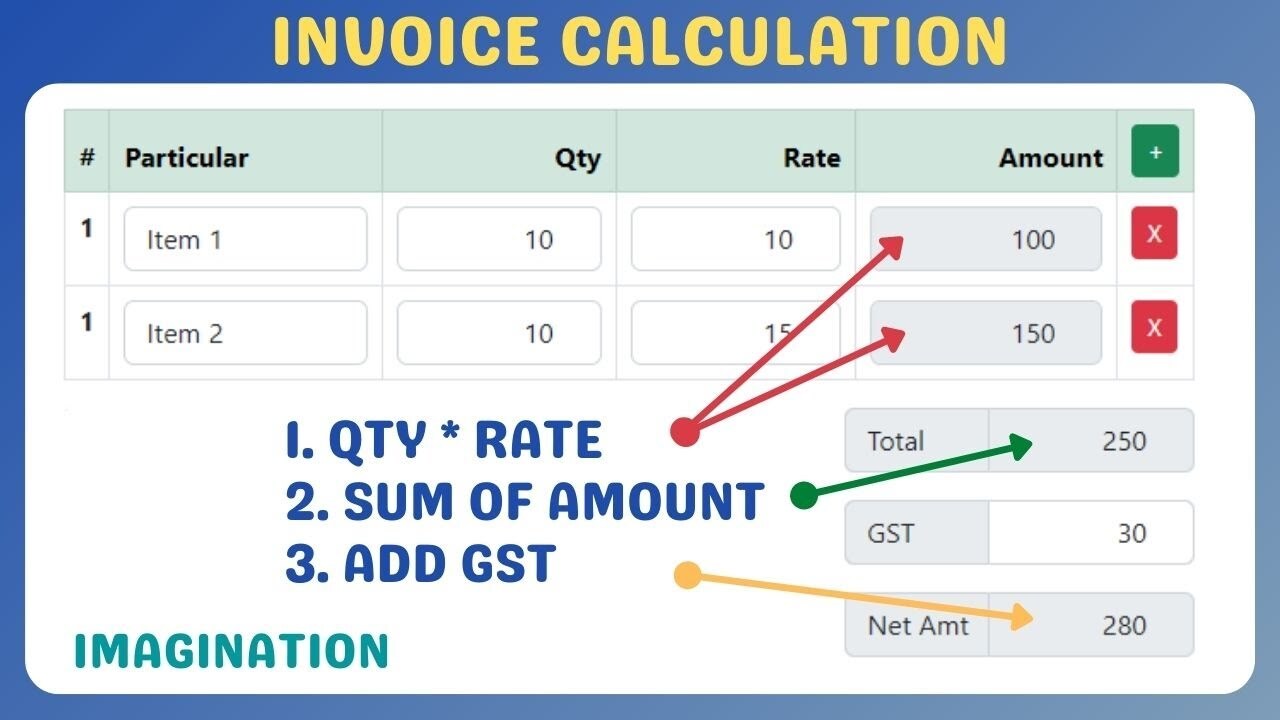
The AVERAGE function, while primarily designed for numerical data, can surprisingly accommodate other data types. Understanding how it processes these different inputs is crucial for accurate calculations and avoiding unexpected results. This section will delve into how the function handles numbers, text, and errors, providing examples and highlighting potential pitfalls.
Handling Numerical Data
The AVERAGE function readily calculates the average of numerical values. This includes integers, decimals, and even numbers represented in scientific notation. For instance, the average of 10, 20, 30 is 20. The function accurately computes the average, even when dealing with large datasets or complex numerical values.
Handling Text Data
The AVERAGE function interprets text values differently than numbers. If a cell contains text that cannot be converted to a number, the AVERAGE function treats it as zero. This can lead to inaccurate results if the dataset contains unintended text.
Handling Error Values
Errors like #DIV/0! or #N/A are also treated in a specific manner. These errors are typically excluded from the average calculation. If the dataset contains error values, the AVERAGE function omits them and calculates the average only from the valid numerical data. This is a useful feature for handling potential errors within the dataset.
Examples of Different Input Types
| Input Data | Result of AVERAGE Function | Explanation |
|---|---|---|
| 1, 2, 3, 4, 5 | 3 | The average of the numbers 1 through 5. |
| 1, 2, “text”, 4, 5 | 3 | The text “text” is treated as 0. |
| 1, 2, #N/A, 4, 5 | 3 | The error #N/A is ignored. |
Filtering Out Unwanted Data
To ensure accurate calculations, it is important to filter out any non-numerical data. This can be achieved through various methods such as using filters within the spreadsheet software or creating formulas to isolate the relevant data. Using a dedicated formula for extracting numerical data from a mixed dataset is a more sophisticated approach, providing flexibility and control over the data processing.
Potential Errors
A common error is inadvertently including non-numeric values in a range when using the AVERAGE function. This will result in an incorrect average. Another potential error involves using the AVERAGE function on a range containing a mixture of numbers and text. This can result in a calculated average that is misleading. A thorough review of the input data is crucial for preventing these errors.
Practical Applications and Examples
Calculating averages is a fundamental skill with widespread applications across various fields. From analyzing financial data to evaluating student performance, the average provides a concise summary of a dataset, revealing central tendencies and trends. This section explores the practical uses of the AVERAGE function, demonstrating its application in diverse scenarios and highlighting its significance in tracking progress.Understanding how to calculate and interpret averages is crucial for drawing meaningful insights from data.
By analyzing average values, we can identify patterns, make comparisons, and ultimately, make more informed decisions. This section will showcase the versatility of the AVERAGE function by presenting real-world examples in finance, statistics, and education, illustrating its use in monitoring progress over time and comparing performance across different datasets.
Calculating Average Monthly Sales
Analyzing sales data is essential for understanding business performance. The AVERAGE function is invaluable in summarizing monthly sales figures.
| Month | Sales (USD) |
|---|---|
| January | 15,000 |
| February | 18,000 |
| March | 22,000 |
| April | 19,000 |
| May | 25,000 |
To determine the average monthly sales for the first five months, the AVERAGE function can be used. Summing the sales figures (15,000 + 18,000 + 22,000 + 19,000 + 25,000 = 99,000) and dividing by the number of months (5) results in an average monthly sales figure of $19,800. This provides a clear picture of the overall sales trend.
Applications Across Different Fields
The AVERAGE function finds applications in diverse fields. In finance, it aids in calculating average returns on investments, analyzing stock prices, and forecasting future trends. In statistics, it is a cornerstone of descriptive analysis, used to summarize data and identify central tendencies. In education, it is used to assess student performance, track progress over time, and identify areas requiring improvement.
Examples in Various Scenarios
Here are a few examples illustrating diverse applications of the AVERAGE function.
| Scenario | Data | Average |
|---|---|---|
| Student Grades | 85, 92, 78, 95, 88 | 88 |
| Daily Temperatures | 25, 28, 22, 26, 24 | 25 |
| Weekly Expenses | 120, 150, 100, 180, 130 | 134 |
Tracking Progress Over Time
The AVERAGE function is instrumental in monitoring progress over time. By calculating average values at regular intervals, we can observe trends and patterns in data, which can be crucial in forecasting and decision-making. For example, calculating the average monthly sales for a business allows the business to see how sales fluctuate over time and make adjustments to their strategies as needed.
Comparison of Averages Across Datasets
Comparing average values across multiple datasets provides a deeper understanding of relative performance and trends. Consider these examples:
- Comparing average sales figures across different product categories can highlight which categories are performing better.
- Analyzing average test scores across different schools can reveal disparities in educational performance.
- Examining average customer satisfaction scores across different service providers can identify areas where improvements are needed.
Troubleshooting Common Issues
When working with the AVERAGE function in spreadsheets, occasional errors can occur. Understanding these potential issues and their solutions is crucial for accurate data analysis. This section will detail common errors, provide solutions, and demonstrate how to identify and correct them, ensuring reliable average calculations.
Common Errors and Solutions
Accurately calculating averages relies on the integrity of the input data. Errors in data entry or formula application can lead to inaccurate results. The following table Artikels common errors encountered when using the AVERAGE function and their corresponding solutions.
| Error Description | Solution |
|---|---|
| #VALUE! Error: Occurs when the AVERAGE function encounters non-numeric data within the range. | Ensure all cells within the range contain numerical values. Identify and correct any text or non-numeric entries. For example, if a cell contains “Invalid”, change it to a numerical value like 0, or remove the entry entirely. |
| #DIV/0! Error: Arises when the AVERAGE function attempts to calculate the average of an empty range. | Verify that the range used in the AVERAGE function contains data. If the range is empty, either add data to the cells or adjust the range to exclude the empty cells. For example, if you are averaging data from columns A1:A5 and only A1:A3 have values, modify the range to A1:A3. |
| Incorrect Formula Syntax: A common error that can arise from typos or misunderstandings of the function’s structure. | Double-check the formula for correct syntax. Ensure the range is correctly referenced (e.g., A1:A10 instead of A1-A10). Carefully review the formula for any missing parentheses or incorrect function arguments. |
| Missing or Inconsistent Data: If some cells in the range contain missing values (e.g., blank cells), the average calculation may be inaccurate. | Identify cells containing missing values. Either fill them with appropriate values (e.g., 0 for a blank cell in a sales data set if it represents no sale) or exclude them from the average calculation by adjusting the range used in the formula. For example, use the AVERAGEIF function to exclude blank cells. Consider using functions like `AVERAGEIF` or `AVERAGEIFS` to conditionally include only valid data points. |
Identifying and Correcting Errors in Formulas
Spreadsheet software often provides detailed error messages when a formula contains an error. Carefully review these messages to pinpoint the source of the issue. For instance, if you encounter a “#VALUE!” error, the software may highlight the cell containing the non-numeric value. Using the software’s debugging tools, you can step through the formula to identify the specific cell causing the error.
Handling Missing Data
Missing data can significantly impact average calculations. Missing data might occur due to incomplete records, data entry errors, or system issues. The impact of missing data depends on the context. For example, in a sales dataset, missing data for sales volume would result in a lower average sales figure than if all data were present.
Example of Missing Data Correction
Suppose you’re calculating the average daily sales for a week, but the data for Tuesday is missing. To correctly calculate the average, you should either:
- Fill in the missing data with a reasonable estimate (e.g., the average daily sales for the previous week or the average sales for the same day of the week in the past months).
- Exclude Tuesday from the range used in the AVERAGE function.
Advanced Techniques
This section delves into more sophisticated applications of the AVERAGE function, extending beyond basic calculations. We’ll explore techniques like conditional averaging, weighted averaging, and the use of nested functions, enabling you to perform more complex analyses and extract more insightful results from your data. Understanding these advanced techniques will significantly enhance your data manipulation skills.Advanced uses of the AVERAGE function can provide deeper insights into datasets.
By applying conditional or weighted averages, you can focus on specific subsets of data or assign different importance to individual data points. Nested functions, combined with AVERAGE, offer flexibility in complex calculations, further expanding your analytical capabilities. Custom functions can be created to tailor average calculations to your specific needs, enhancing the efficiency and effectiveness of your data analysis workflow.
Conditional Averages
Conditional averages allow you to calculate the average of a subset of data based on specific criteria. This technique is invaluable for isolating and analyzing particular data segments within a larger dataset. For example, you might want to find the average sales for a specific product category or the average customer satisfaction score for a particular customer segment.Conditional averages leverage logical operators (like `>` or ` <`) and the `IF` function within the `AVERAGE` function. This allows for more nuanced calculations and facilitates a targeted analysis. Example: To find the average sales for "Product A", assuming "Product A" is listed in column B and sales figures are in column C: ```excel =AVERAGE(IF(B2:B100="Product A",C2:C100)) ``` This formula checks each value in column B against "Product A". If a match is found, the corresponding sales value in column C is included in the average calculation. Crucially, this formula needs to be entered using Ctrl+Shift+Enter (CSE) to work correctly.
Weighted Averages
Weighted averages assign different weights to individual data points, reflecting their relative importance.
This is particularly useful when some data points should have a greater impact on the overall average than others. A common application is calculating the average grade for a course where different assignments carry varying weights.To calculate a weighted average, you need both the data values and their corresponding weights. The formula multiplies each data point by its weight and then divides the sum of these weighted values by the sum of the weights.Example:Suppose you have exam scores (column A) and corresponding weights (column B) for a student.| Exam Score (A) | Weight (B) ||—|—|| 90 | 0.4 || 85 | 0.3 || 92 | 0.3 |To calculate the weighted average:“`excel=SUMPRODUCT(A2:A4,B2:B4)/SUM(B2:B4)“`This formula calculates the weighted sum of scores and then divides it by the sum of the weights.
This formula directly implements the definition of a weighted average.
Nested Functions
Nested functions are functions placed inside other functions. This approach enables the creation of complex calculations by combining the functionality of multiple functions. When used in conjunction with the `AVERAGE` function, nested functions can greatly enhance analytical capabilities.Nested `AVERAGE` functions can be used to calculate averages of averages or to apply multiple conditions within a single formula.
Custom Functions
While Excel’s built-in functions offer extensive capabilities, custom functions can be created for specific, complex average calculations that aren’t directly supported. This approach is ideal when a specialized calculation is needed repeatedly within a spreadsheet. Custom functions are defined using VBA (Visual Basic for Applications) code and can be integrated into the spreadsheet.
Visual Representation of Data
Visualizing data, particularly numerical data like averages, is crucial for understanding trends, patterns, and insights. Charts and graphs transform raw numbers into easily digestible representations, enabling quick identification of key information and making complex data more accessible. This section details how to use charts to effectively represent averages, highlighting the importance of appropriate visualization techniques.Visual representation of average data provides a clear, concise overview, allowing for quick comprehension of the data’s characteristics.
By using charts, you can identify outliers, trends, and overall patterns in the data, which would be difficult to discern from numerical tables alone. This approach enhances understanding and facilitates more informed decision-making.
Choosing the Right Chart Type
Different chart types are suitable for representing different types of average data. Selecting the appropriate chart is essential for conveying the information accurately and effectively. Bar charts are ideal for comparing averages across categories, while line graphs are better suited for visualizing trends over time. Scatter plots can reveal relationships between variables and their corresponding averages.
Creating a Bar Chart to Represent Average Data
A bar chart effectively displays average data by visually comparing averages across different categories. For example, to represent the average daily sales of different product categories, each category would be represented by a bar, with the bar’s height corresponding to the average sales for that category.Consider the following example:
| Product Category | Average Daily Sales |
|---|---|
| Electronics | $1,500 |
| Clothing | $800 |
| Home Goods | $1,200 |
A bar chart displaying this data would clearly show the differences in average daily sales across the various product categories. The bar representing Electronics would be the tallest, followed by Home Goods, and then Clothing.
Creating a Line Graph to Represent Average Data
A line graph is useful for showcasing trends in average data over time. For example, visualizing average monthly website traffic over a year. Each month would be represented on the x-axis, and the average website traffic for that month would be represented on the y-axis. Connecting the data points with a line visually illustrates the trend.
Using Bullet Points to Summarize Key Data Points
Bullet points effectively summarize key insights derived from charts. After creating a chart, summarizing key data points in bullet points provides a concise summary of the visual representation. This method allows for quick identification of the most important aspects of the data.For instance, examining the bar chart representing average daily sales, you might summarize the key points as follows:
- Electronics category has the highest average daily sales.
- Home Goods category has an average daily sales figure slightly below that of Electronics.
- Clothing category exhibits the lowest average daily sales.
This concise summary effectively communicates the critical takeaways from the chart.
Conclusion

In conclusion, this guide has provided a thorough overview of calculating averages using the AVERAGE function. From basic calculations to advanced techniques, we’ve covered the essential steps and best practices. By mastering the AVERAGE function, you’ll gain a powerful tool for analyzing data, identifying trends, and making informed decisions in your professional and personal life. Remember, accurate data analysis hinges on precise average calculations.