Excel formulas are powerful tools for data analysis, but errors can derail even the most meticulously crafted spreadsheets. This guide provides a comprehensive approach to identifying, understanding, and resolving formula issues, ensuring accurate and reliable results. From basic arithmetic to complex functions, we’ll equip you with the skills to troubleshoot and debug your Excel formulas with confidence.
This resource covers a range of troubleshooting scenarios, from common errors like #VALUE! and #REF! to more advanced issues with nested formulas and lookup functions. We’ll delve into the specifics of each type of error, explaining potential causes and offering practical solutions.
Identifying Formula Errors
Accurately identifying and resolving formula errors is crucial for producing reliable and consistent results in Excel. These errors, often indicated by special symbols like #VALUE!, can stem from various issues within the formula itself or the data it’s referencing. Understanding the different types of errors and the tools Excel provides for diagnosis is key to efficient troubleshooting.
Common Excel Formula Errors
Excel formulas can encounter a variety of errors, each with a distinct error code. Recognizing these codes is the first step in the troubleshooting process. Common errors include #VALUE!, #REF!, #DIV/0!, #NAME?, #NUM!, #NULL!, and #N/A!. These errors typically indicate a mismatch in data types, invalid references, or calculations that are mathematically impossible.
Using Excel Error Checking Tools
Excel provides built-in tools to help identify the source of formula errors. The error checking feature is designed to highlight potential issues in your formulas, and using it can significantly streamline the debugging process. By carefully inspecting the error messages and tracing the formula’s path, you can effectively isolate and correct the problem.
Using Formula Auditing Tools
Formula auditing tools are indispensable for tracing the formula’s path through the worksheet. These tools enable you to understand how the formula interacts with other cells and data, enabling you to pinpoint the problematic cell or cells. The evaluation feature shows you the intermediate results of a formula, providing valuable insights into the flow of calculations. The trace precedents and trace dependents features highlight the cells that feed into a formula and the cells that rely on the formula, respectively, creating a visual map of dependencies.
Table of Common Formula Errors
| Error Type | Description | Potential Cause | Troubleshooting Steps |
|---|---|---|---|
| #VALUE! | Indicates an incorrect data type in the formula. | Using a function with an inappropriate data type (e.g., using SUM with text). Applying a function to a cell that contains text when the function expects a number. | Check the data type of each element in the formula. Ensure that functions are used correctly. Use functions like VALUE to convert text to numbers. Verify that referenced cells contain valid data. |
| #REF! | Indicates an invalid cell reference. | Deleted or moved cells referenced in the formula. Incorrect cell references in the formula. | Verify that all cell references in the formula are correct. Check if any referenced cells have been deleted or moved. Recheck cell references for any typos. |
| #DIV/0! | Indicates a division by zero error. | A formula attempts to divide a number by zero. A cell referenced in the denominator contains a zero value. | Identify the cell(s) causing the division by zero. Ensure that the denominator cell doesn’t contain zero. Modify the formula to handle the potential zero values (e.g., using an IF statement to avoid division by zero). |
| #NAME? | Indicates an unrecognized name or function. | Typos in function names or cell names. Using a function that is not recognized by Excel. | Check for typos in the formula. Ensure that the function names are spelled correctly. Verify that the function exists in Excel. If a custom function is used, check that it is correctly defined. |
Debugging Arithmetic Operations
Correctly applying arithmetic operators in Excel formulas is crucial for accurate calculations. Mistakes in these operations can lead to significant errors in analysis and reporting. Understanding the nuances of how Excel handles arithmetic, including data types and special cases like dates and times, is essential for effective debugging.Effective debugging relies on a keen eye for detail and a solid understanding of Excel’s arithmetic rules.
This section will demonstrate the proper use of arithmetic operators, highlight common errors, and provide strategies for identifying and resolving issues in calculations involving numbers, dates, and times.
Correct Use of Operators
Arithmetic operators are fundamental to Excel formulas. Understanding their precedence and associativity is vital for accurate results. Excel follows standard mathematical order of operations (PEMDAS/BODMAS). For example, multiplication and division are performed before addition and subtraction. Parentheses can be used to override the default order, ensuring that calculations are executed in the intended sequence.
Correct Usage: =A1*B1+C1
Incorrect Usage (lack of parenthesis): =A1*B1+C1/D1 (may not be what was intended)
Common Arithmetic Errors
Common arithmetic errors in Excel formulas stem from incorrect operator use, incorrect data types, or incorrect application of functions. Errors might result from typing mistakes, misplacing operands, or using the wrong operator for the intended calculation. For example, using a subtraction sign when multiplication was intended. Carefully reviewing the formula and the expected output helps identify such errors.
- Incorrect Operator: Using the wrong operator (e.g., using ‘+’ for multiplication) can lead to inaccurate results. Careful review of the intended calculation is essential.
- Missing or Extra Parentheses: Misplaced or missing parentheses can alter the order of operations, leading to unintended outcomes. Ensuring parentheses correctly enclose the intended calculations is critical.
- Typos: Mistakes in typing cell references or operator symbols can produce unexpected outcomes. Double-checking formula entries for accuracy is essential.
Data Type Considerations
Data types influence how Excel handles arithmetic operations. Mismatched data types can cause unexpected results. For instance, if a cell containing text is used in a calculation that expects a number, Excel might interpret the text as zero, leading to an incorrect result.
- Text as Numbers: Excel might interpret text as a number if the format is appropriate (e.g., if it represents a numerical value). But if the text doesn’t represent a number, the result will be an error.
- Numbers as Text: Cells formatted as text might cause issues when using them in calculations. The formula will not be able to interpret them as numbers.
- Conversion Functions: Using functions like `VALUE` (to convert text to numbers) or `TEXT` (to format numbers as text) is critical for ensuring that Excel performs calculations correctly with mixed data types.
Date and Time Calculations
Excel stores dates and times as numbers. Understanding this representation is vital for accurate calculations. Manipulating dates and times involves specific functions and considerations. Errors can arise from incorrect date formatting, missing functions, or incorrect usage of date-related functions. Careful handling of dates and times, and awareness of their numerical representation, helps prevent calculation errors.
- Incorrect Date Format: Using an incorrect date format can lead to errors in calculations. Ensuring the correct date format in Excel is essential.
- Date Arithmetic: Performing arithmetic on dates and times can be done through direct subtraction, using the `DATE` and `TIME` functions, or using the appropriate date/time-specific functions.
- Time Zone Differences: Time zone differences can affect date and time calculations, particularly in cross-regional applications. Adjustments might be needed if data from different time zones is used in calculations.
Debugging Logical Functions
Logical functions in Excel are crucial for creating formulas that respond dynamically to different conditions. These functions allow you to make decisions within your spreadsheets, leading to more sophisticated and adaptable analyses. Mastering these functions is essential for creating powerful and reliable spreadsheets.Understanding how logical functions work and recognizing potential pitfalls is key to successful troubleshooting. This section delves into the specifics of logical functions, common errors, and techniques for effective debugging.
Types of Logical Functions
Logical functions in Excel provide a framework for conditional logic. Common examples include IF, AND, OR, and NOT.
- IF: This function is the cornerstone of conditional logic. It evaluates a logical expression and returns one value if the expression is TRUE and another value if it is FALSE. A simple example would be determining whether a student passed or failed based on their grade. A more complex example might determine discounts based on order value.
- AND: This function returns TRUE only if
-all* the supplied logical arguments are TRUE. It’s useful for checking multiple conditions simultaneously. For instance, you might want to apply a discount only if the product is in stock
-and* the customer has a loyalty card. - OR: This function returns TRUE if
-at least one* of the supplied logical arguments is TRUE. This allows you to define scenarios where meeting any of several conditions is sufficient. An example could be applying a discount if the product is on sale
-or* if the customer has a special coupon. - NOT: This function reverses the logical value of its argument. If the argument is TRUE, NOT returns FALSE; if the argument is FALSE, NOT returns TRUE. A practical application might be checking if a value is
-not* within a certain range.
Creating Complex Logical Formulas
Creating logical formulas that handle intricate conditions often requires combining multiple functions. Careful consideration of the order of operations is crucial to ensure accuracy.
Example: To determine the appropriate discount based on order value and product type, you might use nested IF statements.
The nested IF function allows you to apply a different discount based on various conditions.
- Nested IF: Nested IF statements allow you to create multiple branches of logic within a single formula. Each branch checks a different condition and returns a different value. This approach is powerful for handling multiple possible scenarios. For instance, you might need to apply different discounts depending on order value, product type, and quantity.
Common Mistakes and Avoidance
Carelessness in syntax or incorrect understanding of the function’s logic can lead to inaccurate results. Typos, incorrect operand types, and missing parentheses are common culprits.
- Incorrect Syntax: Ensuring proper syntax is paramount. For example, ensuring the correct placement of parentheses in nested functions prevents errors. Carefully review the function’s arguments and their expected data types.
- Missing Parentheses: Misplaced or missing parentheses can drastically alter the order of operations, leading to erroneous results. Carefully check the parentheses to ensure correct grouping of logical tests.
- Incorrect Data Types: Using incorrect data types (e.g., trying to apply a logical function to a text value) can result in unexpected results or errors. Be mindful of the data types involved in your logical formulas.
Using Evaluate Formula
The Evaluate Formula feature provides a step-by-step breakdown of how Excel interprets a formula. This is invaluable for tracing the flow of logic within complex formulas and identifying errors.
- Tracing the Logic: The Evaluate Formula feature allows you to see how Excel evaluates each part of a formula. This can help identify where a formula goes wrong, highlighting potential errors in the order of operations or logical conditions.
Debugging Lookup and Reference Functions
Troubleshooting lookup and reference functions in Excel often involves understanding their intricacies and potential pitfalls. These functions, such as VLOOKUP, HLOOKUP, INDEX, and MATCH, are powerful tools for retrieving data based on specific criteria. However, errors can arise from incorrect syntax, inappropriate data types, or the structure of the lookup tables themselves. This section will detail best practices for using these functions and guide you through resolving common issues.Understanding the specific roles of each function is crucial to effective debugging.
VLOOKUP and HLOOKUP search for values in a table and return corresponding values from a specified column or row. INDEX and MATCH, in contrast, provide more flexibility and allow for more complex searches. By understanding the differences, you can select the most appropriate tool for your specific task and avoid unnecessary errors.
Proper Use of Lookup Functions
VLOOKUP, HLOOKUP, INDEX, and MATCH functions are fundamental for retrieving data based on specific criteria. VLOOKUP searches a table vertically and returns a value from a specific column based on a match in the first column. HLOOKUP does the same horizontally. INDEX returns a value from a table given its row and column numbers. MATCH returns the relative position of a value within a range.
Each function has specific syntax and requires careful attention to detail.
Common Errors in Lookup Functions
The following table Artikels common errors encountered when using lookup functions and provides corresponding solutions.
| Error | Description | Solution |
|---|---|---|
| Incorrect Lookup Value | The lookup value does not match any value in the lookup table. | Verify the lookup value is correctly formatted and matches the data in the lookup table. Consider using approximate matches or error handling to accommodate variations. |
| Incorrect Column Index Number | The column index number in VLOOKUP is incorrect, resulting in the wrong value being returned. | Double-check the column index number. Ensure it corresponds to the correct column in the lookup table. |
| No Match Found | The lookup value is not present in the lookup table. | Implement error handling (e.g., using IFERROR) to return a default value or message if no match is found. Use approximate matches or consider adjusting the lookup criteria if necessary. |
| Circular Reference | A lookup formula references itself directly or indirectly, leading to an infinite loop. | Identify and break the circular reference. This often involves restructuring the formulas or altering the data in the lookup table to eliminate the dependency. |
Validating Data in Lookup Tables
Validating data in lookup tables is critical to prevent errors in lookup functions. This involves ensuring the data types are consistent, the data is complete, and the formatting is appropriate.
- Data Type Consistency: Ensure that the lookup value and the values in the lookup table are of the same data type (e.g., text, numbers, dates). Inconsistent data types can cause unexpected results or errors.
- Data Completeness: Check for missing or incomplete data in the lookup table. Missing values can lead to incorrect results or errors. Consider using formulas or other data manipulation tools to handle potential gaps.
- Formatting Consistency: Ensure that the format of the lookup value matches the format of the values in the lookup table. For example, dates should be formatted in the same manner. This is particularly important for text values, where slight variations in capitalization or spacing can cause problems.
Circular References in Lookup Formulas
Circular references in lookup formulas can lead to calculation errors or a ‘circular reference’ error message. A circular reference occurs when a formula directly or indirectly refers to the cell containing the formula itself. This can create an infinite loop, preventing the calculation from completing.
Identifying and resolving circular references is vital to ensuring accurate results.
Careful review of the formula’s structure and dependencies is required to identify and resolve these issues. Often, restructuring the formula or modifying the data involved is needed to eliminate the dependency on the cell containing the formula.
Debugging Text Functions

Excel’s text functions are crucial for manipulating and extracting data from strings. These functions, such as LEFT, RIGHT, MID, FIND, and SUBSTITUTE, are frequently used in complex spreadsheets, but errors can arise if not applied correctly. Understanding their nuances and potential pitfalls is essential for accurate results.
Common Text Functions in Excel
Text functions are fundamental for data cleaning and analysis. They enable the extraction, manipulation, and formatting of text within cells. Mastering these functions is critical to effectively utilizing Excel’s capabilities.
- LEFT: Extracts a specified number of characters from the left side of a text string. For example, LEFT(“abcdefg”,3) returns “abc”.
- RIGHT: Extracts a specified number of characters from the right side of a text string. For example, RIGHT(“abcdefg”,3) returns “efg”.
- MID: Extracts a specific number of characters from a text string, starting at a given position. For example, MID(“abcdefg”,2,3) returns “bcd”. Crucially, the starting position is 1-indexed.
- FIND: Locates the starting position of a specific text within another text string. For example, FIND(“abc”,”abcdefg”) returns 1. Note that FIND is case-sensitive. If the substring isn’t found, it returns an error.
- SUBSTITUTE: Replaces a specific text within a string with another text. For example, SUBSTITUTE(“Hello world”, “world”, “Excel”) returns “Hello Excel”. This function is useful for standardizing data.
Comparing and Contrasting Text Function Usage
Understanding the parameters and return values of these functions is critical. LEFT, RIGHT, and MID extract substrings, while FIND locates substrings. SUBSTITUTE modifies existing text. The correct application of these functions, particularly the use of the correct parameters, is vital.
- Pitfalls of FIND: If the search string is not found, FIND returns an error (#VALUE!). This can lead to unexpected results in subsequent calculations. A critical solution is using the `IFERROR` function to handle the potential error.
- LEFT, RIGHT, and MID parameters: Incorrect starting positions or lengths can lead to incorrect extractions. Always verify the position and length are valid for the given string. Ensure the specified length is not larger than the string’s length, avoiding the #VALUE! error.
Examples of Incorrect Results and Solutions
Consider these examples illustrating common errors and their fixes:
- Incorrect Example 1: Trying to extract the last 5 characters of a short string. A potential formula might be `RIGHT(A1,5)`, where A1 has only 3 characters. The result will be an error. Solution: Use an `IF` statement to check the length of the string before extracting. For instance, `IF(LEN(A1)>=5,RIGHT(A1,5),A1)`
- Incorrect Example 2: Using FIND to locate a substring that does not exist. A formula like `FIND(“xyz”,A1)` where A1 does not contain “xyz” will produce an error. Solution: Use `IFERROR` to handle the error. For example, `IFERROR(FIND(“xyz”,A1),”Not Found”)`
Text Formula Errors and Corrections
This table summarizes common errors and their solutions:
| Error | Description | Correction |
|---|---|---|
| #VALUE! | Incorrect function parameters or invalid string length. | Validate parameters, check string length, use IFERROR. |
| #NAME? | Typo in function name. | Double-check function spelling. |
| Incorrect result | Function applied incorrectly to the data. | Review function parameters and logic. Verify data types. |
Troubleshooting Nested Formulas
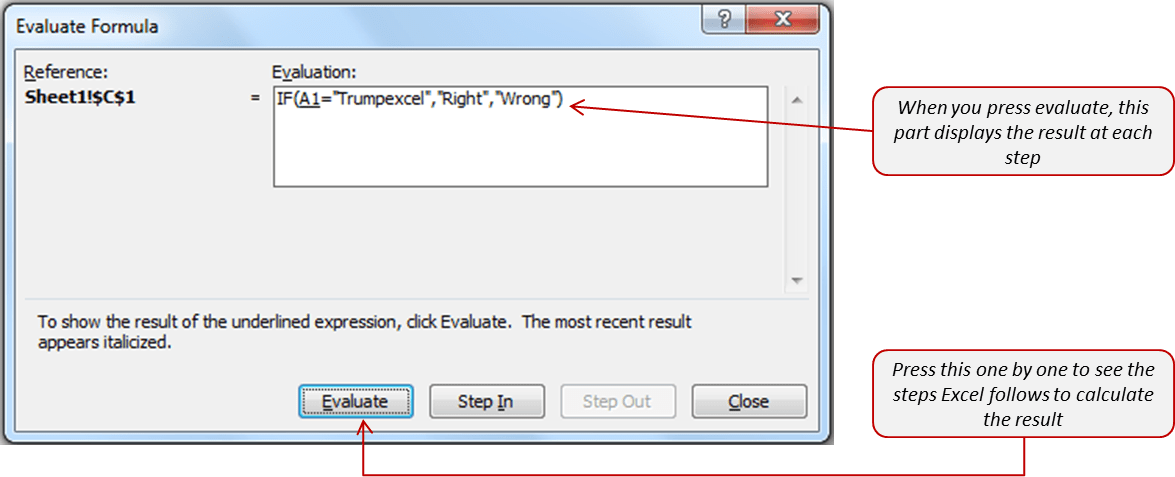
Nested formulas, where one formula is embedded within another, can significantly enhance Excel’s capabilities. However, their complexity can introduce various errors. Understanding the structure and potential pitfalls of nested formulas is crucial for effective troubleshooting. Properly constructed nested formulas can perform intricate calculations, but the risk of errors increases with the number of embedded formulas and the intricate logic they represent.Nested formulas, while powerful, introduce potential complexities.
These complexities stem from the hierarchical nature of calculations within the nested structure. The order in which Excel evaluates these embedded calculations is critical. Incorrect order can lead to inaccurate results. Furthermore, the length of a complex nested formula can lead to errors. Managing the scope and clarity of these formulas is essential to maintain accurate results.
Common Issues in Nested Formulas
Incorrect order of operations within nested formulas is a frequent source of errors. Excel follows a specific calculation order, and misinterpreting this order can lead to erroneous results. For instance, if a multiplication operation is nested within a subtraction, failing to recognize the precedence of multiplication will yield inaccurate outcomes.Excessive nesting, or excessively long formulas, can be another source of problems.
Complex nested formulas can be difficult to read and debug. A long formula is more prone to errors, such as typing mistakes or missing parentheses.
Simplifying Nested Formulas
Simplifying complex nested formulas can greatly improve their readability and reduce errors. This involves breaking down the formula into smaller, more manageable parts. Employing intermediate calculations and helper cells to isolate complex calculations can improve readability and facilitate debugging. For example, if a complex calculation involves several steps, these steps can be performed in separate cells, and the final result can be used in the main formula.
Example of Formula Simplification
Consider a formula calculating the discounted price of a product:
=(Price*(1-DiscountRate)) – (1-ShippingDiscountRate)
This formula calculates the discounted price based on the price and the discount rates for both the product and shipping.A simplified version using helper cells would be:
=DiscountedPrice* (1-ShippingDiscountRate)
where
DiscountedPrice = Price*(1-DiscountRate)
The simplified approach is easier to read and debug. If there’s an error, it’s easier to isolate the source of the error.
Step-by-Step Troubleshooting Guide
Troubleshooting nested formulas requires a systematic approach. Here’s a step-by-step guide:
- Isolate the problem: Identify the specific cell containing the nested formula that’s producing the error. This involves observing the formula’s output in relation to the expected result.
- Simplify the formula: Break down the nested formula into smaller, manageable parts. This will improve readability and make debugging easier. If possible, use helper cells to isolate intermediate calculations.
- Evaluate the formula step-by-step: Use the “Evaluate Formula” tool in Excel to trace the execution of the formula. This will show how Excel interprets and calculates each part of the formula.
- Check parentheses: Ensure proper use of parentheses to control the order of operations. Incorrect or missing parentheses can lead to significant errors.
- Check for errors in referenced cells: Errors in referenced cells can propagate through nested formulas. Carefully review any cells that the nested formula is referencing to ensure that they contain the correct values.
- Check data types: Ensure that the data types in the referenced cells and within the formula itself are compatible. Inconsistent data types can cause unexpected results.
Using the Evaluate Formula Tool
The Evaluate Formula tool in Excel is an invaluable aid in troubleshooting nested formulas. This tool allows you to step through the calculation process, observing how Excel evaluates each part of the formula. This allows for identification of the specific point at which an error arises. This interactive step-by-step evaluation helps isolate the problematic part of the formula.
Using the Formula Auditing Tools
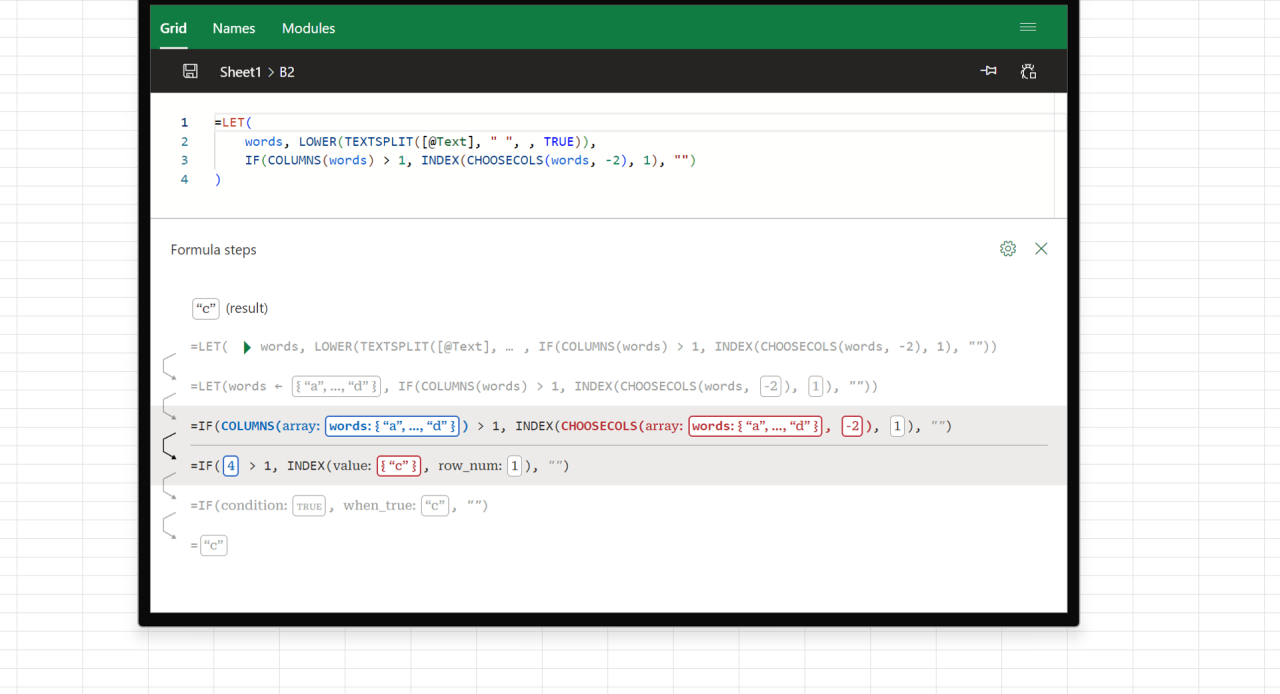
Excel’s formula auditing tools are invaluable for tracing the flow of data within complex formulas and identifying errors. These tools provide a visual representation of how formulas are constructed and how different cells relate to each other. By understanding this relationship, you can more effectively debug and modify your formulas, leading to accurate results.
Trace Precedents and Trace Dependents
These tools are crucial for understanding the inputs and outputs of a formula. Trace Precedents highlights the cells that provide input values to a specific formula, while Trace Dependents shows which cells depend on the current formula for their values. Visualizing this dependency chain is critical for diagnosing formula errors.
Using Trace Precedents
To use Trace Precedents, select the cell containing the formula you want to analyze. Then, click the “Formula Auditing” group on the “Formulas” tab. From the group, select “Trace Precedents”. This will display arrows connecting the selected cell to the cells providing the input values for the formula. For example, if cell B2 contains the formula =A1+A2, tracing precedents will show arrows from B2 to A1 and A2, indicating that the values in A1 and A2 are used to calculate the value in B2.
The arrows clearly visualize the data flow, making it easy to pinpoint where a problem might be originating.
Using Trace Dependents
To use Trace Dependents, select the cell containing the formula you want to analyze. Click the “Formula Auditing” group on the “Formulas” tab. Then, select “Trace Dependents”. This will display arrows pointing from the selected cell to cells whose values depend on the formula’s output. For instance, if cell A1 contains the formula =B2*C2, tracing dependents will show arrows from A1 to B2 and C2, demonstrating that the values in A1 depend on the calculation in B2 and C2.
This helps in identifying how a change in the selected cell’s value might affect other cells in the worksheet.
Error Checking
Excel’s Error Checking feature is a powerful tool for quickly identifying and fixing formula errors. The feature automatically flags potential issues in your formulas, such as incorrect syntax, undefined names, or incorrect references.
Example of Using Error Checking
Let’s say you have the formula =SUM(A1:A5). If cell A3 contains text instead of a number, Error Checking will highlight the formula, suggesting that the cell contains non-numeric data within the range and might be causing the issue. This feature is particularly helpful for large spreadsheets where errors can be easily missed. It highlights potential problems and guides you toward a solution.
The feature assists in catching errors that may be hard to detect otherwise.
Illustrative Flowchart

(Note: A visual flowchart depicting the steps involved in using formula auditing tools would be helpful here. The flowchart would illustrate selecting a cell, clicking “Trace Precedents” or “Trace Dependents,” observing the arrows indicating data flow, and using this information to identify and correct formula errors. A simple flowchart with clear steps could be designed for this.)
Advanced Debugging Techniques
Troubleshooting complex Excel formulas can be challenging, especially when multiple functions and ranges are involved. This section provides advanced techniques to effectively identify and resolve errors in such scenarios, including the use of the Evaluate Formula feature, conditional formatting, and formula documentation. These techniques are crucial for maintaining the accuracy and reliability of spreadsheets, especially in large datasets.
Using the Evaluate Formula Feature for Complex Calculations
The Evaluate Formula feature in Excel is a powerful tool for stepping through complex calculations, revealing intermediate results and pinpointing the source of errors. By manually evaluating each step, you can observe how values are calculated and identify any discrepancies or unexpected behaviors. This allows for precise isolation of the problem area within the formula.
- The Evaluate Formula feature is particularly useful for understanding how nested functions interact and how values propagate through multiple stages of a calculation. By observing the intermediate results, you can quickly identify errors or unexpected calculations. For example, if a nested function produces an error, you can easily locate the point in the formula where the error occurs.
- When dealing with complex formulas involving multiple functions, ranges, and logical conditions, the Evaluate Formula feature helps to trace the exact flow of calculations. This detailed analysis can lead to the identification of unexpected results or errors that would otherwise remain hidden.
Using Conditional Formatting to Identify Errors in Large Datasets
Conditional formatting provides a visual way to highlight cells containing errors or potentially problematic values in large datasets. By applying specific formatting rules, you can easily identify outliers or values that fall outside the expected range, providing quick visual cues to errors or inconsistencies in your data.
- For instance, you can highlight cells containing errors like #DIV/0! or #N/A, or cells with values exceeding a certain threshold or falling below a specified minimum.
- Conditional formatting can also be used to identify potential issues in lookup or reference formulas. If a lookup formula fails to find a match, it can trigger conditional formatting to flag those cells, allowing for quick investigation.
- Applying formatting rules based on the results of formulas can help identify errors in a dataset that might be difficult to spot using only manual inspection. This approach can significantly reduce the time spent troubleshooting complex calculations, especially in large datasets.
Documenting Formulas for Future Troubleshooting
Thorough documentation of formulas and their intended purpose is essential for future troubleshooting and maintenance. Clear explanations of the logic behind a formula can significantly aid in understanding and resolving issues, especially when working with complex formulas or collaborating with others.
- Adding comments within the formula itself or using separate cells to describe the formula’s logic can enhance understanding. This approach is crucial when working with formulas involving multiple nested functions or complex conditional statements. For example, a comment explaining the purpose of each nested function or the logic behind a particular condition can make a formula much easier to interpret later.
- Clear documentation can also prevent misunderstandings and reduce errors in formulas that are reused or modified over time. Maintaining clear documentation allows you to quickly understand the formula’s intended purpose, especially when you or someone else needs to troubleshoot or modify it in the future.
- Using descriptive names for named ranges or cells referenced in the formula can further enhance readability and make the formula easier to understand and maintain over time. Descriptive names improve clarity, which reduces the time needed for understanding and fixing issues.
Formatting for Debugging
Effective debugging often relies on visual cues. Proper formatting can significantly improve the visibility of potential formula errors, allowing for quicker identification and resolution. By highlighting different parts of a formula or data points, Excel provides a more intuitive and structured approach to finding the root cause of errors.Formatting is a crucial tool in the Excel troubleshooting arsenal.
It transforms raw data and formulas into more readily understandable representations. By strategically applying color, font styles, and conditional formatting, users can pinpoint problem areas with ease, accelerating the process of debugging. This approach transforms a potentially complex task into a more manageable and straightforward process.
Highlighting Formula Components
Formatting formulas can aid in isolating specific parts of a complex formula that might be causing issues. This method is particularly useful when dealing with nested formulas or lengthy calculations. For instance, using different colors for different parts of the formula can visually separate components and make the formula easier to read. This approach can be highly beneficial in understanding the order of operations and identify errors more easily.
Using Conditional Formatting for Data Validation
Conditional formatting can effectively identify invalid or inconsistent data within a dataset, which often leads to formula errors. For example, if a formula expects numeric data but encounters text, an error might occur. By applying conditional formatting rules that highlight cells containing non-numeric data, you can immediately locate and correct the problem. This helps identify anomalies quickly, enabling effective correction of erroneous data.
Examples of Formatting Styles
Visual cues can greatly assist in identifying formula errors. Color-coding different parts of a formula can make it more readable and easier to track down issues. For instance, you could use green for operands, red for operators, and blue for function names. This approach can provide an immediate visual understanding of the formula’s structure and highlight any discrepancies.
| Formatting Style | Purpose | Example |
|---|---|---|
| Colored Font for Operators | Highlight operators like +, -, – , /, and = | A formula with colored operators makes it easier to identify any incorrect or misplaced operators. |
| Different Font Sizes for Nested Functions | Visualize the hierarchy of functions | Using varying font sizes for different levels of nesting helps in visualizing the nesting structure, which can help isolate errors. |
| Conditional Formatting for Outliers | Highlight inconsistent or erroneous data values | Highlighting cells with values outside a predefined range, such as sales figures exceeding the budget, helps in isolating the problematic data. |
Applying these formatting techniques, you can transform the debugging process into a more organized and efficient procedure, leading to quicker solutions for Excel formula errors. This approach is highly beneficial in streamlining the debugging process, particularly in complex spreadsheets.
Preventing Formula Errors
Effective formula creation goes beyond simply entering the correct syntax. Proactive measures, like data validation and well-structured formulas, dramatically reduce the likelihood of errors. This section details strategies for constructing robust and reliable formulas that minimize potential issues.Data validation acts as a crucial first line of defense against incorrect input, ensuring that cells contain only the expected data types and values.
This helps to avoid formula errors arising from invalid data. Proper formula construction and organization further enhance the reliability of your spreadsheets.
Using Data Validation to Prevent Incorrect Input
Data validation is a powerful tool for ensuring that data entered into cells meets specific criteria. This prevents errors caused by unexpected or inappropriate input. By defining acceptable data types, values, and ranges, you significantly reduce the chances of formula malfunctions.
- Data Type Validation: Specify whether a cell should accept numbers, text, dates, or specific custom data types. This ensures that the formula operates on the expected data format, preventing errors that may arise from mixing data types.
- Value Validation: Restrict input to a predefined set of values. For example, in a product inventory sheet, you could ensure that only valid product codes are entered, preventing mismatched product IDs that can trigger errors.
- Range Validation: Specify a minimum and maximum value for a cell. This is useful for quantities, prices, or other numerical data, preventing illogical or out-of-range entries that could cause errors in subsequent calculations.
Writing Concise and Easy-to-Understand Formulas
Formulas should be clear and easily understandable to both the original author and any future users. This principle of maintainability minimizes errors when revisiting or modifying spreadsheets. Concise formulas are easier to debug and maintain, leading to more reliable results.
- Brevity: Avoid overly complex formulas. Break down intricate calculations into smaller, manageable steps using helper cells. A formula of 100 characters might be more efficient than a single, complex one.
- Comments: Use comments to explain the logic behind a formula, especially for complex calculations. This makes the formula’s purpose immediately apparent and allows others (or yourself in the future) to easily understand and modify the formula.
- Helper Cells: Use intermediate cells to store intermediate results. This improves readability and allows you to check the intermediate values to verify the formula’s correctness. This can be crucial when troubleshooting.
Creating Reusable Formula Templates
Reusable formula templates enhance consistency and reduce the risk of errors. Templates provide a standard structure for similar calculations, ensuring uniformity and correctness.
- Structure: Establish a standardized structure for your formulas, using named ranges or specific cell locations to store variables. This enables you to quickly adapt and reuse the formula for similar calculations in other parts of the spreadsheet.
- Parameters: Use named ranges or cell references as parameters in your formula templates. This allows for easy modification of the formula without altering its core logic. This promotes reusability and reduces the likelihood of introducing errors.
- Consistency: Use a consistent naming convention for your named ranges. This ensures that your formula templates are easily understood and used in different parts of the spreadsheet.
Keeping Formulas Organized and Readable
Well-organized formulas significantly improve the readability and maintainability of your spreadsheets. Organized formulas are less prone to errors and easier to troubleshoot.
- Alignment: Use consistent indentation and alignment to visually separate different parts of the formula. This helps to quickly grasp the formula’s structure and logic.
- Breaks: Use line breaks to make long formulas more readable. This improves clarity and avoids lines that are too long and difficult to comprehend.
- Formatting: Utilize Excel’s formatting options to highlight different parts of the formula or to visually separate different calculations. Color-coding or other visual cues can improve readability.
Final Thoughts

In conclusion, mastering Excel formula troubleshooting is crucial for effective data analysis. This guide has provided a roadmap for navigating common errors and advanced debugging techniques. By understanding the various types of errors, employing the formula auditing tools, and implementing preventative measures, you can confidently build accurate and reliable spreadsheets. Remember to practice these techniques, and your Excel skills will continue to flourish.