Inserting images into cells is a common task across various applications, from spreadsheets to web pages. This guide provides a thorough overview of the process, covering diverse software and methods. Understanding the nuances of image insertion, formatting, and troubleshooting is crucial for effective document creation and data presentation.
This detailed guide walks you through the steps of inserting images into cells in different software environments, addressing various aspects, from basic insertion to advanced techniques like linking images to data and managing large image sets. We will also explore troubleshooting common issues.
Methods for Picture Insertion
Inserting pictures into cells within spreadsheet applications is a common task. Efficiently integrating visuals into data enhances the clarity and understanding of presented information. This section details the various methods for accomplishing this, along with practical examples for popular spreadsheet software.Spreadsheet applications provide versatile options for incorporating images, catering to different user needs and software preferences. Understanding these methods ensures seamless integration of visual aids into data presentations.
Common Methods for Picture Insertion
Different methods for inserting pictures into cells exist, each with its own advantages and limitations. The chosen method often depends on the specific application and the desired outcome.
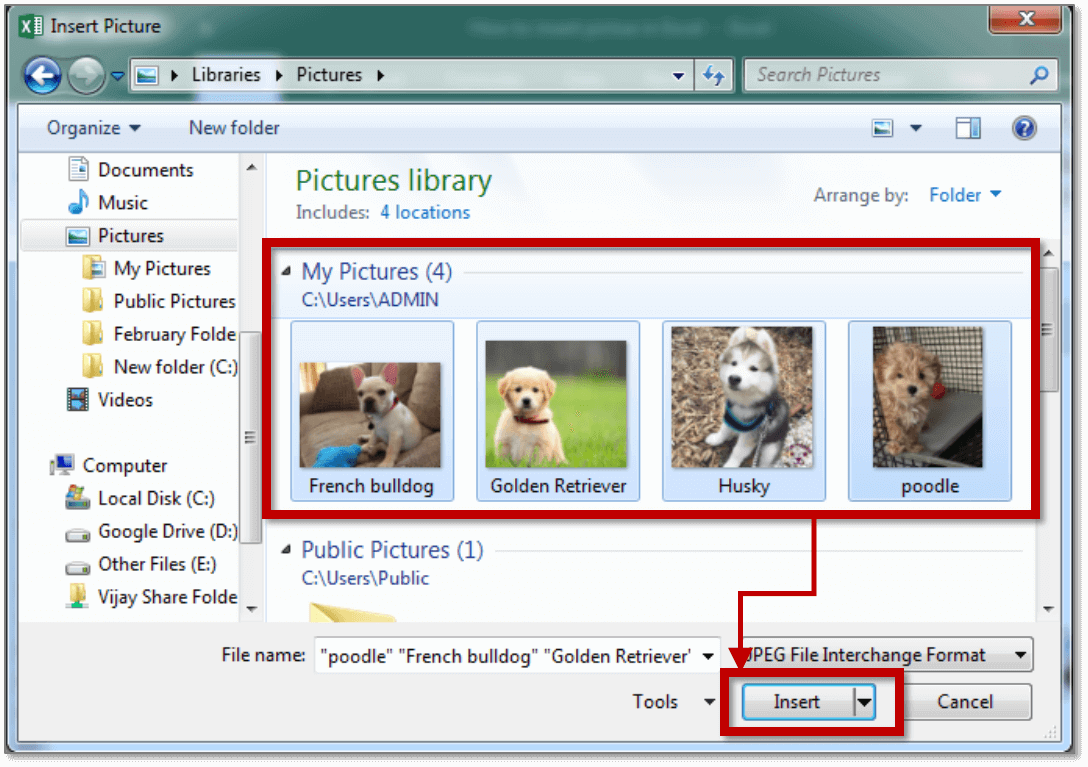
- Using the Insert Picture Option: This method involves selecting the “Insert” tab, locating the “Picture” or “Image” option, and choosing the image file from the computer. This method is straightforward and readily available across various spreadsheet programs. It’s suitable for incorporating images from local storage.
- Copying and Pasting Images: Images can be copied from external sources (e.g., other applications or websites) and pasted into the spreadsheet cell. This method allows for quick integration of images already present in another document. This method is suitable when the image is already available in a different format.
- Using Online Image Resources: Many spreadsheet applications support inserting images directly from online sources. Users can copy and paste the image URL or use the application’s built-in image search functionality to find and embed the desired image. This method is convenient for adding images from the web without saving them locally.
Methods Across Different Software Applications
The procedure for inserting images can vary slightly between different spreadsheet applications.
- Microsoft Excel: The “Insert” tab typically houses the “Pictures” option, allowing users to select images from their computer. Alternatively, copied images can be pasted directly into the cell. The process is similar for inserting images from online sources using the “Online Pictures” feature. The exact steps may differ slightly based on the Excel version.
- Google Sheets: The “Insert” menu offers a “Drawing” option, allowing users to insert and manipulate images. This method provides more flexibility for image placement and formatting within the spreadsheet. Images can also be copied and pasted or inserted from online resources.
- LibreOffice Calc: The “Insert” menu provides a “Picture” option for inserting images from the computer. Similarly, copied images can be pasted into the cell. The process for inserting images from online resources is similar to other applications.
Platform-Specific Differences
The process of inserting images can vary slightly depending on whether the application is accessed through a web browser or a desktop application.
- Web-based Applications: Web-based spreadsheet applications often offer similar insertion methods but might have slight variations in user interface or available features. The specific steps might differ based on the web browser used.
- Desktop Applications: Desktop spreadsheet applications typically have a more intuitive interface for inserting images, allowing for direct access to various options for image selection and placement.
Comparison Table
| Software | Method 1 (Insert Picture) | Method 2 (Copy/Paste) | Method 3 (Online Resources) |
|---|---|---|---|
| Microsoft Excel | Click “Insert” > “Pictures” | Copy from another application; Paste | Use “Online Pictures” feature |
| Google Sheets | Click “Insert” > “Drawing” | Copy from another application; Paste | Use built-in image search |
| LibreOffice Calc | Click “Insert” > “Picture” | Copy from another application; Paste | Use built-in image search |
Steps for Inserting a Picture in Microsoft Excel
The following table Artikels the steps for inserting a picture into a cell using Microsoft Excel.
| Step | Action |
|---|---|
| 1 | Open the Microsoft Excel spreadsheet. |
| 2 | Select the cell where you want to insert the picture. |
| 3 | Go to the “Insert” tab. |
| 4 | Click on “Pictures.” |
| 5 | Select the image file from your computer and click “Insert.” |
Picture Formatting and Adjustments
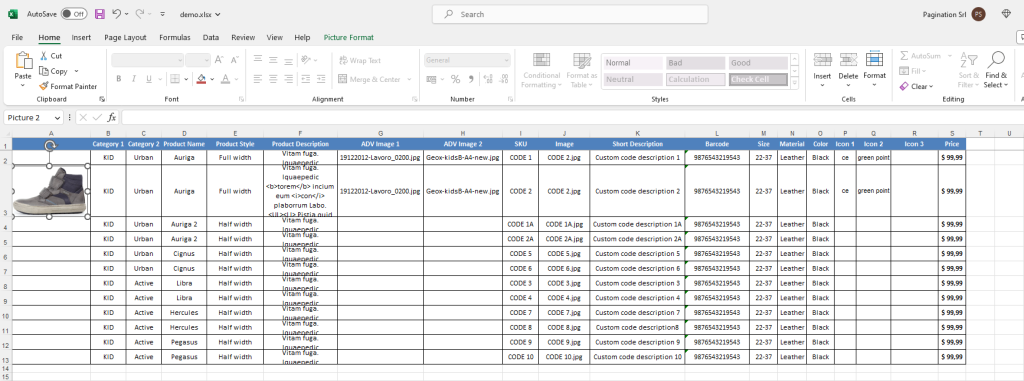
Proper formatting of inserted pictures enhances the visual appeal and readability of spreadsheet data. Careful resizing, cropping, and alignment ensure the images complement the surrounding text and data effectively. Adjusting picture attributes like borders, shadows, and transparency further improves visual presentation and provides a polished appearance to the spreadsheet.
Resizing and Cropping Images
Adjusting the dimensions of an image within a cell is crucial for maintaining a balanced layout. Resizing images allows them to fit within the allocated space without distorting their proportions. Cropping enables selective removal of unwanted portions of an image, improving focus and clarity. These techniques improve the visual impact and maintain the overall aesthetic appeal of the spreadsheet.
Image Alignment and Wrapping
Image alignment controls the positioning of the image within the cell. Options for alignment include left, center, right, and others, allowing for precise placement of the image. Image wrapping determines how the text flows around the image. This ensures the text and image integrate seamlessly. Proper wrapping techniques help maintain clear readability and avoid visual clutter.
Adding Borders and Shadows
Borders and shadows add visual appeal and definition to the picture within the cell. Borders create a frame around the image, separating it from the surrounding content. Shadows enhance the image’s three-dimensional appearance, improving visual distinction. Both options contribute to a more visually appealing spreadsheet.
Adjusting Picture Transparency
Adjusting image transparency allows users to control the level of visibility of the picture. Transparency is measured in percentages, enabling gradual fading or darkening of the image. This technique provides fine-grained control over how the picture interacts with the surrounding content.
Cropping a Picture within a Spreadsheet Cell
Cropping a picture within a spreadsheet cell involves selecting the unwanted portions of the image and removing them. The specific procedure may vary depending on the spreadsheet software used. Generally, users select the region to be removed, and the software automatically crops the picture to the selected area. This ensures only the desired portion of the image remains, improving clarity and presentation.
For instance, if a picture contains a logo and excess background, cropping the image allows only the logo to be displayed, thus making it more concise and professional-looking within the cell. A well-cropped image directly improves the visual hierarchy and overall clarity of the spreadsheet.
Picture Source and Types
Choosing the right picture source and format is crucial for successful cell insertion. The availability of diverse sources, including files, online resources, and screenshots, significantly expands the options for visual enhancement. Understanding file types and their compatibility is essential to ensure seamless integration and optimal display within the cell.
Picture Sources
Various methods facilitate picture insertion into cells. File uploads provide access to existing images stored on the computer or local network. Online links offer the ability to incorporate images from external websites or cloud storage services. Screenshots capture portions of the screen, offering a practical way to include visual representations of current data or applications. Each method has its advantages, depending on the desired image and context.
Compatible File Types
The range of supported image file formats varies based on the specific software or application. Commonly supported formats include JPEG (or JPG), PNG, GIF, and TIFF. JPEG is widely used for photographs due to its ability to compress images while maintaining reasonable quality. PNG is often preferred for graphics and images with transparency, while GIF excels for animations.
TIFF offers high-quality images, often used in professional contexts. The selection of a specific format depends on the visual characteristics and the application’s compatibility.
Image Format Comparison
Different image formats have varying characteristics that affect their suitability for different tasks. JPEG excels at compressing photographs, making it suitable for web use where file size is a concern. PNG is ideal for images requiring transparency or graphics, as it supports lossless compression. GIF is best for animations, due to its limited color palette and ability to create simple, looping animations.
TIFF is used for high-quality images, where lossless compression is paramount, such as professional printing.
Software Compatibility
The compatibility of image formats with specific software can vary. The table below provides a general overview of common image formats and their compatibility with several popular applications.
| Image Format | Microsoft Word | Google Sheets | Adobe Photoshop | LibreOffice Calc |
|---|---|---|---|---|
| JPEG | Yes | Yes | Yes | Yes |
| PNG | Yes | Yes | Yes | Yes |
| GIF | Yes | Yes | Yes | Yes |
| TIFF | Yes | Yes | Yes | Yes |
Note: Compatibility can depend on the specific software version and settings.
Impact of Image Size on Cell Formatting
The size of an image directly impacts its display within a cell. Large images can overflow the cell boundaries, potentially disrupting the overall layout and readability of the spreadsheet. Conversely, extremely small images may not be clearly visible. Therefore, careful consideration of image dimensions is essential to maintain the visual balance and readability of the spreadsheet. Image size should be adjusted to fit the cell without compromising clarity.
Picture Insertion in Specific Applications
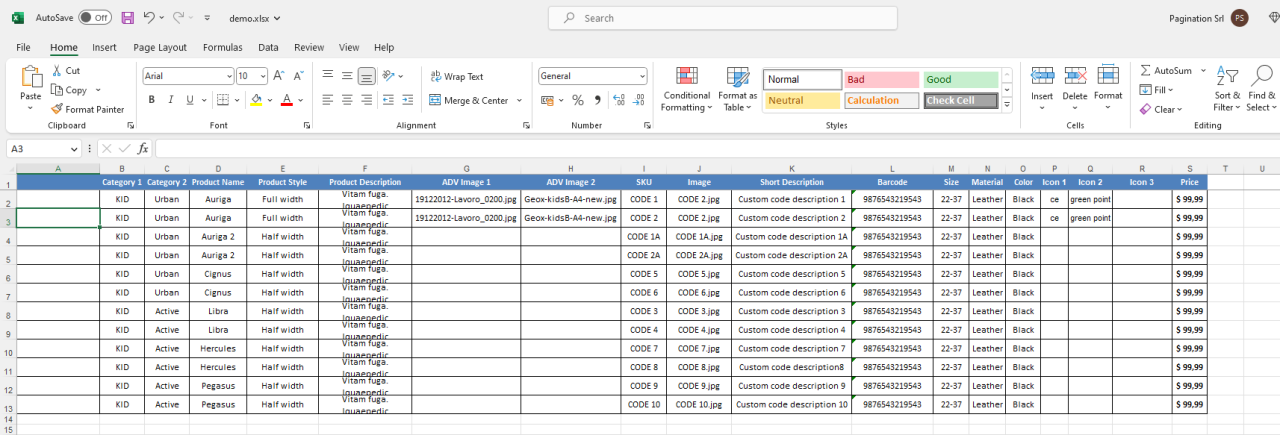
Inserting images into cells within various applications is a common task. This section delves into the specifics of image insertion in popular software like Microsoft Word, Google Docs, and web-based spreadsheet programs. Understanding these procedures is crucial for effectively incorporating visual aids into documents and spreadsheets.
Picture Insertion in Microsoft Word
To insert a picture into a cell (or more accurately, a table cell) in Microsoft Word, first select the desired cell. Then, click the “Insert” tab in the ribbon. Locate the “Pictures” group and select “Pictures” from the dropdown menu. Navigate to the location of the image file on your computer and click “Insert”. The image will be placed within the selected cell.
Word’s automatic formatting will adjust the image to fit within the cell boundaries, though manual resizing and repositioning options are available.
Picture Insertion in Google Docs
Adding images to cells in Google Docs follows a similar approach. Select the desired cell within the table. Then, click “Insert” in the menu bar. Choose “Image” from the dropdown options. Select the image file from your computer or a web address.
The image will be embedded in the selected cell. Similar to Word, Google Docs automatically resizes the image to fit the cell, allowing for adjustment using the image tools available.
Picture Insertion in Web-Based Spreadsheet Applications
Inserting images into cells in web-based spreadsheet applications like Google Sheets or Microsoft Excel Online is straightforward. The method varies slightly based on the application, but generally, select the cell where you want to place the image. Then, locate the “Insert” or “Insert Image” menu option, which usually presents a dialog box or window for selecting the image file.
Choose the image file and click “Insert.” The image will appear within the designated cell. Web-based applications often have image formatting tools to adjust size and position if needed.
Step-by-Step Guide for Web-Based Document Editors
This guide details inserting a picture from a file into a cell within a web-based document editor (such as Google Docs):
- Open the web-based document editor and navigate to the relevant table.
- Select the specific cell where you want to place the image.
- Click on the “Insert” or “Insert Image” menu item.
- Locate the file containing the image on your computer and select it.
- Click “Insert” or a similar confirmation button.
This process effectively places the image into the chosen cell.
Comparison of Picture Insertion Methods
| Spreadsheet Program | Insertion Method | Image Handling |
|---|---|---|
| Microsoft Excel (Desktop) | Insert > Pictures > File Selection | Automatic resizing and repositioning. Manual adjustment possible. |
| Google Sheets | Insert > Image > File Selection | Automatic resizing and repositioning. Manual adjustment possible. |
| Microsoft Excel Online | Insert > Image > File Selection | Automatic resizing and repositioning. Manual adjustment possible. |
This table provides a concise overview of picture insertion methods across different spreadsheet programs.
JavaScript Code Snippet for Web Page Picture Insertion
The following JavaScript snippet demonstrates how to insert a picture into a web page using JavaScript. This code assumes you have an HTML element (e.g., a `
“`javascriptfunction insertImage(imageUrl) const imageElement = document.createElement(‘img’); imageElement.src = imageUrl; imageElement.alt = ‘Inserted Image’; // Important for accessibility document.getElementById(‘imageContainer’).appendChild(imageElement);// Example usage (replace with your image URL)insertImage(‘path/to/your/image.jpg’);“`
This code creates an image element, sets its source to the provided `imageUrl`, and appends it to the HTML element with the ID ‘imageContainer’. Remember to replace ‘path/to/your/image.jpg’ with the actual image URL.
Advanced Picture Handling

Efficiently managing images within spreadsheets requires advanced techniques for linking, formatting, and handling large quantities of data. This section details strategies for optimal image integration and maintenance. These techniques will enhance the usability and presentation of spreadsheet data.Spreadsheet software often provides features for embedding pictures, but advanced techniques are crucial for complex scenarios. These methods will allow for improved data visualization and integration within your spreadsheets.
Linking Pictures to Other Data
Linking images to spreadsheet data allows for dynamic updates when the linked data changes. This is particularly useful for tracking images related to specific projects, products, or other data elements. For instance, a spreadsheet managing product inventory could link images of products to their corresponding rows. If a product description is updated, the image will automatically reflect the new information.
This process is streamlined and efficient for data maintenance.
Using Picture Placeholders in Cells
Picture placeholders allow for reserving space for images without needing to embed them immediately. This approach is beneficial when images are not immediately available or when the exact location of an image is unknown. The placeholder can be a simple visual cue or a more sophisticated graphic that can be replaced later. Placeholders help maintain a consistent layout and organization.
Managing Large Numbers of Images
Managing large numbers of images within spreadsheets requires careful consideration of storage and performance. Consider using external storage for images and linking to them within the spreadsheet. This method reduces the spreadsheet’s file size and improves processing speed. Using a separate folder for images, accessible by the spreadsheet program, facilitates effective organization.
Handling Picture Quality and Resolution
Maintaining image quality and resolution is important for visual clarity and professionalism. Choose appropriate image formats that balance file size with quality. JPEG is a common choice for photos, while PNG might be better for graphics. Ensure the resolution is sufficient for the intended use. Lower resolutions can lead to pixelation, impacting the visual appeal and professional presentation of the data.
Automatically Updating Images Based on Linked Data
Automatic image updates are possible when the image file path is linked to the spreadsheet data. When the data changes, the image file path is adjusted to reflect the new information. This ensures that the images always reflect the current status of the linked data. A common example would be a spreadsheet that tracks customer orders. When a customer’s order changes, the corresponding image of the product is automatically updated in the spreadsheet.
Troubleshooting Common Issues
Picture insertion, while straightforward, can sometimes encounter unforeseen problems. Understanding these common issues and their solutions will ensure a smooth workflow. This section details troubleshooting strategies for various potential difficulties, from file format incompatibilities to display problems.
File Format Incompatibilities
Certain file formats may not be supported by the application or the cell’s specific settings. This can lead to the image not displaying or appearing incorrectly. Verifying the image’s compatibility with the application or cell is crucial. Consult the application’s documentation or support resources to determine supported formats. Commonly supported image formats include JPEG, PNG, GIF, and TIFF.
Ensure the image file is in a format recognized by the software.
Image Size Limitations
Image dimensions and file sizes can exceed the constraints imposed by the software or cell. Large images might not load or display correctly, and excessively large files may lead to slow processing times. Consider reducing the image size through tools like image editing software or online converters. Appropriate resizing maintains image quality while adhering to the specified limitations.
Missing Files or File Path Errors
Incorrect file paths or missing files can prevent the image from loading. Double-check the file path to ensure accuracy, especially when dealing with complex directories or network locations. Use absolute paths whenever possible for clarity and to avoid ambiguity. If the file has been moved or renamed, update the file path accordingly.
Image Corruption
Image corruption can arise during file transfer, storage, or editing. Damaged files will often result in distorted or unreadable images. Use reliable methods to ensure image integrity, such as checking file integrity after downloads or using reliable image editing software to prevent accidental corruption. Ensure the image file is not damaged or corrupted during the transfer or saving process.
Incorrect Display in Cells
Images may not display correctly within cells due to formatting issues, incorrect settings, or compatibility problems. Review the cell’s formatting options and ensure the cell size accommodates the image’s dimensions. Adjust image alignment or sizing to fit the cell structure. Verify that the image dimensions align with the cell’s specifications.
Last Word
In conclusion, inserting images into cells is a straightforward process once you understand the specific methods for your chosen software. This guide has provided a comprehensive overview of various aspects, from basic insertion to advanced techniques and troubleshooting. Remember to consider the source, format, and size of your image, and the specific requirements of your application for optimal results.