The Quick Access Toolbar, a frequently used feature in various applications, offers a streamlined way to access essential functions. Understanding how to customize this toolbar can significantly enhance your workflow and productivity. This guide provides a comprehensive overview of customization options, from basic adjustments to advanced techniques.
This guide will walk you through the process of tailoring the Quick Access Toolbar to your specific needs, ensuring you have the most efficient and user-friendly interface possible. We’ll cover everything from adding and removing commands to modifying appearance and implementing keyboard shortcuts.
Introduction to Quick Access Toolbar
The Quick Access Toolbar (QAT) is a customizable collection of frequently used commands in applications. It provides immediate access to common functions, allowing users to perform tasks without navigating through menus. Its primary purpose is to enhance workflow efficiency and speed up productivity by placing crucial tools within easy reach.The QAT is an integral part of the application’s interface, acting as a supplementary command palette alongside the main menus.
It offers a visual representation of frequently utilized actions, significantly improving user experience. Its placement and visibility are configurable, offering users greater control over their workspace layout. Common customizations are geared towards optimizing workflow by ensuring the tools users employ most often are readily available.
Location and Visibility
The Quick Access Toolbar is typically located above the application’s main menu bar. This prominent placement makes it easily accessible and visible. Its visibility can be toggled, offering users the option to hide it when not in use to declutter the screen. This flexibility enables users to maintain a clean workspace when not needing quick access to specific commands.
Common Customization Use Cases
Users frequently customize the Quick Access Toolbar to streamline their workflow by placing commonly used commands within easy reach. Examples include inserting images, saving documents, or performing specific formatting tasks. This prioritization ensures these commands are instantly available, avoiding the need for extensive menu navigation.
Customization Options
The Quick Access Toolbar offers several customization options. Users can add or remove commands from the toolbar, rearranging the order of commands, and adjusting the visibility of the toolbar. This allows for a highly personalized user experience, tailoring the interface to individual preferences and tasks. The configurable nature of the QAT permits users to tailor their workspace to their specific needs, leading to more efficient and comfortable interactions with the application.
Basic Customization Techniques
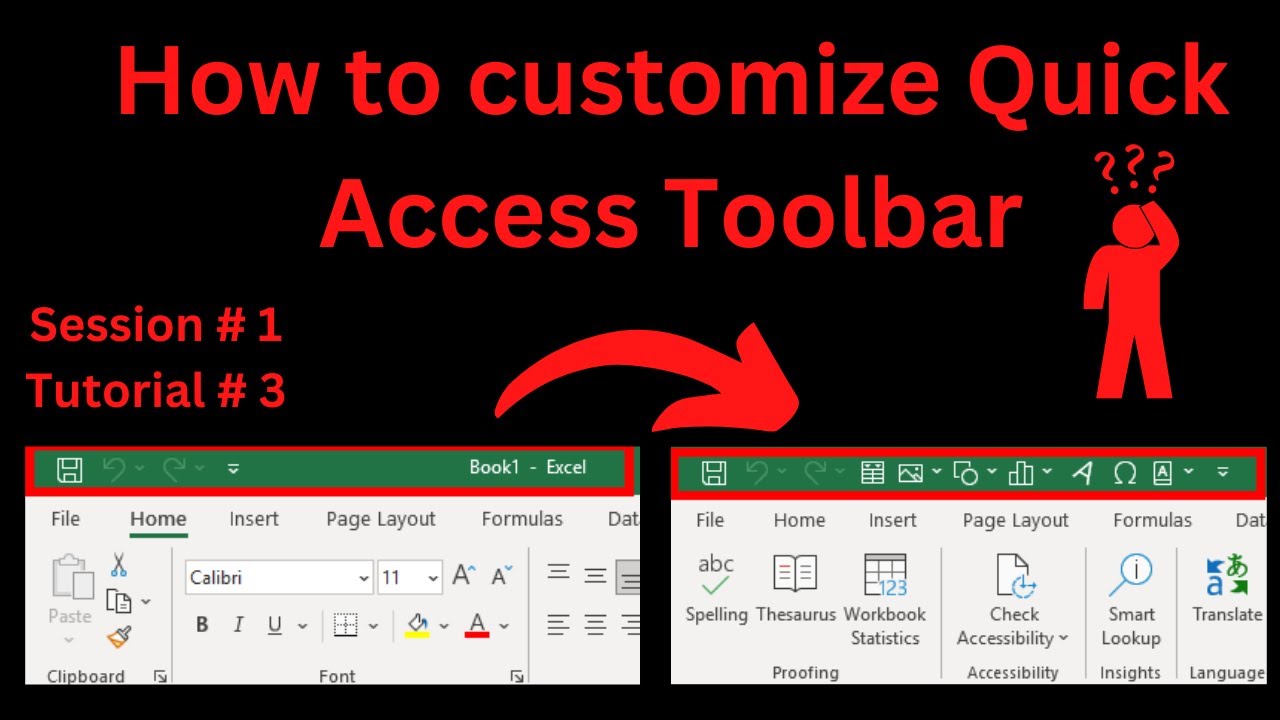
The Quick Access Toolbar, while offering convenience, can be further personalized to align with individual workflows and preferences. This section details fundamental techniques for tailoring the toolbar’s contents, enabling efficient and intuitive access to frequently used commands.Adding, removing, and rearranging items on the Quick Access Toolbar provides a highly customizable experience. These adjustments directly impact user efficiency by ensuring readily available tools and commands.
Adding Custom Items
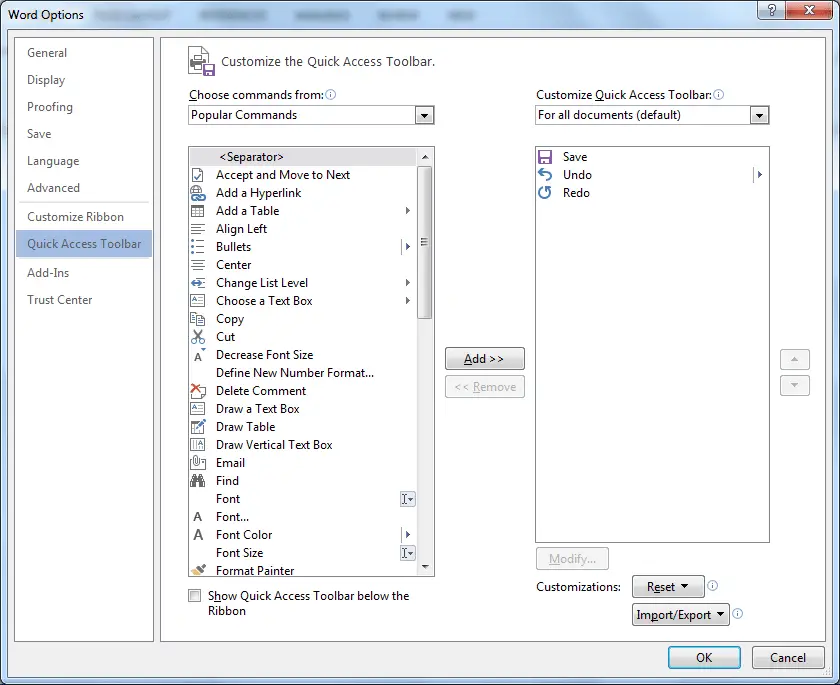
Customizing the Quick Access Toolbar involves adding frequently used commands to the toolbar. This process allows users to avoid navigating through menus or ribbon options for repetitive tasks. To add an item, right-click on the Quick Access Toolbar and select “Customize Quick Access Toolbar.” This action presents a dialog box. From there, you can choose commands from the available list or browse for specific commands.
Removing Existing Items
Removing unnecessary items from the Quick Access Toolbar streamlines the interface and prevents clutter. This process allows for a more focused and efficient workspace. Right-click on the desired item on the toolbar and select “Remove from Quick Access Toolbar.” This action removes the item from the toolbar.
Rearranging Items
Rearranging items on the Quick Access Toolbar enables a more logical and user-friendly arrangement of frequently used commands. This process optimizes workflow by placing commonly used commands in easily accessible positions. Drag and drop the desired item to a new location on the toolbar to rearrange it.
Reordering Methods
Multiple methods exist for reordering items on the Quick Access Toolbar. The drag-and-drop method provides a simple and intuitive way to adjust the order. Alternatively, the “Customize Quick Access Toolbar” dialog box allows you to select items from a list and place them in the desired order. This option is especially useful for items not immediately visible on the toolbar.
Adding and Removing Items: A Table Example
| Action | Description | Steps |
|---|---|---|
| Add an item | Adds a new command to the Quick Access Toolbar. | 1. Right-click on the Quick Access Toolbar. 2. Select “Customize Quick Access Toolbar.” 3. Choose the desired command from the list. 4. Click “Add.” |
| Remove an item | Removes an existing command from the Quick Access Toolbar. | 1. Right-click on the desired item on the toolbar. 2. Select “Remove from Quick Access Toolbar.” |
Advanced Customization Techniques
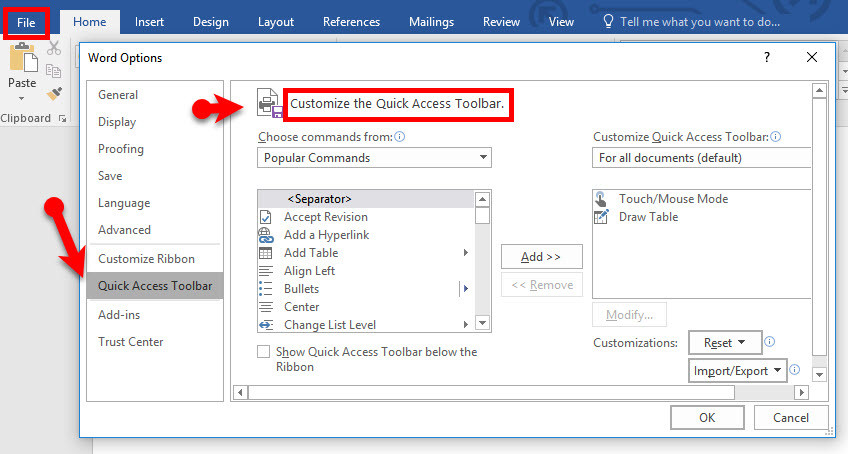
The Quick Access Toolbar, while offering basic customization, provides avenues for more sophisticated tailoring. This section delves into advanced techniques, enabling users to further personalize the toolbar’s appearance, functionality, and integration with other features. These techniques allow for a more streamlined and efficient workflow.
Modifying Toolbar Appearance
Customizing the Quick Access Toolbar’s visual elements can enhance its usability. Modifying icons, for instance, can make frequently used commands more easily identifiable. This section will guide users through adjusting the visual appearance of the toolbar, including the size and type of icons, and background colors. Tools for altering the appearance will be explained and example scenarios are included.
Adding Commands from Other Menus
Extending the Quick Access Toolbar’s functionality often involves incorporating commands from other menus. This allows users to access frequently used functions from different menus more quickly. Procedures for adding these commands are described, outlining how to identify and select appropriate commands from various locations.
Creating Custom Commands
In certain applications, users may need to create custom commands to automate tasks or implement specific workflows. This section explores the possibility of creating custom commands and adding them to the Quick Access Toolbar. The steps involved in creating and associating custom commands are Artikeld, including examples of how they can be implemented in practical applications.
Keyboard Shortcuts with the Quick Access Toolbar
Keyboard shortcuts can greatly accelerate workflows. This section details how to assign keyboard shortcuts to commands displayed in the Quick Access Toolbar. It Artikels the advantages of using keyboard shortcuts and demonstrates how to effectively integrate them with the toolbar.
Comparison of Basic and Advanced Customization
| Feature | Basic Customization | Advanced Customization |
|---|---|---|
| Icon Modification | Limited to predefined icons; no custom icon creation | Potentially allows for custom icons, resizing, and changing icon style |
| Command Addition | Limited to commands already displayed in the toolbar | Allows adding commands from other menus and potentially custom commands |
| Keyboard Shortcuts | Limited to predefined keyboard shortcuts for common functions | Allows assigning custom keyboard shortcuts to specific commands |
| Visual Appearance | Limited color and style options | Potential for extensive customization of background colors, font sizes, and other visual elements |
Specific Application Customization
The Quick Access Toolbar, while offering general customization, can be further tailored to individual applications. This allows users to quickly access frequently used features specific to the software. Understanding application-specific customizations enhances productivity by streamlining workflows.Application-specific customizations optimize the Quick Access Toolbar by providing direct access to commands crucial to each application. This tailored approach simplifies the user experience by reducing the need to navigate through menus or toolbars, thus increasing efficiency.
Microsoft Word Customization
Customizing the Quick Access Toolbar in Microsoft Word allows users to add buttons for frequently used formatting commands. This significantly reduces the time required to perform common tasks. For instance, users can add buttons for bold, italic, underline, bullet points, or numbered lists.
- To add a command to the Quick Access Toolbar, right-click on the desired command in the ribbon, and select “Add to Quick Access Toolbar.”
- Alternatively, locate the command in the ribbon, and click the “Add to Quick Access Toolbar” button (often a small, downward-pointing arrow) displayed beside the command.
- This action adds the command to the Quick Access Toolbar, accessible without navigating through the ribbon.
Microsoft Excel Customization
In Microsoft Excel, customization focuses on commands related to data manipulation and analysis. Users can add buttons for common functions like sorting, filtering, or creating charts. This approach directly addresses the specific needs of spreadsheet users.
- Adding commands to the Quick Access Toolbar in Excel follows a similar procedure to Word. Right-clicking on the desired command or selecting the “Add to Quick Access Toolbar” button will accomplish this.
- Users can place frequently used functions, like SUM, AVERAGE, or COUNT, in the Quick Access Toolbar for instant application.
- This targeted customization enhances efficiency by enabling quick access to critical functions within the spreadsheet environment.
Table of Commonly Used Commands
The following table highlights commonly used commands for different applications.
| Application | Common Commands |
|---|---|
| Microsoft Word | Bold, Italic, Underline, Bullet Points, Numbered Lists, Find and Replace, Insert Table |
| Microsoft Excel | Sort, Filter, SUM, AVERAGE, COUNT, Chart Creation, Insert PivotTable |
| Microsoft PowerPoint | Slide Transitions, Animations, Insert Images, Chart Creation, Themes |
Comparison of Customization Options
The customization options across applications generally share the same core principles. The procedure for adding commands remains consistent across most Microsoft Office applications. However, the specific commands available for addition and the layout of the customization interface will differ slightly depending on the application.
Troubleshooting and Common Issues
Customizing the Quick Access Toolbar (QAT) can sometimes lead to unexpected behavior or errors. This section details common problems encountered during customization, offers solutions for resolving them, and provides guidance on reverting changes if necessary. Understanding these potential pitfalls will ensure a smooth and effective QAT experience.
Common Customization Errors and Solutions
Troubleshooting QAT issues often involves identifying the source of the problem. This section presents a structured approach to address common errors and their corresponding resolutions. It also includes examples of incorrect customization procedures, illustrating the importance of following the Artikeld steps.
- Missing or Inaccessible Buttons: Buttons that were previously visible in the QAT may disappear after customization. This often stems from improper removal or relocation of the associated commands within the application’s command list. Re-adding the command to the QAT by locating it within the application’s command list and dragging it to the QAT will restore the button. If the command is not available in the command list, ensure the relevant add-in or application component is installed and active.
- Conflicting Add-ins: Simultaneously installing or activating incompatible add-ins can lead to conflicts. This may manifest as buttons appearing and disappearing erratically. To resolve this, disable or uninstall conflicting add-ins. It is recommended to carefully examine the application’s add-in management system to identify any potential conflicts and address them accordingly.
- Incorrect Command Assignments: Assigning commands to the QAT using incorrect procedures can result in the command not functioning as expected or not appearing at all. This can happen if the command is assigned to a different context or is not available in the application. Verifying that the correct command is being assigned and ensuring compatibility with the QAT’s structure is crucial to prevent this problem.
- Toolbar Overflow: Adding numerous items to the QAT can lead to overflow, making some buttons inaccessible. This issue is often addressed by rearranging or removing items. Consider creating separate QATs or employing the context menu to group related commands effectively.
Reverting Changes
Occasionally, adjustments to the QAT may lead to unintended consequences. This section describes how to revert changes to the QAT if needed.
- Using Application’s Default Settings: Most applications allow users to reset the QAT to its default configuration. This option often exists within the application’s settings menu. Consult the application’s documentation for the specific steps to reset the QAT.
- Manual Restoration: If resetting the QAT is not an option, a manual approach might be required. In some cases, the QAT’s configuration can be saved in a specific file or registry location. The user may be able to restore the saved configuration by modifying the relevant file or registry entry.
Example of Incorrect Procedures
Incorrect procedures for QAT customization can lead to issues. The following examples highlight potential errors and their consequences.
- Incorrect Drag-and-Drop: Attempting to drag a command from one application’s QAT to another will likely fail. This is because commands are specific to the application and cannot be transferred across different applications. Instead, commands must be added to the QAT within the same application.
- Incorrect Command Selection: Selecting a command that is not accessible within the application’s QAT context menu or command list will result in an error. Ensure the selected command exists within the application and is compatible with the QAT.
Troubleshooting Table
The following table provides a quick reference for common errors and their corresponding solutions.
| Error | Solution |
|---|---|
| Missing buttons | Re-add the command to the QAT from the application’s command list. |
| Conflicting add-ins | Disable or uninstall conflicting add-ins. |
| Incorrect command assignments | Verify the correct command and ensure compatibility with the QAT. |
| Toolbar overflow | Rearrange or remove items; consider creating separate QATs or using context menus. |
Best Practices for Customization
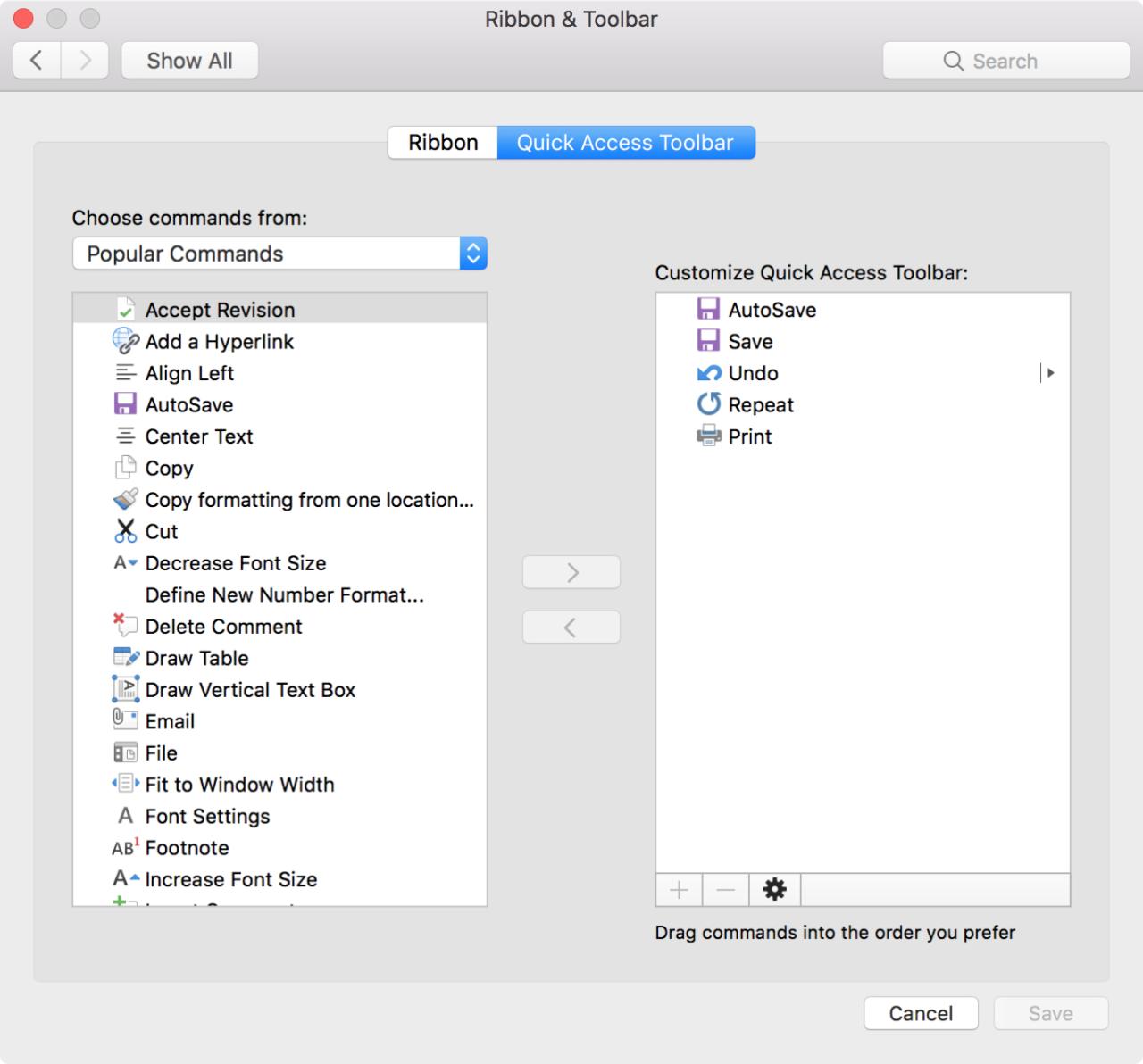
Maintaining a clean and organized Quick Access Toolbar (QAT) is crucial for efficient workflow. A cluttered QAT can quickly become a source of frustration, hindering productivity rather than enhancing it. This section Artikels best practices for keeping your QAT streamlined and user-friendly.Effective QAT customization hinges on understanding its potential and utilizing it strategically. The goal is to populate the QAT with frequently used commands, ensuring rapid access without sacrificing organization.
This approach maximizes efficiency and minimizes the need to search through menus or toolbars.
Maintaining a Clean QAT
A well-maintained QAT avoids overwhelming the user with unnecessary commands. A clear, concise QAT is essential for productivity. Excessive buttons lead to visual clutter and wasted screen space.
- Prioritize frequently used commands: Focus on incorporating commands that you use repeatedly in your daily tasks. This ensures that frequently accessed functions are readily available without extensive navigation.
- Minimize the number of buttons: Avoid adding every available command to the QAT. A manageable set of essential commands fosters a user-friendly experience.
- Regularly review and update: Periodically evaluate the QAT’s contents. Remove commands that are no longer required, ensuring that the QAT reflects current workflow needs.
Strategies for Avoiding Cluttered Toolbars
Understanding the principles of organizing commands effectively is paramount. A well-organized QAT enhances workflow by providing swift access to essential tools.
- Categorize commands: Group related commands together. For example, file management commands could be clustered, as could editing commands. This logical grouping enhances searchability and reduces the risk of misplacing commands.
- Utilize keyboard shortcuts: Whenever possible, utilize keyboard shortcuts instead of adding buttons to the QAT. This minimizes the number of buttons and improves the efficiency of your workflow.
- Consider context-sensitive tools: Evaluate the context of your current task. If a tool is relevant only for specific circumstances, consider whether it should be on the QAT.
Organizing the QAT Effectively
Proper organization maximizes the efficiency of the QAT.
- Use logical grouping: Organize commands into logical groups, such as file, edit, view, insert, format, and others. This allows users to quickly find the commands they need without extensive searching.
- Implement a visual hierarchy: Use visual cues to emphasize important commands or prioritize them. For instance, buttons that are frequently used can be made larger or a different color.
- Employ consistent labeling: Ensure that commands are clearly and consistently labeled, using appropriate terminology to avoid ambiguity.
Examples of Effective and Ineffective Customizations
Effective customizations prioritize efficiency and clarity. Ineffective customizations lead to a cluttered and disorganized QAT.
- Effective Customization: A QAT containing only frequently used commands like save, print, undo, redo, and copy. This example maintains a concise layout.
- Ineffective Customization: A QAT filled with every available command, leading to visual clutter and making it difficult to locate the desired tool. This example highlights the detrimental effects of overcrowding the QAT.
Best Practices Summary
The following table summarizes the best practices for QAT customization and potential pitfalls to avoid.
| Best Practice | Potential Pitfall |
|---|---|
| Prioritize frequently used commands | Including every available command |
| Minimize the number of buttons | Overcrowding the QAT with unnecessary buttons |
| Regularly review and update | Failing to update the QAT with current workflow needs |
| Categorize commands | Random or illogical command arrangement |
| Utilize keyboard shortcuts | Overreliance on QAT buttons for all actions |
| Consider context-sensitive tools | Including irrelevant commands |
| Use logical grouping | Disorganized and illogical command arrangement |
| Implement a visual hierarchy | Lack of visual cues for importance |
| Employ consistent labeling | Inconsistent or ambiguous command labels |
Visual Representation of Customization

A visually appealing representation of the Quick Access Toolbar customization process enhances understanding and facilitates the application of various techniques. Clear illustrations, such as tables and flowcharts, allow users to grasp the steps involved, from basic adjustments to advanced configurations. This section presents various visual aids to illustrate the process.
Customization Process Flowchart
The following flowchart illustrates the sequence of steps involved in customizing the Quick Access Toolbar. A clear visual representation aids in comprehending the process and identifying potential pitfalls. 
The flowchart demonstrates the logical progression from initial access to the Quick Access Toolbar settings to the final configuration. It highlights the options available at each stage and guides the user through the customization procedure.
Customization Layout Examples
Different layouts can be achieved by rearranging and selecting commands for the Quick Access Toolbar. This section provides examples of various toolbar configurations.
| Toolbar Configuration | Description |
|---|---|
| |
Basic Configuration: This layout demonstrates a standard configuration with frequently used commands like Save, Undo, and Redo. |
| |
Advanced Configuration: This configuration includes specialized commands specific to a particular application, such as those for image editing or data analysis. |
| |
Custom Configuration: This demonstrates a fully customized toolbar with user-defined commands for individual workflow preferences. |
Visual Representation of Customized Toolbars
The appearance of a customized Quick Access Toolbar can vary significantly based on the selected commands and their arrangement.
The image depicts a customized toolbar with various commands, such as “Print,” “Email,” and “Save As,” arranged in a visually appealing and easily accessible manner. The colors and fonts are chosen to enhance readability and aesthetics.
Wrap-Up
In conclusion, mastering Quick Access Toolbar customization empowers you to personalize your workspace for optimal efficiency. By understanding the different customization levels, from basic adjustments to advanced techniques, you can create a tailored experience. Remember to prioritize a clean and organized toolbar, using best practices to avoid clutter. This guide provided a comprehensive roadmap for effectively customizing your Quick Access Toolbar.