Unlock the power of automated data formatting with Flash Fill! This guide provides a step-by-step approach to mastering this powerful Excel feature, enabling you to efficiently transform data from various formats into the desired structure. Learn how to leverage Flash Fill’s ability to recognize patterns and apply custom formatting rules to streamline your data entry and analysis processes.
From basic date conversions to complex text manipulations, this comprehensive guide will walk you through the essential techniques, prerequisites, and advanced applications of Flash Fill. Discover how to avoid common pitfalls and troubleshoot potential errors, ensuring smooth and efficient data processing.
Introduction to Flash Fill
Flash Fill is a powerful feature in Microsoft Excel and Google Sheets that automatically formats data based on patterns it detects in existing data. This feature significantly speeds up data entry and manipulation, particularly when dealing with repetitive or predictable formatting tasks. It’s especially useful when you need to quickly transform a column of data into a new format, such as converting dates, adding prefixes, or changing units.Flash Fill works by analyzing the patterns in the data you’ve already entered.
It uses this analysis to predict the correct formatting for the rest of the data in the column. The core strength of Flash Fill lies in its ability to understand and adapt to the nuanced variations within a dataset, making it a time-saving tool for a wide range of data manipulation tasks.
Example of Data Flash Fill Can Format
Consider a column of names that needs to be formatted with titles.
| Original Names | Formatted Names |
|---|---|
| John Smith | Mr. John Smith |
| Jane Doe | Ms. Jane Doe |
| David Lee | Mr. David Lee |
| Emily Brown | Ms. Emily Brown |
| Dr. Robert Johnson | Dr. Robert Johnson |
In this example, Flash Fill can analyze the initial data and automatically determine the appropriate title prefixes (“Mr.”, “Ms.”, “Dr.”) for each name. It recognizes the patterns and applies them to the remaining entries. Note that Flash Fill’s accuracy depends on the consistency of the pattern in the input data. Inconsistent patterns may lead to errors or require manual corrections.
Prerequisites and Requirements
Flash Fill, a powerful tool in Google Sheets and Microsoft Excel, streamlines data formatting by automatically applying patterns. Understanding its prerequisites and limitations is crucial for effective use. This section details the essential conditions for its successful application, the types of data it handles, and any inherent constraints.The correct functioning of Flash Fill hinges on identifying and recognizing patterns within existing data.
This automated pattern recognition allows for consistent formatting across multiple cells, enhancing efficiency.
Data Types Supported
Flash Fill excels at handling various data types. It is capable of recognizing patterns in text strings, numerical values, and dates. This versatile nature allows users to apply the tool to a wide range of data sets.
- Text: Flash Fill can identify patterns in text data, including names, addresses, or any other text-based information. For instance, if you have a column of names in the format “First Last,” Flash Fill can automatically separate them into separate “First” and “Last” columns.
- Numbers: Flash Fill also works with numerical data, enabling operations like adding a constant value to each number in a series or applying mathematical formulas. Imagine adding a fixed amount to each price in a list to include tax; Flash Fill can quickly apply this change.
- Dates: Flash Fill can also handle date formats. Recognizing patterns in date entries enables users to format dates consistently across a dataset. For example, if dates are entered in various formats (e.g., MM/DD/YYYY, DD/MM/YYYY), Flash Fill can automatically standardize the format to a single, preferred style.
Limitations of Flash Fill
While Flash Fill is a valuable tool, it has certain limitations. Understanding these limitations helps users avoid frustration and ensures they utilize the tool effectively.
- Complex Patterns: Flash Fill primarily handles simple, repetitive patterns. Extremely complex or irregular patterns might not be recognized and correctly applied. For instance, if a column contains a mix of different data formats (numbers, text, and dates), Flash Fill might not correctly format all entries. Users need to ensure the data follows a consistent pattern for optimal results.
- Inconsistent Data Entry: Errors or inconsistencies in the input data can lead to unexpected results. If the pattern in the data is not completely consistent, Flash Fill may struggle to apply the desired formatting. For instance, if some names in a list are entered with inconsistent capitalization, Flash Fill may not correctly format them all. Careful data entry is key for Flash Fill to function accurately.
- Data Range: Flash Fill generally operates within a smaller range of data. Extremely large datasets might lead to performance issues or inaccurate results. For very extensive data, consider using formulas or scripts for more efficient and reliable formatting.
Essential Conditions for Accurate Application
Several factors influence the success of Flash Fill. Understanding these conditions helps users achieve accurate results.
- Sufficient Data Examples: Flash Fill relies on recognizing patterns within the data. Providing enough examples allows Flash Fill to accurately identify the desired format. For example, if you want to add a prefix to several names, ensure the initial data entries clearly display the desired pattern.
- Consistency in Data Format: For Flash Fill to work effectively, the data needs to have a recognizable pattern. The tool will struggle to format data with inconsistent or irregular formats. Careful attention to data entry consistency is vital for successful Flash Fill application.
Basic Flash Fill Techniques
Flash Fill, a powerful feature in Microsoft Excel and Google Sheets, streamlines data formatting by automatically recognizing and applying patterns in your data. Understanding the fundamental techniques empowers users to efficiently transform diverse data formats. This section delves into the core principles of initiating Flash Fill, the critical role of a starting point, and demonstrates its application to various data formats.Proper use of Flash Fill relies on the software’s ability to detect patterns within your data.
A clear starting point is essential for Flash Fill to accurately execute the formatting. The method, as demonstrated in the subsequent sections, can be readily applied to various data structures and patterns.
Initiating Flash Fill
Flash Fill is initiated by entering the desired formatting into the first cell of a new column. Excel or Sheets will then attempt to extrapolate the pattern and apply it to the remaining cells. The program does this by evaluating the data entered and looking for repeating patterns, whether it’s a change in format or a simple addition.
Importance of a Starting Point
A properly formatted first entry is paramount for Flash Fill’s accuracy. The software learns from the initial input to deduce the necessary formatting adjustments. An incorrect starting point can lead to erroneous or incomplete formatting across the entire column. Carefully consider the structure of your data and ensure the initial cell accurately reflects the desired output. For instance, if you are converting dates, ensure the first cell contains the date in the target format.
Applying Flash Fill to Different Data Formats
This section illustrates the application of Flash Fill across various data types.
- Converting Dates: To convert dates to a different format, input the desired new format into the first cell of a new column. For example, if your data contains dates in ‘mm/dd/yyyy’ format and you want to convert them to ‘yyyy-mm-dd’, enter the desired format in the first cell of the new column. Excel or Sheets will automatically convert the rest.
If the first date is ’10/26/2023′, you might type ‘2023-10-26’ in the first cell of the new column. Flash Fill will understand the pattern and convert subsequent dates in the column.
- Extracting Data: Flash Fill can also be used to extract specific parts of text. For example, if your data consists of full names in the format ‘First Last’, you can create a new column and enter ‘First’ into the first cell. Flash Fill will automatically extract the first names from the rest of the cells.
- Adding Text: Adding prefixes or suffixes to data points is also easily accomplished using Flash Fill. For instance, if you have a column containing product IDs and you want to add ‘Product-‘ as a prefix, entering ‘Product-123’ in the first cell of the new column will add the prefix to all subsequent product IDs.
- Formatting Numbers: To format numbers into different styles (e.g., currency, percentages), input the desired format in the first cell of the new column. For instance, if your data consists of amounts in dollars and you want to convert them to euros, you could enter the equivalent euro amount in the first cell of the new column.
Identifying Patterns for Flash Fill
Flash Fill works best when the pattern in your data is discernible. Consistent formatting, repetitions, or discernible rules make it easier for the software to recognize the pattern. If the data shows a clear trend, Flash Fill can apply the pattern to the entire dataset. Consider the consistency of the data when using Flash Fill to ensure the best results.
For example, if you have a list of cities and their corresponding states, Flash Fill can recognize the pattern and apply it to the rest of the data.
Advanced Flash Fill Techniques
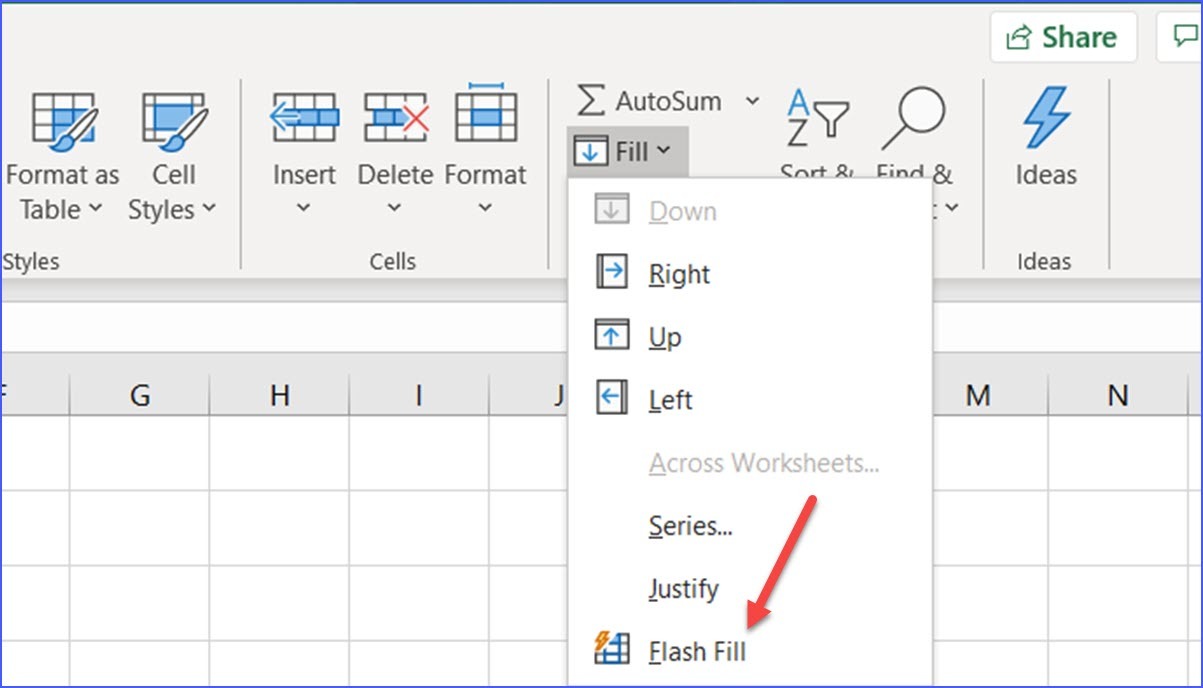
Flash Fill, while initially appearing straightforward, can handle surprisingly complex data transformations. This section delves into advanced techniques, exploring its capabilities beyond basic formatting, including extracting specific text parts and applying custom formatting rules. These advanced applications can significantly boost productivity when dealing with intricate datasets.Understanding the underlying pattern recognition within Flash Fill is key to harnessing its full potential for more involved tasks.
By recognizing the common elements and structures within your data, you can leverage Flash Fill to perform operations that would typically require extensive manual intervention or complex formulas.
Extracting Specific Parts of Text Strings
Flash Fill excels at extracting specific portions of text strings, particularly when patterns are consistent. This is especially useful for parsing data containing multiple pieces of information within a single cell. By recognizing a common pattern in the input data, Flash Fill can automatically identify and isolate the desired elements.For instance, if a column contains names in the format “Last Name, First Name”, Flash Fill can efficiently extract the first name from each cell.
Similarly, if an address column contains “Street, City, State, Zip,” Flash Fill can extract the city or state from each address. This automation significantly reduces manual labor in data cleanup and preparation.
Applying Custom Formatting Rules
Beyond simple extraction, Flash Fill can also be employed to apply custom formatting rules. This can be particularly helpful when you need to convert data from one format to another, or when you want to apply specific formatting based on conditions.For example, consider a column containing dates in a non-standard format. Flash Fill can recognize the pattern and convert them to a standardized format, such as YYYY-MM-DD.
Similarly, if you have a column with numerical values and want to round them to a specific decimal place, Flash Fill can apply the rounding rule consistently. This capability proves extremely helpful when dealing with data that needs reformatting before analysis or presentation.
Sophisticated Flash Fill Applications
Several real-world scenarios benefit from Flash Fill’s advanced capabilities.
- Extracting Product Codes from Descriptions: A column containing product descriptions, each with a unique product code embedded, can be efficiently processed. Flash Fill can identify and extract the product code from each description if a pattern exists. This is valuable for data entry, especially when dealing with a large dataset.
- Parsing Customer Information: A customer database with a combined field of customer name and order number can be parsed. Flash Fill can isolate the order number for specific analysis, such as tracking order status or identifying frequent buyers.
- Standardizing Data Formats: Flash Fill can automatically convert different date formats into a unified format, eliminating inconsistencies. This is crucial for data analysis, especially when data is gathered from multiple sources.
Error Handling and Troubleshooting

Flash Fill, while powerful, can sometimes encounter difficulties if the data isn’t properly formatted or if unexpected patterns emerge. Understanding common errors and their solutions is crucial for effective use. This section will address these issues, providing practical guidance for successful Flash Fill implementation.Data inconsistencies are a frequent source of Flash Fill errors. Poorly formatted data can mislead the algorithm, leading to incorrect or incomplete results.
This section will guide users through recognizing these issues and resolving them, ultimately ensuring reliable output.
Common Flash Fill Errors
Data discrepancies, such as variations in capitalization, inconsistent spacing, or extraneous characters, can confuse Flash Fill. Mismatched data types, for instance, mixing text and numbers, can also cause problems. Understanding these potential pitfalls will enable users to avoid or correct them efficiently.
- Inconsistent Formatting: Variations in capitalization, spacing, or the presence of extraneous characters can cause Flash Fill to fail to recognize patterns. For example, if some entries are “USA”, some are “Usa”, and others are “United States of America”, Flash Fill may struggle to apply a consistent format.
- Data Type Mismatches: Attempting to apply Flash Fill to a mixed data type (e.g., combining text and numbers) can result in errors. For instance, combining a column of names with a column of phone numbers will likely not yield desired results.
- Missing or Incomplete Data: Flash Fill often relies on identifying patterns. If critical data elements are missing or incomplete, the algorithm may not be able to discern the desired format.
- Complex Patterns: While Flash Fill is capable of handling many patterns, extremely complex or irregular data structures can exceed its capabilities. Data containing multiple variables or very unique formatting requirements may be beyond its reach.
Correcting Flash Fill Errors
Addressing errors after Flash Fill fails is essential. The following steps can guide you in identifying and correcting these issues.
- Review the Data: Carefully examine the problematic column for inconsistencies in formatting, capitalization, spacing, and extraneous characters. Identify any missing or incomplete entries. For example, look for entries like “USA”, “Usa”, and “United States” and determine a standardized format.
- Clean the Data: Correct any identified formatting issues, inconsistencies, or missing data. Use Excel’s built-in functions or other tools to standardize the data before applying Flash Fill again. This ensures the algorithm has a clear and consistent pattern to work with.
- Simplify the Pattern: If the data is too complex, consider simplifying the pattern by extracting relevant parts of the data. For instance, if you have full names, isolate the first names to make the pattern easier to recognize.
- Use Helper Columns: Create a temporary column to pre-process the data. Apply simple formulas or functions to standardize the formatting in the helper column, and then use Flash Fill on the helper column. Finally, copy the results from the helper column to the original column.
Avoiding Flash Fill Issues
Proactive measures can mitigate the risk of Flash Fill errors. Implementing these best practices can significantly improve the success rate of the application.
- Data Validation: Utilize data validation features in your spreadsheet program to ensure data consistency before applying Flash Fill. This ensures the data is well-formed.
- Data Standardization: Establish consistent formatting guidelines for data entry. For example, always use uppercase for country codes. This approach minimizes potential inconsistencies.
- Testing on a Sample: Before applying Flash Fill to the entire dataset, test it on a smaller sample of the data to identify potential errors and make necessary corrections.
Identifying and Resolving Data Input Problems
Recognizing issues in data input is critical to preventing Flash Fill failures. By carefully examining the input data, users can identify and resolve problems before the algorithm misinterprets the pattern.
- Regular Data Checks: Regularly verify the data entered in the spreadsheet to identify any formatting or data type issues promptly. This practice can prevent accumulation of errors that could later complicate Flash Fill implementation.
- Error Messages: Pay close attention to any error messages displayed by Flash Fill to pinpoint the exact source of the problem. Understanding the specific error message helps in determining the nature of the problem.
Real-World Applications of Flash Fill
Flash Fill, a powerful feature in Microsoft Excel and Google Sheets, automates data formatting and entry tasks, significantly improving efficiency and reducing manual effort. Its ability to recognize patterns and apply consistent formatting saves considerable time and reduces the risk of errors, particularly in large datasets. This section explores real-world scenarios where Flash Fill is crucial for data processing and provides a case study demonstrating its practical applications.
Examples of Improved Efficiency in Data Entry
Flash Fill excels at handling data transformations that follow discernible patterns. Imagine a spreadsheet containing a list of dates in various formats, including both short and long date representations. Manually converting these dates to a uniform format would be tedious and error-prone. Flash Fill can effortlessly identify the pattern and convert all dates to a standardized format, saving considerable time and ensuring accuracy.
Similarly, in financial data analysis, converting currency values from different formats (e.g., “$1,234.56”, “€1234.56”) to a unified format is easily achieved.
Scenarios Where Flash Fill is Crucial for Data Processing
Flash Fill is particularly valuable when dealing with data requiring complex transformations. Consider a large database of customer addresses. If you need to extract the city from the address column, Flash Fill can quickly and accurately identify the pattern, isolating the city information for each address. This can be critical for creating targeted marketing campaigns or analyzing regional trends.
Another example is when a dataset contains inconsistent abbreviations or variations of product names, which Flash Fill can standardize for accurate reporting and analysis. In the context of customer relationship management (CRM) systems, accurately identifying and extracting customer details, such as location or preferred communication channels, is easily achieved using Flash Fill.
A Case Study in a Specific Business Context
A retail company tracked sales data from various stores. Each store’s sales figures were entered with varying formats (e.g., “$12,345”, “£12345”). The company wanted to consolidate sales data for all stores, presenting the figures in a uniform currency. Using Flash Fill, the company quickly converted all sales figures into a standardized currency format (e.g., US dollars), eliminating the need for manual conversion.
This streamlined the data analysis process, enabling faster reporting and more accurate financial forecasting. The resulting uniformity of the data made the sales figures directly comparable across stores, facilitating better management decisions.
Dataset Example for Automated Data Formatting
| Original Data | Expected Format |
|---|---|
| New York, NY 10001 | New York, NY |
| Los Angeles, CA 90001 | Los Angeles, CA |
| Chicago, IL 60601 | Chicago, IL |
| Houston, TX 77001 | Houston, TX |
| Phoenix, AZ 85001 | Phoenix, AZ |
In this example, Flash Fill can be used to extract the city and state from a full address, leaving out the zip code. The automated formatting will streamline the data processing for further analysis, reducing manual intervention and improving accuracy. This process is easily scalable for larger datasets, further enhancing its value in real-world business applications.
Comparison with Other Methods

Flash Fill offers a unique approach to data formatting in Excel, but understanding its strengths and limitations in comparison with other methods is crucial for effective use. This section details how Flash Fill contrasts with traditional methods like formulas and functions, highlighting scenarios where each approach excels. Understanding these distinctions allows users to choose the most efficient and appropriate technique for their specific data formatting needs.
Comparison with Formulas and Functions
Formulas and functions are fundamental tools for data manipulation in Excel. They provide powerful and flexible solutions for complex calculations and data transformations. However, Flash Fill excels in situations where the pattern is readily apparent and doesn’t require complex logical statements.
- Formulas and functions excel at handling intricate calculations and logic, while Flash Fill excels at straightforward data formatting tasks. For example, if you need to calculate the sum of multiple columns, a formula is the preferred approach.
- Flash Fill is best suited for data formatting tasks with discernible patterns, where the desired outcome can be predicted from the existing data. Functions or formulas might be required if the data transformation involves intricate rules or logic that cannot be readily discerned.
- Flash Fill’s simplicity is particularly beneficial for repetitive tasks with clear formatting patterns, eliminating the need for extensive formula writing. Complex data transformations, on the other hand, necessitate the precision and control offered by formulas.
Suitability in Various Scenarios
The appropriateness of Flash Fill depends on the nature of the data and the desired formatting. For straightforward formatting tasks, Flash Fill proves remarkably efficient.
- Simple data formatting: Flash Fill shines when dealing with simple formatting patterns. For instance, if you need to add prefixes or suffixes to a list of names, Flash Fill is a rapid solution.
- Data with readily apparent patterns: Flash Fill is most effective when data displays clear and consistent patterns. The tool recognizes these patterns and automatically formats the data accordingly.
- Complex data transformations: Formulas and functions are more suitable for intricate data transformations requiring conditional logic, calculations, or complex manipulations.
- Large datasets: While Flash Fill is generally efficient, complex formatting rules on massive datasets might benefit from the control offered by formulas and functions. The processing time for Flash Fill can increase with dataset size.
Comparative Table
The following table provides a concise comparison of Flash Fill with other Excel formatting features:
| Feature | Flash Fill | Formulas/Functions |
|---|---|---|
| Data Type | Structured data with apparent patterns | Various data types, including structured and unstructured |
| Complexity | Simple, straightforward patterns | Variable, from simple to complex |
| Flexibility | Limited to patterns | High, can handle various conditions |
| Speed | Generally faster for simple patterns | Can be faster or slower depending on complexity |
| Error Handling | Limited error checking; user needs to review results | Explicit error handling and checks are possible |
Data Preparation for Flash Fill
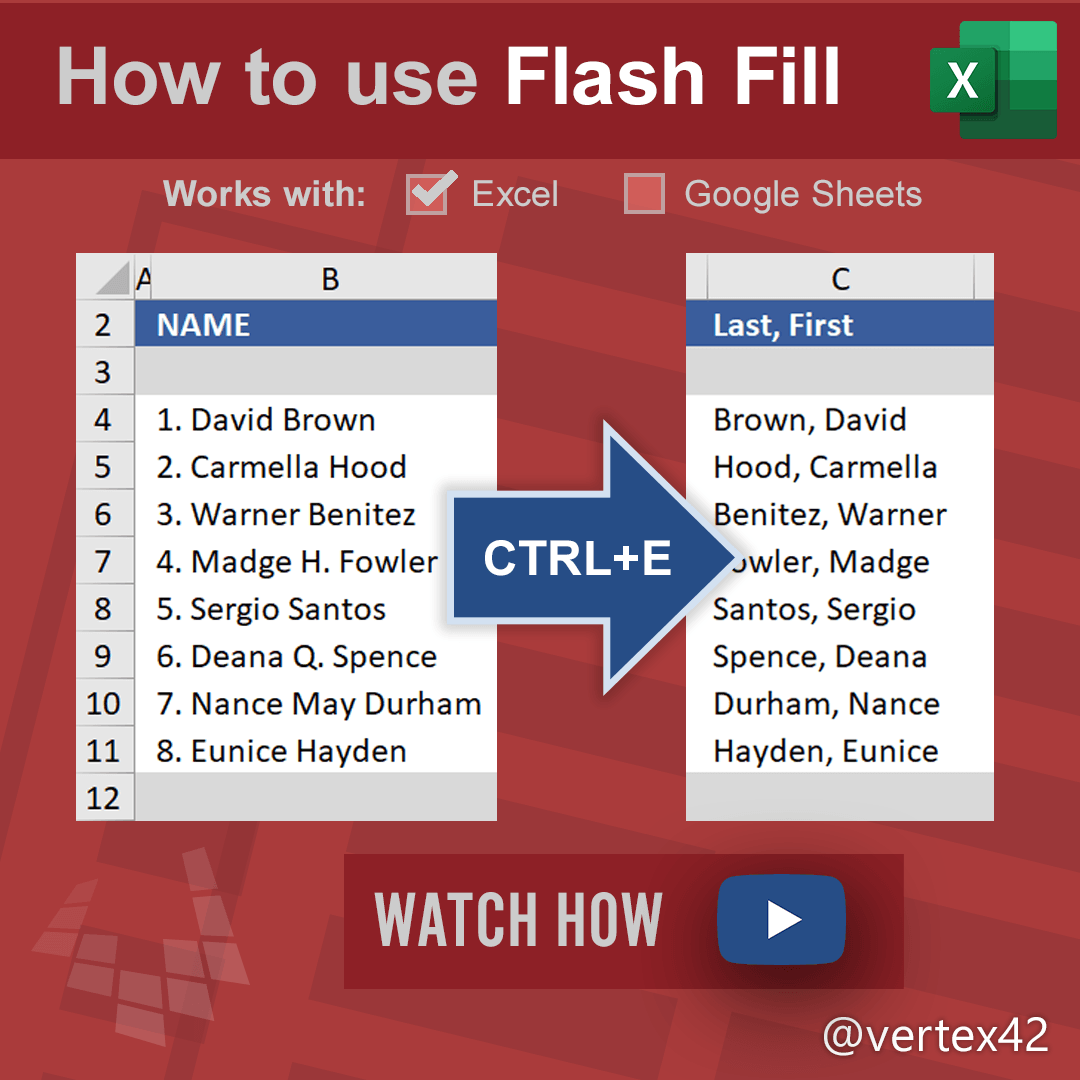
Proper data preparation is crucial for achieving accurate and efficient results when using Flash Fill in Google Sheets. A well-structured and clean dataset minimizes errors and ensures Flash Fill correctly identifies patterns and applies the desired formatting. This meticulous preparation phase directly impacts the reliability and effectiveness of Flash Fill’s automatic formatting.Effective data preparation involves meticulous cleaning and validation, ensuring consistency, and understanding the inherent limitations of Flash Fill.
These steps are critical to prevent unexpected outcomes and guarantee the desired results.
Data Cleaning and Validation
Thorough data cleaning and validation are paramount for optimal Flash Fill performance. Inconsistent or erroneous data can lead to incorrect formatting or unexpected results. Validating the data before applying Flash Fill helps identify and correct issues, minimizing the risk of errors propagating throughout the spreadsheet.
- Identifying and Handling Inconsistent Data: Look for discrepancies in formatting, data types, and values. Inconsistencies can include variations in capitalization, extra spaces, or incorrect data types (e.g., a date formatted as text instead of a date). These inconsistencies need to be addressed to ensure Flash Fill can correctly recognize patterns. For example, if some names are capitalized and others are not, Flash Fill may not recognize the pattern.
- Addressing Missing Data: Assess for any missing values. Missing data can disrupt Flash Fill’s ability to identify patterns and might need to be addressed. For example, if a column containing product prices has empty cells, Flash Fill may not be able to extrapolate the correct pricing for subsequent rows. This could be addressed by either filling the missing values or using a different approach to accomplish the formatting goal.
- Data Type Validation: Verify that data types are appropriate for the intended use case. Ensuring the correct data type is critical for Flash Fill to operate as intended. For instance, if you want to convert text data to dates, the cells must be formatted as text initially, not dates.
- Correcting Errors: Identify and rectify errors in the dataset. Errors can include typos, incorrect values, or inconsistent formats. Using spreadsheet tools to validate data can be helpful. For instance, if a column containing product codes has some codes that are misspelled, Flash Fill will not recognize the pattern.
Ensuring Data Consistency
Data consistency is essential for Flash Fill to produce accurate and reliable results. This entails maintaining uniformity in formatting, data types, and values. Consistent data facilitates the identification of patterns, leading to accurate formatting.
- Formatting Consistency: Maintain uniformity in the presentation of data. For example, ensure all dates are formatted using the same date format (e.g., MM/DD/YYYY) and all numbers are aligned in the same manner.
- Data Type Consistency: Maintain the same data type for each cell in a column or row. Consistency in data types is crucial for Flash Fill to recognize patterns accurately. If you have a column of mixed data types (numbers and text), Flash Fill might not apply the desired formatting consistently.
- Value Consistency: Ensure the values are consistent with the intended purpose. Values should adhere to the defined rules. For instance, if you are filling a column with product prices, ensure that the values are all positive numbers.
Step-by-Step Guide for Data Cleaning and Validation
A structured approach to data cleaning and validation is recommended. This systematic process minimizes errors and ensures optimal Flash Fill performance.
- Inspect the Data: Carefully examine the data for inconsistencies in formatting, data types, and values.
- Identify Problems: Note any discrepancies or errors in the data.
- Correct Errors: Use spreadsheet functions (e.g., `SUBSTITUTE`, `TRIM`) to correct any identified errors.
- Validate Data Types: Ensure data types align with the intended use.
- Review Consistency: Verify that the data’s formatting, data types, and values are consistent.
- Test Flash Fill: Apply Flash Fill to a sample portion of the data to verify that it functions as intended.
Visual Representation of Flash Fill

Flash Fill, a powerful feature in Microsoft Excel and Google Sheets, automates data formatting and entry. Understanding its internal workings provides a clear perspective on its capabilities and potential applications. This section details the visual representation of Flash Fill’s process through diagrams, examples, and a sample table.
Internal Process Diagram
The internal process of Flash Fill can be visualized as a pattern recognition engine. The software analyzes the existing data in a column, identifies patterns in the entries, and then applies these patterns to the subsequent cells in the column to predict the appropriate output. This intelligent approach enables users to significantly reduce the time spent on repetitive formatting tasks.
A simplified diagram below depicts this pattern-matching process:
+-----------------+ +-----------------+ +-----------------+ | Existing Data | --> | Pattern Detector | --> | Predicted Data | +-----------------+ +-----------------+ +-----------------+ | A1: Apple | | | | A2: Apple Pie | | A2: Banana | | | | A3: Banana Split| | A3: Orange | | | | A4: Orange Juice| | A4: Grapefruit | | | | ...| +-----------------+ +-----------------+ +-----------------+
Flowchart for Applying Flash Fill
This flowchart details the steps involved in using Flash Fill:
- Input data: Enter the initial data into the relevant column.
- Identify pattern: Flash Fill examines the data to determine a pattern or logical relationship.
- Predict output: The software anticipates the appropriate values based on the identified pattern.
- Apply output: The predicted values are filled into subsequent cells.
Examples of Flash Fill in Action
Flash Fill excels in various scenarios. These examples demonstrate its application in different contexts:
- Adding suffixes: If a column contains names like “John Smith,” “Jane Doe,” and “Peter Jones,” Flash Fill can automatically add suffixes like “Jr.” or “Sr.” by recognizing the pattern of names followed by titles.
- Extracting information: From a column containing full addresses, Flash Fill can extract city names, zip codes, or other relevant information, provided a discernible pattern is present in the data.
- Concatenating data: If a column contains first names and a separate column contains last names, Flash Fill can automatically combine these into a full name column, assuming the correct pattern exists.
Sample Table Demonstrating Flash Fill
The following table illustrates how Flash Fill works in practice.
| Original Data | Flash Fill Prediction |
|---|---|
| Apple | Apple Pie |
| Banana | Banana Split |
| Orange | Orange Juice |
| Grapefruit | Grapefruit Soda |
Ending Remarks
In conclusion, Flash Fill offers a remarkable solution for streamlining data formatting tasks, boosting efficiency, and reducing manual effort. By understanding its capabilities and applying the techniques Artikeld in this guide, you can significantly improve your workflow and achieve more accurate and organized data sets. Mastering Flash Fill will empower you to handle a wide range of data transformations, ultimately enhancing your productivity in various data-driven contexts.