Pie charts are a powerful visual tool for representing proportions and percentages. They effectively communicate the relative size of different categories within a dataset, providing a clear and concise overview. This guide will walk you through the entire process, from data preparation to creating a visually appealing and informative pie chart, ready for implementation in your web design.
Understanding the fundamentals of pie charts, data preparation, and calculation methods are crucial for accurate representation. We will delve into the mathematical aspects, examining how to convert numerical values into percentages and angles for slice creation. Choosing the right software and design elements will also be discussed, ensuring your pie charts are not only informative but also visually appealing.
Introduction to Pie Charts
A pie chart is a circular statistical graphic, which is divided into slices to illustrate numerical proportion. It visually represents the relative sizes of different categories within a dataset. Pie charts are particularly effective in conveying the percentage distribution of various components within a whole. Their circular structure intuitively shows the proportion of each category to the total.The fundamental concept of a pie chart lies in its representation of data as slices of a circle.
Each slice corresponds to a particular category, and its area is directly proportional to the value it represents. A larger slice indicates a larger proportion of the total value, and vice versa. This visual representation facilitates a quick understanding of the relative magnitude of each category compared to the whole.
Importance of Pie Charts for Percentage Distributions
Pie charts excel at showcasing percentage distributions. Their inherent ability to represent proportions in a clear and concise manner makes them invaluable for communicating data insights. By visually comparing the sizes of slices, viewers can quickly grasp the relative importance of different categories within a dataset. This visual aspect aids in understanding the distribution of values and identifying significant trends or patterns.
Basic Pie Chart Representation
A simple pie chart can be effectively represented using a tabular structure. This structure clarifies the mapping between data values and their corresponding slices in the chart.
| Category | Value | Percentage |
|---|---|---|
| Apples | 15 | 30% |
| Bananas | 10 | 20% |
| Oranges | 20 | 40% |
| Grapes | 5 | 10% |
This table structure provides a clear representation of the data, showing the proportion of each fruit type in a concise format. The categories (Apples, Bananas, Oranges, and Grapes) are listed, along with their respective numerical values and corresponding percentages of the total. This format is essential for accurately constructing a pie chart.
Data Preparation for Pie Charts
Preparing data for a pie chart involves meticulous collection, organization, and validation. Accurate data is paramount for creating a meaningful and reliable visual representation of proportions. The process ensures the pie chart accurately reflects the distribution of different categories.The foundation of a well-constructed pie chart lies in the careful preparation of the data. This involves selecting the appropriate data points, ensuring their accuracy, and organizing them in a structured format.
This structured format facilitates easy interpretation and comprehension of the data.
Data Collection and Organization
Proper data collection is essential for constructing an accurate pie chart. Data should be relevant to the proportions being visualized. This means carefully identifying the categories and the corresponding numerical values for each category. Data sources should be reliable, ensuring the accuracy of the results. For example, if analyzing customer demographics, data should be collected from surveys or existing customer databases.
If tracking website traffic, data should be collected from website analytics tools. This process should be documented to trace the origin and ensure traceability.
Importance of Accurate Data Entry
Accurate data entry is critical for a meaningful pie chart. Any errors in data entry can skew the proportions, leading to a misleading visualization. Data entry should be double-checked for accuracy and consistency. Using a spreadsheet program can streamline the data entry process and minimize potential errors. Implementing a system for data validation and quality control can reduce the risk of mistakes.
For instance, if a data point represents a percentage, the sum of all percentages should total 100%. If the sum is not 100%, a verification process should be implemented to identify the discrepancy.
Examples of Suitable Data Sets
Pie charts effectively visualize proportions within various categories. Here are some examples of data sets suitable for pie charts:
- Market share analysis: A pie chart can illustrate the market share of different companies in a particular industry, showing the proportion of sales each company holds.
- Website traffic sources: A pie chart can display the percentage of website traffic coming from different sources, such as organic search, social media, or referrals.
- Budget allocation: A pie chart can represent the allocation of funds within a budget, showcasing the proportion of resources dedicated to different departments or activities.
- Product sales breakdown: A pie chart can demonstrate the sales breakdown of various product categories, showing the proportion of revenue generated by each product line.
Comparison of Data Types
Different data types can be suitable for pie charts. The table below summarizes various data types and their suitability for pie charts.
| Data Type | Suitability for Pie Chart | Example |
|---|---|---|
| Percentage | Excellent | Market share of different companies (e.g., 30% for Company A, 25% for Company B, etc.) |
| Frequency | Good, if converted to percentages | Number of customers from different regions (e.g., 150 from Asia, 100 from Europe) |
| Ratio | Good, if converted to percentages | Student enrollment in different departments (e.g., 2:1 ratio for engineering to business) |
| Raw Counts | Poor, unless converted to percentages | Number of cars sold by each dealership |
Calculating Proportions for Pie Chart Slices
Creating a pie chart effectively requires accurate calculation of proportions for each slice. These proportions, usually expressed as percentages, represent the relative size of each category within the whole dataset. Precise calculations are crucial for visually representing the data accurately and avoid misinterpretations.Understanding how to calculate these proportions is fundamental to constructing a meaningful pie chart. This section will detail the mathematical methods used, demonstrate the calculation process with examples, and explain how to convert numerical data into percentages and angles for pie chart slices.
Calculating Proportions as Percentages
To represent data in a pie chart, numerical values need to be converted into percentages. This allows for a clear comparison of the relative sizes of each category. The percentage of a category represents its contribution to the total.
- To determine the percentage of a category, divide the value of that category by the total value of all categories and then multiply the result by 100. This method ensures that the sum of all percentages equals 100%.
Step-by-Step Calculation Demonstration
The following example demonstrates the process of calculating percentages for a pie chart.Consider a survey of favorite colors, with the following data:
- Red: 15 votes
- Blue: 20 votes
- Green: 10 votes
- Yellow: 5 votes
The total number of votes is 15 + 20 + 10 + 5 = 50.
- Calculate the percentage for Red: (15 / 50) – 100 = 30%
- Calculate the percentage for Blue: (20 / 50) – 100 = 40%
- Calculate the percentage for Green: (10 / 50) – 100 = 20%
- Calculate the percentage for Yellow: (5 / 50) – 100 = 10%
Converting Numerical Values to Percentages
This section details the process of converting numerical data into percentages, which is vital for pie chart creation.
Formula: (Value of Category / Total Value) – 100 = Percentage
This formula is a straightforward method to determine the percentage of each category.
Calculating Slice Angles
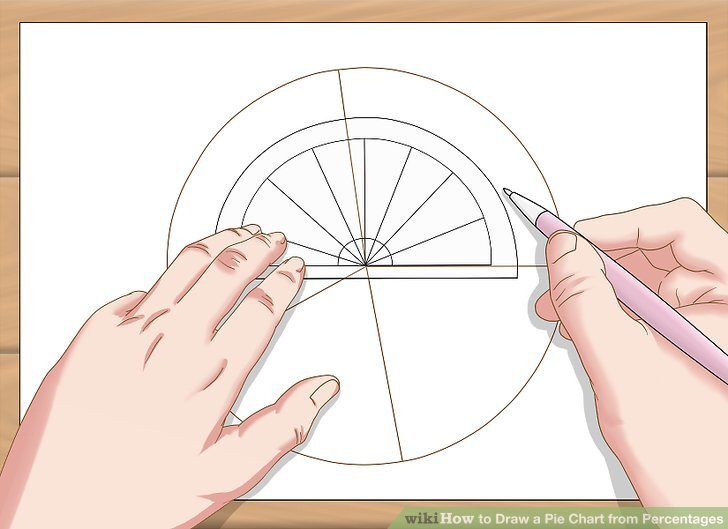
Once the percentages are calculated, the next step involves converting these percentages into angles for each slice of the pie chart. A full circle has 360 degrees.
- The percentage of each category is directly proportional to the angle of its corresponding slice.
- To find the angle of a slice, multiply the percentage by 360 degrees.
Using the previous example, to determine the angle for the Red slice (30%):(30 / 100) – 360 = 108 degreesApplying this calculation to each category, the resulting angles will be:
- Red: 108 degrees
- Blue: 144 degrees
- Green: 72 degrees
- Yellow: 36 degrees
Creating Pie Charts in Software
Pie charts are a powerful visual tool for representing proportions and relationships between different categories. Effectively creating pie charts requires a clear understanding of the data and the software tools available. This section will delve into the practical aspects of generating pie charts using various software applications.Choosing the right software, understanding data input procedures, and mastering chart element customization are crucial for producing compelling and informative pie charts.
Different software programs offer varying levels of complexity and features, influencing the overall ease of use and the quality of the final visualization.
Popular Software Options
Several software programs excel at creating pie charts. Common choices include Microsoft Excel, Google Sheets, dedicated charting software like ChartGo, and various open-source options like LibreOffice Calc. Each platform offers unique strengths and weaknesses. The selection often depends on user familiarity, existing software infrastructure, and specific chart requirements.
Data Input Procedures
Accurate data input is paramount for generating precise pie charts. The process typically involves entering categorical data (e.g., sales by product type) and corresponding numerical data (e.g., sales figures for each product). This data is then organized into a tabular format within the software. Different software platforms may have slightly different input methods.
Comparison of Software Features
Software programs vary in their features for creating pie charts. Microsoft Excel and Google Sheets, for example, provide straightforward tools for basic pie chart creation, while dedicated charting software might offer advanced customization options. Open-source alternatives generally provide comparable functionality, often with a steeper learning curve for users unfamiliar with the program’s specific syntax.
Choosing Chart Elements
Selecting appropriate labels and legends is critical for effective pie chart communication. Clear labels for each slice, describing the category represented, are essential. An informative legend, ideally placed near the chart, should correspond to each slice’s color or pattern, enabling viewers to easily decipher the data. The choice of colors should be visually appealing and avoid confusion.
Summary of Pie Chart Creation Steps
| Software | Data Input | Labeling | Legend |
|---|---|---|---|
| Microsoft Excel | Enter data into spreadsheet; select data range | Insert labels corresponding to data categories; edit formatting as needed | Insert legend; adjust placement and text as needed |
| Google Sheets | Enter data into spreadsheet; select data range | Insert labels corresponding to data categories; edit formatting as needed | Insert legend; adjust placement and text as needed |
| LibreOffice Calc | Enter data into spreadsheet; select data range | Insert labels corresponding to data categories; edit formatting as needed | Insert legend; adjust placement and text as needed |
| ChartGo | Import data; select data fields for categories and values | Input labels corresponding to data categories; customize font and size | Create legend with clear visual cues and text; modify font and placement |
Designing a User-Friendly Pie Chart
Creating a pie chart that effectively communicates data is crucial. A well-designed pie chart is not just visually appealing but also easily understandable, allowing viewers to quickly grasp the proportions represented. This section will explore the key elements contributing to such a chart, from color selection to layout considerations.Effective pie chart design hinges on several key principles. These principles, when applied correctly, ensure the chart not only accurately reflects the data but also facilitates clear comprehension by the audience.
Understanding these principles is vital to creating a pie chart that serves its intended purpose.
Visual Appeal and Clarity
A visually appealing pie chart enhances comprehension. Colors and fonts, properly selected, can significantly impact the chart’s readability and impact. Using a limited color palette, avoiding overly saturated colors, and ensuring high contrast between colors and the background are essential for clarity. Font choices should be easily readable, maintaining consistency throughout the chart.
Color Selection and Font Choices
Choosing colors that stand out without overwhelming the viewer is essential. A limited color palette of 5-7 colors is generally recommended, and these colors should be distinct enough to be easily differentiated. Avoid overly saturated colors, as they can detract from readability. Font selection is equally important. A clear, legible font, such as Arial, Calibri, or Times New Roman, in a size that is easy to read from a distance, should be used.
Clear Labeling and Concise Legends
Clear labeling of each pie slice is critical for understanding the data. Labels should be concise and accurately reflect the category represented by each slice. A concise legend, providing a key to the colors and their corresponding categories, is vital. Legends should be placed strategically, ideally outside the pie chart, to avoid clutter and enhance readability.
Visual Hierarchy and Emphasis
A well-structured visual hierarchy directs the viewer’s attention to the most important aspects of the data. The largest slices should be clearly emphasized through visual cues, such as size or color saturation, to highlight the most significant proportions. This emphasis allows for a quick understanding of the data’s key takeaways.
Spacing and Layout
Appropriate spacing between pie slices is crucial for clarity. Too little spacing can make the chart appear cluttered, while too much spacing can make it look disjointed. The chart’s layout should be balanced and visually appealing, ensuring the elements are positioned effectively for optimal comprehension. An effective layout minimizes visual clutter and ensures all elements are readily accessible.
Examples of Good and Bad Pie Chart Design
A well-designed pie chart clearly displays the data. It uses a limited color palette, distinct fonts, and concise labels. Conversely, a poorly designed pie chart uses an excessive number of colors, cluttered labels, and an overly complex layout.
Best Practices for Pie Chart Design
| Criteria | Best Practice |
|---|---|
| Color Palette | Use a limited palette (5-7 colors) with high contrast. |
| Font Selection | Choose a clear, legible font in an appropriate size. |
| Labeling | Provide concise and accurate labels for each slice. |
| Legends | Use a concise legend placed strategically outside the chart. |
| Visual Hierarchy | Emphasize the largest slices to highlight key proportions. |
| Spacing | Ensure appropriate spacing between slices to avoid clutter. |
| Layout | Maintain a balanced and visually appealing layout. |
Representing Data with Pie Charts
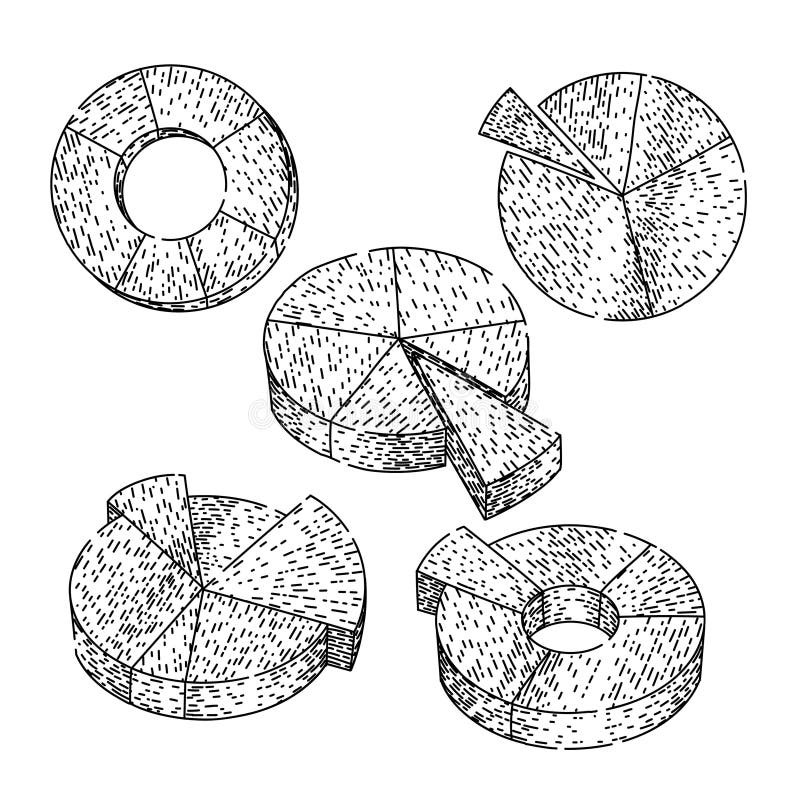
Pie charts are valuable tools for visualizing proportions and relationships within data. They effectively communicate the relative size of different categories within a whole, allowing for quick comparisons at a glance. Understanding how to use pie charts correctly, and recognizing their limitations, is crucial for accurate and insightful data presentation.
Accurate Representation of Data Types
Pie charts are particularly well-suited for displaying categorical data where the focus is on the proportion of each category relative to the whole. Quantitative data, while potentially represented, should be carefully considered. For instance, if representing the distribution of ages within a population, a pie chart can effectively show the percentage of individuals falling into different age groups.
However, if the data involves a wide range of numerical values, a different visualization might be more appropriate, such as a histogram or a box plot.
Limitations of Pie Charts
Pie charts can be less effective when dealing with a large number of categories. A large number of slices can make the chart cluttered and difficult to interpret. Furthermore, subtle differences in proportions may be hard to discern visually, especially when slices are small. In such cases, bar charts or other visualization types might be preferable. Furthermore, when comparing proportions across multiple categories, pie charts might not be the best choice if those categories are not mutually exclusive.
Comparing Proportions Across Categories
Pie charts excel at visually comparing the proportion of different categories. For example, in a survey about preferred modes of transportation, a pie chart can clearly show the percentage of respondents choosing car, bus, or bike. This direct visual comparison is an important strength of pie charts, facilitating a rapid understanding of the distribution across categories.
Displaying Trends Over Time
While pie charts are not ideal for displaying trends over time, they can be incorporated in a series of charts, showing the evolution of proportions over distinct time periods. For instance, a series of pie charts could show the shifting market share of various companies over a few years.
Examples of Data Sets
- Market Share Analysis: A pie chart can effectively show the percentage of market share held by various competing brands of smartphones. For example, Apple’s market share might be 30%, Samsung’s 25%, and other brands 45%. This would be easily visualized with a pie chart.
- Student Preferences: A pie chart could illustrate the proportion of students choosing different extracurricular activities, such as sports, music, or drama. For example, 40% of students might prefer sports, 30% music, and 30% drama.
- Survey Results: A pie chart can display the proportion of respondents choosing different answers to a survey question. For instance, if a survey asks about preferred coffee brewing methods, a pie chart can show the percentage of respondents choosing drip coffee, French press, or espresso.
Suitability of Data Sets for Pie Charts
| Data Set | Suitability for Pie Charts | Alternative Visualizations |
|---|---|---|
| Percentage of votes for different candidates in an election | High | Bar chart |
| Distribution of household incomes in a city | Low | Histogram, box plot |
| Sales figures for different product categories over a year | Moderate (if focusing on proportions in each category) | Line chart, bar chart |
| Number of cars sold by different manufacturers each month | Low | Line chart, bar chart |
The table above provides a general guideline. The optimal choice for visualizing data depends on the specific context and the desired insights.
Implementing Pie Charts in Web Design
Integrating pie charts into web pages allows for a clear and concise visual representation of data proportions. This enhances user understanding and engagement by presenting complex information in an easily digestible format. Effectively implemented pie charts can significantly improve the clarity and impact of web content.A well-designed pie chart in a web page facilitates quick comprehension of the relative sizes of different data categories.
This visual representation can be particularly useful for presenting market share, budget allocations, or other comparative data sets. Careful consideration of the chart’s design and integration with the surrounding webpage elements is crucial to ensure a seamless and effective user experience.
HTML Elements for Pie Charts
Pie charts on web pages are typically rendered using JavaScript libraries that handle the chart’s creation and rendering. These libraries abstract away the complexities of drawing the pie chart and provide an intuitive interface for customizing its appearance. HTML elements are used primarily to containerize the chart and provide descriptive labels.
JavaScript Libraries for Dynamic Updates
JavaScript libraries are essential for dynamically updating pie charts on web pages. As data changes, the chart needs to reflect these alterations without requiring a complete page reload. These libraries allow for real-time data updates, enabling interactive dashboards or visualizations that adapt to changing information.
Interactive Elements
Integrating interactive elements with pie charts enhances user engagement and understanding. Users can potentially click on slices of the pie chart to gain more detailed information or drill down into sub-categories. Tooltips or pop-up windows can provide additional context for each slice, offering more insights into the data.
Example Using a Library
This example demonstrates a basic pie chart using a JavaScript library (e.g., Chart.js). The HTML structure sets up the container for the chart. The JavaScript code utilizes the library’s API to configure the chart’s data and display it within the specified container.“`html
“`This example utilizes a canvas element (`
Conclusive Thoughts
In conclusion, this comprehensive guide has provided a step-by-step approach to creating effective pie charts. By mastering data preparation, calculation methods, and design considerations, you can effectively communicate proportions and percentages in a clear and compelling manner. Whether you are creating static or dynamic pie charts for web pages, this guide empowers you to present data visually, maximizing its impact.