PivotTables are powerful tools for data analysis, enabling users to summarize and manipulate large datasets efficiently. A crucial aspect of leveraging their potential is the ability to create calculated fields. These fields empower users to derive new insights and metrics from existing data, transforming raw figures into actionable intelligence. This guide provides a step-by-step approach to mastering calculated fields, covering everything from basic arithmetic to advanced techniques and troubleshooting.
This comprehensive tutorial delves into the intricacies of calculated fields, offering practical examples and detailed explanations. It covers a wide range of scenarios, including working with different data types, performing complex calculations, and addressing potential issues that might arise during implementation. By the end, readers will possess a strong understanding of how to effectively use calculated fields to enhance their PivotTable analysis.
Introduction to Calculated Fields in PivotTables
Calculated fields in PivotTables are powerful tools that allow users to derive new data points directly within the PivotTable environment. They enable the creation of calculated values, such as ratios, percentages, or new metrics, without requiring modifications to the underlying data source. This significantly streamlines the data analysis process by providing dynamic insights directly within the PivotTable.Calculated fields provide a flexible way to enhance the information presented in a PivotTable, enriching the analysis by adding contextual meaning to existing data.
Instead of creating separate spreadsheets or complex formulas, users can perform calculations directly within the PivotTable, improving efficiency and maintaining data integrity within the analysis.
Purpose and Benefits of Calculated Fields
Calculated fields extend the capabilities of PivotTables beyond simple aggregations. They enable users to perform complex calculations directly within the table, leading to more meaningful insights. This eliminates the need to manually calculate metrics or create separate spreadsheets for data manipulation. Calculated fields also ensure consistency in calculations, as any changes to the underlying data are automatically reflected in the calculated fields.
Difference from Other PivotTable Features
Calculated fields differ from other PivotTable features like filters and slicers. Filters and slicers are used to refine the data displayed in the PivotTable, focusing on specific subsets of data. Calculated fields, on the other hand, perform calculations on the existing data within the PivotTable, creating entirely new values that are not present in the original dataset. Filters and slicers do not alter the underlying data values, whereas calculated fields introduce new data points.
Use Cases in Data Analysis
Calculated fields find extensive use in various data analysis scenarios. For example, in sales data, they can be used to calculate conversion rates, average order values, or profit margins. In financial analysis, calculated fields can be used to derive return on investment (ROI), or to compute various financial ratios. These calculated metrics provide actionable insights, allowing users to make more informed business decisions.
Example of a PivotTable Before and After Adding a Calculated Field
| Region | Product | Sales |
|---|---|---|
| North | A | 100 |
| North | B | 150 |
| South | A | 200 |
| South | B | 250 |
PivotTable before adding a calculated field (displays aggregated sales).
| Region | Product | Sales | Profit Margin |
|---|---|---|---|
| North | A | 100 | 25% |
| North | B | 150 | 30% |
| South | A | 200 | 20% |
| South | B | 250 | 25% |
PivotTable after adding a calculated field for Profit Margin (based on a formula using Sales and Cost of Goods Sold, which is not shown in the example).
Creating Basic Calculated Fields
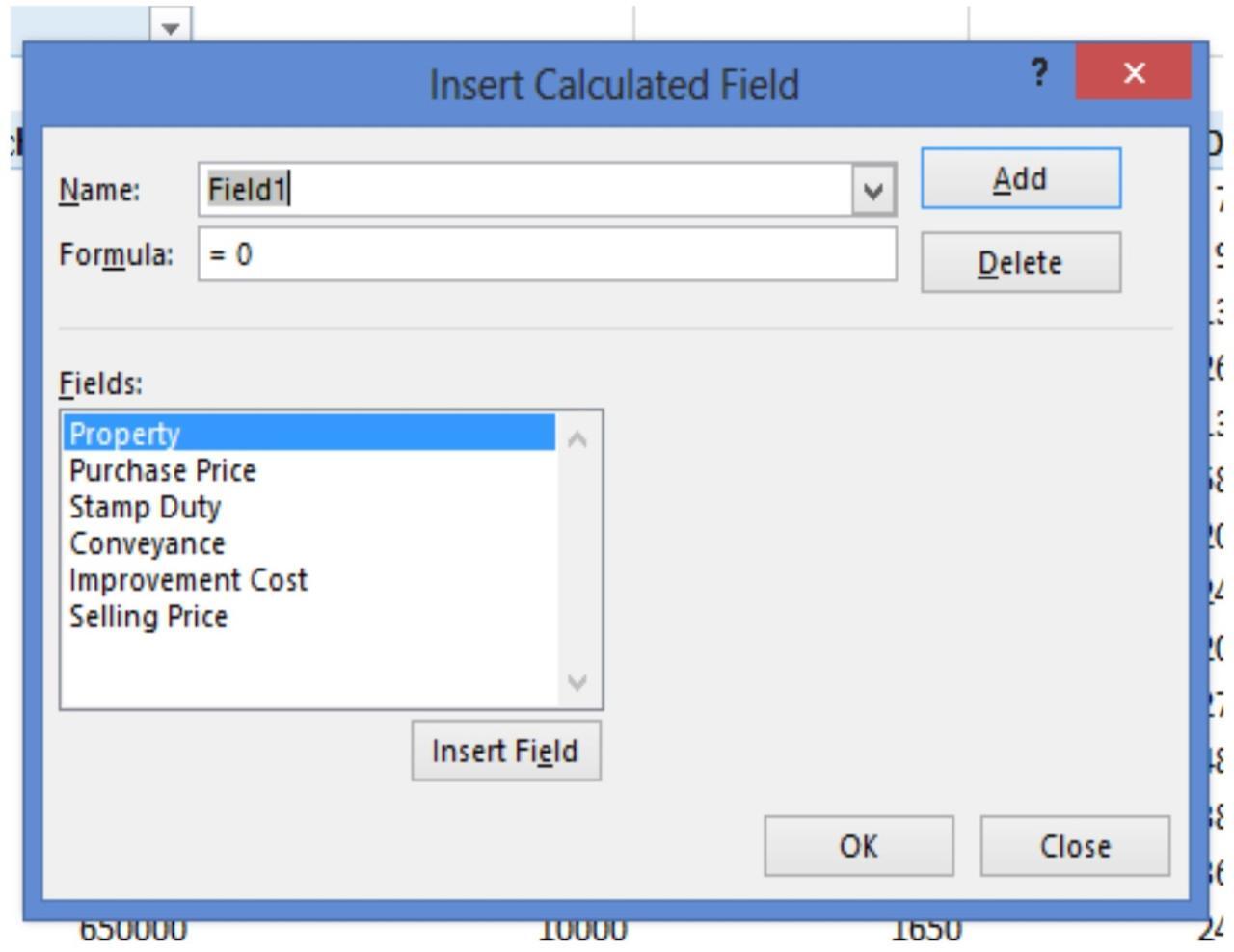
Calculated fields in PivotTables allow you to perform calculations on existing data to derive new insights. They are a powerful tool for summarizing and analyzing data in ways that standard PivotTable functions cannot achieve. This section delves into creating basic calculated fields, demonstrating their functionality through examples of common arithmetic operations.
Calculated Field Formula Syntax
The syntax for creating a calculated field in a PivotTable involves defining a formula that operates on existing fields within the table. The formula uses specific functions and references to fields in a structured manner.
A calculated field formula typically follows this structure:
= [Formula using existing fields]
This structure allows for flexible calculations based on existing data within the PivotTable. For instance, to add the values of two fields, you’d simply reference those fields in the formula, using appropriate operators.
Basic Calculation Examples
Here are some examples of basic calculations using calculated fields:
- Addition: To calculate the sum of two fields, such as ‘Sales’ and ‘Expenses’, you would use the following formula:
=Sales + Expenses - Subtraction: To calculate the difference between ‘Sales’ and ‘Cost of Goods Sold’, the formula would be:
=Sales - CostOfGoodsSold - Multiplication: To calculate the total revenue from multiplying ‘Price’ and ‘Units Sold’, the formula would be:
=Price

- UnitsSold - Division: To calculate the average price per unit sold, the formula would be:
=Sales / UnitsSold
Referencing Fields within the Formula
Correctly referencing fields within the calculated field formula is crucial for accurate results. The formula should refer to fields using their names as they appear in the PivotTable. A helpful technique is to ensure the spelling matches precisely. This method ensures the correct data is used in the calculation.
Calculating Average Sales per Region
To calculate the average sales per region, a calculated field is particularly useful. This allows aggregation across regions without the need for additional PivotTable structures. This example demonstrates how to create a calculated field to compute the average sales per region.
| Region | Sales | Units Sold | Average Sales |
|---|---|---|---|
| North | 10000 | 200 | 50 |
| South | 15000 | 300 | 50 |
| East | 12000 | 240 | 50 |
| West | 18000 | 360 | 50 |
The calculated field formula to derive ‘Average Sales’ is =Sales/UnitsSold. This formula divides the ‘Sales’ value by the ‘Units Sold’ value for each region to determine the average sales per unit. The result is then displayed in the ‘Average Sales’ column of the PivotTable.
Advanced Calculated Field Techniques
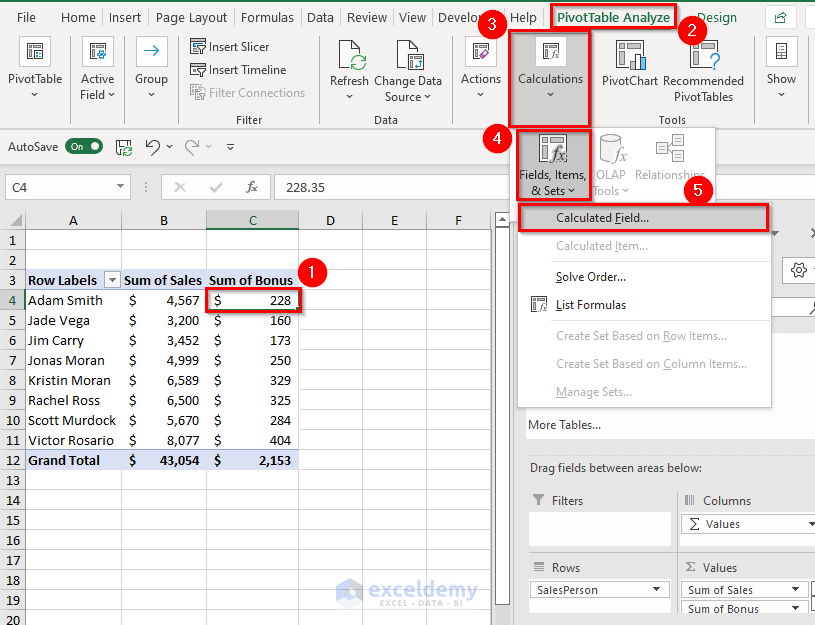
Calculated fields in PivotTables allow for more than just simple sums or averages. Advanced techniques enable complex calculations, leveraging multiple fields and incorporating conditional logic. This empowers users to extract deeper insights from their data by creating fields tailored to specific analytical needs.
Complex Calculations Using Functions
Advanced calculations within calculated fields utilize various functions like SUM, AVERAGE, COUNT, MAX, and MIN. These functions can be combined to perform more intricate analyses. For instance, calculating the average sales for each product category after filtering for a specific year involves combining the AVERAGE function with other functions and filters.
Creating Calculated Fields Involving Multiple Fields
Calculated fields can be built using multiple fields in a PivotTable. This approach allows for a more nuanced analysis of data relationships. For example, calculating the profit margin by subtracting the cost from the sales price requires combining the ‘Sales Price’ and ‘Cost’ fields in the calculated field.
Nested Calculations and Conditional Logic
Calculated fields support nested calculations and conditional logic, enabling more sophisticated analyses. Nested functions, such as IF statements, allow for evaluating conditions and performing different calculations based on the results. This flexibility allows for the creation of calculated fields that dynamically adjust based on criteria.
Identifying Products Exceeding a Sales Target
A calculated field can be created to identify products exceeding a predefined sales target. This is often crucial for performance monitoring and identifying high-performing products. The calculated field would compare the sales figures for each product to the target and flag products that surpass it.
Examples of Calculated Fields
Below are examples demonstrating various calculations and their results in a PivotTable, using hypothetical sales data.
| Calculation | Formula | Description | Example Result (Hypothetical) |
|---|---|---|---|
| Total Sales by Region | SUM(Sales) | Calculates the total sales for each region. | North: $100,000 South: $150,000 East: $120,000 |
| Average Sales per Product | AVERAGE(Sales) | Calculates the average sales for each product. | Product A: $500 Product B: $750 |
| Sales exceeding $1000 | IF(Sales > 1000, Sales, 0) | Highlights sales exceeding $1000. | Product C: $1200 Product D: $800 (Result: $1200) |
| Profit Margin | (Sales – Cost)/Sales | Calculates the profit margin for each sale. | Product A: 20% Product B: 15% |
Handling Dates and Times in Calculated Fields
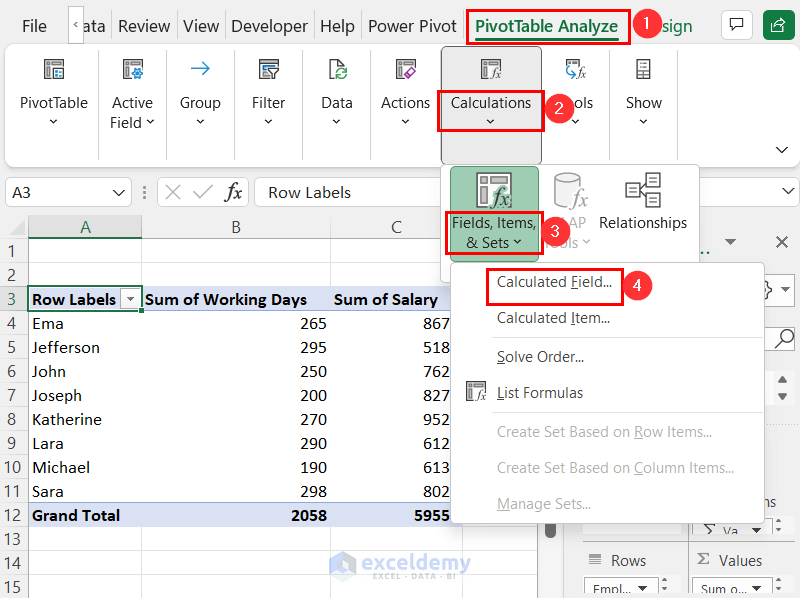
Working with dates and times in calculated fields of PivotTables allows for powerful analysis. This involves extracting specific date components, comparing dates, and performing calculations on date differences, all of which can be extremely useful for trend identification and insightful reporting. Effective utilization of these techniques can significantly enhance the analytical capabilities of your PivotTable reports.Date and time values, when incorporated into calculated fields, offer a rich source of information.
Extracting parts of dates, comparing them, and performing arithmetic operations on these values can provide key insights into your data. This section will explore various techniques for handling dates and times in calculated fields, including practical examples and formatting options.
Extracting Date Components
Extracting specific date components, such as year, month, or day, allows for detailed analysis and filtering. PivotTables can effectively categorize and summarize data based on these extracted components. This can be particularly useful when analyzing trends over time.
Comparing Dates
Date comparisons within calculated fields enable filtering and highlighting specific periods. For example, identifying sales figures for a particular month or quarter, or pinpointing records created within a specific timeframe, becomes a straightforward process. Such comparisons are crucial for identifying patterns and anomalies in data.
Date Arithmetic
Date arithmetic calculations within calculated fields are essential for determining durations or intervals. Calculating the difference between dates or identifying dates falling within a specific range can reveal valuable insights. This type of calculation is commonly used to analyze project timelines, customer retention periods, or product lifecycles.
Calculating Time Differences
Determining the difference between two dates is a fundamental aspect of data analysis. This can involve calculating the number of days, weeks, or months between two dates. Such calculations are essential for various business applications, including project management, financial reporting, and customer relationship management (CRM).
Example: Number of Days Between Two Dates
To calculate the number of days between two dates, a calculated field can be created using the `DATEDIFF` function. This function returns the difference between two dates in a specified unit. For instance, to calculate the difference in days between the `Order Date` and `Delivery Date` columns, the formula would involve subtracting the `Order Date` from the `Delivery Date`.
Formatting Date and Time Values
Formatting the date and time values within a calculated field is essential for presenting the results in a user-friendly manner. Adjusting the display format of the calculated field ensures clarity and comprehension of the results.
Example: Calculating the Number of Days
Suppose you have a `Start Date` and `End Date` column in your data. To calculate the number of days between them, create a calculated field using the following formula:
`=DATEDIFF(“d”,[Start Date],[End Date])`
This formula calculates the difference in days between the `Start Date` and `End Date` columns.
HTML Table Example
| Order Date | Delivery Date | Days to Delivery |
|---|---|---|
| 2024-01-15 | 2024-01-22 | 7 |
| 2024-01-20 | 2024-01-25 | 5 |
| 2024-02-05 | 2024-02-10 | 5 |
This table demonstrates how date calculations can be implemented in a PivotTable, enabling clear visualization of the time differences. Note that the “Days to Delivery” column is a calculated field derived from the “Order Date” and “Delivery Date” columns. The formatting for the date columns is adjusted for clarity.
Troubleshooting and Common Errors
Creating calculated fields in PivotTables can sometimes lead to unexpected results or errors. Understanding common pitfalls and how to troubleshoot them is crucial for effective data analysis. This section will cover common mistakes, error diagnosis, and effective resolution strategies.
Identifying Syntax Errors
Incorrect syntax in calculated field formulas is a frequent source of errors. These errors can range from simple typos to misunderstandings of the specific syntax rules. Careful review of the formula, ensuring proper use of operators, functions, and field references, is essential. The PivotTable’s formula editor often provides specific error messages that can point to the location of the issue.
Troubleshooting Formula Errors
Errors in calculated field formulas can manifest in various ways. Some errors might be related to data types, while others stem from incorrect field references or inappropriate calculations. A systematic approach to debugging is critical. Isolate the problematic part of the formula, checking for correct field names, data types, and operator usage. Using intermediate calculations (temporary fields) can help pinpoint the source of the issue within the formula.
Examples of Incorrect Formula Syntax and Errors
The following table illustrates common syntax errors and the associated errors that might be displayed.
| Incorrect Formula | Error Description |
|---|---|
| =SUM(Sales) – (Incorrect) | Missing closing parenthesis. The formula is incomplete and cannot be evaluated. |
| =SUM(Sales) – Price | Incompatible operations. The SUM function returns a numeric value, while multiplying by a field requires a numeric value. Ensure the `Price` field is appropriately used or converted to a numeric type. |
| =SUM(Incorrect_Field) | Invalid field name. The field `Incorrect_Field` is not present in the data source or PivotTable. |
| =SUM(Sales) / 0 | Division by zero error. Dividing a value by zero is mathematically undefined. The formula should be revised to avoid this scenario. |
| =SUM(Sales) + “text” | Incompatible data types. The SUM function expects numeric input, and string values cannot be directly added. Ensure that the data type is consistent throughout the formula. |
Debugging and Resolution Strategies
To debug calculated field formulas, start by carefully reviewing the formula. Step-by-step analysis of the formula, ensuring that each component is valid and produces the expected result, is often necessary. Utilize the PivotTable’s formula editor for specific error messages. Break down complex formulas into smaller, testable parts to isolate the problem area. If possible, use intermediate calculations to help identify the exact point of failure.
If necessary, review the data source to ensure that the fields referenced in the formula are valid and correctly formatted.
Handling Data Type Issues
Data type mismatches are common causes of errors. Incorrect data types within the formula can lead to unexpected outcomes. For instance, if a field is formatted as text, it cannot be used in a mathematical operation unless it is converted to a number. Carefully examine the data type of each field referenced in the formula and consider using functions like `VALUE` to convert text fields to numeric values.
Working with Multiple PivotTables
Leveraging calculated fields across multiple PivotTables can significantly enhance your data analysis capabilities. This approach allows you to combine insights from different perspectives, enabling more comprehensive and nuanced interpretations of your data. It’s particularly useful when dealing with datasets that are structured in a way that requires cross-referencing information from separate views.
Scenarios Requiring Cross-PivotTable Calculations
Multiple PivotTables are often needed when analyzing data from various sources or with different granularities. For instance, you might have a PivotTable summarizing sales data by region and another summarizing marketing campaign performance by region. Performing calculations across these PivotTables allows you to determine the ROI of each marketing campaign in each region. Another scenario involves combining financial data from different departments to generate a consolidated financial report.
Creating Relationships Between PivotTables
Establishing relationships between PivotTables is crucial for performing calculations across them. Excel’s PivotTable functionality does not inherently create relationships. Instead, the relationship is established by the data source that feeds the PivotTables. The data source must contain common fields that serve as keys to connect the different tables or sheets.
Creating Calculated Fields Referencing Data from Another PivotTable
To create a calculated field referencing data from another PivotTable, you must first ensure that a common field exists in both PivotTables. This common field acts as the link between the tables. The calculated field formula then references the corresponding value from the other PivotTable. This method allows you to incorporate data from a separate view into your analysis.
For example, if one PivotTable tracks sales and another tracks expenses, you could calculate the profit margin by referencing the sales data from the first PivotTable within the second PivotTable’s calculated field.
Using External Data Sources for Calculations
External data sources, such as databases or CSV files, can be connected to your Excel workbook. You can then create PivotTables from this external data and use calculated fields that reference data from both the external source and the internal Excel data. This approach enables you to analyze data from various sources within a single workbook. This is beneficial when integrating data from a CRM system, a sales database, or other external sources.
Example: Combining Sales and Marketing Data
This example demonstrates linking data from two separate PivotTables to calculate the ROI of marketing campaigns.
| Region | Product | Sales (PivotTable 1) | Marketing Spend (PivotTable 2) |
|---|---|---|---|
| North | A | 1000 | 200 |
| North | B | 1500 | 300 |
| South | A | 1200 | 250 |
| South | B | 1800 | 350 |
PivotTable 1: Sales Data
PivotTable 2: Marketing Spend Data
Calculated Field in PivotTable 2 (ROI): ([Sales (PivotTable 1)]) / ([Marketing Spend (PivotTable 2)])
– 100
In this example, PivotTable 1 contains sales data and PivotTable 2 contains marketing spend data. Both PivotTables share the ‘Region’ field as a common key. The calculated field in PivotTable 2 calculates the ROI by referencing the ‘Sales’ data from PivotTable 1 using the common ‘Region’ field.
Performance Considerations

Optimizing calculated fields for large datasets is crucial for maintaining PivotTable responsiveness. Poorly written formulas can significantly impact performance, leading to delays and a frustrating user experience. This section focuses on strategies for writing efficient formulas and understanding the performance implications of different calculation approaches.
Efficient Formula Writing
Effective calculated field formulas are essential for large datasets. Complex calculations can introduce significant delays. Simple, well-structured formulas will consistently perform better than complex ones. A crucial factor is the avoidance of redundant calculations.
- Avoid Unnecessary Calculations: Repetitive calculations within the formula are a common source of performance issues. If a value is calculated multiple times, consider creating an intermediate variable or using a helper column in the source data to store the result. This reduces redundant computations.
- Leverage Existing Data: Instead of recalculating values already present in the source data, directly utilize those values. This reduces the computational burden on the PivotTable.
- Utilize Built-in Functions: Leverage built-in Excel functions for calculations. These functions are optimized for performance and often execute faster than custom code.
- Conditional Logic: Use conditional logic effectively. Employing `IF` statements, `SWITCH` functions, or similar logic can significantly impact performance, especially with large datasets. Avoid nested `IF` statements wherever possible, and prioritize using `LOOKUP` or `INDEX-MATCH` functions if appropriate for the data structure.
Impact of Complex Calculations
Complex calculations, especially those involving nested functions, iterative processes, or significant data aggregation, can significantly impact PivotTable performance. The more complex the formula, the longer the calculation time.
- Data Volume: As the dataset grows, complex formulas can quickly become bottlenecks. The larger the data set, the more pronounced the impact of inefficient formulas becomes.
- Formula Complexity: Nested functions and iterative processes within calculated fields can severely increase the computational load, making the PivotTable slow to update.
- Calculation Frequency: Calculated fields are recalculated whenever the underlying data changes or the PivotTable is refreshed. Complex calculations will lead to longer refresh times, impacting user productivity.
Optimization Strategies
Several strategies can optimize calculated field formulas and improve PivotTable performance. These involve thoughtful design choices and effective implementation.
- Data Preprocessing: Preparing the source data for calculations can often lead to more efficient PivotTable formulas. Consider using helper columns to store intermediate results or pre-calculate values outside of the PivotTable context.
- Formula Simplification: Break down complex formulas into smaller, more manageable steps. Identify areas where redundant calculations are occurring and eliminate them. Aim for clarity and conciseness in your formulas.
- External Calculations: For computationally intensive tasks, consider using external tools or programming languages to perform calculations beforehand. Export the results to the source data for use in the PivotTable.
Examples of Efficient and Inefficient Formulas
Consider the following examples. The first example demonstrates an efficient formula, while the second showcases an inefficient one.
Efficient Formula (Example):
=SUM(Sales[Sales Amount]) – 0.1
Inefficient Formula (Example):
=IF(Sales[Region]=”North”,SUM(Sales[Sales Amount])*0.1, IF(Sales[Region]=”South”, SUM(Sales[Sales Amount])*0.15, IF(Sales[Region]=”East”, SUM(Sales[Sales Amount])*0.2, 0)))
The inefficient formula uses nested `IF` statements, making the calculation more complex and potentially slower, especially with a large number of regions.
Performance Comparison Table
The following table provides a visual comparison of different calculated field approaches and their respective performance impacts.
| Approach | Formula | Performance | Notes |
|---|---|---|---|
| Direct Calculation | =SUM(Sales[Amount]) | Excellent | Simple and straightforward. |
| Helper Column | Create a helper column to store intermediate results. | Good | Reduces redundant calculations. |
| External Tool | Pre-calculate results using Python or R | Excellent | For complex tasks, significant performance boost. |
| Complex Nested IFs | Nested IF statements for complex conditions. | Poor | Avoid nested IFs wherever possible. |
Final Thoughts

In conclusion, creating calculated fields in PivotTables unlocks a world of analytical possibilities. This guide has illuminated the process, from foundational concepts to advanced techniques, ensuring readers can confidently leverage calculated fields to gain deeper insights from their data. Whether you’re looking to calculate ratios, create new metrics, or work with dates and times, this comprehensive approach equips you with the tools and knowledge to master this essential PivotTable function.