Conditional formatting empowers users to instantly identify key data points within spreadsheets. By applying visual cues to specific cells, users can easily spot trends, patterns, outliers, and critical values. This guide delves into the intricacies of conditional formatting, providing a comprehensive overview from basic applications to advanced techniques, and demonstrating its practical use across various spreadsheet programs.
This comprehensive guide walks you through the process of using conditional formatting to highlight crucial data within spreadsheets. From simple rules based on cell values to advanced techniques involving formulas and data validation, we cover a wide range of applications. This guide also explains how to customize formatting rules to meet specific needs, troubleshoot potential issues, and showcase real-world examples to demonstrate the power of this tool.
Introduction to Conditional Formatting
Conditional formatting in spreadsheets allows users to automatically highlight cells based on specific criteria. This powerful feature significantly enhances data analysis and presentation by visually emphasizing key trends, patterns, and outliers. It streamlines the process of identifying important data points, accelerating the overall decision-making process.This feature is particularly valuable in scenarios where large datasets need to be reviewed for critical insights.
By instantly highlighting data that meets specific conditions, conditional formatting makes it easier to spot anomalies, trends, and crucial information, leading to faster and more effective analysis.
Conditional Formatting Advantages
Conditional formatting offers several advantages that make it a valuable tool for data analysis. These advantages include:
- Enhanced Data Readability: Visually highlighting data based on specific criteria dramatically improves the readability and comprehensibility of large datasets. Color-coded cells make important trends and patterns immediately apparent, enabling users to grasp the essence of the data more quickly and efficiently.
- Improved Data Analysis: By focusing attention on specific data points, conditional formatting streamlines the analysis process. Users can quickly identify outliers, patterns, and relationships that might otherwise be overlooked in large datasets. This efficiency leads to more accurate and insightful interpretations of the data.
- Simplified Decision-Making: Highlighting critical data points allows for faster and more informed decision-making. When key information is immediately visible, users can quickly grasp the overall situation and make appropriate decisions without extensive manual review.
Illustrative Example
The following table demonstrates a basic conditional formatting rule:
| Sales | Category | Status |
|---|---|---|
| 15000 | Electronics | High |
| 8000 | Clothing | Medium |
| 22000 | Furniture | High |
| 12000 | Books | Medium |
| 28000 | Electronics | High |
In this example, cells in the “Sales” column exceeding 15,000 could be highlighted in red. This visual cue immediately draws attention to sales figures that are above a predefined threshold, aiding in identifying high-performing categories.
This example showcases the power of conditional formatting in highlighting specific values within a dataset, making the data more understandable and enabling a quick overview of the key insights within the spreadsheet.
Basic Conditional Formatting Rules
Conditional formatting empowers users to highlight important data points within spreadsheets or similar data displays. This is achieved by applying formatting changes (like color, font style, or icons) to cells based on predefined criteria. This targeted approach enhances data visualization and facilitates quick identification of trends or outliers. It is a powerful tool for analysts, managers, and anyone needing to quickly understand and interpret complex datasets.Applying conditional formatting rules involves setting criteria that trigger specific formatting.
These rules can be based on simple cell values or more complex formulas, making it a flexible and adaptable feature. Understanding these rules is crucial for effectively utilizing conditional formatting to gain valuable insights from data.
Types of Conditional Formatting Rules
Different types of conditional formatting rules provide various options for highlighting data. These include changing cell color, font color, and applying icon sets. Each option serves a distinct purpose, allowing users to customize the presentation of their data according to their needs.
- Cell Color: This is a straightforward method to visually distinguish cells containing specific data. For example, cells containing values exceeding a certain threshold could be highlighted in red, while cells with values below a certain threshold could be highlighted in green.
- Font Color: Changing font color offers another way to draw attention to data points. It’s useful for emphasizing specific values, such as highlighting important s or key performance indicators (KPIs) within a table. For instance, values that are within a specific range could have their font color changed to a more noticeable shade.
- Icon Sets: Icon sets provide a visual representation of data trends. A set of icons can visually represent data points that are above, below, or within a certain range. For example, a green up arrow might indicate a positive trend, a red down arrow might represent a negative trend, and a neutral icon might represent values within a specified range.
Applying Rules Based on Cell Values
Conditional formatting rules can be applied based on the values contained within individual cells. This allows for the highlighting of data based on specific criteria like greater than, less than, or equal to a particular value.
- Greater Than: Cells containing values greater than a specified number can be formatted differently, for instance, in a different color or font style. This is helpful for quickly identifying top performers or high-value transactions.
- Less Than: Cells containing values less than a specified number can be highlighted in a different color or font style. This is useful for quickly identifying underperforming items or low-value transactions.
- Equal To: Cells containing values exactly equal to a specified number can be formatted. This could be useful for highlighting specific targets or values that need special attention.
Formatting Options Comparison
The following table compares various conditional formatting options:
| Formatting Option | Description | Use Case |
|---|---|---|
| Cell Color | Changes the background color of a cell. | Highlighting values above or below a threshold. |
| Font Color | Changes the color of the text within a cell. | Emphasizing specific values or s. |
| Icon Sets | Displays icons to represent data trends. | Visualizing trends and comparisons. |
Formatting Rules Based on Cell Formulas
Conditional formatting can also leverage formulas to compare data across multiple columns. This provides a more dynamic and powerful approach for highlighting patterns or relationships between data points.
Example: Highlighting cells in column B that are greater than the corresponding value in column A. This would involve creating a rule that refers to a formula comparing values from both columns. A formula like `=B1>A1` could be used to highlight cells in column B based on the value in column A.
This approach allows for sophisticated analysis, enabling users to highlight cells based on complex calculations and relationships between data within the spreadsheet.
Advanced Conditional Formatting Techniques
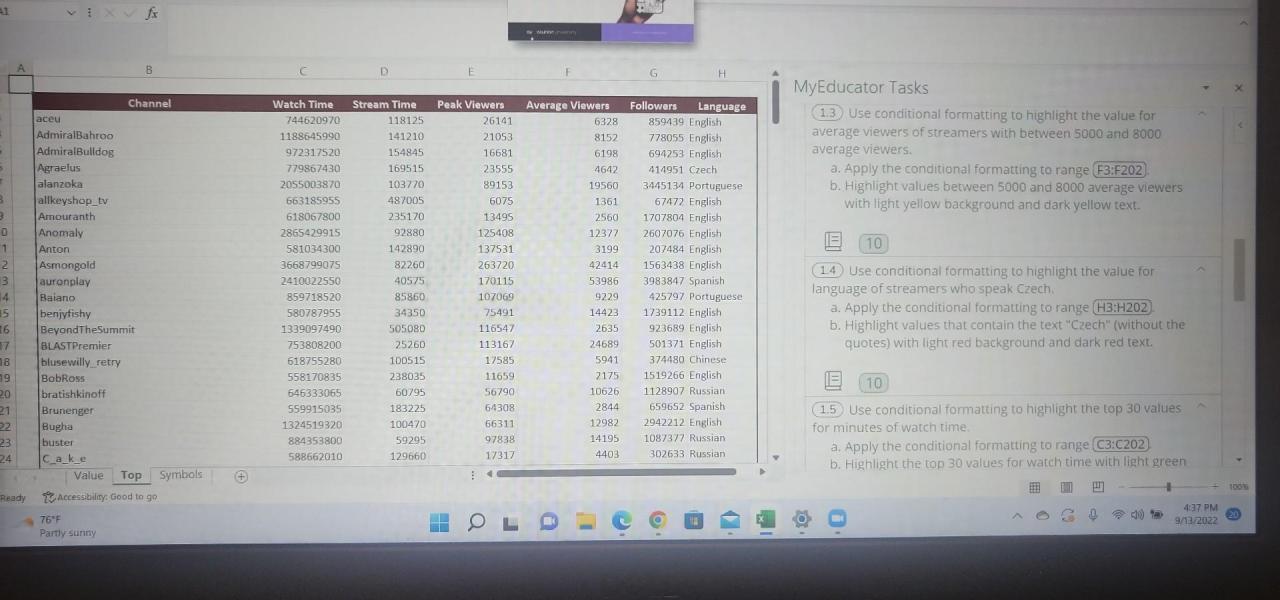
Conditional formatting extends beyond basic rules to provide sophisticated ways to highlight data. This section explores advanced techniques for creating more complex and nuanced formatting based on multiple criteria, ranges, data validation, and specific data types. These methods allow for more comprehensive data analysis and presentation.Employing multiple conditional formatting rules within a single spreadsheet allows for the creation of intricate visual representations of data.
This is crucial for complex analyses, where different aspects of the data need to be emphasized simultaneously. Understanding how these rules interact is essential for achieving the desired visual impact.
Multiple Conditional Formatting Rules
Multiple conditional formatting rules within a spreadsheet can highlight different aspects of data simultaneously. These rules can be applied in a hierarchical manner, so that one rule’s format is only applied if another rule’s criteria are not met.
- Hierarchical Application: Rules can be prioritized. For example, a rule highlighting cells with values greater than 100 might be applied first. If a cell also meets the criteria of a second rule (e.g., values between 50 and 100), the second rule’s format would only be applied if the cell did not already meet the criteria of the first rule.
- Visual Clarity: Applying multiple rules with different formats allows for a clearer visual representation of the data. For instance, cells containing critical values exceeding 100 could be highlighted in red, while cells with values exceeding 50 could be highlighted in yellow, and the rest remain default.
Conditional Formatting Based on Data Ranges or Criteria
Conditional formatting can be applied based on specified data ranges or custom criteria. This approach is useful for identifying patterns and trends in data.
- Data Ranges: Instead of a single value, rules can be applied to a range of values. For example, you might want to highlight cells containing values between 20 and 50 in a different color. This range can be defined using a formula, such as `>=20 AND <=50`.
- Custom Criteria: Formulas can be used to apply conditional formatting based on more complex criteria. For example, a rule could highlight cells where the value in column B is greater than the value in column A.
Conditional Formatting Using Data Validation
Data validation, a feature used to control the type of data entered into a spreadsheet, can be integrated with conditional formatting. This combination allows for dynamic and automated highlighting.
- Validation Rules: If a cell is validated to contain only positive values, conditional formatting can highlight cells that violate this rule. For example, if a cell is validated to contain dates, formatting can highlight cells that contain invalid dates.
- Real-time Updates: As data is entered and modified, the conditional formatting can automatically update, highlighting any data that fails to meet the validation criteria.
Applying Conditional Formatting to Specific Data Types
Conditional formatting can be tailored to specific data types, such as dates and text.
- Dates: Conditional formatting can highlight dates falling within specific ranges, dates that are past due, or dates that are within a certain timeframe. For example, dates in the future can be formatted differently from past dates.
- Text: Rules can highlight specific text strings or values. For instance, if a spreadsheet tracks project statuses, conditional formatting can highlight rows where the status is “delayed”.
Hierarchical Application of Multiple Formatting Rules
The following table illustrates the hierarchical application of multiple formatting rules.
| Rule Number | Condition | Format | Priority |
|---|---|---|---|
| 1 | Value > 100 | Red Fill | High |
| 2 | Value between 50 and 100 | Yellow Fill | Medium |
| 3 | Value < 50 | Green Fill | Low |
Note: Rule 1 has higher priority than Rule 2. If a cell meets the criteria of Rule 1, Rule 2’s format will not be applied.
Conditional Formatting for Data Analysis

Conditional formatting is a powerful tool in spreadsheets and data analysis software. Beyond simply highlighting data, it allows users to identify trends, patterns, and outliers within datasets. This targeted visual representation enhances data interpretation and facilitates faster insights into the underlying story within the data. By applying specific formatting rules, users can easily spot anomalies and critical data points, significantly streamlining the analysis process.Using conditional formatting for data analysis involves more than just aesthetics.
It is a crucial step in the analytical process, providing a visual representation of the data’s characteristics and facilitating the identification of significant trends. This approach can help to quickly identify key insights, reducing the time needed to derive conclusions from the data.
Identifying Trends and Patterns
Conditional formatting enables the visual identification of trends and patterns in data. By applying formatting rules based on data relationships, users can readily perceive upward or downward trends, seasonal variations, or cyclical patterns. For example, if sales data is formatted to highlight increasing sales figures with progressively darker shades of green, a clear upward trend will immediately become apparent.
This visual representation streamlines the process of recognizing trends, allowing for quicker identification of sales growth or decline and potential areas for improvement.
Highlighting Outliers and Anomalies
Outliers, or data points significantly deviating from the norm, can significantly impact analysis. Conditional formatting can effectively highlight these outliers. Rules can be established to flag data points that fall outside a predefined range or exceed a certain threshold. For instance, if a customer’s spending is far greater than the average, it can be highlighted in a different color or font, making it stand out during analysis.
This quick identification of outliers can assist in identifying potential errors or exceptional cases requiring further investigation.
Conditional Formatting for Data Visualization
Conditional formatting is a crucial component of data visualization. By applying different formatting styles to various data points based on specific criteria, a clearer picture of the data emerges. This enhances comprehension and allows users to quickly grasp the underlying patterns and relationships within the dataset. For example, using different colors to represent different categories or ranges can facilitate a better understanding of the data distribution.
Summarizing Key Data Points
The following table demonstrates how conditional formatting can be used to summarize key data points:
| Data Point | Condition | Formatting | Interpretation |
|---|---|---|---|
| Sales Figures | Above average | Green Fill | Indicates strong sales performance |
| Sales Figures | Below average | Red Fill | Indicates potential sales issues |
| Customer Spending | Outlier (High) | Yellow Fill, Bold Font | Indicates potential for further investigation |
| Customer Spending | Outlier (Low) | Orange Fill, Italic Font | Indicates potentially valuable or underserved customers |
This tabular representation allows for a concise summary of how conditional formatting can be employed to identify important data characteristics.
Formatting Options for Statistical Metrics
Conditional formatting provides numerous formatting options to highlight data in relation to averages, standard deviations, and other statistical metrics. Rules can be created to format data points based on their deviation from the mean, quantiles, or other statistical measures.
For example, data points that are more than two standard deviations from the mean could be highlighted in red, allowing for a quick visual identification of potential anomalies.
Furthermore, using different formatting for data points within different quartiles or percentiles can offer valuable insights into the distribution of the data. Conditional formatting can also be used to illustrate data points that are above or below specific percentile thresholds, highlighting areas of potential concern or opportunity. The flexibility of conditional formatting enables the user to adapt the formatting to a wide range of statistical metrics, aiding in the deeper understanding of the data’s distribution and key characteristics.
Conditional Formatting in Different Spreadsheet Programs
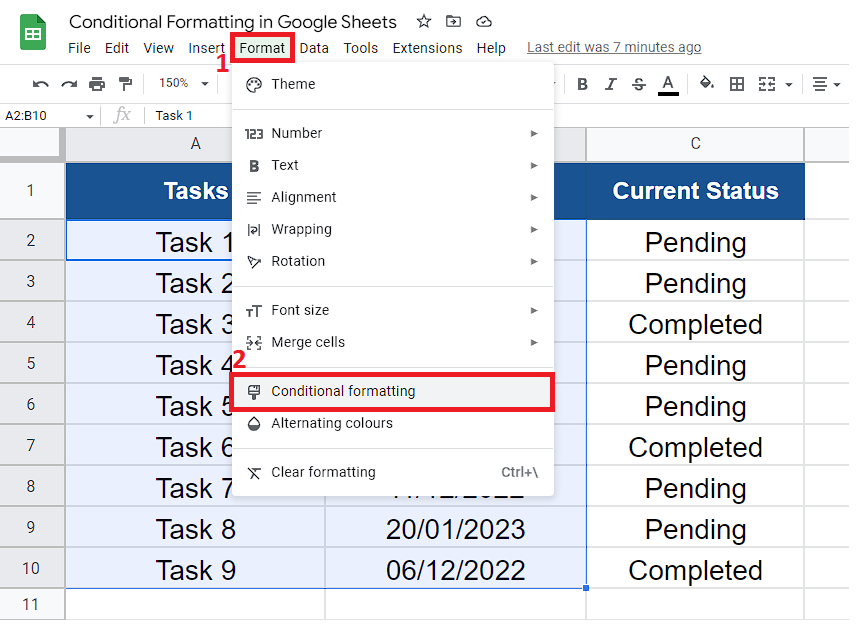
Conditional formatting empowers users to visually highlight important data points within spreadsheet applications. Understanding the variations in conditional formatting across different spreadsheet programs is crucial for seamless data analysis and presentation. This section will compare and contrast the features of conditional formatting in Microsoft Excel, Google Sheets, and LibreOffice Calc, detailing their syntax and functionalities.
Comparison of Conditional Formatting Features
Different spreadsheet programs offer varying levels of flexibility and complexity in conditional formatting. This comparison highlights the nuances and similarities across these applications.
- Microsoft Excel excels in its comprehensive conditional formatting options. It allows users to create intricate rules based on various criteria, including cell values, formulas, and data types. Complex conditional formatting rules can be created to highlight data meeting specific criteria.
- Google Sheets mirrors Excel’s capabilities with a streamlined interface. It supports similar formatting rules, making it a user-friendly alternative for conditional formatting tasks. It offers a wide range of pre-defined formatting styles, making it suitable for those needing quick and visually appealing highlights.
- LibreOffice Calc provides conditional formatting tools comparable to Excel and Google Sheets. Its features include highlighting based on cell values, data types, and formulas. The syntax is generally intuitive, making it accessible for users familiar with spreadsheet formatting concepts. It offers pre-defined formatting styles similar to Google Sheets.
Specific Syntax and Functionalities
Understanding the syntax and functionalities of conditional formatting is crucial for effectively implementing rules across different programs.
| Spreadsheet Program | Syntax Example (Highlighting cells >100) | Functionality |
|---|---|---|
| Microsoft Excel | =A1>100 | Applies formatting to cell A1 if its value exceeds 100. Advanced rules allow for multiple conditions, using AND, OR, and nesting. |
| Google Sheets | =A1>100 | Similar to Excel’s syntax. Supports various comparison operators and logical functions. Offers pre-defined formatting styles. |
| LibreOffice Calc | =A1>100 | Similar syntax to Excel and Google Sheets. Provides options for applying formatting based on various conditions and pre-defined formatting styles. |
Examples of Applying Conditional Formatting
Illustrative examples demonstrate how to use conditional formatting across different programs.
- Highlighting Sales exceeding Target: In a sales spreadsheet (Microsoft Excel, Google Sheets, or LibreOffice Calc), you can apply a conditional formatting rule to highlight rows where sales figures exceed a predefined target. This visually distinguishes high-performing sales representatives.
- Color-Coding Data Categories: A spreadsheet tracking product information (across any of the three programs) can use conditional formatting to assign different colors to product categories. This allows for quick visual identification of various product groups.
Equivalent Formatting in Different Software
A table illustrates the equivalent syntax for applying similar formatting in each program.
| Formatting Requirement | Microsoft Excel | Google Sheets | LibreOffice Calc |
|---|---|---|---|
| Highlight cells greater than 100 | =A1>100 | =A1>100 | =A1>100 |
| Highlight cells containing “Error” | =ISERROR(A1) | =ISERROR(A1) | =ISERROR(A1) |
| Highlight cells with dates from 2023 | =YEAR(A1)=2023 | =YEAR(A1)=2023 | =YEAR(A1)=2023 |
Customizing Conditional Formatting
Conditional formatting, while powerful in its basic applications, becomes even more valuable when customized. This allows for tailoring formatting rules to precisely match specific needs and enhance data visualization. This customization allows users to create unique visual representations of data, enhancing readability and comprehension.Customizing conditional formatting involves more than just choosing colors. It enables the development of unique visual cues for specific data values, creating a personalized approach to highlighting important trends and patterns.
This flexibility is critical for complex data analysis and presentation.
Custom Formatting Rules
Defining custom formatting rules is the cornerstone of tailoring conditional formatting. These rules are built around specific criteria that govern how data is formatted. Users can create rules based on various factors like values, formulas, or even cell content. These custom rules offer significant advantages for intricate data analysis and presentation, allowing for a high level of control over data visualization.
- Applying rules based on specific values: A rule can be set to highlight cells containing values above a certain threshold. For example, cells containing sales figures exceeding $10,000 could be formatted in bold red font. This makes identifying top-performing sales representatives straightforward.
- Utilizing formulas for dynamic rules: Conditional formatting can incorporate formulas to create dynamic rules. For instance, a rule could highlight cells where a calculated value is greater than the average. This dynamically adjusts the highlighted cells based on the data, providing insights into performance variations.
- Conditioning on cell content: Rules can be established to format cells based on the text within them. This is particularly useful for categorizing data. For example, cells containing “High Priority” could be formatted with a yellow background, while cells with “Low Priority” might use a light green background.
Custom Formatting Styles
Custom formatting styles go beyond basic formatting and allow for intricate data visualizations. This is where users can introduce unique visual elements like icons, patterns, or gradients. These enhancements provide a rich visual experience, transforming data into engaging and easily understood presentations.
- Developing unique icons and symbols: Conditional formatting allows users to assign custom icons to highlight specific conditions. For example, a green checkmark could signify successful completion, while a red ‘X’ might indicate a failed task. This adds visual context to data, facilitating rapid identification of patterns and trends.
- Applying unique colors and gradients: Beyond basic colors, conditional formatting supports a variety of color gradients and patterns. This provides more nuanced visual representations, allowing for a richer visualization experience, particularly when presenting large datasets.
Applying Conditional Formatting Based on User-Defined Criteria
User-defined criteria provide a flexible approach to conditional formatting. This allows users to tailor formatting rules to meet unique requirements and expectations. This customization is crucial in situations where standard criteria don’t fully address the analysis needs.
- Developing custom criteria: A user can create specific conditions to meet their needs. For instance, cells containing data from a specific department can be formatted with a unique color. This enables focused analysis on particular areas of interest.
- Adapting rules to evolving needs: The flexibility of conditional formatting allows users to adjust their rules as their data or analysis objectives change. This adaptability is critical for dynamic analysis, as the data evolves and insights require adjustments.
Custom Icons and Images
Conditional formatting allows the use of custom icons or images to further enhance data visualization. These visual cues add context to the data and provide an engaging way to present insights.
- Selecting appropriate icons: Choose icons that effectively communicate the intended meaning. For example, an upward-pointing arrow could represent positive growth, while a downward-pointing arrow could represent a negative trend.
- Integrating visual cues: The choice of icon should align with the data being presented. For example, using a calendar icon might be appropriate when highlighting due dates.
Example of Custom Formatting Options
| Formatting Option | Syntax (Example) | Description |
|---|---|---|
| Highlight values above a threshold | =A1>1000 | Highlights cells in column A where the value is greater than 1000. |
| Highlight cells based on text | =A1=”High Priority” | Highlights cells in column A containing the text “High Priority”. |
| Highlight cells based on a formula | =SUM(B1:B5)>10000 | Highlights cells in column A where the sum of values in column B is greater than 10,000. |
| Apply custom icon | [Custom icon selection in spreadsheet program] | Specific steps for selecting and applying custom icons vary depending on the spreadsheet program being used. |
Troubleshooting Conditional Formatting Issues
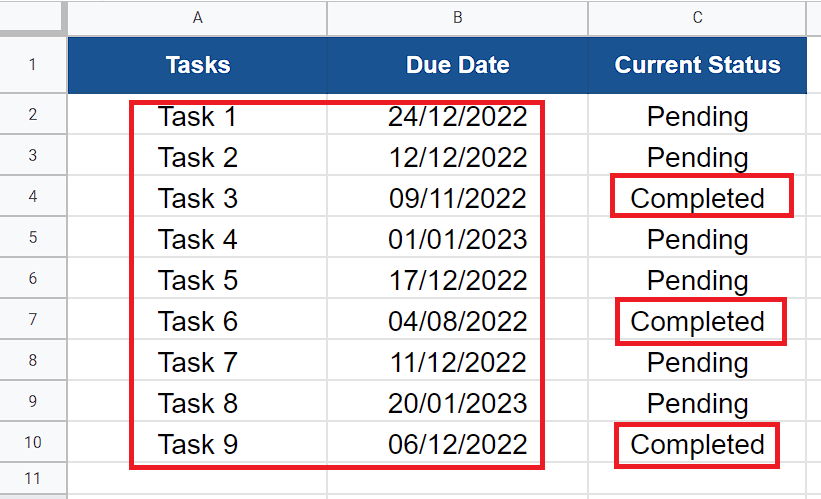
Conditional formatting, while a powerful tool for highlighting data patterns, can sometimes present challenges. Understanding common problems and their solutions is crucial for effective use. This section details troubleshooting methods for various spreadsheet applications, enabling users to efficiently diagnose and resolve formatting issues.Troubleshooting conditional formatting involves systematically identifying the root cause of the problem. This often necessitates careful examination of the formatting rules and the data they are applied to.
Common errors can range from simple typos in rule formulas to more complex issues involving data inconsistencies or application-specific configurations.
Common Conditional Formatting Problems
Identifying the source of a formatting problem is a key initial step. A common issue is incorrect formulas in the conditional formatting rules. These formulas, if not precisely written, can lead to incorrect highlighting or no highlighting at all. Another frequent issue involves data inconsistencies. For instance, if data in a column changes format (e.g., from numbers to text), the formatting rules may fail to apply correctly.
Finally, spreadsheet application-specific settings, if not configured properly, can prevent formatting rules from functioning as expected.
Resolving Formatting Issues in Spreadsheet Applications
Spreadsheet applications often provide specific tools for troubleshooting conditional formatting. Let’s examine how to resolve common issues in popular applications.
Diagnosing and Rectifying Errors in Formatting Rules
A methodical approach is vital when diagnosing formatting errors. First, review the conditional formatting rules. Look for typos, incorrect cell references, and inappropriate logical operators. For instance, an incorrect cell reference might lead to highlighting in the wrong cells. Then, check for data inconsistencies.
Ensure the data type in the cells matches the data type expected by the rule. For example, if the rule expects numerical data, but some cells contain text, the rule might not apply correctly.
Examples of Common Errors and Their Fixes
To illustrate, consider a scenario where a rule is designed to highlight cells in column A that are greater than 100. If the rule is applied correctly, cells containing values greater than 100 in column A will be highlighted. However, if the rule incorrectly refers to column B instead of column A, no cells in column A will be highlighted.
To correct this, review and revise the cell reference in the rule to correctly target column A.
Troubleshooting in Specific Spreadsheet Applications
Different spreadsheet applications may have unique approaches to troubleshooting. For example, some applications might have dedicated debugging tools or diagnostic messages that can help pinpoint the problem. Refer to the specific application’s help documentation for detailed guidance on resolving formatting issues. This often involves checking for errors in the formatting rules, ensuring data consistency, and verifying application settings.
Real-World Examples of Conditional Formatting Applications

Conditional formatting is a powerful tool that transcends the realm of simple spreadsheet management. It significantly enhances data analysis and interpretation by instantly highlighting crucial information. This ability to visually distinguish key data points enables users to quickly identify trends, anomalies, and critical thresholds, leading to more informed decisions across diverse industries.Conditional formatting’s versatility extends far beyond basic data presentation.
It empowers users to transform raw data into actionable insights, driving efficiency and accuracy in various business operations. By quickly identifying key data points, decision-makers can focus on the most important information and take appropriate actions, leading to improved outcomes.
Conditional Formatting in Finance
Financial analysts frequently use conditional formatting to monitor key performance indicators (KPIs). For example, highlighting sales figures exceeding a target threshold in a sales report allows for immediate identification of top-performing products or regions. Similarly, negative variances in budget allocations can be instantly flagged, prompting proactive corrective actions. Conditional formatting can also be used to visually represent risk levels in financial portfolios, highlighting investments that deviate from predefined risk tolerance parameters.
Conditional Formatting in Marketing
In marketing, conditional formatting is invaluable for analyzing campaign performance. Highlighting customer segments that demonstrate high engagement with specific advertisements or products enables targeted marketing efforts. Tracking conversion rates and identifying regions with high or low conversion rates are easily achieved using conditional formatting, allowing for informed adjustments to marketing strategies.
Conditional Formatting in Sales
Sales teams utilize conditional formatting to quickly identify high-performing sales representatives and products. Visualizing sales figures that surpass predefined targets empowers management to recognize top performers and provide incentives. Tracking sales trends over time allows for forecasting and strategic planning. Conditional formatting helps pinpoint underperforming areas, enabling sales managers to implement targeted support and improvement strategies.
Conditional Formatting in Data Analysis Reports
Conditional formatting significantly enhances data analysis reports. Highlighting outliers in a dataset using specific formatting can help analysts quickly identify data anomalies, potentially indicating errors or unexpected trends. Visualizing key metrics, such as customer satisfaction scores, enables a deeper understanding of customer sentiment and its potential impact on business performance.
Illustrative Use Cases
| Use Case | Conditional Formatting Rule |
|---|---|
| Sales exceeding target | Highlight cells where sales values are greater than a predefined target value. |
| Negative budget variances | Highlight cells where budget values are below a certain threshold or show a negative variance. |
| High customer engagement | Highlight customer segments with a high engagement score, measured by interaction with specific ads or products. |
| Outliers in data sets | Highlight cells containing data points that fall significantly outside the expected range. |
| Conversion rate analysis | Highlight regions with unusually high or low conversion rates compared to the average. |
Ultimate Conclusion
In conclusion, this guide has explored the multifaceted capabilities of conditional formatting, demonstrating its value in enhancing data analysis and visualization. By mastering these techniques, users can transform raw data into actionable insights, making informed decisions with confidence. We have covered various scenarios and applications, equipping you with the knowledge to effectively utilize conditional formatting in different spreadsheet programs and data analysis contexts.