PivotTables are powerful tools for summarizing and analyzing data. This guide provides a step-by-step approach to creating PivotTables, covering everything from basic setup to advanced techniques. Understanding how to effectively utilize PivotTables can significantly enhance your data analysis capabilities, transforming raw data into actionable insights. This detailed guide will help you confidently navigate the process of creating PivotTables, unlocking the potential within your data.
From the initial import of your data to the sophisticated customization options, this guide will walk you through the essential steps involved in crafting meaningful summaries. You will learn to extract valuable information and gain a deep understanding of your data through the use of PivotTables.
Introduction to PivotTables
PivotTables are powerful tools in data analysis that allow users to summarize and analyze large datasets in a flexible and interactive way. They provide a dynamic view of data, enabling users to quickly identify trends, patterns, and insights within complex datasets. This is accomplished by allowing users to reorganize and rearrange the data in different ways, making it simple to aggregate, filter, and compare data points.PivotTables excel at transforming raw data into meaningful summaries.
By allowing users to quickly group and summarize data based on various criteria, they provide a streamlined approach to identifying critical information and making data-driven decisions. This is especially useful when dealing with large datasets where manually sorting and analyzing would be impractical.
Purpose of PivotTables
PivotTables serve the critical function of summarizing large datasets. They condense complex data into easily digestible summaries that reveal patterns and insights. This capability makes them invaluable for tasks such as sales analysis, financial reporting, market research, and many other business applications.
Benefits of Using PivotTables
PivotTables offer several advantages in data analysis. These advantages include:
- Enhanced Data Summarization: PivotTables allow for efficient aggregation of data based on various criteria, such as region, product, or time period. This facilitates rapid summarization, reducing the time needed for manual data analysis.
- Improved Data Analysis: PivotTables enable users to dynamically explore data relationships by rearranging rows and columns. This flexibility allows for the identification of trends, patterns, and correlations that might not be readily apparent in raw data.
- Simplified Data Interpretation: PivotTables present summarized data in a clear and concise format. This visual representation simplifies interpretation and allows for quicker understanding of key insights.
- Greater Efficiency: The automated nature of PivotTables significantly reduces the time and effort required for manual data summarization. This efficiency translates to faster decision-making and improved productivity.
Fundamental Concepts of PivotTable Summarization
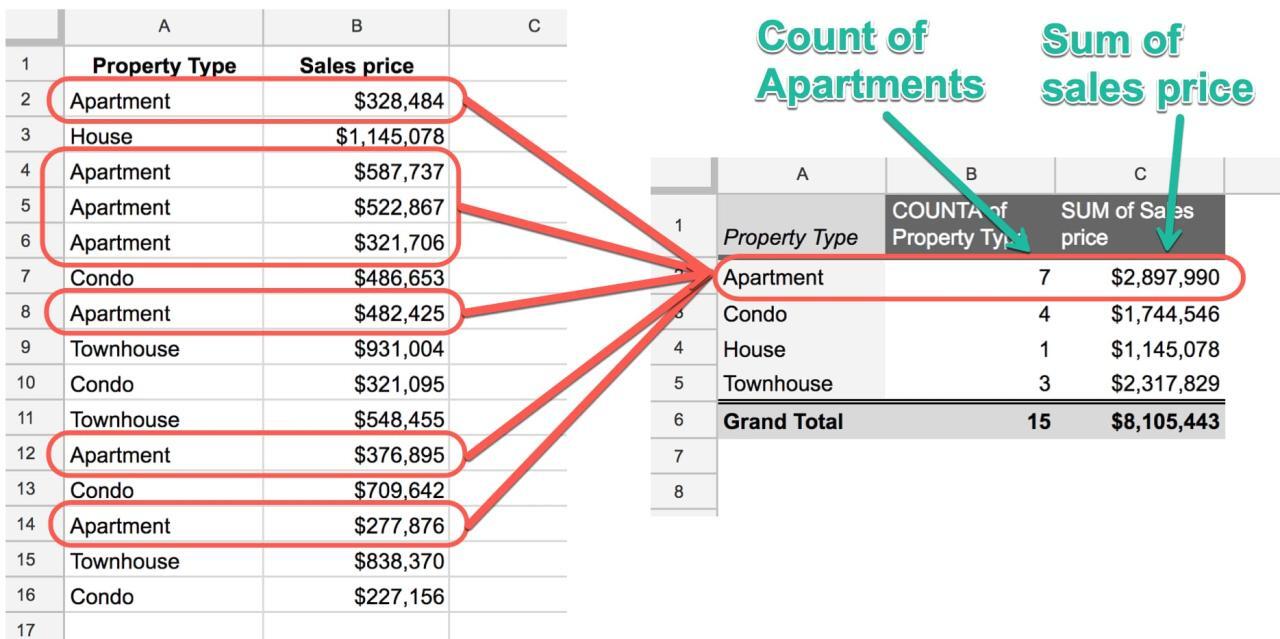
The core concept behind PivotTable summarization is the ability to group and aggregate data based on different dimensions. A crucial component is the selection of fields to be displayed as rows, columns, and values. This process is further enhanced by the ability to apply calculations (like sum, average, count, etc.) to the values.
PivotTables use the principles of grouping, aggregation, and filtering to efficiently summarize data.
Sample Dataset for PivotTable
The following table provides a sample dataset suitable for PivotTable creation. This dataset represents sales figures for different products in various regions.
| Region | Product | Sales |
|---|---|---|
| North | A | 100 |
| North | B | 150 |
| South | A | 200 |
| South | B | 250 |
| East | A | 120 |
| East | B | 180 |
Setting Up a PivotTable
PivotTables are powerful tools for summarizing and analyzing large datasets. They allow users to quickly extract insights and trends from complex data by rearranging and aggregating data in various ways. This section details the practical steps for setting up a PivotTable, including data import, selection, and the structure of the PivotTable itself.
Importing Data
To create a PivotTable, you first need to import the data into your spreadsheet program. The specific method depends on the source of your data. If your data is in a spreadsheet, you can simply open the file. If it’s in a database or another format, you’ll need to use the program’s import functions. Spreadsheet programs typically offer various import options, allowing you to choose the correct delimiters (e.g., commas, tabs) and other formatting specifications.
This ensures that the data is accurately interpreted and loaded into the spreadsheet for subsequent PivotTable creation.
Selecting Data for PivotTable Creation
Once the data is imported, you need to select the data range for your PivotTable. This step is crucial, as it defines the scope of the data to be summarized. Select the entire dataset, including headers, ensuring that the correct range is chosen to encompass all relevant columns and rows. This selection is essential for creating a comprehensive PivotTable that reflects the full dataset’s characteristics.
PivotTable Structure
A PivotTable has a distinct structure consisting of fields arranged into rows, columns, and values. This arrangement allows for different summarization approaches.
| Product | Region | Sales |
|---|---|---|
| Laptop | North | 1000 |
| Tablet | South | 500 |
| Laptop | North | 1200 |
| Smartphone | East | 800 |
| Tablet | South | 600 |
This example table shows a simple dataset. The PivotTable will allow you to group and summarize the data based on these fields.
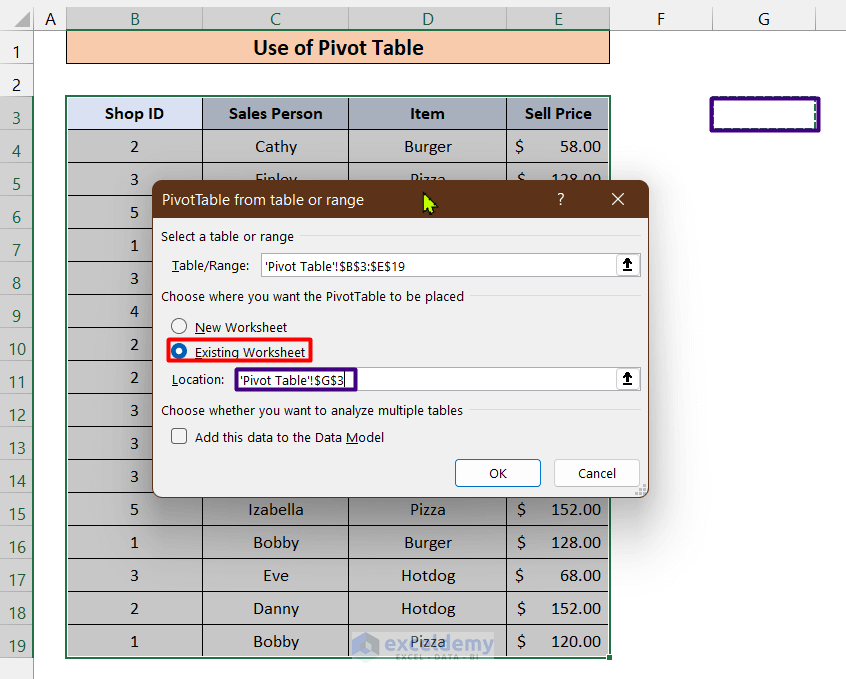
Adding Data to a New Worksheet
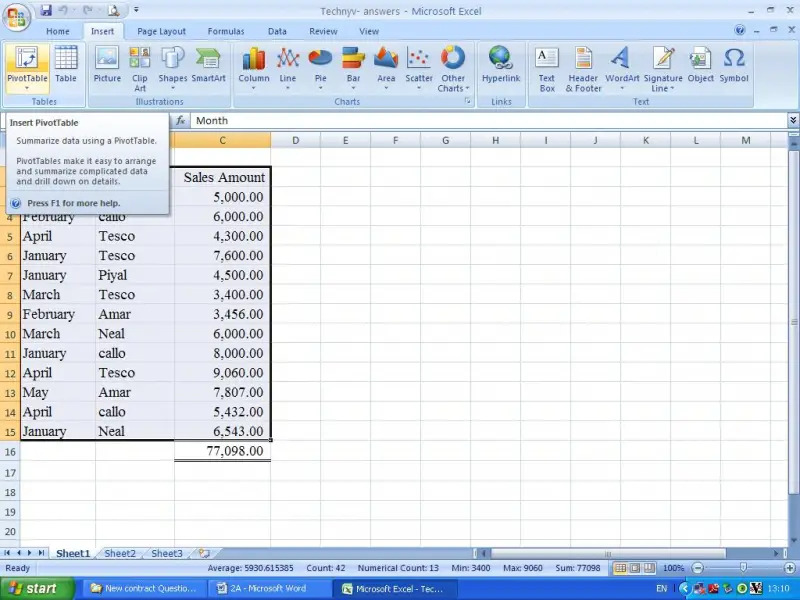
To create a PivotTable, follow these steps:
- Select the data range containing the data you want to summarize.
- Navigate to the “Insert” tab in your spreadsheet program (e.g., Excel, Google Sheets).
- In the “Tables” group, click on “PivotTable.” A new dialog box will appear, asking where you want to place the PivotTable. Select “New Worksheet” to create a new worksheet for your PivotTable.
- The PivotTable will be generated on the new worksheet. The structure of the PivotTable will match the structure of your selected data.
Following these steps, the data will be automatically placed into a new worksheet, ready for further manipulation and analysis.
Defining Fields in a PivotTable

Defining fields in a PivotTable is a crucial step in tailoring your data summarization. It allows you to choose which data elements form the basis of your analysis, and how these elements are grouped and aggregated. Understanding field placement and settings enables you to derive insightful summaries from complex datasets.This section details the process of dragging fields into the PivotTable rows, columns, and values areas, and demonstrates how to select various options for generating summaries.
We will explore different aggregation methods, providing examples of how to configure fields for specific analysis needs.
Field Placement in PivotTable Areas
Proper placement of fields in the PivotTable’s rows, columns, and values areas is essential for generating meaningful summaries. Dragging fields into these areas determines how the data is grouped and aggregated. The “rows” area typically defines the categories for the horizontal axis, “columns” for the vertical axis, and “values” for the summarized data.
Choosing Different Field Options for Summaries
The options available for a field depend on its data type. For example, a field containing dates allows for grouping by year, quarter, or month. Similarly, numerical fields enable calculations like sum, average, or count. These options dictate the way data is presented and summarized in the PivotTable.
Aggregation Methods for Summarizing Data
PivotTables offer various aggregation methods to summarize data. These methods are often determined by the data type of the field in the values area. Common aggregations include:
- Sum: Calculates the total value for a specific field, useful for finding the overall sum of sales or expenses.
- Count: Determines the number of occurrences of a particular value, useful for counting the number of products sold or customers in a region.
- Average: Computes the mean value, helpful for finding the average price of products or the average sales per month.
- Max: Identifies the highest value in a dataset. Useful for finding the maximum sales amount in a period.
- Min: Identifies the lowest value in a dataset. Useful for finding the minimum price of a product.
Examples of Field Configurations
Consider a dataset with sales data including product name, region, sales amount, and date. Here are a few examples of field configurations and their resulting summaries:
- Example 1: Placing “Region” in the rows area and “Sales Amount” in the values area with the “Sum” aggregation. This produces a summary of total sales by region.
- Example 2: Placing “Product Name” in the rows area, “Region” in the columns area, and “Sales Amount” in the values area with the “Sum” aggregation. This shows sales by product within each region.
- Example 3: Placing “Date” in the rows area, “Product Name” in the columns area, and “Sales Amount” in the values area with the “Sum” aggregation. This summarizes sales by product for each date.
PivotTable Field Placement Examples
The table below demonstrates various field placements in a PivotTable and the resulting summaries.
| Field Placement | Resulting Summary |
|---|---|
| Region in Rows, Sales Amount in Values (Sum) | Total sales per region |
| Product in Rows, Date in Columns, Sales Amount in Values (Sum) | Sales of each product per date |
| Salesperson in Rows, Product in Columns, Sales Amount in Values (Sum) | Sales of each product by salesperson |
| Date in Rows, Region in Columns, Sales Amount in Values (Average) | Average sales amount per region and date |
Customizing PivotTable Summaries
PivotTables, while powerful for summarizing data, offer numerous customization options to tailor the presentation to specific needs. These customizations enhance the insights derived from the summarized data, allowing users to focus on particular aspects and effectively communicate findings. By mastering these techniques, you can transform raw data into compelling and actionable reports.Beyond the initial setup, PivotTables empower users to refine the presentation of summarized information.
Custom formatting, sorting, filtering, calculated fields, and conditional highlighting can enhance the analytical value of the PivotTable. These techniques ensure the PivotTable accurately reflects the user’s intent and conveys information effectively.
Formatting Values in PivotTables
The display format of values in a PivotTable can be customized to enhance readability and clarity. This can include formatting numbers as currency, percentages, or dates. The chosen format impacts how the summarized data is presented, making it easier to understand the magnitude and context of the values. For example, presenting sales figures as currency ($1,000) conveys the financial significance better than presenting them as simple numbers (1000).
This level of customization ensures the PivotTable aligns with the specific requirements of the report.
Sorting and Filtering PivotTable Data
Sorting and filtering options allow for a focused review of specific subsets of data within the PivotTable. Sorting allows for ordering data by a chosen field in ascending or descending order, enabling easy identification of trends or patterns. Filtering enables selection of data based on criteria, focusing on specific groups or periods, such as filtering sales data for a particular region or month.
These features streamline analysis by isolating the relevant information and ensuring the PivotTable provides targeted insights.
Creating Calculated Fields in PivotTables
PivotTables allow for the creation of calculated fields, adding a layer of dynamic analysis. These calculated fields enable the generation of new data points based on existing data within the PivotTable. For instance, a calculated field can determine the profit margin by subtracting costs from sales, providing additional insights that are not readily available in the raw data.
This dynamic feature allows users to answer complex analytical questions and explore new dimensions of the data without leaving the PivotTable environment.
Applying Conditional Formatting
Conditional formatting enhances the visual appeal and clarity of the PivotTable by highlighting specific data points. Conditional formatting allows the highlighting of values exceeding or falling below certain thresholds. For example, highlighting sales figures exceeding a target level in a different color immediately draws attention to areas of success or underperformance. Such features facilitate a more rapid identification of key trends and areas needing attention.
Formatting Options for Data in PivotTables
| Formatting Type | Description | Example |
|---|---|---|
| Currency | Displays values as currency (e.g., $). | Sales figures in a sales report |
| Percentage | Displays values as percentages. | Profit margins, conversion rates |
| Date | Displays values in a date format (e.g., MM/DD/YYYY). | Sales data by month or quarter |
| Number | Displays values in a general number format. | Quantity of products sold |
| Custom | Allows for creating a specific format to meet specific needs. | Formatting values based on a specific requirement, like presenting numbers with thousands separators |
Advanced PivotTable Techniques
PivotTables, while powerful for initial data summarization, become even more valuable with advanced techniques. These techniques allow for more complex analyses, creating deeper insights and driving more informed decisions. Mastering these approaches unlocks the full potential of PivotTables, enabling users to generate comprehensive reports and visualizations tailored to specific needs.By leveraging multiple filters and calculated items, PivotTables can be configured to explore intricate relationships within data.
Understanding how to create PivotCharts from PivotTables provides a visual representation of the summarized data, further enhancing comprehension. The incorporation of slicers enhances interactive data exploration and filtering, empowering users to dynamically adjust analyses. This comprehensive approach to advanced PivotTable techniques ultimately yields more sophisticated and actionable insights.
Using Multiple Filters
Multiple filters allow for the simultaneous application of criteria to drill down into data from various perspectives. This is particularly useful when examining data across multiple categories. For example, a retail business might want to see sales trends for specific product categories in different regions during various periods. By applying filters for product category, region, and time period, the PivotTable can efficiently display the desired data.
This multi-faceted approach to filtering yields more precise and meaningful summaries.
Creating Calculated Items
Calculated items extend the analytical capabilities of PivotTables. They enable the creation of new data fields based on existing ones, facilitating the calculation of summaries not directly present in the source data. For instance, a company can calculate the percentage of sales for each product category by creating a calculated item that divides the sales for each category by the total sales across all categories.
This feature allows for the generation of more complex and derived insights from the data, rather than just presenting raw totals.
Creating PivotCharts
PivotTables can be easily transformed into PivotCharts for visual representation. This transformation effectively translates the summarized data into graphical formats like bar charts, line charts, or pie charts. These charts enhance the communication of insights, allowing trends and patterns to become immediately apparent. For example, a PivotChart can illustrate the sales performance of various products over time, making the trends in sales easily noticeable.
Utilizing Slicers
Slicers provide an intuitive way to filter data within a PivotTable. They allow users to interactively select specific values from one or more fields, dynamically adjusting the PivotTable’s display. This feature makes the PivotTable more dynamic and responsive to user input. For example, a user can easily select specific product types or regions from a slicer, immediately observing the corresponding sales figures in the PivotTable.
This interactive filtering capability allows for exploration and discovery of specific relationships within the data.
Examples of Complex Summaries
| Product Category | Region | Sales (2023) | Profit (2023) | Profit Margin (%) |
|---|---|---|---|---|
| Electronics | North America | $100,000 | $20,000 | 20% |
| Electronics | Europe | $80,000 | $16,000 | 20% |
| Clothing | North America | $50,000 | $10,000 | 20% |
| Clothing | Europe | $40,000 | $8,000 | 20% |
| Calculated Item (Total Profit Margin) | 20% |
This table demonstrates a summary of sales and profits across product categories and regions. A calculated item shows the average profit margin across all categories and regions. This concise table clearly highlights the combined data insights available through advanced PivotTable techniques.
Troubleshooting Common Issues
PivotTables, while powerful tools for data summarization, can sometimes present challenges. Understanding potential pitfalls and their resolutions is crucial for effective data analysis. This section addresses common issues encountered when working with PivotTables, focusing on data inconsistencies, data type problems, calculation errors, and provides practical solutions.
Data Inconsistencies
Data discrepancies can lead to inaccurate PivotTable results. Identifying and rectifying these inconsistencies is essential. This often involves scrutinizing the source data for errors such as typos, missing values, or incorrect data formats. Manual review, combined with data validation tools, is often necessary.
Data Type Issues
PivotTables interpret data based on its type. Mismatched data types can cause unexpected calculations or formatting errors. For instance, a column intended for numerical data might contain text, leading to incorrect aggregations. Careful data type checking and conversion using Excel’s built-in tools are necessary to resolve such issues. Ensure that data in columns that should be numeric (e.g., sales figures) is indeed numerical, and that text fields are correctly formatted.
Appropriate data cleansing and formatting are key steps to prevent these problems.
PivotTable Calculation Errors
Incorrect settings for calculations within a PivotTable can lead to erroneous summaries. Troubleshooting calculation issues often involves reviewing the field settings within the PivotTable. For example, if you expect a sum but get a count, check the value field settings. Similarly, issues with date calculations might require adjusting the date formatting in the source data or within the PivotTable’s field settings.
Table of Potential PivotTable Problems and Solutions
| Problem | Solution |
|---|---|
| Incorrect data type in a numerical field | Use Excel’s data cleaning tools to convert text values to numbers or identify and correct errors in data entry. |
| Missing or inconsistent data | Identify missing or inconsistent data points in the source data. Impute missing values if appropriate or remove rows with inconsistencies. |
| Incorrect aggregation function (e.g., using count instead of sum) | Change the aggregation function (sum, average, count, etc.) in the PivotTable’s value field settings to the correct operation. |
| Incorrect date formatting | Ensure that dates in the source data are formatted correctly. Excel’s date formatting options should be used to convert dates into consistent formats. Use the PivotTable’s date grouping or filtering options to refine the view. |
| Circular dependencies in calculations | Review formulas and ensure there are no circular references causing infinite loops or errors in calculations. Break down complex calculations into smaller, independent steps if needed. |
Examples and Use Cases
PivotTables are incredibly versatile tools for summarizing and analyzing data. Their ability to dynamically aggregate, filter, and present information makes them valuable in a wide array of contexts, from business management to scientific research. They empower users to uncover trends, identify outliers, and make informed decisions based on data-driven insights.PivotTables are powerful for transforming raw data into actionable intelligence.
By allowing users to quickly reorganize and summarize data, they streamline the process of extracting meaningful information. This efficiency translates to faster decision-making, reduced analysis time, and ultimately, more effective strategies across various sectors.
Retail Sales Analysis
Analyzing sales data is crucial for retail businesses to understand customer preferences and optimize inventory management. A PivotTable can be used to summarize sales by product category, region, or time period. For instance, a retailer can use a PivotTable to see which product categories are performing best in specific regions and adjust their inventory accordingly. This targeted approach can lead to increased sales and profitability.
Furthermore, by filtering sales data by specific timeframes, trends in sales can be identified, enabling proactive adjustments to marketing campaigns or promotional strategies.
Financial Reporting
PivotTables are essential in financial reporting to quickly summarize and analyze financial data. They can be used to create detailed reports on revenue, expenses, and profitability across different departments or time periods. A financial analyst can use a PivotTable to calculate the total revenue generated by each sales team, identify the costliest expenses in different departments, and track the overall profitability of various products or services over time.
This ability to drill down into financial data is critical for making informed financial decisions.
Marketing Campaign Performance
Marketing teams can use PivotTables to assess the performance of their campaigns. They can summarize data on website traffic, conversion rates, and customer acquisition costs across various marketing channels. For example, a marketing manager can use a PivotTable to determine which social media platforms are driving the most conversions and adjust their marketing budget accordingly. This targeted approach can lead to a higher return on investment (ROI) for marketing campaigns.
Human Resources Reporting
In HR, PivotTables can be used to analyze employee data, such as compensation, performance reviews, and employee turnover. They can be used to track employee performance metrics across departments or job roles. A manager can use a PivotTable to see which employees have the highest performance scores and identify training needs based on department performance. This analysis aids in creating effective strategies for employee development and retention.
Comparison of Use Cases Across Sectors
| Sector | Use Case | PivotTable Functionality |
|---|---|---|
| Retail | Analyzing sales by product category, region, and time period. | Summarizing, filtering, and sorting data. |
| Finance | Creating detailed reports on revenue, expenses, and profitability. | Calculating totals, averages, and percentages. |
| Marketing | Assessing the performance of marketing campaigns. | Identifying trends and patterns in data. |
| Human Resources | Analyzing employee data, compensation, and performance. | Summarizing data by employee groups and roles. |
Ending Remarks
In conclusion, this comprehensive guide has explored the multifaceted world of PivotTables. We’ve covered everything from foundational concepts to advanced techniques, providing a robust framework for your data analysis needs. By mastering the intricacies of PivotTable creation and customization, you are well-equipped to transform raw data into insightful summaries and gain a competitive advantage. Remember to practice the techniques Artikeld in this guide to fully grasp their power and application.