Mastering the IFERROR function is crucial for anyone working with data in spreadsheets or databases. This comprehensive guide delves into the function’s versatility, exploring its use in preventing errors and ensuring accurate results. From basic applications to advanced techniques, we will cover every aspect of error handling with IFERROR.
The IFERROR function is a powerful tool for maintaining data integrity and producing reliable outcomes in various data analysis scenarios. It allows you to gracefully manage unexpected errors that might arise in formulas, preventing your spreadsheets from crashing or producing misleading results.
Introduction to IFERROR Function

The IFERROR function in spreadsheets is a powerful tool for managing potential errors in formulas. It allows you to specify an alternative result if a formula produces an error, enhancing the robustness and reliability of your calculations. This function is particularly valuable when dealing with data that might contain missing values, invalid input, or other sources of errors.Using IFERROR prevents your entire spreadsheet from crashing or displaying error messages due to a single erroneous calculation.
It ensures smooth data flow and consistent results, crucial for creating reliable reports and analyses.
Purpose and Syntax
The IFERROR function’s primary purpose is to handle errors gracefully within formulas. It checks if a given formula returns an error. If an error occurs, IFERROR substitutes the specified value; otherwise, it returns the result of the original formula.
IFERROR(value, value_if_error)
This concise syntax highlights the function’s core components: “value” represents the formula or cell reference to be evaluated, and “value_if_error” is the alternative result if an error occurs.
Benefits of Using IFERROR
Implementing IFERROR offers several advantages:
- Enhanced Formula Reliability: By anticipating and addressing potential errors, IFERROR prevents formulas from failing, thus maintaining the integrity of calculations.
- Improved Data Integrity: It ensures that the results of formulas are consistent and predictable, regardless of the data’s completeness or validity.
- Reduced Errors in Reports: IFERROR helps prevent errors in final reports derived from spreadsheet calculations.
- Improved User Experience: By masking errors, IFERROR avoids displaying error messages, making the spreadsheet more user-friendly and less prone to confusion.
Example Usage
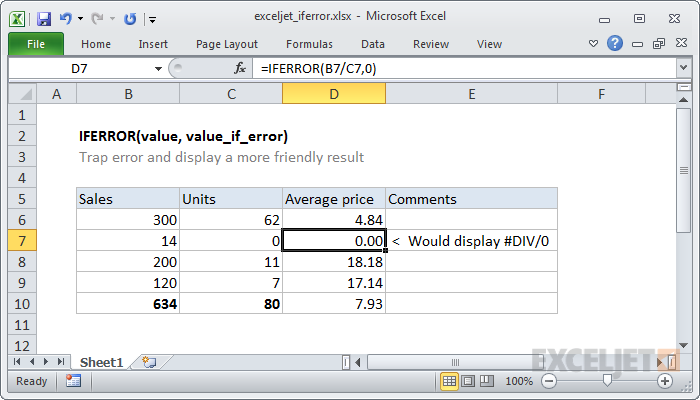
Consider a spreadsheet tracking sales figures. A formula calculates the average sales per employee. If a department has no sales data, the formula might return an error. Using IFERROR, we can specify a zero as the alternative result for any error.
=IFERROR(AVERAGE(B2:B10), 0)
This formula calculates the average of values in cells B2 through B10. If the AVERAGE function encounters an error, it returns 0 instead. This prevents a “DIV/0!” error from appearing in the spreadsheet.
Arguments and Roles
The IFERROR function has two arguments.
| Argument | Role |
|---|---|
| value | The formula or cell reference to be evaluated. |
| value_if_error | The value to be returned if an error occurs. |
Common Error Types
The IFERROR function can address a range of common error types, ensuring robust formulas. These include:
- #DIV/0!: Occurs when a formula attempts to divide by zero.
- #N/A: Indicates that a formula cannot find the required data.
- #NAME?: Indicates a misspelled or invalid function name.
- #NUM!: Occurs due to invalid numerical input or calculations.
- #REF!: Indicates a reference error, such as a deleted cell being referenced.
- #VALUE!: Results from incorrect data type or inappropriate operations on data.
Handling Specific Error Types

The IFERROR function in spreadsheets is a powerful tool for managing various error conditions. Beyond its general error handling capability, understanding how to address specific error types like #VALUE!, #REF!, #N/A, #NUM!, and #DIV/0! can significantly improve the reliability and robustness of your formulas. This section delves into the specific applications of IFERROR for each of these error scenarios.
Managing #VALUE! Errors
The #VALUE! error indicates that a formula encountered a data type mismatch or an invalid input. For instance, trying to perform mathematical operations on text strings will often result in this error. IFERROR effectively intercepts this error and provides an alternative result.Example: A formula attempts to add a numeric value and a text string. IFERROR can handle this by returning a specific message like “Invalid Input” instead of displaying the #VALUE! error.
Handling #REF! Errors
#REF! errors occur when a formula references a cell that no longer exists or has been deleted. Using IFERROR, you can provide a fallback value or message to avoid interrupting the entire calculation process.Example: A formula references a cell that has been deleted. The IFERROR function can replace the #REF! error with a default value or a more informative message, such as “Cell not found.”
Addressing #N/A Errors
#N/A errors signify that a lookup or calculation did not yield a result. IFERROR allows you to specify an alternative value or message when a particular data point is absent.Example: A VLOOKUP formula fails to find a specific value in a table. IFERROR can return a default value, such as 0, or a custom message, such as “Value not found.”
Using IFERROR for #NUM! Errors
#NUM! errors arise from mathematical operations that result in invalid numerical outcomes, such as taking the square root of a negative number. IFERROR can prevent these errors from propagating through the worksheet.Example: A formula attempts to calculate the square root of a negative number. IFERROR can handle this by returning a user-defined value or a message like “Invalid Input.”
Handling #DIV/0! Errors
The #DIV/0! error results from attempting to divide a number by zero. IFERROR allows you to substitute this error with a specific result or message, maintaining the integrity of your spreadsheet.Example: A formula divides a value by a cell containing zero. IFERROR can handle this by returning a value like “Division by zero error” or a specific alternative value.
Importance of Error Handling with Different Error Types
Proper error handling with IFERROR is crucial for maintaining data integrity and preventing errors from cascading through your spreadsheet. By addressing each error type specifically, you can ensure the accuracy and reliability of your calculations.
Distinguishing Error Types and Potential Causes
Different error types have distinct causes. Understanding these causes is essential for effectively implementing IFERROR solutions. A #VALUE! error, for instance, is often caused by incompatible data types within a formula, while a #REF! error arises from invalid cell references.
Error Type Comparison Table
| Error Type | Description | Potential Cause | IFERROR Solution |
|---|---|---|---|
| #VALUE! | Formula encounters invalid data type or input. | Mixing text and numbers in calculations. | Return a specified message or value. |
| #REF! | Formula references a non-existent cell. | Deleted or moved cells. | Return a default value or message. |
| #N/A | Lookup or calculation does not find a result. | Missing data or invalid lookup criteria. | Return a default value or message. |
| #NUM! | Mathematical operation results in an invalid numerical outcome. | Square root of a negative number, or other mathematical issues. | Return a specific value or message. |
| #DIV/0! | Division by zero. | Denominator containing zero. | Return a specific value or message. |
Nested IFERROR Statements
Nested IFERROR statements provide a powerful mechanism for handling multiple potential errors in a single formula. This approach allows for a more robust and adaptable calculation process, especially when dealing with data that might contain unexpected values or errors. The core benefit lies in the ability to cascade error handling, providing a fallback for each potential issue in a hierarchical structure.
Examples of Nested IFERROR Functions
Nested IFERROR functions are built by placing one IFERROR function inside another. This allows for a sequential handling of different error types. The inner IFERROR function acts as a secondary check, offering an alternative calculation if the primary check encounters an error.
Structure and Usage of Nested IFERROR Formulas
The structure of a nested IFERROR formula typically involves a primary calculation within the outer IFERROR function. If an error occurs during this primary calculation, the formula proceeds to the inner IFERROR function. This inner function provides an alternative calculation. The nested structure continues, with each subsequent IFERROR function acting as a fallback in case of error, allowing for progressively more complex error handling.
Advantages of Using Nested IFERROR in Complex Scenarios
Nested IFERROR functions offer significant advantages in complex scenarios. They enable the handling of a multitude of potential errors in a single formula, making the calculation more resilient and adaptable to data inconsistencies. This hierarchical approach to error handling is particularly beneficial when dealing with multiple data sources or when calculations might produce various error types.
Examples of Nested IFERROR to Handle Multiple Potential Errors
Consider a scenario where you need to calculate the average of values in cells A1, A2, and A3. If any of these cells contain an error, you can use a nested IFERROR function.“`excel=IFERROR(AVERAGE(A1,A2,A3),IFERROR(AVERAGE(A2,A3),AVERAGE(A1)))“`This formula first attempts to calculate the average of all three cells. If any error occurs, it proceeds to the inner IFERROR function, calculating the average of the remaining two cells.
If the second calculation also encounters an error, it finally defaults to the average of the first cell.
Demonstrating How to Avoid Errors When Using Nested IFERROR
Carefully consider the potential errors and their corresponding fallback values within the nested IFERROR formula. Ensure that each inner IFERROR function provides a valid alternative calculation. Avoid overly complex nesting, as this can lead to convoluted and hard-to-debug formulas. A formula that becomes excessively deep can be difficult to follow and potentially lead to incorrect results. A good practice is to keep the nesting to a manageable level.
Single vs. Nested IFERROR Usage Comparison
| Scenario | Single IFERROR | Nested IFERROR | Discussion |
|---|---|---|---|
| Simple Calculation with a single potential error | Suitable for handling a single error type | Redundant, potentially less efficient | A single IFERROR is sufficient for simple situations. |
| Calculation with multiple potential errors | Inefficient, multiple IFERROR functions required | Efficient for handling multiple error types | Nested IFERROR handles multiple potential errors more concisely. |
| Data with potentially missing values or various error types | Limited to one error handling | Comprehensive error handling | Nested IFERROR is the better option for robustness in such situations. |
IFERROR with Other Functions
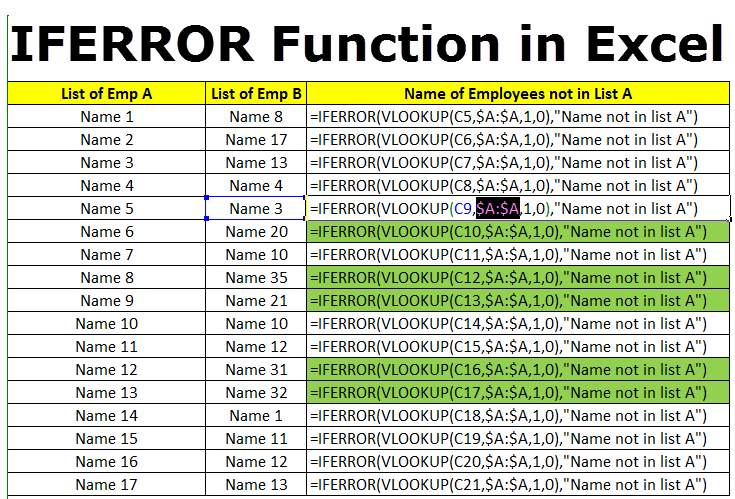
The IFERROR function, as a powerful tool in spreadsheet applications, allows for seamless integration with other functions. This integration can significantly enhance data handling by preventing errors from disrupting calculations and providing robust solutions to problematic data. By combining IFERROR with functions like SUM, AVERAGE, VLOOKUP, COUNTIF, COUNTIFS, INDEX, and MATCH, you can create more reliable and user-friendly spreadsheets.Combining IFERROR with other functions is a crucial technique for managing potential errors within formulas.
By incorporating error handling, you create more resilient and user-friendly spreadsheets, particularly when dealing with potentially inconsistent or incomplete data sets. This approach ensures that calculations proceed smoothly even when encountering unexpected errors.
Combining IFERROR with SUM, AVERAGE, and VLOOKUP
Using IFERROR with aggregate functions like SUM and AVERAGE is highly beneficial when dealing with potential errors in the input data. For example, if a cell contains text instead of a number, a SUM or AVERAGE function would return an error. IFERROR can intercept these errors and return a specific value, such as zero or a custom message.
Similarly, VLOOKUP can encounter errors if a lookup value is not found in the table. IFERROR can provide a default value or a message in such cases.
| Function | Input Data | Formula with IFERROR | Output |
|---|---|---|---|
| SUM | A1:A5 (containing numbers and text) | =IFERROR(SUM(A1:A5),0) | Sum of numeric values; 0 if error. |
| AVERAGE | B1:B5 (containing numbers and errors) | =IFERROR(AVERAGE(B1:B5),”N/A”) | Average of numeric values; “N/A” if error. |
| VLOOKUP | Lookup value in D1, Table in E1:F5, Column index 2 | =IFERROR(VLOOKUP(D1,E1:F5,2,FALSE),”Not Found”) | Value from column 2; “Not Found” if value not found. |
IFERROR with COUNTIF and COUNTIFS
COUNTIF and COUNTIFS functions count cells based on criteria. If the criteria result in an error, the COUNTIF/COUNTIFS function will return an error. Using IFERROR, you can handle these errors gracefully. For instance, you could return zero or a specific message.
Example:
Suppose you are counting the number of cells in column A that are greater than
10. If column A contains non-numeric values, COUNTIF would return an error. IFERROR can be used to handle this:
=IFERROR(COUNTIF(A1:A10,”>10″),0)
This formula will count the cells in A1:A10 that are greater than 10, and return 0 if an error occurs.
IFERROR with INDEX and MATCH
The INDEX and MATCH functions are powerful for retrieving specific data from a table. However, if MATCH doesn’t find a match, it returns an error. IFERROR allows you to return a default value or a message in these situations.
Example:
Retrieve the value from column B where the value in column A is “Apple” using IFERROR:
=IFERROR(INDEX(B1:B10,MATCH(“Apple”,A1:A10,0)),”Not Found”)
This formula returns the value from column B where the value in column A is “Apple,” and if “Apple” is not found, it returns “Not Found.”
Preventing Errors with Other Functions
IFERROR can be used with various other functions to handle errors. For example, if a function might return an error, wrapping it with IFERROR ensures the calculation proceeds without interruption. This is especially useful when dealing with potentially inconsistent data.
Example:
Suppose you need to calculate the percentage of a specific category from a dataset. If there’s no data for that category, a division by zero error might occur. IFERROR can handle this:
=IFERROR(B2/SUM(B:B),”N/A”)
This formula calculates the percentage of the value in cell B2 compared to the sum of values in the entire column B, but returns “N/A” if the sum of column B is zero or if B2 is non-numeric, preventing the error from propagating to other calculations.
Real-World Applications of IFERROR
The IFERROR function, a cornerstone of spreadsheet and data analysis tools, proves invaluable in handling potential errors within formulas. Its ability to gracefully manage unexpected results, like division by zero or lookup failures, is crucial for producing reliable and robust data outputs. This section explores diverse real-world applications, showcasing the function’s practical value across various domains.
Practical Scenarios
The IFERROR function is remarkably useful in situations where formulas might encounter errors. Consider a scenario where you’re calculating profit margins based on sales and costs. If a particular product has zero sales, the profit margin calculation will result in an error. IFERROR allows you to specify an alternative result, perhaps displaying “N/A” or a zero, preventing the entire calculation from breaking down.
Similar scenarios abound in various fields, including financial modeling, inventory management, and customer relationship management (CRM).
Data Analysis Workflow Example
Imagine analyzing sales data for different product categories. A formula calculating average sales per category might encounter an error if a category has no sales records. Using IFERROR, the formula can be structured to return a meaningful value, such as “No Sales Data” or a zero, if an error occurs. This maintains the integrity of the overall analysis by preventing the entire report from failing.
This example illustrates the crucial role of IFERROR in preserving data accuracy and preventing errors from cascading through complex calculations.
Financial Modeling and Budgeting
In financial modeling, IFERROR is indispensable for handling potential errors in data entry or calculations. For instance, in a discounted cash flow (DCF) model, if a future cash flow estimate is unavailable or incorrect, IFERROR can prevent the model from crashing. This feature ensures the stability and accuracy of financial projections, critical for informed decision-making. IFERROR allows financial models to gracefully handle missing or flawed input data, producing more robust and reliable results.
Customer Relationship Management (CRM)
In CRM systems, IFERROR can be used to manage data inconsistencies or missing values. For example, if a customer’s address is incomplete, a formula calculating distance or location metrics might generate an error. Using IFERROR, the formula can return a default value, such as “Unknown Address”, preserving the integrity of the CRM data and facilitating accurate analysis. This is crucial for maintaining consistent and accurate data in a CRM system.
Inventory Management
IFERROR plays a vital role in inventory management systems. Formulas calculating reorder points might encounter errors if product information is incomplete. By incorporating IFERROR, you can return a default value, like “Data Missing,” to indicate the absence of necessary data, allowing for more accurate inventory management decisions. This ensures that calculations related to inventory levels are accurate and up-to-date.
Real-World Applications Table
| Field | Scenario | Error | IFERROR Solution |
|---|---|---|---|
| Data Analysis | Calculating average sales per product category | Category with zero sales | Return “No Sales Data” or 0 |
| Financial Modeling | DCF model calculation | Missing future cash flow estimates | Return a default value or estimated value |
| CRM | Calculating customer distances | Incomplete customer addresses | Return “Unknown Address” |
| Inventory Management | Calculating reorder points | Missing product information | Return “Data Missing” |
Troubleshooting Common IFERROR Issues

The IFERROR function, while powerful, can sometimes present challenges. Understanding common pitfalls and how to address them is crucial for effective use. This section details strategies for identifying and resolving issues within IFERROR formulas, ultimately improving the reliability and accuracy of your spreadsheet calculations.Identifying and rectifying errors within IFERROR formulas is essential for maintaining the integrity of your spreadsheet data.
A well-structured troubleshooting approach will help ensure the function operates as intended.
Identifying Common IFERROR Errors
Often, errors within IFERROR formulas stem from issues within the underlying calculations. Careful inspection of the arguments passed to IFERROR is vital. For example, if the formula being wrapped with IFERROR contains a reference to a cell that might be empty or contain an invalid data type, the IFERROR function will likely fail.
Fixing Errors in IFERROR Formulas
Troubleshooting IFERROR formulas often involves a systematic approach. First, carefully review the formula’s structure, ensuring the correct syntax is used. Second, check the referenced cells for potential issues. Are the cells containing data of the expected type? Third, consider the data input into the core calculation within the IFERROR function.
Is the input data valid?
Examples of Troubleshooting Problems
Consider a scenario where an IFERROR formula is designed to return the value from a specific cell if it exists and a default value otherwise. If the cell reference within the formula is incorrect, the IFERROR function will return the default value even if the cell contains data. Another common problem is the presence of an error in the formula itself.
A simple calculation error in the main function could be propagated. Finally, issues in the underlying functions might also manifest as errors. A SUM function encountering non-numeric data could be a cause of errors.
Tips for Preventing IFERROR Errors
Thorough data validation is paramount in preventing errors within IFERROR formulas.
- Validate data types: Ensure the data in referenced cells aligns with the expected type for the formula. A string cannot be used in a calculation requiring a number.
- Validate data presence: Check if the referenced cells contain valid data before using them in calculations. A blank cell will cause errors in a division function, for example.
- Use appropriate error handling: If possible, implement appropriate error handling mechanisms in the main function, reducing the need for IFERROR.
Resolving Common IFERROR Issues
This structured approach will help in resolving issues with IFERROR.
- Identify the source of the error: Carefully examine the arguments within the IFERROR function, particularly the function or cell reference it’s trying to resolve.
- Correct any identified issues: If the issue stems from data type or reference errors, rectify these issues within the underlying formula. Ensure that cells contain the expected data type.
- Test the revised formula: Thoroughly test the corrected formula with various input data to confirm its effectiveness.
Checking Input Data Validity
Validating input data is crucial for error prevention.
- Use ISNUMBER, ISTEXT, or other functions to check if the data in referenced cells is of the correct type before applying calculations.
- Implement checks to ensure referenced cells are not blank or contain errors like #N/A.
- Validate ranges of numbers or text if the formula requires them to fall within certain bounds.
Potential IFERROR Issues and Solutions
| Issue | Description | Solution | Example ||—|—|—|—|| Incorrect Cell Reference | The IFERROR function is referencing a non-existent cell or a cell with the wrong format. | Correct the cell reference in the underlying formula. | =IFERROR(A1/B1,”Error”)
B1 might not exist |
| Formula Error | The main function in the IFERROR statement contains a calculation error. | Correct the formula to fix the underlying error. | =IFERROR(SUM(A1:A5),”Error”)
A1 might contain text |
| Data Type Mismatch | The function within IFERROR expects a specific data type (e.g., number), but the referenced cell contains a different type (e.g., text). | Use ISNUMBER, ISTEXT, or similar functions to check the data type before using the cell. | =IFERROR(A1+B1,”Error”)
A1 might contain text |
| Data Presence Error | The function within IFERROR requires a non-empty cell, but the cell is blank. | Implement checks for the presence of data in the cell. | =IFERROR(A1/B1,”Error”)
B1 might be empty |
Advanced IFERROR Techniques
The IFERROR function, while powerful in its basic applications, gains even greater utility with advanced techniques. These methods allow for more sophisticated error handling, enabling you to tailor the function’s behavior to specific situations and potentially improve the robustness of your spreadsheets. This section delves into leveraging IFERROR with indirect references, array formulas, custom error messages, and examples of their practical application.
Using IFERROR with Indirect References
Indirect references in spreadsheets allow you to dynamically reference cells or ranges using text strings. Combining this with IFERROR enables you to handle potential errors arising from invalid cell references or lookup failures. This is particularly valuable when working with data from external sources or updating formulas dynamically.
For instance, if a cell containing a formula refers to a cell whose name is stored in another cell, an error might occur if the named cell does not exist. IFERROR can be used to gracefully handle these scenarios.
Example: Let’s say cell A1 contains the text “DataSheet!B10”. If DataSheet does not exist, a #REF! error will occur. Using IFERROR, you can construct a formula that checks for the existence of the referenced cell and returns a specified value if the reference is invalid.
Using IFERROR with Array Formulas
IFERROR can be seamlessly integrated with array formulas, enabling the handling of errors across multiple cells simultaneously. This is crucial when dealing with large datasets where errors might arise in different parts of the array.
Array formulas often return multiple values. Using IFERROR within an array formula, you can replace errors with specific values or alternative calculations across the entire array, preventing the propagation of errors and maintaining the integrity of the results.
Using IFERROR with Custom Error Messages
Instead of returning a generic error message, you can create a custom error message using IFERROR. This enhances the clarity and usability of your spreadsheets, particularly when dealing with complex formulas or large datasets.
Custom messages allow you to provide context-specific feedback to users, improving the understanding of the formula’s behavior and enabling quicker identification of potential issues.
Examples of Creating Custom Error Messages Using IFERROR
Custom error messages within IFERROR are easily implemented by incorporating a string literal into the function.
Example: Suppose a formula calculates the average of a range. If the range is empty, the formula will return a #DIV/0! error. With IFERROR, you can specify a custom message:
=IFERROR(AVERAGE(A1:A10),”Range is empty”)
This formula returns “Range is empty” if the range A1:A10 is empty, improving user understanding.
Advantages of Using Custom Error Messages in IFERROR
Custom error messages significantly enhance user experience and troubleshooting. They improve readability, offer contextual information, and enable quicker identification of problems.
IFERROR with Advanced Techniques – Example Table
| Formula | Description | Input Example | Output Example |
|---|---|---|---|
| =IFERROR(INDIRECT(A1),”No Data”) | Handles errors from indirect referencing. | A1 contains “Sheet2!B2” (Sheet2!B2 exists) | Value in Sheet2!B2 |
| =IFERROR(AVERAGE(A1:A10),”Range Empty”) | Handles errors from empty ranges. | A1:A10 is empty | Range Empty |
| =IFERROR(MMULT(A1:A5,B1:B5),”Matrix Multiplication Error”) | Handles errors in matrix multiplication. | Incompatible matrix dimensions | Matrix Multiplication Error |
| =IFERROR(VLOOKUP(A1,Sheet2!A:B,2,FALSE),”Value Not Found”) | Handles errors from VLOOKUP. | A1 value not found in Sheet2 | Value Not Found |
Closure
In conclusion, this guide has provided a thorough examination of the IFERROR function, highlighting its versatility in handling various error types. From simple to complex scenarios, understanding how to leverage nested IFERROR statements and combine it with other functions will equip you with the skills to build robust and reliable formulas. By mastering these techniques, you can significantly improve the accuracy and efficiency of your data analysis workflows.