Unlock the full potential of your spreadsheets by learning how to freeze panes. This comprehensive guide provides a clear and concise explanation of freezing panes, essential for navigating large datasets efficiently. From basic techniques to advanced considerations, we cover the nuances of locking rows and columns in Microsoft Excel, Google Sheets, and LibreOffice Calc. This detailed approach will empower you to effectively organize and analyze data within your spreadsheets.
Freezing panes essentially ‘locks’ specific rows and columns at the top and left of the spreadsheet view. This allows you to keep headers or important reference information visible while scrolling through the rest of the data. The benefits are considerable, improving efficiency and enabling users to quickly locate and analyze data.
Understanding Freezing Panes
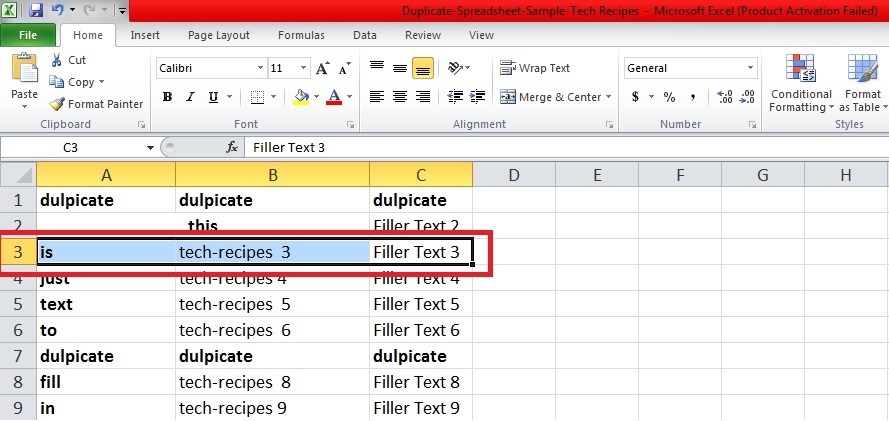
Freezing panes in spreadsheets are a powerful feature that allows you to keep specific rows and/or columns visible while scrolling through the rest of the data. This is particularly useful when working with large datasets, enabling you to maintain a consistent view of important header information or reference columns while exploring the rest of the data.Freezing panes enhance usability by preventing the loss of crucial contextual information when navigating a spreadsheet.
This feature is frequently employed in financial analysis, data reporting, and various other business applications.
Definition of Freezing Panes
Freezing panes, in spreadsheet software, are a set of rows and/or columns that are fixed in place while the rest of the sheet scrolls. This allows users to keep important header information, reference columns, or filters visible as they navigate the spreadsheet’s content. The frozen area remains stationary, providing a consistent reference point during analysis or data exploration.
Purpose and Benefits of Freezing Panes
Freezing panes improve user efficiency by enabling consistent access to crucial data elements. This is particularly valuable in situations where the user needs to constantly refer to headers, filters, or other reference points as they navigate through the data. The ability to maintain a static view of important information prevents loss of context, leading to more effective and accurate analysis.
Users can easily focus on the data while having key headers or references immediately available.
Scenarios Where Freezing Panes are Useful
Freezing panes are exceptionally helpful in numerous scenarios. For example, when analyzing sales data across multiple months, freezing the header row allows for a clear view of the categories while the data for each month is scrolled through. In financial reports, freezing the column with account names enables a user to keep the account name visible while reviewing amounts across different periods.
Similarly, when working with large datasets, freezing rows for headers or columns for filters provides essential context during analysis. Further, when using spreadsheets for project management, freezing rows for project names and columns for task status enables efficient tracking and management.
Comparison with Other Spreadsheet Features
Freezing panes differ from other spreadsheet features such as sorting, filtering, and conditional formatting. Sorting rearranges the data based on specific criteria, while filtering displays only specific rows meeting certain conditions. Conditional formatting highlights data based on specific rules, whereas freezing panes maintain a constant view of specific data sections, allowing for concurrent access to different parts of the spreadsheet.
Visual Representation
| Column A | Column B | Column C | Column D | |
|---|---|---|---|---|
| Row 1 | Header | Data | Data | Data |
| Row 2 | Header | Data | Data | Data |
| Row 3 | Header | Data | Data | Data |
| Row 4 | Frozen | Frozen | Data | Data |
| Row 5 | Frozen | Frozen | Data | Data |
| Row 6 | Frozen | Frozen | Data | Data |
| Row 7 | Data | Data | Data | Data |
The table above visually demonstrates the concept of freezing panes. The rows and columns labeled “Frozen” are fixed in place while scrolling through the rest of the spreadsheet. This maintains a constant reference point for headers and other critical data elements.
Freezing Rows and Columns in Different Spreadsheet Programs
Freezing rows and columns in spreadsheet applications allows users to lock specific portions of a worksheet, enabling easier navigation and analysis. This feature is particularly useful when working with large datasets or complex reports, as it allows users to focus on specific areas without the need to scroll extensively. Understanding how to freeze rows and columns in various spreadsheet programs is essential for efficient data manipulation.
Freezing Rows and Columns in Microsoft Excel
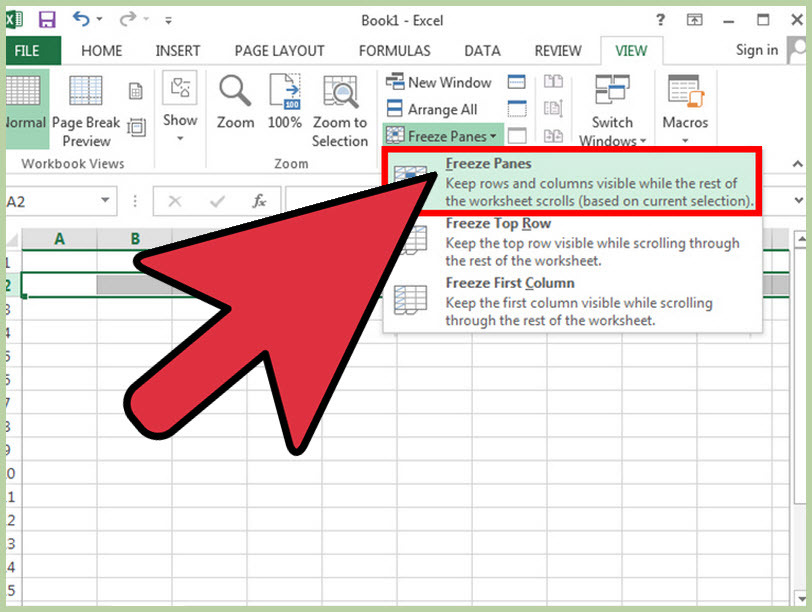
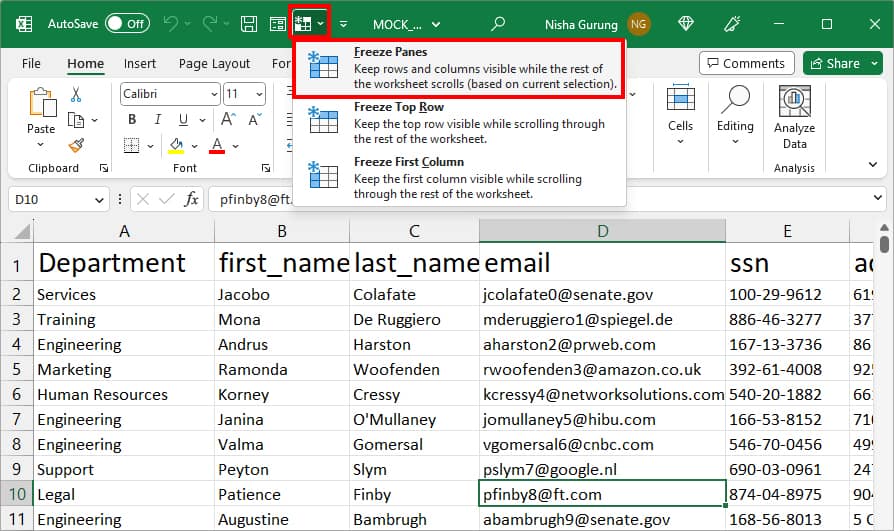
Microsoft Excel provides a straightforward method for freezing rows and columns. This is accomplished using the “Freeze Panes” feature. By selecting the cells you want to keep visible when scrolling, the top row and left column will remain fixed.
- Select the cell directly below the row you wish to freeze and to the right of the column you wish to freeze.
- Navigate to the “View” tab in the ribbon.
- Click on “Freeze Panes”.
This action locks the selected rows and columns in place, allowing the rest of the worksheet to scroll without affecting them.
Freezing Rows and Columns in Google Sheets
Google Sheets employs a similar method to Excel for freezing rows and columns. The functionality is accessible through the “View” menu.
- Select the cell directly below the row you wish to freeze and to the right of the column you wish to freeze.
- Go to the “View” menu.
- Choose “Freeze” and then select “Freeze panes”.
The selected row and column will remain stationary, providing a stable reference point for scrolling through the rest of the worksheet.
Freezing Rows and Columns in LibreOffice Calc
LibreOffice Calc also provides a method for freezing rows and columns. The process is quite intuitive and closely mirrors that of Excel and Google Sheets.
- Select the cell directly below the row you wish to freeze and to the right of the column you wish to freeze.
- Go to the “View” menu.
- Select “Freeze” and then choose “Freeze Panes”.
This locks the chosen rows and columns, maintaining a fixed reference area for data analysis.
Comparison of Syntax and Methods
The methods for freezing rows and columns are largely consistent across the three applications. The primary difference lies in the specific menu structure and location of the “Freeze Panes” option. All applications use a similar concept of selecting the cell below the row to be frozen and to the right of the column to be frozen.
Step-by-Step Guide: Freezing in Google Sheets
This guide will demonstrate freezing the first two rows and first three columns in Google Sheets.
- Select the cell: Locate the cell in the third row and fourth column (e.g., C3).
- Access the Freeze Panes option: Go to the “View” menu.
- Choose the action: Click “Freeze”. Then choose “Freeze panes”.
After following these steps, the first two rows and first three columns will remain visible while the rest of the spreadsheet scrolls.
Freezing Multiple Rows and Columns
Freezing multiple rows and columns in a spreadsheet provides a convenient way to maintain a clear view of specific data sections while still allowing for interaction with the rest of the data. This approach is particularly useful when working with large datasets, enabling users to focus on particular areas without losing context.Simultaneous freezing of multiple rows and columns enhances the usability of spreadsheets by streamlining data analysis and presentation.
This method allows for the preservation of headers or important reference data while maintaining access to the full dataset.
Techniques for Selecting Multiple Rows and Columns
Different spreadsheet programs employ varying techniques for selecting multiple rows and columns for freezing. A common method involves using the mouse to drag over the desired area. Alternatively, some programs utilize keyboard shortcuts and commands to select specific ranges. These methods are often intuitive and user-friendly, but their exact implementation might differ depending on the spreadsheet software.
- Mouse Selection: Click and drag the mouse over the range of rows and columns you wish to freeze. The selection is visually highlighted, confirming the area chosen for freezing.
- Keyboard Shortcuts: Spreadsheet software often includes shortcuts to select specific areas. For instance, selecting a block of cells using a combination of arrow keys and Shift can quickly highlight the region to be frozen. Knowing these shortcuts can greatly increase efficiency.
Potential Issues and Considerations
Freezing multiple rows and columns might present certain challenges. For instance, if the frozen area is excessively large, the remaining visible portion of the spreadsheet might become cramped or difficult to navigate. Additionally, users must be mindful of how the freezing affects other features and functionalities of the spreadsheet, like sorting or filtering. It’s crucial to consider the implications of freezing multiple rows and columns on the overall spreadsheet layout and usability.
Example of Multiple Selections
The following table illustrates various combinations of row and column selections for freezing.
| Selection | Description |
|---|---|
| Rows 1-3, Columns A-C | Freezes the first three rows and the first three columns, providing a comprehensive view of the header and data in the upper left corner. |
| Rows 5-10, Columns D-F | Freezes rows 5 through 10 and columns D through F, useful for focusing on a specific section of the dataset. |
| Rows 1-5, Columns A-G | Freezes the first five rows and all columns from A to G, offering a clear view of the header information and data in the leftmost section. |
Illustrative Table
The table below showcases a hypothetical dataset with multiple rows and columns frozen, providing a practical example.
| Product | Quantity | Price | Date |
|---|---|---|---|
| A | 10 | 10.00 | 2024-01-15 |
| B | 20 | 20.00 | 2024-01-16 |
| C | 15 | 15.00 | 2024-01-17 |
Note: This table illustrates the frozen area, and the full dataset would extend beyond the visible portion.
Advanced Techniques and Considerations
Freezing panes is a powerful feature in spreadsheets, but understanding its implications, particularly in large datasets, is crucial for optimal usage. This section delves into advanced techniques for managing frozen panes, covering unfreezing, performance impact, and dynamic adjustments to maintain visibility within the spreadsheet window.Spreadsheet software, like Microsoft Excel or Google Sheets, offers a range of tools for managing frozen panes.
These tools go beyond simple freezing and allow for more sophisticated adjustments. This allows for improved data analysis and presentation, especially when dealing with extensive data.
Unfreezing Panes
The process for unfreezing panes is straightforward and typically involves a single command or button click within the spreadsheet application. This action restores the entire spreadsheet to a single view, removing the fixed rows and columns previously frozen. For example, in Microsoft Excel, a click on the “Unfreeze Panes” button in the View tab will accomplish this. Similar functionality is available in other spreadsheet programs.
Impact on Spreadsheet Performance
Freezing panes can impact spreadsheet performance, especially with extremely large datasets. The extent of the impact depends on the size of the frozen area and the total data volume. Freezing rows and columns essentially creates a static reference point within the spreadsheet. This can lead to slower loading times, especially when the spreadsheet contains many complex formulas that need to recalculate or when large amounts of data are processed.
However, the performance hit is often negligible in smaller spreadsheets. It is essential to be aware of this potential impact, especially when dealing with large datasets.
Considerations for Large Spreadsheets
When dealing with large spreadsheets containing frozen panes, careful consideration of performance and user experience is vital. A good strategy is to freeze only the necessary rows and columns for immediate analysis. This limits the overhead and improves responsiveness. If the entire spreadsheet needs to be frozen, consider strategies to improve the display by reducing the amount of data displayed.
For example, using filters, sorting, or summary tables to limit the data to the necessary information before freezing the panes. By strategically freezing only the required parts, the user can focus on the relevant information and maintain optimal spreadsheet performance.
Dynamic Adjustment of Frozen Pane Positions
Dynamically adjusting frozen pane positions is crucial for adaptability in analysis. This allows users to quickly shift their focus within the spreadsheet as needed. The feature allows users to modify the frozen rows and columns without needing to manually adjust the entire spreadsheet window. Modern spreadsheet software offers features that allow for this dynamic adjustment.
Resizing the Spreadsheet Window
Spreadsheet resizing to maintain frozen pane visibility requires consideration of the fixed rows and columns. The spreadsheet window should be adjusted to maintain a clear view of the frozen area. In some applications, the frozen panes will automatically adjust to remain visible as the window size changes. This is particularly helpful when working with large datasets. Other spreadsheet programs might require manual adjustments to ensure the frozen panes remain visible.
The specific method varies based on the spreadsheet program being used.
Examples and Use Cases
Freezing panes in spreadsheets is a powerful technique that enhances usability, especially when dealing with extensive datasets. It allows users to maintain crucial header information in view while scrolling through large amounts of data. This facilitates quick reference and analysis without losing context.By freezing rows and/or columns, users can easily compare data across multiple columns or track changes over time within a particular row, preventing scrolling disruption and maintaining a clear view of essential headers.
This practice significantly improves efficiency and reduces the time spent searching for specific information.
Sales Figures Over Time
Understanding sales trends over time is crucial for businesses. Freezing panes allows a clear view of the product or category while reviewing sales across different periods. This facilitates rapid analysis of growth or decline in sales for a specific product or category.
| Product | Q1 2024 | Q2 2024 | Q3 2024 | Q4 2024 |
|---|---|---|---|---|
| Widget A | 1000 | 1200 | 1500 | 1800 |
| Widget B | 800 | 900 | 1100 | 1300 |
| Widget C | 500 | 600 | 700 | 800 |
Freezing the first row (Product) and the first column (headers) enables easy identification of the product while scrolling through the quarterly sales data.
Product Details and Sales Figures
A comprehensive view of product details and associated sales figures is facilitated by freezing panes. This allows users to quickly compare product characteristics and their corresponding sales performance.
| Product ID | Product Name | Category | Sales Q1 2024 | Sales Q2 2024 |
|---|---|---|---|---|
| 101 | Widget A | Electronics | 1000 | 1200 |
| 102 | Gadget X | Electronics | 800 | 900 |
| Gadget Y | Accessories | 500 | 600 |
Freezing the first two columns (Product ID and Product Name) provides a static reference point for comparing different products and categories while reviewing sales figures.
Budget Spreadsheet
Freezing header rows and columns in a budget spreadsheet is essential for effective financial analysis. It allows a quick overview of the budget categories and the corresponding expenditures.
| Category | January | February | March | April |
|---|---|---|---|---|
| Housing | 1500 | 1500 | 1500 | 1500 |
| Food | 500 | 500 | 500 | 500 |
| Transportation | 200 | 200 | 200 | 200 |
Freezing the first row (Category) and first column (Month) ensures the headers remain visible while scrolling through the budget details.
Project Timelines
Freezing panes in a project timeline spreadsheet provides a convenient way to review tasks and their associated deadlines. This facilitates clear identification of project phases and their corresponding completion dates.
| Task | 2024-01-01 | 2024-01-15 | 2024-01-31 |
|---|---|---|---|
| Project Initiation | ✓ | ||
| Design Phase | ✓ | ||
| Implementation |
Freezing the first column (Task) and the first row (Dates) allows for efficient tracking of tasks and their completion stages while scrolling through the project timeline.
Troubleshooting and Common Errors
Freezing panes, while a useful feature, can sometimes present unexpected challenges. Understanding potential issues and their resolutions is crucial for efficient spreadsheet management. This section details common errors encountered when freezing panes and provides solutions to address them effectively.
Identifying Freezing Pane Errors
Common problems arise from incorrect syntax, conflicting actions, or incompatibility with other spreadsheet features. Incorrect specification of the rows or columns to freeze can lead to unexpected results, and attempting to freeze panes while other actions are in progress can disrupt the process. Furthermore, issues might arise from compatibility issues with add-ons or extensions.
Resolving Freezing Pane Issues
Correcting freezing pane problems often involves a systematic approach. Verify that the specified range for freezing aligns with the desired result. Ensure there are no conflicts with other actions or features, such as sorting or filtering. If problems persist, review the spreadsheet program’s documentation for specific troubleshooting steps.
Troubleshooting Frozen Panes Not Behaving as Expected
Several scenarios can cause frozen panes to not function as intended. First, ensure that the selected range is accurate and aligns with the intended view. If the problem persists, verify that no other features or add-ons are interfering with the freezing process. Sometimes, the issue lies in a corrupt spreadsheet or an incompatibility between the spreadsheet software and its add-ons.
Checking for these factors often provides a resolution.
Troubleshooting Unexpected Results from Freezing Panes
Unexpected results from freezing panes may stem from the interplay between freezing and other spreadsheet functions. Sorting data after freezing, for instance, can affect the frozen pane’s behavior. Similarly, using filtering tools in conjunction with freezing panes might lead to discrepancies in the displayed data. Double-check that the freezing process isn’t inadvertently interfering with the intended functionality of other spreadsheet actions.
Table of Possible Errors and Solutions for Freezing Panes
| Error | Possible Cause | Solution |
|---|---|---|
| Frozen panes do not appear. | Incorrect input of row/column numbers, or other actions interfering with the freeze. | Verify the input of rows and columns. Ensure no other operations, like sorting or filtering, are actively running. |
| Frozen panes shift unexpectedly. | Freezing conflicts with other actions (e.g., sorting, filtering). | Try freezing the panes before applying other operations. Ensure the freezing range is not affected by other operations. |
| Frozen panes display incorrect data. | The freezing range is incorrect, or the data is being manipulated by other features. | Recheck the range to be frozen, and ensure other features are not changing the data within the frozen area. |
| Frozen panes become unresponsive. | Potential incompatibility with extensions, or a corrupted file. | Close and re-open the file. Disable any extensions temporarily. |
Final Wrap-Up
In summary, this guide has explored various techniques for freezing panes in spreadsheets, highlighting the importance of this feature for efficient data management. We’ve covered the fundamentals, different spreadsheet programs, handling multiple selections, advanced techniques, and troubleshooting common errors. This comprehensive approach ensures that users are equipped to master this valuable tool, enhancing their overall spreadsheet proficiency and analytical capabilities.