Data editing is a crucial task in various fields, from simple text corrections to complex database modifications. Mastering the “Find and Replace” function can significantly streamline this process, saving valuable time and effort. This guide will walk you through the fundamentals, covering basic operations to advanced techniques and troubleshooting strategies, ensuring you can efficiently edit data across different software platforms.
From correcting typos in documents to updating values in spreadsheets or modifying records in databases, this comprehensive guide will empower you to use the Find and Replace tool effectively. Understanding the various search patterns, software differences, and troubleshooting steps is crucial for maximizing efficiency and minimizing errors.
Introduction to Find and Replace
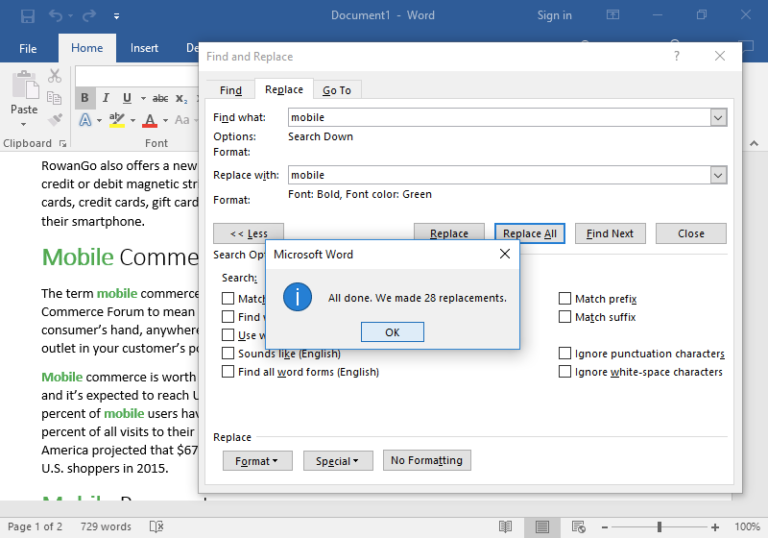
Find and replace is a fundamental data editing tool used to locate and change specific text or data within a document, spreadsheet, or database. Its utility stems from its ability to automate repetitive tasks, saving significant time and effort, especially when dealing with large datasets or numerous instances of a specific element. This tool proves particularly valuable in tasks like correcting errors, updating information, and standardizing formatting.This function works by identifying all occurrences of a target string (the “find” element) and replacing them with a new string (the “replace” element).
This capability is highly beneficial in a multitude of scenarios, ranging from basic typo correction to intricate data transformations. The process is straightforward and often integrated into various software applications.
Common Scenarios for Find and Replace
Find and replace is beneficial in numerous scenarios, from basic tasks to complex data manipulation. Correcting typos, updating addresses, standardizing formats, and replacing specific values are common use cases. This process also simplifies the task of removing sensitive data or making bulk changes in documents.
Data Types Supported by Find and Replace
Find and replace functionality is available across a wide range of data types, ensuring its adaptability for diverse applications. It can be applied to various formats, from plain text documents to complex database records. The tool’s versatility allows users to work efficiently with various types of data, ensuring consistency and accuracy in data manipulation.
| Data Type | Tool | Example Use Case |
|---|---|---|
| Text Document | Word Processor (e.g., Microsoft Word, Google Docs) | Correcting typos, changing formatting, updating references |
| Spreadsheet | Spreadsheet Software (e.g., Microsoft Excel, Google Sheets) | Updating values in columns, replacing specific data entries, applying formulas based on matching values |
| Database | Database Management System (e.g., MySQL, PostgreSQL) | Modifying records, updating fields, filtering data based on criteria, standardizing data entries |
Basic Find and Replace Operations
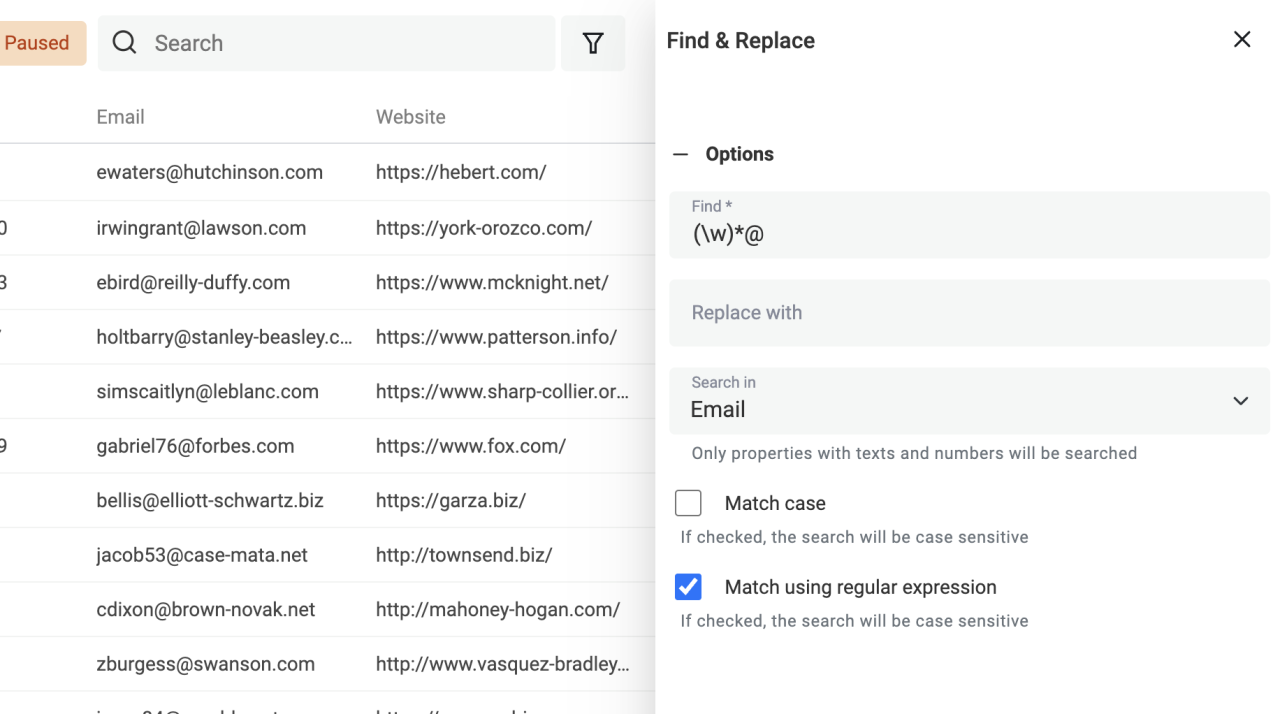
Mastering basic find and replace operations is crucial for efficiently editing data within various applications. These operations allow you to locate specific text patterns and swiftly replace them with desired alternatives, significantly streamlining your workflow.
Specifying Search and Replacement Patterns
The syntax for defining search and replacement patterns often varies slightly depending on the application, but core principles remain consistent. Generally, you input a search pattern, representing the text you want to locate, and a replacement pattern, specifying the text to substitute the found occurrences with.
Search Patterns: Exact Matches
The simplest form of a search pattern is an exact match. This approach seeks an exact replica of the specified string, regardless of surrounding text. For instance, searching for “apple” will only locate the word “apple” itself, not the word “apples” or “application”.
Example: To find all occurrences of the word “error” in a document, you would enter “error” as the search pattern.
Search Patterns: Regular Expressions
Regular expressions (regex) provide a powerful mechanism for finding patterns of characters. These patterns utilize special symbols to define various conditions, including matching specific characters, character classes, or sequences of characters. Regex patterns offer exceptional flexibility for locating complex text structures.
Example: To find all instances of words starting with the letter “a” followed by a vowel and ending with “e”, you could use the regex “a[aeiou]e”.
Search Patterns: Wildcards
Wildcards represent one or more characters, providing a way to locate strings that match a particular pattern rather than an exact sequence. The use of wildcards simplifies searching for text that conforms to a general structure.
Example: To find all strings that begin with “a” and end with “e”, you could utilize the wildcard pattern “a*e”. This would match “ae”, “ape”, “ahe”, etc.
Multiple Occurrences of a Word or Phrase
To find and replace multiple occurrences of a word or phrase, input the desired search pattern and the replacement pattern. The application will then locate all instances matching the search pattern and replace them with the replacement pattern.
Example: To replace all instances of “incorrect” with “correct” in a document, enter “incorrect” as the search pattern and “correct” as the replacement pattern.
Comparison of Search Patterns
| Search Pattern | Description | Example | Application |
|---|---|---|---|
| Exact Match | Finds an exact sequence of characters. | Find “apple” | Finding specific words, phrases, or numbers. |
| Regular Expression | Finds patterns of characters using special symbols. | Find “a[aeiou]e” | Locating complex text structures, such as specific email formats or phone numbers. |
| Wildcard | Finds characters that match a specific pattern. | Find “a*e” | Finding strings with a particular beginning and ending. |
Advanced Find and Replace Techniques
Mastering the Find and Replace function extends beyond basic text substitutions. Advanced techniques unlock powerful capabilities for manipulating data, extracting information, and streamlining complex editing tasks. These techniques leverage options like case sensitivity, whole word searches, and regular expressions to achieve precise control over the editing process.
Advanced Search and Replace Options
The Find and Replace tool often provides options to refine searches. Understanding these controls enhances the precision of your edits. For example, choosing “whole words only” ensures that only complete words matching the search term are replaced, preventing unintended alterations. Similarly, selecting “match case” ensures that the search and replace operations are case-sensitive, which is crucial for distinguishing between variations like “apple” and “Apple.” These options are vital for working with datasets containing nuanced text or avoiding errors.
Regular Expressions for Complex Searches
Regular expressions (regex) offer a powerful mechanism for defining intricate search patterns. They are essential for tasks requiring more than simple string matches. Regex allows you to specify complex criteria for finding and replacing text. For instance, you can locate all phone numbers in a document, or identify all instances of a specific date format. This flexibility allows you to handle a wide array of scenarios in your data.
Replacing with Formulas or Variables
In certain scenarios, you might need to replace matched text with a calculated value or a variable. This feature enables dynamic updates based on pre-defined rules. For example, you can replace all occurrences of “Old Price” with a formula that calculates the new price based on a discount. Or, you might replace “Customer Name” with a variable that dynamically retrieves the name from a database or spreadsheet.
Such automated replacements save time and reduce manual errors.
Extracting Specific Data
Find and Replace can be a powerful tool for extracting specific data from a larger dataset. By strategically combining search criteria, you can isolate the desired information. For example, you can extract all email addresses from a document or isolate all instances of a particular product code. These operations simplify the process of gathering relevant information from a larger dataset.
Examples of Advanced Usage
To illustrate the practical application of advanced techniques, let’s consider a few examples.
- Replacing specific formatting elements: Find and Replace can be used to remove or change specific formatting like bolding, italics, or underlines. This can be particularly useful for standardizing the presentation of a document or preparing data for import into another system.
- Replacing multiple variations of a word: Imagine a document with multiple spellings of a word like “colour” or “color”. You can use regular expressions to find and replace all variations with a single standardized form.
- Extracting data based on specific patterns: Find and Replace can be used to extract specific data elements like date formats, social security numbers, or product codes. This is crucial for data analysis and validation.
| Original Text | Search Pattern | Replacement |
|---|---|---|
| This is a [date] | \[[0-9]2/[0-9]2/[0-9]4\] | \1 |
| Product code: ABC-123 | Product code: [A-Z]3-[0-9]3 | \1 |
Find and Replace in Different Software
The Find and Replace function is a fundamental tool in many software applications, enabling users to quickly edit and modify large amounts of text or data. Understanding the nuances of this function across various platforms is crucial for efficient data manipulation. This section explores the similarities and differences in Find and Replace implementations across several common applications.Different software applications offer varying levels of customization and complexity for the Find and Replace feature.
The syntax and available options can differ significantly, affecting how users perform tasks like replacing specific text strings, applying formatting changes, or handling more complex search patterns.
Microsoft Word Find and Replace
Microsoft Word’s Find and Replace feature offers a robust set of options for precise text manipulation. Case sensitivity is a key feature, allowing users to distinguish between uppercase and lowercase letters during searches. Regular expressions provide advanced search capabilities, enabling users to match complex patterns in text.
- Syntax: Word uses a straightforward syntax for Find and Replace, typically employing simple s or phrases to locate and replace text. Advanced search patterns using regular expressions are also supported.
- Options: Options like “Match Case,” “Find Whole Words Only,” and “Use Wildcards” are commonly used to refine search criteria and prevent unintended replacements.
- Hotkeys: The standard Ctrl+H (or Cmd+H on macOS) hotkeys initiate the Find and Replace dialog box.
Google Docs Find and Replace
Google Docs, while similar to Word in basic functionality, provides some unique advantages. The feature supports wildcards, offering users a more versatile way to search for complex patterns. Multiple replacements can be specified in a single operation, streamlining large-scale edits.
- Syntax: Google Docs employs a syntax that’s similar to Word, but allows for wildcard characters for more sophisticated search patterns.
- Options: Options like “Match Case” and “Find Whole Words Only” are available, along with wildcards for more intricate searches. The ability to perform multiple replacements in a single operation is a significant advantage.
- Hotkeys: The standard Ctrl+H (or Cmd+H on macOS) hotkeys are used to initiate the Find and Replace dialog box.
Microsoft Excel Find and Replace
Microsoft Excel’s Find and Replace feature is tailored for working with spreadsheet data. It’s designed to locate and replace values within cells, enabling users to standardize data or update information across a worksheet.
- Syntax: Excel’s Find and Replace syntax focuses on cell values. It doesn’t typically support the same level of regular expressions or wildcards found in word processors.
- Options: Options like “Match Case,” “Look in,” and “Find whole cell contents” are available to customize searches.
- Hotkeys: Ctrl+H (or Cmd+H on macOS) is the standard hotkey to access the Find and Replace dialog box.
Notepad++ Find and Replace
Notepad++ provides a robust Find and Replace function particularly useful for code editing and text manipulation. It offers advanced search capabilities, including regular expressions, making it a powerful tool for developers and programmers.
- Syntax: Notepad++ supports a wide range of regular expression syntax, allowing users to specify complex search patterns.
- Options: Options for case sensitivity, whole words, and regular expressions are available, providing fine-grained control over the search.
- Hotkeys: Ctrl+H (or Cmd+H on macOS) is the standard hotkey to initiate the Find and Replace dialog box.
Comparison Table
| Software | Find/Replace Features | Example |
|---|---|---|
| Microsoft Word | Case sensitivity, regular expressions | Replace “apple” with “orange” |
| Google Docs | Wildcards, multiple replacements | Replace all “apple” instances with “fruit” |
| Microsoft Excel | Cell value matching, limited regular expressions | Replace “Product A” with “Product X” in column B |
| Notepad++ | Comprehensive regular expressions, extensive options | Find and replace all occurrences of “// comment” with “// important comment” in code |
Troubleshooting and Error Handling
Proper error handling is crucial when using Find and Replace, especially in complex scenarios or with large datasets. This section details common pitfalls, their solutions, and preventative measures to ensure data integrity and avoid costly mistakes.Troubleshooting effectively involves understanding potential issues, recognizing their symptoms, and implementing appropriate solutions. This section will cover common error types, provide detailed solutions for correcting erroneous search and replacement patterns, and strategies for handling corrupted data or unexpected results.
Common Errors in Search and Replacement Patterns
Incorrectly formatted search patterns are a frequent source of errors. The syntax of the search and replacement patterns must adhere to the specific software’s rules. Inconsistent capitalization or the inclusion of special characters can lead to unexpected or no matches. Mismatched parentheses, brackets, or other delimiters will result in an error message or incorrect results.
Troubleshooting Search and Replacement Errors
Thorough review of the search and replacement criteria is the first step. Confirm that the search pattern accurately reflects the intended target. Use test data or a small sample of the data to validate the pattern. Carefully check for special characters, case sensitivity, and wildcards. If necessary, utilize the software’s help documentation or online resources for specific syntax details.
For example, if a search pattern using regular expressions doesn’t produce the expected results, verify the correct usage of metacharacters like `.` (any character), `*` (zero or more occurrences), `+` (one or more occurrences), `?` (zero or one occurrence), and others within the regular expression syntax.
Handling Unexpected Results and Corrupted Data
Unexpected results during a Find and Replace operation can indicate several problems, such as data inconsistencies or corrupted input. If the replacement process generates unexpected output, review the source data carefully for inconsistencies. Use error logs to identify the problematic lines or segments. A careful examination of the data structure and data types can reveal the root cause.
If data is corrupted, consider using backup copies or restoring from a previous version. Data validation techniques can help identify problems before the Find and Replace operation.
Preventing Data Loss During Find and Replace
Always create a backup copy of the original data before performing any Find and Replace operation. This precaution safeguards against irreversible data loss in case of errors. Before applying any changes, test the search and replacement pattern on a copy or a sample of the data. This practice minimizes the risk of accidental data corruption. Ensure that the software’s undo or revert functionality is available to quickly undo mistakes.
If the software doesn’t offer an undo feature, save frequently.
Reverting Find and Replace Changes
If changes made with Find and Replace are not as intended, reverting the changes is essential. Most text editors and data management tools offer an “undo” feature. If the “undo” option is not available, a backup copy of the original data allows restoration to the previous state. Review the log files, if available, for specific details on the operations performed and the points of failure.
Optimizing Find and Replace for Efficiency
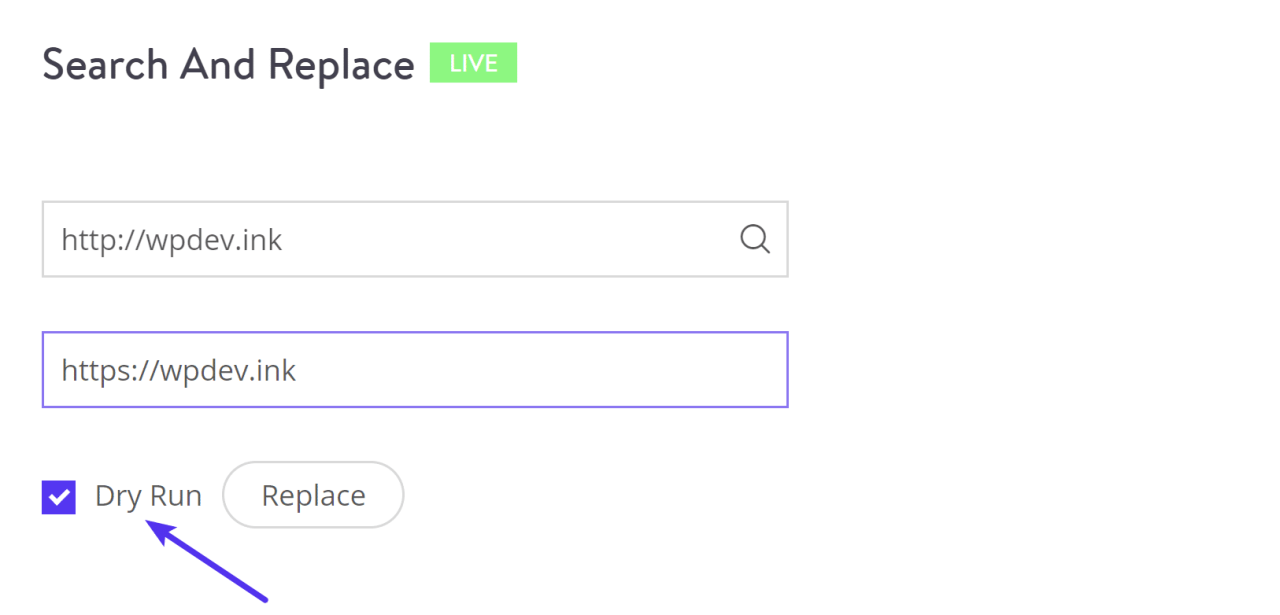
Efficiently using Find and Replace, especially for large datasets, requires strategic planning and the implementation of appropriate techniques. Understanding the tools and methods available can significantly reduce the time and effort involved in complex data editing tasks. This section details techniques to optimize Find and Replace for efficiency and speed.Performing large-scale data edits using Find and Replace requires a methodical approach.
Carefully defining the search criteria, utilizing batch processing, and leveraging automation tools are crucial for achieving desired results with minimal manual intervention.
Strategies for Large-Scale Data Edits
Planning and preparation are critical for large-scale data edits. Thoroughly understanding the data structure, identifying patterns and potential issues, and outlining a clear strategy will prevent costly errors and wasted time. Testing the Find and Replace operations on a smaller sample of the data is essential to validate the desired outcome and catch any unexpected issues before applying the edits to the entire dataset.
Batch Processing and Automation
Batch processing allows for the execution of Find and Replace operations on multiple files or records simultaneously. This approach is significantly faster and more efficient than manually editing each file individually, particularly when dealing with large datasets. Scripting languages like Python, along with specialized tools for text processing, are invaluable in automating these tasks.
Tools and Plugins for Enhanced Performance
Several tools and plugins can enhance the speed and reliability of Find and Replace operations. These tools often provide features for regular expressions, batch processing, and error handling. Specific software packages might offer add-ons that integrate directly with the Find and Replace function. These add-ons can provide additional features, such as advanced filtering options, which further increase efficiency.
Minimizing Errors and Maximizing Speed
Minimizing errors during complex Find and Replace operations is critical. Implementing multiple checks and backups before applying changes, using regular expressions for more complex searches, and validating the output are key steps in maximizing speed and accuracy. Regular testing of smaller subsets of data is crucial to ensure that the intended changes are correctly implemented before processing the entire dataset.
Employing version control systems can further aid in tracking changes and reverting to previous versions if needed.
Conclusion

In conclusion, this guide has explored the multifaceted world of Find and Replace, equipping you with the knowledge to perform data editing tasks swiftly and accurately. By understanding the fundamental principles, advanced techniques, and troubleshooting methods, you’ll be well-prepared to handle any data editing project with confidence. Efficient data editing is a cornerstone of productivity, and mastering Find and Replace is a key step towards achieving that goal.