Autofill is a powerful tool that significantly streamlines data entry across various applications. From web browsers to spreadsheet software, autofill anticipates your needs, reducing manual input and improving both speed and accuracy. This guide delves into the intricacies of autofill, offering practical techniques, advanced strategies, and troubleshooting tips for optimal utilization. We will explore how autofill adapts to your input patterns and provides specific solutions for diverse data types.
Mastering autofill empowers you to efficiently manage data series, ensuring consistent formatting and minimizing errors. This guide provides a detailed breakdown of the process, from basic techniques to advanced strategies, enabling you to maximize autofill’s potential across different platforms and data types. Understanding its functionality and limitations is key to effectively leveraging this valuable feature.
Introduction to Autofill
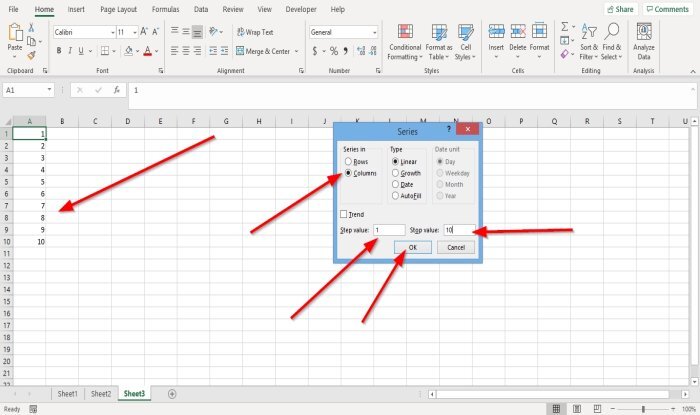
Autofill is a powerful feature in various software applications that streamlines data entry by predicting and automatically populating fields with previously entered information. This significantly reduces the time and effort required for repetitive tasks, enhancing efficiency and accuracy. It’s a valuable tool for both individual users and businesses, saving valuable time and minimizing the risk of errors.Autofill works by analyzing the user’s input patterns and historical data.
This learning process enables the system to anticipate and suggest appropriate values for subsequent entries. The accuracy of autofill predictions depends on the amount and consistency of user data. Consistent input, such as repeatedly entering names, addresses, or dates, will lead to more accurate and reliable suggestions.
Autofill Functionality Across Software
Autofill functionality varies slightly across different software applications, but the core principle remains the same: to expedite data entry. Web browsers utilize autofill for forms, such as those found on online shopping websites, and often store user credentials. Spreadsheet software, like Microsoft Excel or Google Sheets, leverages autofill for filling in numerical sequences, dates, and even text patterns. These features significantly speed up repetitive data entry, minimizing errors and maximizing productivity.
Benefits of Autofill
Autofill provides numerous advantages for users. The most prominent benefit is the significant reduction in data entry time. By automatically populating fields with suggested values, users can complete tasks much faster. Accuracy is also improved. By reducing the chance of manual typing errors, autofill minimizes the risk of incorrect data input.
This leads to better data quality and avoids costly corrections or re-entries.
How Autofill Learns
Autofill’s ability to predict user input relies on its learning capability. The software analyzes the user’s past input, identifying patterns and regularities. For instance, if a user repeatedly enters their name and address, the autofill feature will learn these patterns and suggest these values when the user enters similar information in the future. The system’s learning algorithm dynamically adjusts to the user’s input habits, adapting to changing preferences or variations in input.
Examples of Autofill Applications
The following table illustrates various software applications where autofill is applicable:
| Software | Autofill Application |
|---|---|
| Web Browsers (e.g., Chrome, Firefox) | Auto-completing form fields (names, addresses, passwords), credit card information. |
| Spreadsheet Software (e.g., Excel, Google Sheets) | Auto-filling numerical sequences, dates, and text patterns. |
| Email Clients | Auto-completing email addresses and contact information. |
| CRM Software | Auto-completing customer information, such as names, addresses, and purchase history. |
Basic Autofill Techniques

Autofill, a powerful feature in many applications, significantly streamlines data entry. It anticipates user input by suggesting likely values based on previous entries or patterns. Mastering these techniques can save considerable time and effort, especially when dealing with repetitive data series.Understanding the fundamental steps for activating autofill and the various input methods that trigger it is crucial for efficient data entry.
This section will detail the procedures for employing autofill across different software applications, along with examples of how it handles various data series.
Activating Autofill Features
The activation process varies slightly across different applications. Generally, users should look for an “Autofill” or similar option within the application’s settings or preferences menu. Some applications may have autofill enabled by default. In these cases, observing the application’s interface for autofill indicators or suggestions is key.
Entering Data Series Using Autofill
Autofill excels at handling data series by recognizing patterns in user input. Different software applications employ slightly different methods. For instance, in spreadsheet applications, entering the first few values of a numerical sequence might trigger autofill to automatically populate subsequent entries. Similarly, in word processors, typing a frequently used phrase might prompt autofill suggestions. The specific input methods triggering autofill depend on the application’s design.
Input Methods Triggering Autofill
Various input methods can initiate autofill functionality. Typing is a common trigger, with the application predicting subsequent entries based on the input. Furthermore, pasting data from other sources, such as copied data from a document or spreadsheet, can also activate autofill if the application recognizes a pattern in the pasted data. Other methods might involve using drag-and-drop functions.
Examples of Autofill Data Series
- Numerical Sequences: Autofill can handle arithmetic progressions, geometric progressions, and other numerical sequences. For instance, entering 1, 2, 3, and 4 might automatically fill in the next numbers in the sequence.
- Date Series: Autofill can handle various date formats and sequences. Entering consecutive dates or dates following a pattern (e.g., the first of every month) can trigger autofill to complete the sequence.
- Time Series: Similar to date series, autofill can recognize patterns in time entries. Entering 9:00 AM, 10:00 AM, and 11:00 AM might lead to autofill suggestions for the subsequent times.
- Names and Addresses: Autofill can be useful for repetitive entries like names and addresses, particularly if the application has access to a database or a previous history of such entries.
- Text-Based Data: Autofill can handle text-based data, such as commonly used phrases, titles, or even names. This can be particularly helpful when working with forms or reports.
Illustrative Examples
| Application | Data Series | Autofill Action |
|---|---|---|
| Spreadsheet (e.g., Microsoft Excel) | 1, 2, 3, 4 | Autofills 5, 6, 7, etc. |
| Word Processor (e.g., Microsoft Word) | “Dear [Name],” | Suggests “Dear John Smith,” based on previous input. |
| Email Client | Email addresses from a contact list | Autofills the recipient field when typing the first few letters of a contact’s name. |
Advanced Autofill Strategies

Autofill, while a powerful tool for streamlining data entry, can sometimes encounter limitations or errors. Understanding these potential issues and how to customize settings can significantly enhance the user experience and prevent frustration. This section delves into advanced strategies for effectively managing and modifying autofill entries to ensure optimal performance.Careful consideration of potential pitfalls and proactive customization are key to harnessing the full potential of autofill.
A comprehensive understanding of how to troubleshoot and adjust autofill settings allows for a more efficient and reliable data entry process.
Identifying Autofill Errors and Limitations
Autofill, while remarkably effective, can sometimes fall short. Recognizing the situations where autofill might struggle is crucial for mitigating potential errors and optimizing the system. Certain data patterns or inconsistencies in the input data can lead to incorrect predictions or failures to autofill. These limitations are often context-dependent, relying on the quality and consistency of the data being entered.
- Inconsistent Data Entry: If user input patterns are irregular or inconsistent, the autofill algorithm may struggle to identify predictable patterns, leading to errors or incorrect predictions. For example, if a user sometimes enters dates in “MM/DD/YYYY” format and sometimes in “DD/MM/YYYY”, the autofill system may have difficulty generating accurate predictions.
- Limited Data History: Autofill relies on a historical record of user input. Insufficient data history for a particular input field can result in limited or inaccurate autofill suggestions. For instance, if a user has only entered a few instances of their address, the autofill system may not be able to provide a complete and accurate suggestion.
- Data Conflicts: If multiple, conflicting data entries exist for a given input, autofill may struggle to choose the most appropriate option, potentially causing errors or user confusion. For example, if a user has entered different addresses for the same contact in different contexts, the autofill system might present an inaccurate address.
Customizing Autofill Settings
Autofill settings offer a range of customization options to enhance user experience and tailor the system to specific needs. Proper configuration can significantly improve the accuracy and efficiency of autofill.
- Data Format Specifications: Many autofill systems allow users to specify the expected data format. For example, users can dictate preferred formats for dates, times, or numbers, leading to more accurate and predictable suggestions.
- Exclusion Criteria: Users can specify criteria to exclude certain data from being considered for autofill. This is useful for preventing the inclusion of sensitive or irrelevant information in the suggestions.
- Personalization Options: Autofill often allows for personalized settings. Users can adjust the sensitivity or scope of suggestions to match their individual needs and preferences.
Managing and Modifying Autofill Entries
Managing existing autofill entries is essential for maintaining data accuracy and consistency. Users can review, edit, and delete entries to keep the autofill database up-to-date. Effective management ensures the autofill system is always providing relevant and accurate suggestions.
- Viewing Existing Entries: Users can often review the entries that the autofill system has stored for a specific input field. This allows users to verify accuracy and identify any potential errors or duplicates.
- Editing Existing Entries: Users can modify or correct inaccurate entries to ensure the autofill system remains up-to-date and provides accurate suggestions.
- Deleting Entries: Users can delete entries that are no longer relevant or accurate, which helps prevent the autofill system from providing outdated or incorrect suggestions.
Clearing and Deleting Autofill Entries
Clearing or deleting autofill entries is a crucial aspect of managing the autofill database. Users need to know the different methods to remove specific or all entries from the autofill list.
- Deleting Individual Entries: Most autofill systems provide a way to delete specific entries. The method varies by application but usually involves selecting the entry and choosing a “delete” or “remove” option.
- Clearing All Entries: Users can clear all autofill entries for a particular input field or across the entire system. This can be useful for resetting the autofill database to a clean state.
Autofill for Specific Data Types
Autofill is not limited to simple text strings; it extends its capabilities to handle various data types, including numerical sequences, dates, and times. This enhanced functionality significantly speeds up data entry for repetitive patterns and ensures accuracy, especially in spreadsheets, databases, and other applications requiring structured data.Understanding how autofill works with different data formats is crucial for efficient use.
This section delves into the specific autofill techniques tailored for numerical sequences, dates, and times, showcasing how repeating patterns are handled and contrasting the treatment of various data types.
Numerical Sequences
Autofill excels at generating numerical sequences. By entering the first few numbers of a series, autofill often automatically recognizes the pattern and extends it. This feature is invaluable for tasks such as creating lists of sequential numbers, product codes, or invoice numbers. For instance, if you enter 1, 2, 3, autofill will likely continue the series with 4, 5, 6, and so on.
Similarly, if you input 10, 20, 30, autofill will probably recognize the pattern and continue with 40, 50, and so on.
Dates and Times
Autofill’s functionality extends to dates and times, simplifying the creation of schedules, calendars, and timelines. By entering the first few dates or times, autofill can predict the pattern and generate the subsequent dates and times, either in a daily, weekly, monthly, or yearly increment. For example, if you input 2024-01-01, 2024-01-02, 2024-01-03, autofill will probably continue the series with the next dates.
Repeating Patterns
Autofill effectively handles repeating patterns in various data types. For numerical data, entering 1, 2, 1, 2, 1 will likely generate the sequence 2, 1, 2, 1, etc. Similarly, with dates, autofill can detect repeating patterns in schedules, like monthly payments on the 15th of each month, or weekly meetings on Wednesdays.
Comparison of Data Formats
Autofill’s treatment of different data formats is generally consistent, but nuances exist. Text-based data, such as names, addresses, or product descriptions, typically follow a pattern of incremental differences rather than mathematical progression. Numerical sequences are more predictable and follow patterns based on arithmetic progression or other mathematical rules. Dates and times are often treated based on calendar cycles, with autofill using standard calendar conventions for prediction.
Autofill Procedures by Data Type
| Data Type | Autofill Procedure | Example |
|---|---|---|
| Numerical Sequences | Autofill recognizes arithmetic or geometric progressions. | 1, 2, 3, 4, … |
| Dates | Autofill recognizes daily, weekly, monthly, or yearly increments. | 2024-01-01, 2024-01-02, 2024-01-03, … |
| Times | Autofill recognizes time increments, often in minutes, hours, or days. | 10:00, 11:00, 12:00, … |
| Text | Autofill recognizes repeating patterns in text but relies more on incremental changes. | Product A, Product B, Product C, … |
Troubleshooting Autofill Issues
Autofill, while a powerful tool for streamlining data entry, can sometimes encounter problems. Understanding these potential issues and their solutions can significantly improve your efficiency and accuracy. This section will detail common autofill problems, offer troubleshooting steps, and provide examples to aid in resolving these issues.Often, autofill issues stem from misconfigurations, corrupted data, or incompatibility with specific applications or operating systems.
Correctly identifying the source of the problem is crucial for effective resolution.
Common Autofill Problems and Solutions
Troubleshooting autofill issues often involves methodical steps. By systematically addressing potential problems, users can more quickly pinpoint the source of the problem. A structured approach is essential to identify the root cause and implement the appropriate solution.
Autofill problems can arise from various sources, including system-level conflicts, incorrect data entries, or incompatibility with the software being used.
- Incorrect Data Entries: Occasionally, the data entered initially might be incorrect or incomplete. This can lead to autofill suggesting the wrong data. Manually correcting the initial entries is the first troubleshooting step. Verify the accuracy and completeness of the source data, and then re-run the autofill function. For example, if you enter “New York” as the city instead of “New York City,” autofill will struggle to match subsequent entries.
- System Conflicts: Conflicts with other applications or system settings can disrupt autofill functionality. Restarting the system, closing unnecessary applications, or updating software can resolve these conflicts. Ensure that no other software is interfering with the autofill process. For example, a conflicting antivirus program or outdated browser extensions can sometimes cause autofill issues.
- Data Format Mismatches: Autofill often relies on consistent data formats. If the format of the data you are trying to autofill differs from the format the system expects, autofill may not function correctly. Ensure the data entered aligns with the expected format. For example, if you enter dates in different formats (e.g., MM/DD/YYYY vs. DD/MM/YYYY), autofill may misinterpret the input.
- Browser or Application Issues: Sometimes, the browser or application you are using may have bugs or issues that affect autofill. Updating the browser or application, or clearing browser cache and cookies, may help resolve the problem. Check for browser or application updates to address potential compatibility problems. For example, a recent update to a specific browser version might be causing autofill errors.
- Corrupted Data: In rare cases, corrupted data within the system’s autofill database can cause issues. This may require specialized tools or data recovery procedures. If autofill consistently provides incorrect or illogical suggestions, a system scan or professional help may be needed.
Error Message Interpretation
Understanding error messages is crucial for effective troubleshooting. Different error messages indicate different problems, and by interpreting these messages, you can pinpoint the root cause and implement a solution. Common error messages and their interpretations are provided below.
| Error Message | Interpretation | Solution |
|---|---|---|
| “Autofill unavailable.” | The autofill feature is currently disabled or unavailable. | Check system settings for autofill enablement or try restarting the application. |
| “Data format not recognized.” | The data you are entering is not in the expected format. | Ensure the data adheres to the required format. |
| “Duplicate entry detected.” | The data you are entering already exists in the system. | Review the existing data and ensure unique entries. |
| “Connection Error” | An issue exists with the connection to the database or server. | Verify network connection or check for system-level issues. |
Autofill Across Different Platforms
Autofill technology, while widely adopted, exhibits variations across various operating systems and browsers. These differences impact user experience and the reliability of data entry. Understanding these variations is crucial for maximizing the benefits of autofill and mitigating potential issues.The consistent goal of autofill across platforms is to streamline data entry by predicting and pre-populating fields with previously entered information.
However, the specific implementations and features vary, influencing how seamlessly autofill functions in different software applications.
Comparison of Autofill Functionality Across Operating Systems
Different operating systems employ autofill in various ways. For instance, macOS often integrates autofill more closely with system-wide settings, while Windows might offer more granular control at the application level. Android and iOS have distinct approaches to autofill, reflecting their respective operating system architectures and user interface paradigms. These nuances affect how easily users can leverage autofill across applications.
Autofill Features in Different Software Types
Autofill functionality extends beyond web browsers. Email clients, for example, might pre-populate recipient fields based on contacts. Contact managers can often synchronize autofill data across different devices and applications. The specifics of these features often depend on the software’s design and the underlying integration with other services.
Security Implications of Autofill
While autofill significantly enhances user experience, security considerations are paramount. Compromised accounts or malicious software could potentially exploit autofill data. Robust security measures, such as strong passwords and two-factor authentication, are crucial when using autofill to prevent unauthorized access to sensitive information. Data encryption and secure storage are essential for safeguarding autofill data.
Table: Autofill Features and Limitations Across Platforms
| Platform | Autofill Features | Limitations | Security Considerations |
|---|---|---|---|
| Google Chrome (Web Browser) | Extensive support for various data types (passwords, addresses, credit cards), integration with Google services. | Data security relies on Google’s security measures; user privacy concerns related to data collection. | Requires strong passwords and security practices on the user end; regular security updates are crucial. |
| macOS (Operating System) | Autofill integrated with system settings; robust security features. | Integration with specific applications might vary; limited cross-platform compatibility. | Strong password management and system security are critical; regular updates are essential. |
| Microsoft Edge (Web Browser) | Similar features to Chrome, utilizing Microsoft’s security infrastructure. | Compatibility with specific websites and applications may vary. | Requires user vigilance and robust security practices; data protection mechanisms are essential. |
| Android (Operating System) | Autofill capabilities vary depending on the application and device settings. | Potential for inconsistent functionality across different applications and devices. | Strong device security measures are necessary; proper management of app permissions is vital. |
Autofill and Data Integrity

Autofill, while a powerful tool for streamlining data entry, requires careful consideration of data accuracy and integrity. Incorrect or inconsistent data can lead to significant downstream problems in various applications, impacting decision-making and potentially leading to operational inefficiencies. Understanding how to validate and prevent errors is crucial for maintaining reliable data.Data entered through autofill, while often based on existing records, is not always perfectly accurate.
Human error in original input, changes in data over time, or conflicting information from different sources can all introduce inaccuracies. This necessitates a proactive approach to validating the data and ensuring its reliability. A robust validation process is critical for maintaining data quality and preventing inconsistencies that could compromise the accuracy of reports and analyses.
Validating Data Entered Through Autofill
Validating data is essential for ensuring its accuracy and consistency. This involves checking data against predefined rules, standards, or existing records. Regularly reviewing data entered via autofill is vital to identify potential inconsistencies or errors. Data validation should be an integral part of the data entry process, not an afterthought. This may involve comparing autofilled values with existing records, checking for logical inconsistencies, and confirming the data source’s reliability.
Techniques for Preventing Data Entry Errors Related to Autofill
Several techniques can help prevent errors stemming from autofill. One key approach is to use autofill only when the source data is trustworthy and reliable. Knowing the origin and potential limitations of the data is crucial for making informed decisions about its use. Implementing a process for verifying autofilled data against authoritative sources, where possible, can significantly enhance the reliability of the data.
Another technique is to incorporate input fields with explicit data validation rules, preventing autofill from introducing values that don’t conform to these rules. This ensures data integrity and allows for immediate identification of potential errors. Furthermore, limiting the scope of autofill suggestions to relevant data categories can help prevent unintended entries.
Best Practices for Ensuring Data Integrity
Maintaining data integrity when using autofill requires a proactive approach. A comprehensive strategy should include several best practices.
- Data Source Validation: Thoroughly evaluate the source of the data being autofilled. Understanding the origin, potential biases, and limitations of the data source is essential for assessing its reliability. This ensures that the autofilled data is trustworthy and aligns with organizational standards.
- Automated Validation Rules: Implement automated validation rules to check for data accuracy and consistency. This should include checks for data type, format, and range. These rules should be integrated into the system to automatically flag potential errors, improving data quality and reliability.
- Regular Data Review: Establish a process for regularly reviewing data entered through autofill. This review should focus on identifying any discrepancies or inconsistencies that might have arisen from autofill suggestions. A periodic audit will catch issues early and minimize the impact on downstream processes.
- Clear Data Entry Guidelines: Establish clear guidelines for when and how to use autofill. These guidelines should highlight the limitations of autofill and emphasize the importance of manual verification where appropriate. This clear guidance reduces the likelihood of errors and ensures consistent data entry practices.
- User Training: Train users on the proper use of autofill and the importance of validating the autofilled data. Training sessions should cover how to recognize potential errors and how to correct them. This training ensures users are aware of the best practices and can maintain data integrity.
Autofill and Privacy Considerations
Autofill technology, while enhancing user experience, raises important privacy concerns. Understanding how autofill handles data is crucial for users to make informed decisions about its use. This section delves into the security and privacy implications of autofill, outlining data storage, user control, and relevant considerations.Autofill systems collect and store user data, ranging from usernames and passwords to addresses and credit card information.
This data is sensitive and, if compromised, could lead to significant financial or personal harm. Therefore, robust security measures are essential to protect user data and maintain user trust.
Security Implications of Autofill
Autofill systems, while convenient, are susceptible to security breaches. Compromised systems could expose sensitive user data, potentially leading to identity theft or financial fraud. Robust encryption methods are employed to protect data in transit and at rest, but the potential for vulnerabilities exists. Furthermore, malicious actors could exploit vulnerabilities in autofill software or user devices to gain access to stored data.
Data Storage and Protection
Autofill data is stored on various platforms, including user devices, cloud servers, and potentially third-party services. Security protocols vary across platforms and services. Strong encryption, access controls, and regular security audits are vital to safeguard data. The specific methods employed by each service provider should be carefully examined to understand the level of protection.
User Control Over Autofill Data
Users should have control over their autofill data. This includes the ability to review, edit, and delete stored information. Clear mechanisms for managing autofill entries are essential. User interfaces should provide intuitive tools to delete, update, or disable specific autofill entries. Furthermore, users should be informed about the types of data being collected and stored by the autofill system.
Privacy Considerations Summary
| Aspect | Description | User Control |
|---|---|---|
| Data Collection | Autofill systems collect user data like usernames, passwords, addresses, and payment information. | Users should be aware of the data collected and be able to manage what is stored. |
| Data Storage | Data is stored on user devices and/or cloud servers, often encrypted. | Users should understand where their data is stored and the security measures in place. |
| Data Security | Strong encryption, access controls, and regular security audits are employed. | Users should understand the security measures used to protect their data. |
| Data Deletion | Users should be able to delete specific autofill entries. | Users should have clear mechanisms for deleting their data. |
| Data Access | Access to autofill data is usually limited to the user. | Users should be aware of who has access to their data and the limits on access. |
Final Review
In conclusion, this guide has explored the versatile capabilities of autofill, encompassing a range of applications, from basic techniques to advanced strategies. We’ve covered how autofill can be tailored to diverse data types, including numerical sequences, dates, and times, and highlighted its importance in maintaining data integrity. Troubleshooting common issues and understanding platform-specific functionalities further enhances the user experience.
Ultimately, this guide equips you with the knowledge to effectively use autofill for efficient and accurate data entry across different platforms.